
OneDrive Business destination allows you to store processed documents in the OneDrive Business cloud storage.
-
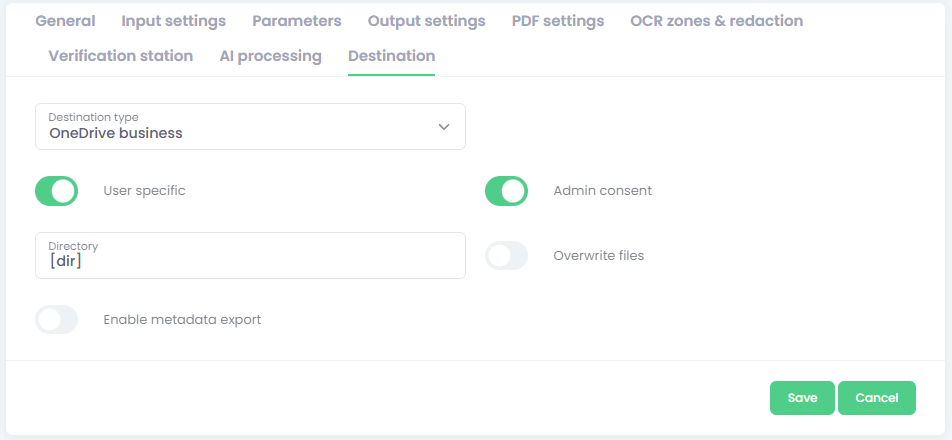
Select the OneDrive business destination type.
-
Fill required settings:
-
Enter parameter configuration:
-
User-specific - Check whether the delivery should be user‑specific or global.
The user‑specific option requires the user to authenticate in OptimiDoc Digital Workspace to access OptimiDoc Cloud at their destination or enable the Admin consent option.
Global authorisation requires an administrator to grant access from the Document Workflow list. -
Admin consent – A Microsoft 365 / Entra ID administrator can grant consent on behalf of the organisation, allowing OptimiDoc to access users’ OneDrive without requiring individual user approval.
-
Directory - Specify the final document directory.
You can use parameters to dynamically create the final folder.
The special ‘manual directory’ parameter can be used to enable folder‑browsing functionality on MFP or mobile devices. -
Overwrite files – enable this option to replace an existing file in the destination if it has the same name.
If the option is disabled, OptimiDoc Cloud will add a suffix to the document name, such as _001, to avoid overwriting. -
Enable metadata export – activate this option to save a metadata file alongside the document.
Configuration of metadata files is described here: Metadata export .
-
OneDrive Business access authorisation
Once you create a workflow with a OneDrive Business destination, the access must be authorised.
-
Click the Authorisation button:
-
User‑specific authorisation – In the user’s Digital Workplace, find the widget named Private destinations to complete the authorisation by click at OneDrive icon.

-
Global or admin consent authorisation – In the list of workflows, select the workflow and click the Authorise destination button

-
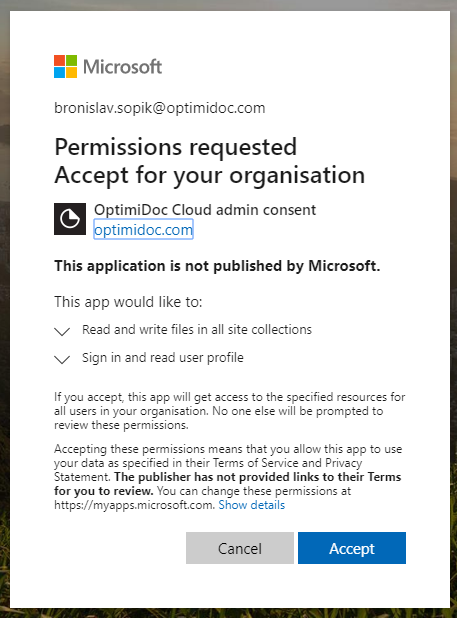
OptimiDoc Cloud opens the Microsoft web page for granting access.
-
Login by you creadentials:
-
To confirm the authorisation, click the Accept button.
-
OneDrive Business access is now fully authorised.