
Available only for Optimicapture pro
Managing documents efficiently is essential in any modern organisation, and OptimiDoc Cloud provides the advanced tools needed to automate, secure, and streamline these processes. Two key features that elevate document processing within the platform are OCR zones and redaction. OCR zones enable the precise extraction of text or barcode information from specific areas of a document, supporting automated file naming, indexing, separation, and workflow routing. Redaction, on the other hand, ensures that sensitive or regulated information is permanently removed from documents before they are stored or shared.
Together, these capabilities enhance accuracy, compliance, and security across your document workflows. Whether you are processing invoices, contracts, HR files, or customer records, OCR zones and redaction help your organisation reduce manual work, eliminate errors, and remain fully aligned with data‑protection standards.
Zones and Redactions editor
The definition of zones and redactions within a workflow is in the OCR zones & redaction section.
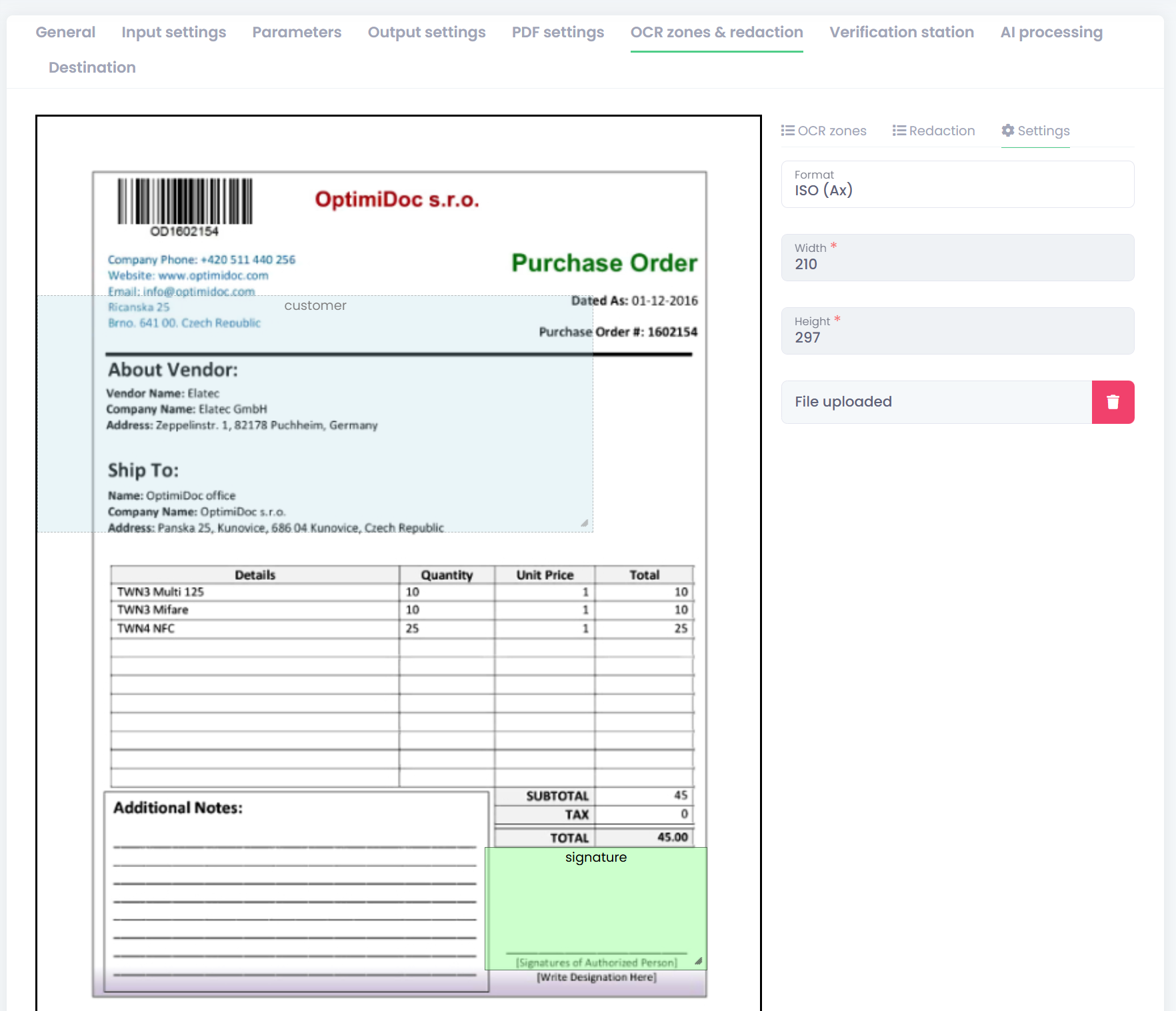
Once you open this section, you can upload the document background for better orientation by clicking 
This helps you achieve better orientation and more accurate positioning of OCR and redaction zones.
Additionally, you can specify the document format by selecting the proper option from the format dropdown, or define a custom format by entering the width and height manually.
How to add an OCR Zone
-
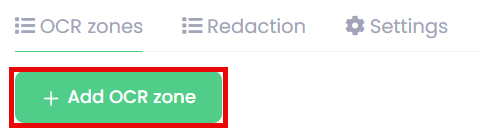
Click Add OCR zone at the OCR zones tab.
-
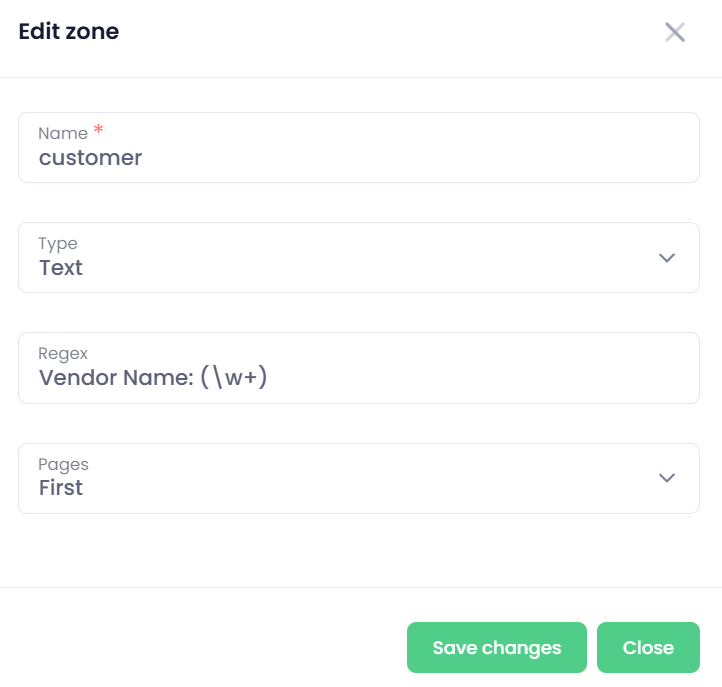
Enter the zone data:
-
Name - name of the zone. It’s also used for referencing the parameter in processing(reference syntax [zone:name]).
-
Type
-
Text - used to extract text from a defined area on the page.
-
Barcode - used to detect and extract barcodes from a given area.
-
Barcode type requires selecting at least one supported barcode format. You can choose a single type or multiple types as needed. The list of supported barcode types can be found here:List of supported 1D and 2D barcodes
-
-
-
Regex - filter to extract only the specific part of the text/barcode you want (e.g. invoice number).
Description of regular expressions can be found here: How to Write Regular Expressions: A Practical Guide -
Pages – choose where extraction occurs: All, First, Last, Predefined.
-
Click Save.
-
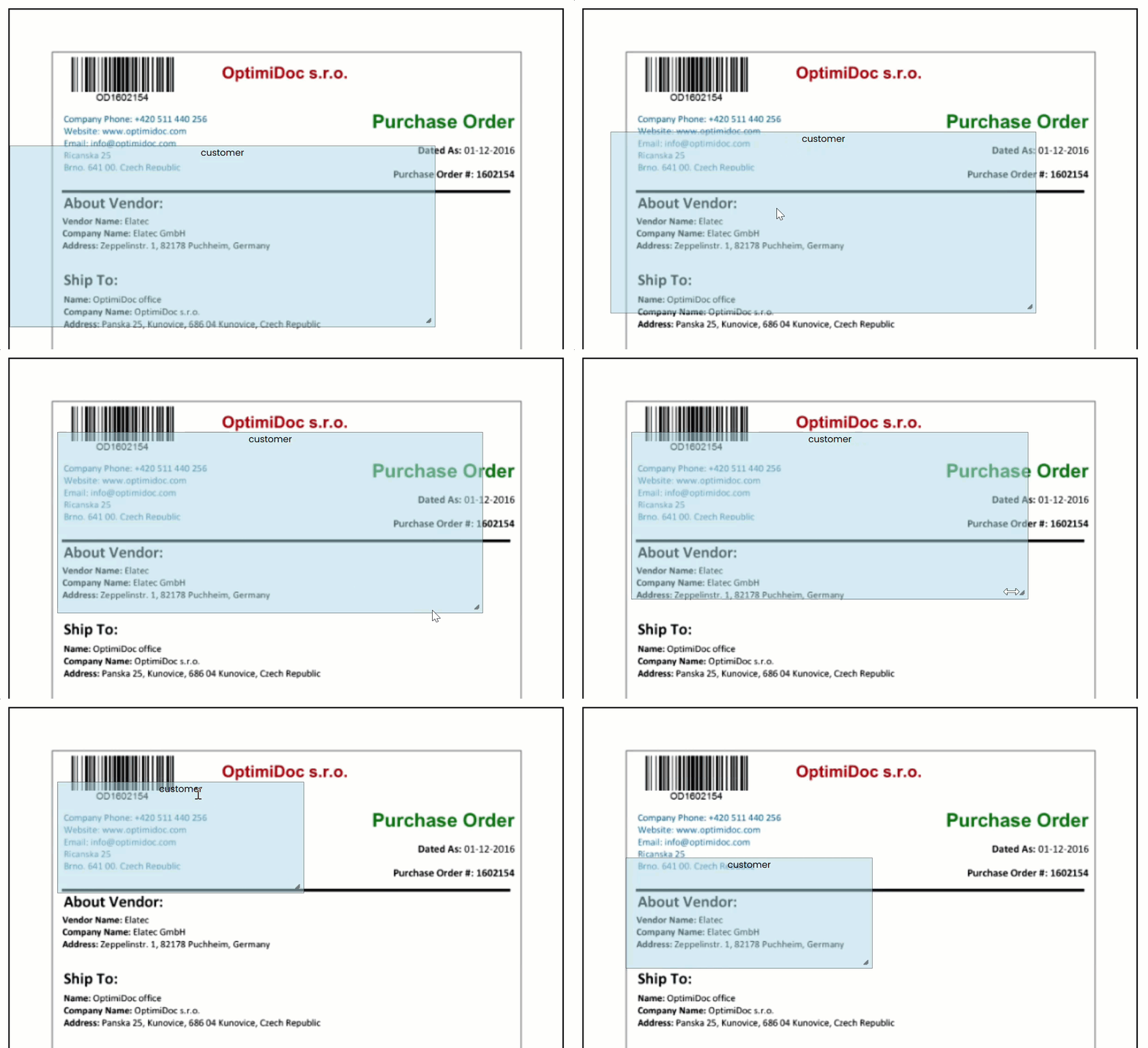
Move and resize to zone as needed in the document preview.
How to add a Redaction zone
OptimiDoc Cloud supports three types of redaction:
-
Plain Text redaction – the system searches for the specified words or phrases and redacts them.
-
Regular expression redaction – the system identifies and redacts any text that matches the defined regular expression.
-
Zone redaction – a predefined rectangular area on the document is redacted.
To create a new redaction:
-
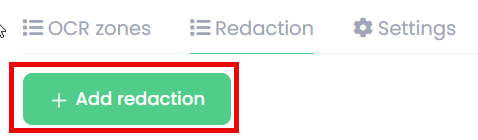
Click Add redaction at the Redaction tab.
-
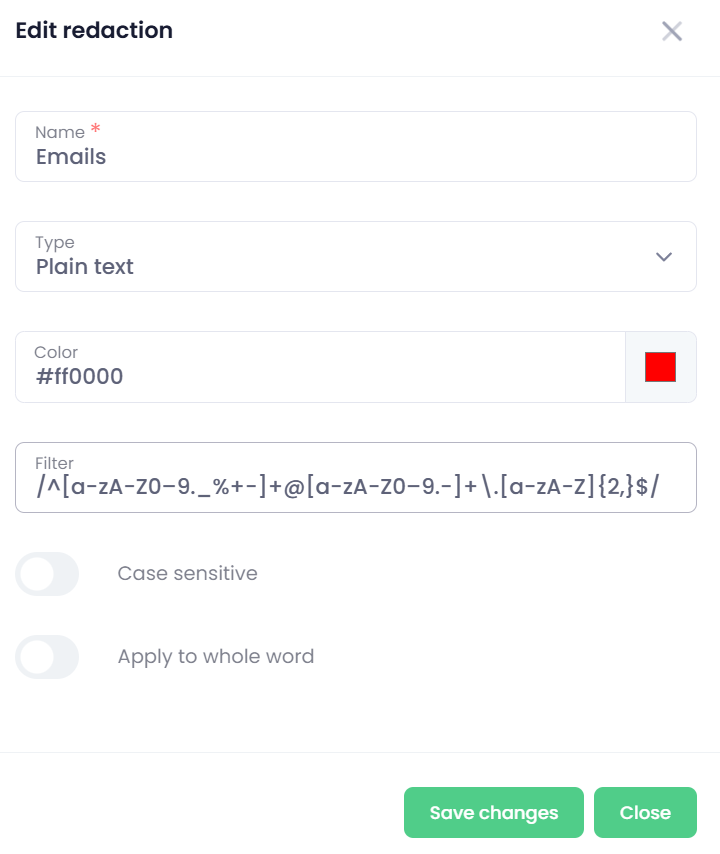
Enter the redaction data:
-
Name - redaction rule name.
-
Type
-
Plain text
-
Regex
-
Zone
-
-
Color – fill color used for redaction.
-
Settings available only for Plain text and Regex redaction types.
-
Filter – available only for Plain text and Regex redaction types.
-
Plain text: enter a comma‑separated list of words you want to redact.
-
Regex: enter the regular expression pattern that should be used for redaction.
-
-
Case sensitive - enable/disable
-
Apply to whole word - determine whether partial matches (e.g. “Verification”) should be redacted or whole word.
-
-
Settings available only for the Zone type
-
Pages – choose on which pages the redaction should be applied. Available options are: All, First, Last, or Predefined.
-
-
Click Save.
For Zone redaction:
Move and resize the redaction area as needed directly in the document preview.
Current Zones and Redactions management
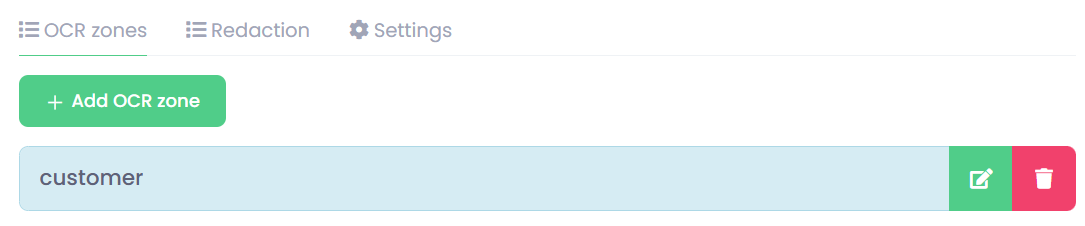
To edit the zone or redaction, click on the edit 
To remove it, click on the remove 