Workflow display order
The display order of workflows on MFP, mobile, or the digital workplace can be changed in the document workflow list.
Click the Order on MFP drop‑down and select one of the available options:
-
Alphabetical
-
Alphabetical (descending)
-
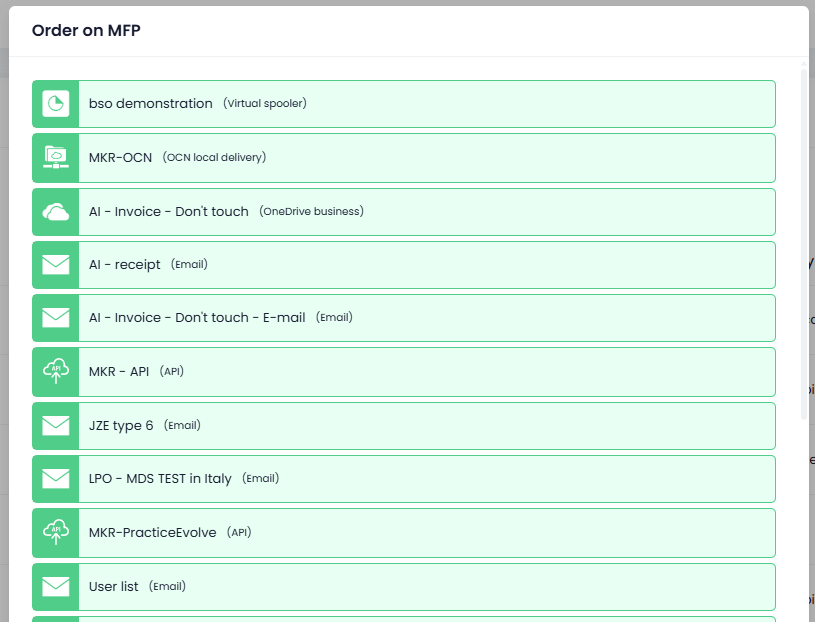
Custom – when this option is selected, a new Set order button appears.
Click Set order to open a pop‑up window where you can redefine the workflow order.
Workflow operations
The following operations can be performed on workflows in the workflow list:
-
Enable or disable a workflow
This operation allows you to control whether a workflow is active or inactive. Enabled workflows are available for use on MFP, mobile, and the digital workplace. Disabled workflows remain in the system but are not available to users.
You can enable or disable a workflow by clicking the Yes/No button for the selected workflow in the Enabled column. -
Edit a workflow
The edit operation allows you to modify an existing workflow. You can update its configuration, steps, parameters, or other settings to reflect changes in business processes or requirements.
To enter edit mode, click the
Additional Operations
Other operations are available under the 
Delete a Workflow
This operation permanently removes a workflow from the workflow list. Once deleted, the workflow is no longer available and cannot be used. This action should be performed with caution, especially if the workflow is currently in use.
Duplicate a Workflow
The duplicate operation creates a copy of an existing workflow. This is useful when you want to create a new workflow based on an existing one, allowing you to reuse and adjust its configuration without starting from scratch.
Export a Workflow
Exporting a workflow allows you to save its definition to a file. This can be used for backup purposes, sharing workflows between environments, or transferring workflows to another Optimidoc Cloud instance.
Workflow templates and import
The workflow import function in OptimiDoc Cloud allows you to add a previously exported document workflow to your environment. This is useful for restoring workflows, transferring workflows between environments, or deploying pre‑configured workflows created by a partner or administrator.
Imported workflows are added to the workflow list, where they can be reviewed, edited, and enabled as required.
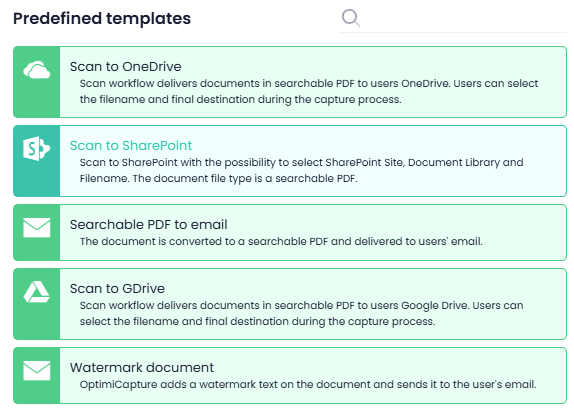
In addition, OptimiDoc Cloud provides predefined workflow templates for the most commonly used scenarios.
How to import workflow/template
-
Open the Document workflow list.
-
Click Import workflow button.

-
Click the Upload workflow button and select the workflow file, or simply drag and drop the file into the upload area.

Or choose the workflow from available templates