
The portal is accessible via a standard web browser by opening the dedicated data centre address:
https://<datacentre>.optimidoc.cloud
From there, customers can administer users, devices, configuration, and service settings within their assigned environment.
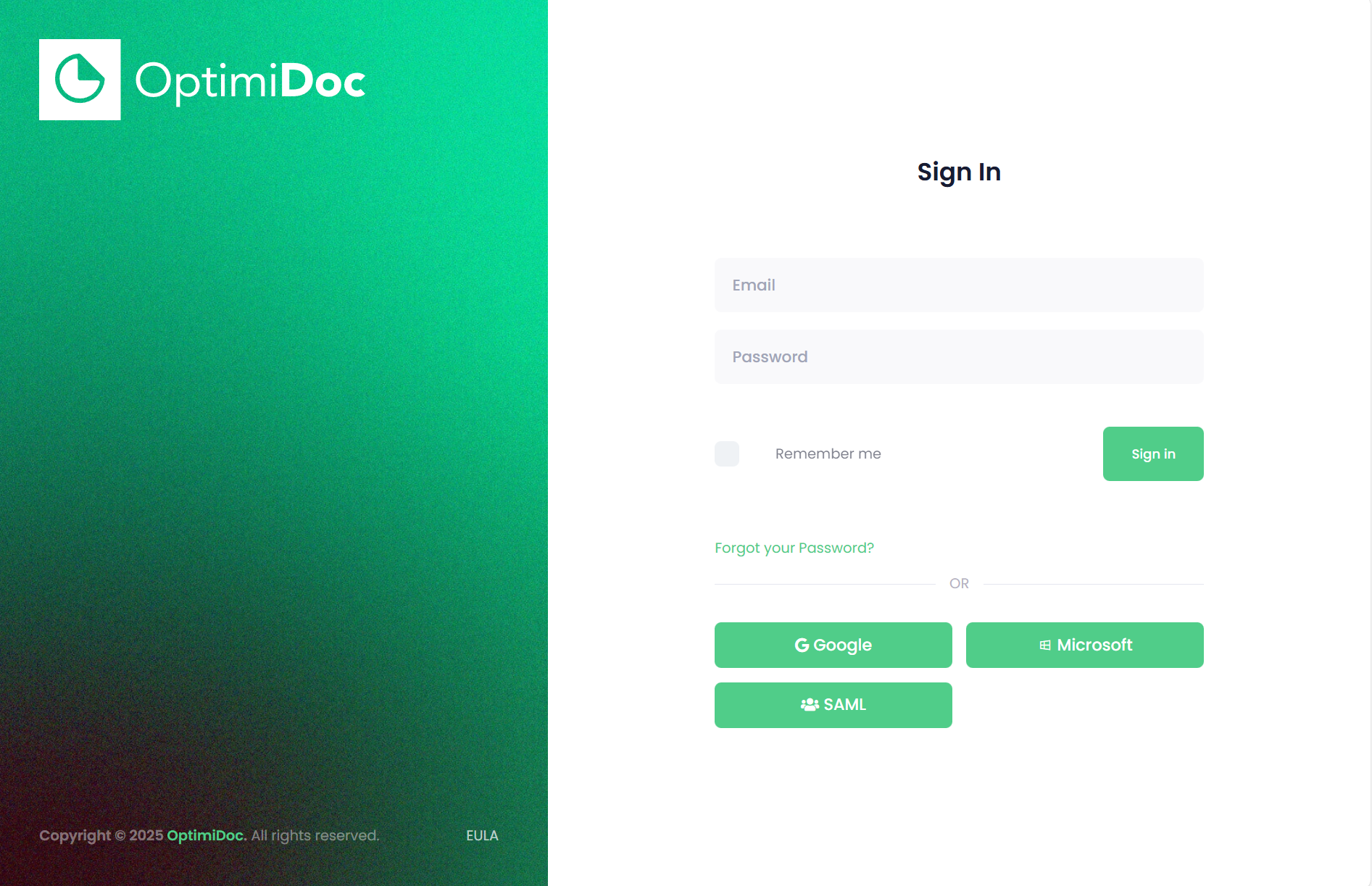
Authetication page
To access the Administration Portal, the user must first sign in. OptimiDoc Cloud supports multiple authentication methods, including Login & Password, Microsoft account, Google account, and SAML-based Single Sign-On.
Navigation
Once you sign in to the Administration Portal, the system displays information specific to your tenant and user permissions.
Before we proceed through each section, here is a brief explanation of how to navigate within the system.
Main Menu
The Administration Interface is organised into the following sections:
-
Dashboard – Provides a quick overview of tenant status, recent activity, and key system metrics.
-
Workflow Management – Configuration and management of document workflows, including scanning, processing, and delivery rules.
-
Print Management – Print connectors, price lists, and print‑related settings.
-
Reporting – Access to detailed reports covering usage, accounting, print volumes, and workflow activity.
-
Users – User administration including properties, groups, authentication settings, and synchronisation sources.
-
Devices – Management of multifunction devices, clients, and print drivers.
-
Diagnostics – Tools for troubleshooting, error logs, audit logs, synchronisation checks, and technical insights.
-
Custom Emails – Configuration of customised email templates for notifications and document delivery.
-
Settings – Global tenant settings, including branding, SMTP, integrations, security options, and system preferences.
Top Ribbon
-
News

-
Light/Dark mode


-
Language selector

-
Link to eLearning

-
Link to Documentation

-
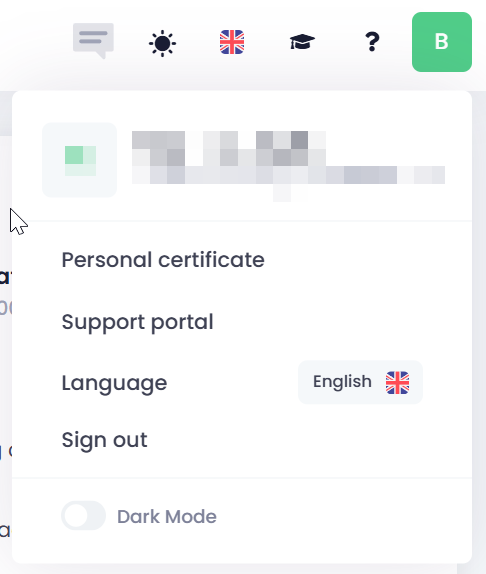
Account button - additional settings are available under this option.
-
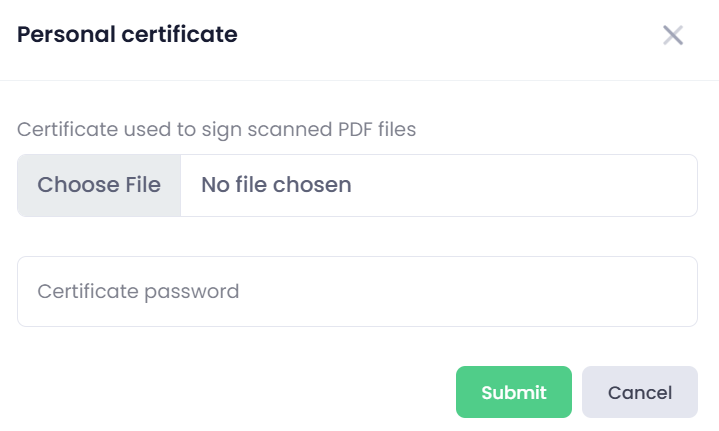
Personal Certificate -Opens a pop‑up window for uploading a personal certificate used to digitally sign PDF documents. A certificate file and its password are required.
-
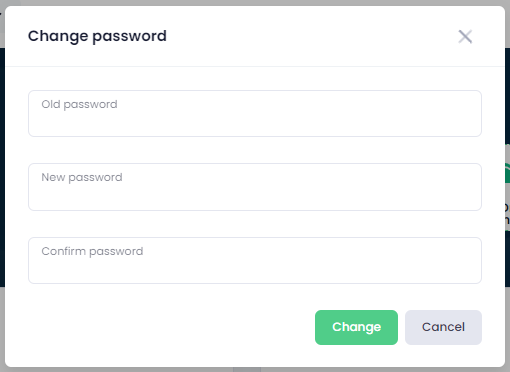
Change Password - Opens a pop‑up window allowing the user to change their current password. Available only for local accounts.
-
Language Selector - Click the language flag to switch between the supported interface languages.
-
Sign Out - Immediately logs the user out of the system and returns them to the login screen.
-
Dark Mode - Activates the dark display mode for improved visual comfort, especially in low‑light environments.