
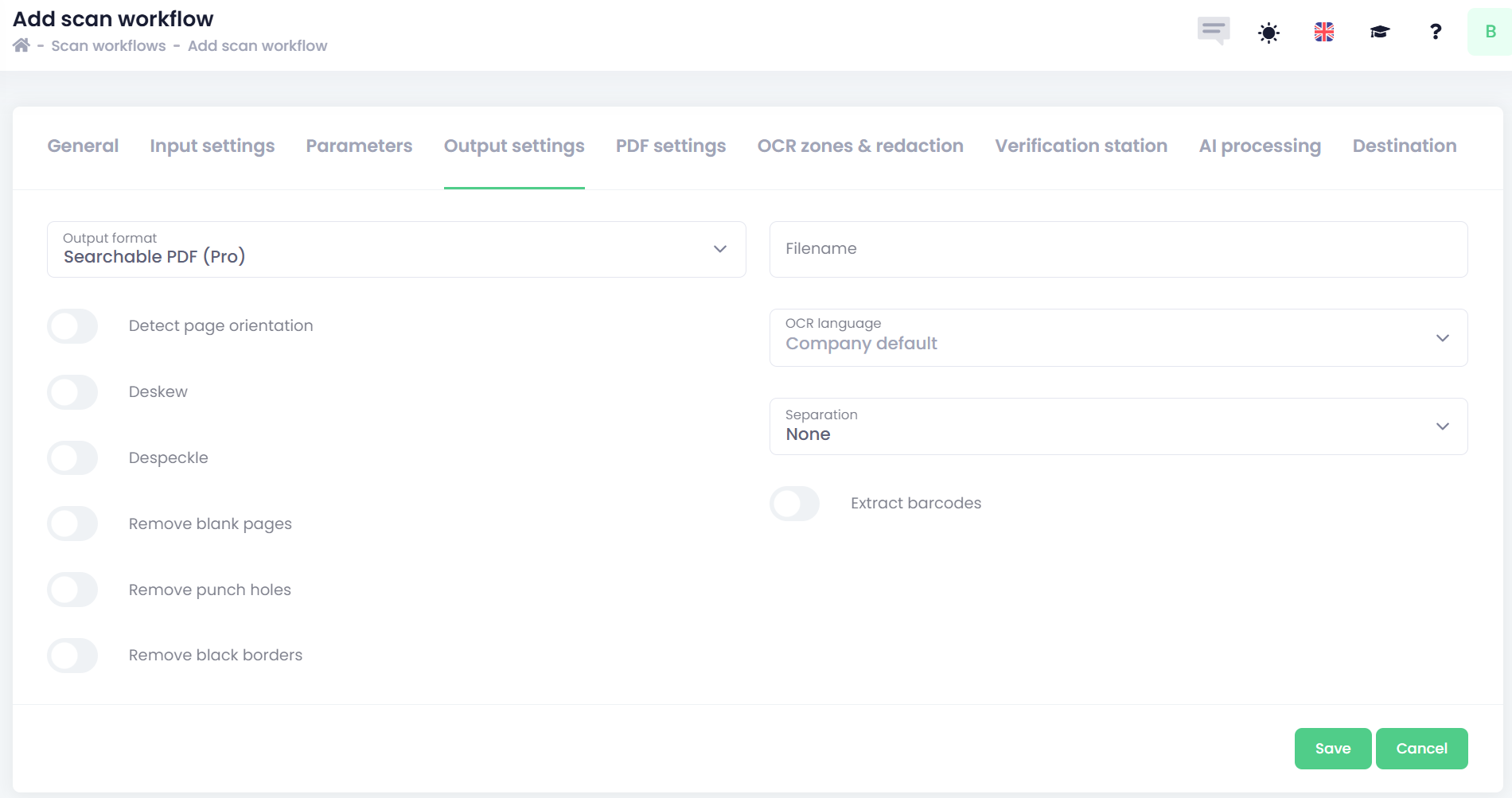
In the Output section, you can define the final document name, file type, image enhancement settings, separation, and barcode extraction. The available options depend on the selected file type, and most advanced features are available only for PDF.
How to configure output settings
-
Output format – Specifies the final file type of the processed document. OptimiDoc Cloud offers different file types depending on the purchased license version.
|
File format |
OptimiCapture Lite |
OptimiCapture Pro |
|---|---|---|
|
non-searchable PDF |
|
|
|
Multipage TIFF |
|
|
|
searchable PDF (Lite) |
|
|
|
searchable PDF (Pro) |
|
|
|
Business Card |
|
|
|
Microsoft Word |
|
|
|
Microsoft Excel |
|
|
|
Microsoft PowerPoint |
|
|
|
RTF |
|
|
|
Plain text |
|
|
|
searchable PDF (MFP OCR) |
|
|
-
Filename – Specifies the final document name. You can use manual, system, or extracted parameters to create dynamic file names. The usage of parameters is described here. How to use the parameters
-
Image enhancement - refers to a set of automated corrections applied to scanned documents to improve their clarity, readability, and overall visual quality before further processing (OCR, separation, AI extraction, etc.).
Most image‑enhancement features are available primarily for the PDF format.-
Detect page orientation - Automatically identifies whether a scanned page is rotated (e.g., upside down or sideways) and corrects it so the final document is properly aligned.
-
Deskew - Straightens pages that are slightly tilted during scanning, improving readability and OCR accuracy.
-
Despeckle - Removes small dots, noise, and grain from the image—especially useful for old or low‑quality originals.
-
Remove blank pages - Automatically detects and deletes completely blank pages from the scan, reducing file size and avoiding unnecessary pages.
The blank page removal threshold defines the percentage of the page that contains no detectable content. If the amount of detected content falls below this threshold, the page is considered blank and removed. -
Remove punch holes - Detects and removes visible ring‑binder or punch‑hole marks from the edges of scanned pages for a cleaner final image.
-
Remove black borders - Crops out or cleans dark edges that appear when scanning pages that don’t fully cover the glass, producing a clean, border‑free document.
-
-
OCR language - Specifies the language used by the OCR engine when recognising text in the document. Choosing the correct language improves the accuracy of text extraction and searchable PDF output.
Company default – uses the value selected in the Settings section, predefined by the Administrator as the common OCR language used by your company.
Note: Available in searchable PDF, Microsoft Word, Excel and PowerPoint, Business card, and RTF format.
List of available OCR languages in OptimiDoc Cloud -
Separation - Controls how multi‑page scans are split into individual documents.
Supported separation methods include:-
None - No automatic document separation will be applied.
-
Barcode - Scanned documents will be separated into multiple documents based on barcodes.
A barcode marks the first page of a new document.-
Delete separator page – If set to Yes, the page containing the barcode will be removed from the output.
-
-
Page Count - Specify the number of pages per document.
For example:
Setting the value to 2 means that every 3rd page begins a new document; therefore, each output file will contain 2 pages. -
Blank Page - Scanned documents will be separated whenever a blank page is detected.
-
Delete separator page – If set to Yes, the blank page used for separation will be removed.
OCR Zone
-
-
Separation zone – Select the zone area used to detect document separation. The separation by zone requires defining the zone created in the section OCR zones and redaction.
The separation follows this rule:
When any new value appears in the defined zone, a new document is created.
Subsequent pages are added to this new document until the zone detects another new value.
Values that are identical to the previous value or empty (null) are ignored and do not trigger a new document.
-
-
Extract Barcodes - Identifies and reads barcode values (1D or 2D barcodes) found on scanned pages.
Configuration of barcode extraction:-
Barcode types – specify the type of barcode to extract. One or more types may be selected; however, selecting multiple barcode types may slow down processing. List of supported 1D and 2D barcodes
-
Barcode regex – use a regular expression to match barcodes that follow a specific pattern.
How to Write Regular Expressions: A Practical Guide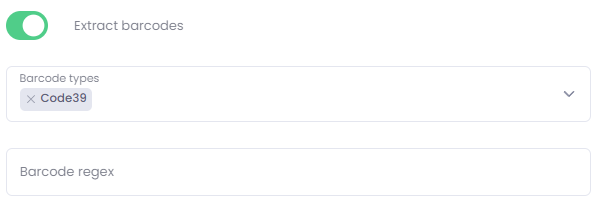
-
The extracted values can be used as:
-
Metadata
-
Document naming rules
-
Separation triggers
-
-