
OptimiDoc Cloud enables administrators to customise all e‑mail messages automatically sent to users during onboarding, authentication, and system operations.
These customisable templates allow organisations to maintain consistent branding, adapt communication to internal policies, and include additional instructions relevant to their environment.
OptimiDoc Cloud sends several predefined e‑mail notifications.
-
Email authentication prompt – Sent when the user is trying to authorise to the Client or Mobile application with email and one-time password.
-
Expired OptimiDoc licence alert – Notifies administrators that the OptimiDoc Cloud licence has expired or is about to expire.
-
New file for verification – Sent when a new document is processed and waiting to verify extracted values.
-
New user notification – Sent when a new user account is created in the system.
-
Spooler size limit notification – Alerts when tentant print spooler has reached the allowed size limit.
-
User password change notification – Sent after a user successfully changes their password.
-
User password reset – Sent when a user requests a password reset.
-
User PIN change notification – Sent when a user’s PIN is updated.
If no custom template is created for a specific notification type, OptimiDoc Cloud automatically uses the default system e‑mail template.
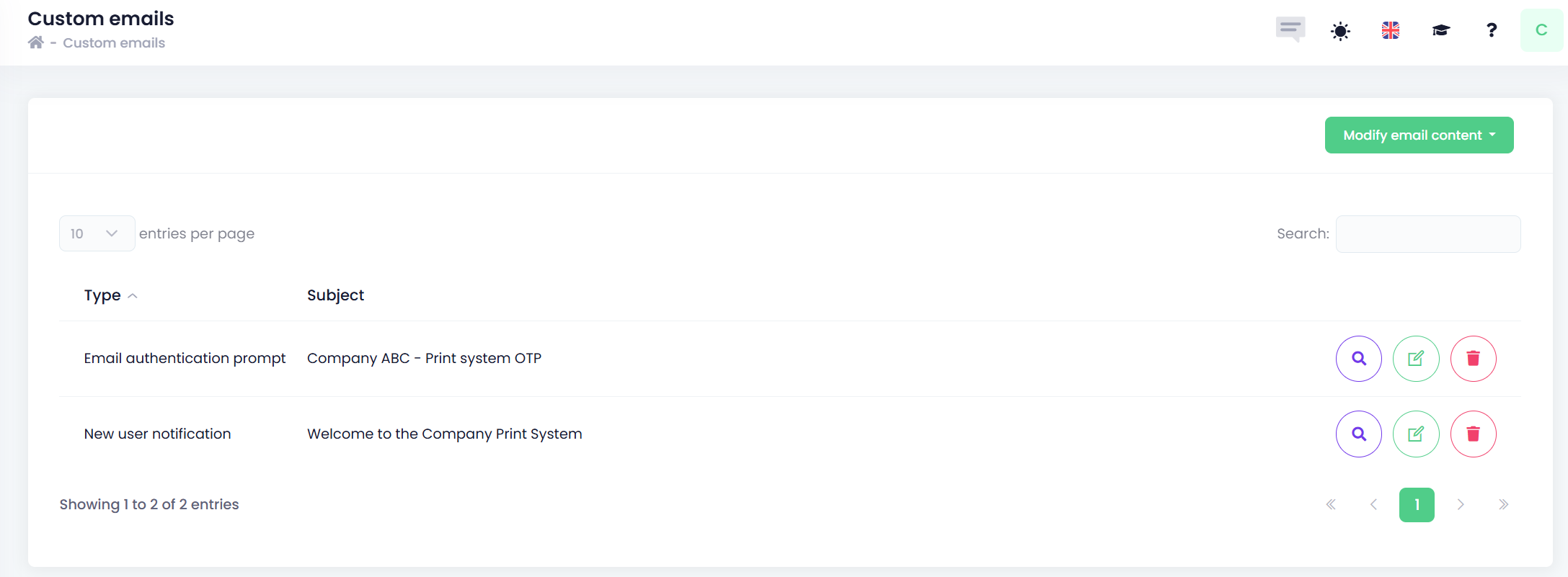
Custom Emails Overview
The Custom Emails overview displays a list of all custom email templates created for the tenant.
From this list, administrators can:
-
Preview the email content
-
Modify the template
-
Delete an existing custom email
This allows easy management and maintenance of all customised notification messages.
How to Add a New Custom Email
To create or update a custom email template:
-
Open the Custom Emails section in the OptimiDoc Cloud Admin Portal.
-
Click the Modify email content button.
-
From the list, select the notification type you want to customise (e.g., New user notification, Password reset email, PIN change notification).
-
A new pop‑up window with the graphical email editor will appear.
Edit the subject and body of the email as required.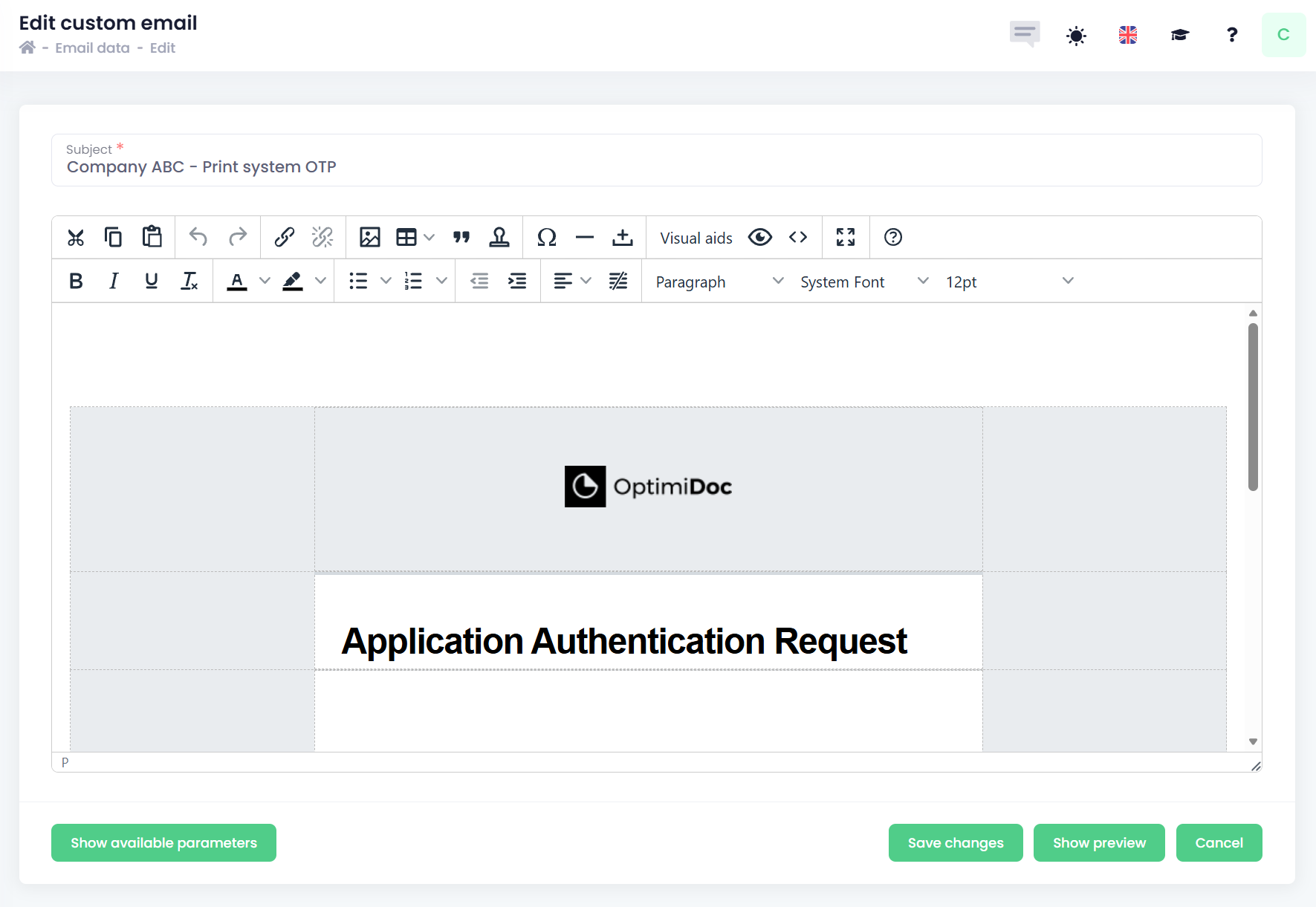
Each email template may contain specific parameters that are dynamically replaced during sending.
A full list of available parameters is provided in the following section.
You can switch to the HTML code editor by clicking the <> button. -
Click Save to apply the changes, or Preview to see how the email will look when delivered.
Available Parameters
The following parameters can be used inside custom email templates.
They are automatically replaced with real values when the email is sent.
Date & Time Parameters
-
[current_date] – Current date
-
[current_time] – Current time
-
[current_date_time] – Current date and time
-
[current_year] – Current year
-
[current_month] – Current month
-
[current_day] – Current day
-
[current_hour] – Current hour
-
[current_minute] – Current minute
-
[current_second] – Current second
-
[current_millisecond] – Current millisecond
-
[timestamp] – Current timestamp value
User Parameters
-
[user_full_name] – User’s full name
-
[user_given_name] – User’s given name
-
[user_family_name] – User’s family name
-
[user_email] – User’s email address
Parameters for Particular Email
-
[auth_code] – Authentication code used in the Email authentication prompt
-
[url_change_password] – URL link for changing the user’s password.
-
[user_password] – The user’s temporary or newly generated password (if applicable).
-
[user_pin] – The user’s PIN generated or updated during the import or account creation process.
-
[verification_url] – URL that opens the page where a document is waiting for user verification.
-
[size_current] – Current spooler size used by the tenant.
-
[size_current_percent] – Current spooler usage expressed as a percentage of the total allowed limit.
-
[size_limit] – Maximum spooler size allowed for the tenant.
-
[size_remaining] – Remaining available spooler space before reaching the limit.