
When you create or edit a scan workflow, the PDF Settings tab groups all options that affect the output PDF produced by the workflow. It’s where you control security, compliance, compression/quality, and visual post‑processing (e.g., watermarks, signatures).
The following functions can be enabled:
PDF format and compression
-

PDF format - Choose a target PDF standard (e.g., searchable PDF for general use; archival PDF/A when required)
-
Available PDF formats
-
Archival
-
PDF/A-1a
-
PDF/A-1b
-
PDF/A-2a
-
PDF/A-2b
-
PDF/A-2u
-
PDF/A-3a
-
PDF/A-3b
-
PDF/A-3u
-
PDF/UA
-
-
Standard
-
PDF 1.3
-
PDF 1.4
-
PDF 1.5
-
PDF 1.6
-
PDF 1.7
-
PDF 2.0
-
-
-
-
Enable compression – Activates MRC (Mixed Raster Content) compression for the document. MRC significantly reduces file size by separating text, images, and backgrounds into optimised layers. Enabling this feature may slow down processing speed.
Metadata
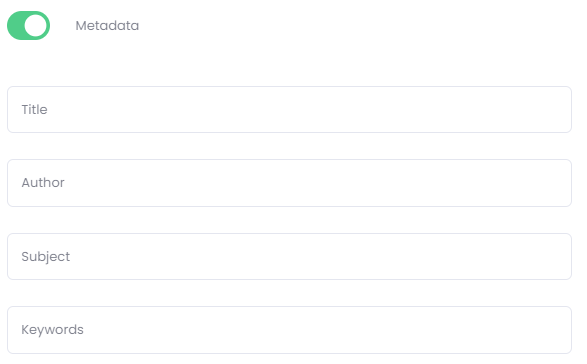
PDF metadata consists of descriptive information embedded within a PDF file that helps identify, classify, and manage the document. It does not alter the document’s visual content; instead, it provides structured properties that software systems can use for indexing, searching, sorting, compliance, and automated processing.
Available only for Optimicapture pro
Parameters may also be used in PDF metadata to populate values dynamically.
-
The following metadata fields can be entered:
-
Title – The formal name of the document.
-
Author – The individual or entity that created the file.
-
Subject – A brief description of the document’s topic.
-
Keywords – Search terms that make the document easier for users or systems to locate.
Parameters may also be used in PDF metadata to populate values dynamically.
-
Encryption
PDF encryption is a security feature that protects a PDF file by requiring a password to open or view the document. When enabled, the PDF is encrypted using strong cryptographic standards, ensuring that only authorised users can access its contents.
Available only for Optimicapture pro

-
PDF password – The password that will be applied to the PDF during processing.
Use parameter – Enable this option to replace the manual password with a system or workflow parameter. When enabled, insert the parameter key into the PDF password field.
Digital signature
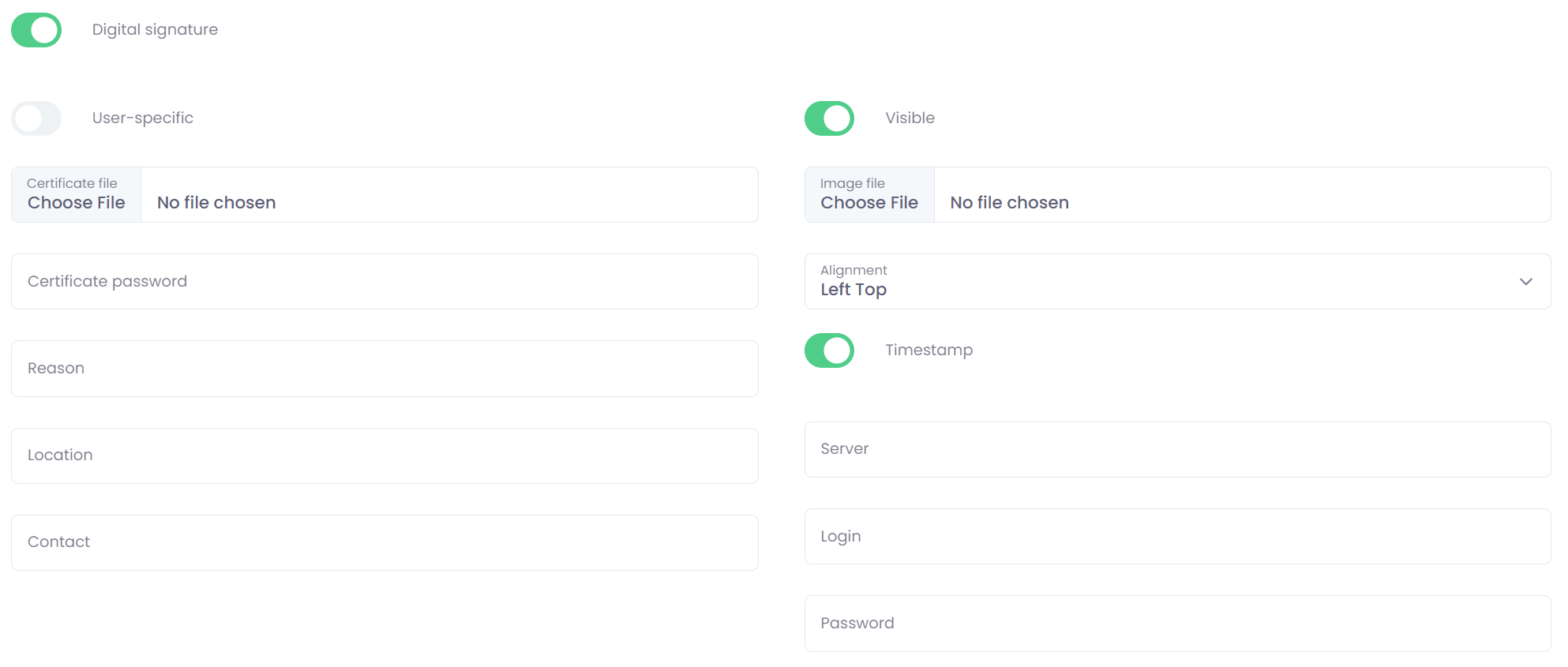
A digital signature in OptimiDoc is a feature that allows the system to cryptographically sign generated PDF files—ensuring authenticity, integrity, and optional visual signature placement.
This can be configured per user or as a generic organisational certificate.
Available only for Optimicapture pro
A digital signature is not compatible with PDF encryption.
-
User‑specific – When enabled, each user uses their own certificate.
Every user must upload their personal digital certificate in the Digital Workplace under their user account.Non–user‑specific – If you do not use user‑specific certificates, you must upload a generic .P12 or .PFX certificate file and enter the corresponding certificate password.
-
Optional signature parameters are displayed in the PDF’s signature metadata.
-
Reason
-
Location
-
Contact
-
Parameters may also be used in PDF metadata to populate values dynamically.
-
Optional visible image.
OptimiDoc also allows visible PDF signatures:
-
Image file (PNG or JPG, depending on service)
-
Position/Alignment (bottom-left, top-right, etc.)
-
Visible toggle (show/hide image in PDF)
Timestamping support
You can configure an external timestamp server:
-
Timestamping server URL
-
Login
-
Password
This ensures a legally valid time of signing
Digital signature
Watermarking a PDF means placing a faint text or image onto the document—often diagonally or in the background—to indicate ownership, confidentiality, authenticity, or branding. It helps protect the document from misuse and clarifies its status.
Available only for Optimicapture pro
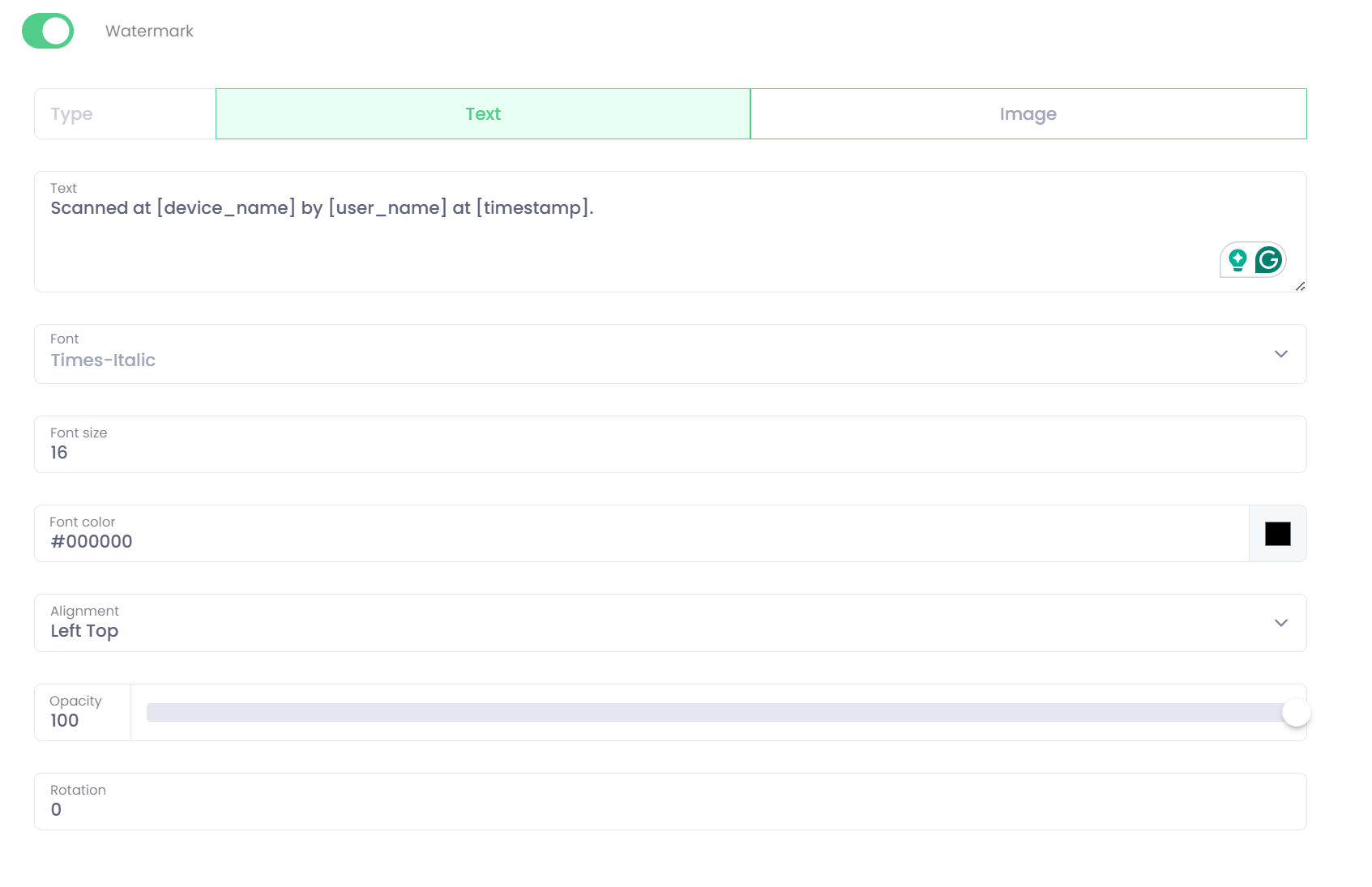
OptimiDoc Cloud supports two types of watermarks:
-
Text Watermark
You can configure:-
Text – any wording such as Confidential, Draft, Company Name, etc.
-
Font – choose from available fonts.
-
Font Size – adjust visibility based on page size.
-
Font Colour – select any colour.
-
Alignment – top, middle, bottom, left, right, centre, … .
-
Opacity – 0 = fully transparent, 100 = fully opaque.
-
Rotation – angle the watermark (e.g., diagonal text).
-
Parameters may also be used in PDF watermarks to populate values dynamically.
-
Image Watermark
You may upload:-
PNG or JPG images
(e.g., company logos, compliance badges) -
Alignment - top, middle, bottom, left, right, centre, … .
-
Opacity – 0 = fully transparent, 100 = fully opaque.
-
Rotation – angle the image.
-
The system works with any valid image stream and is tested with PNG/JPG formats.