
In the Parameters section, you can define the manual scan parameters that will be collected through the user interface form. This form appears before the document scanning process begins, allowing the user to provide additional information required for processing or delivery.
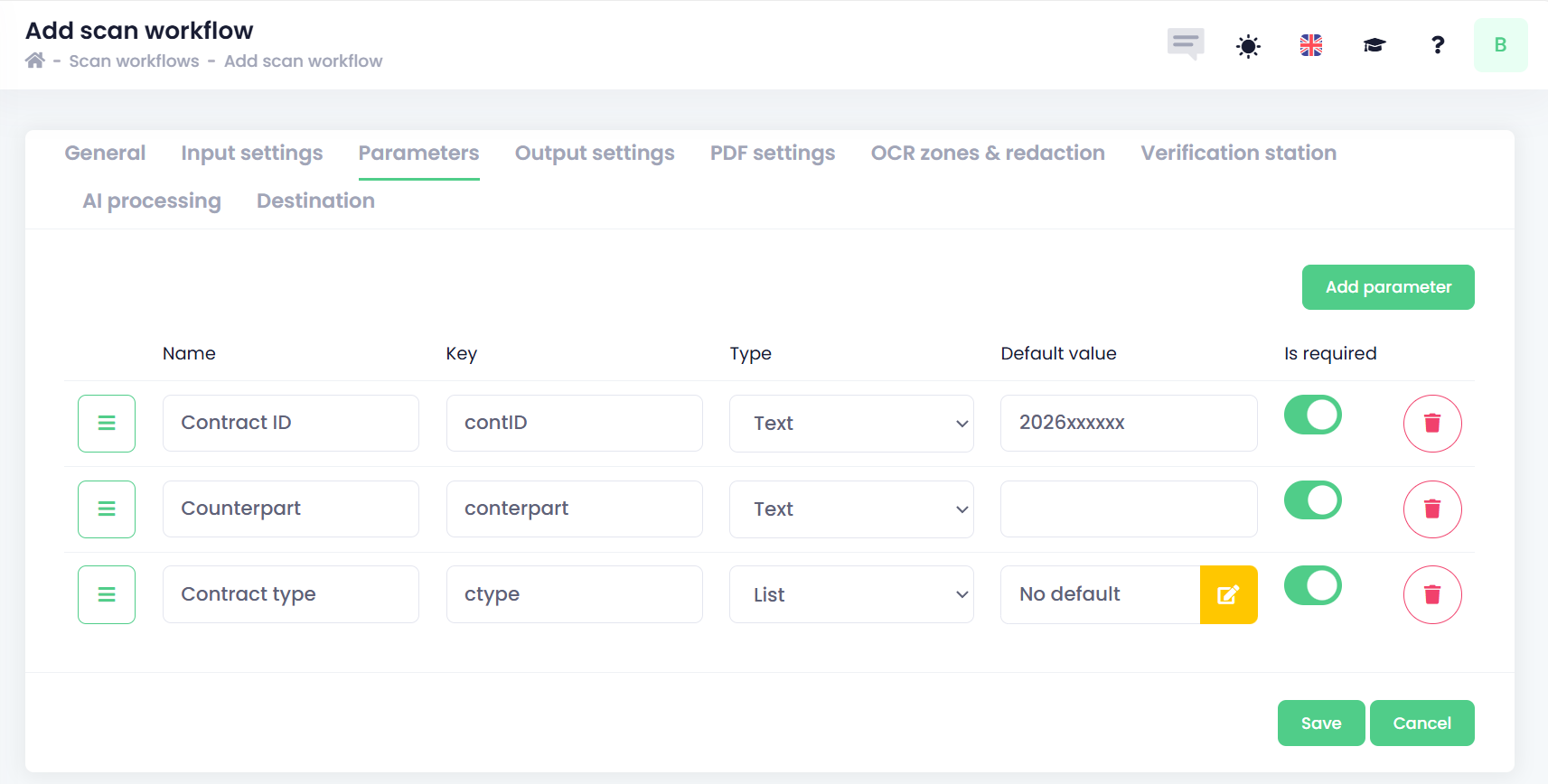
OptimiDoc works with two additional types of parameters:
-
System parameters – automatically collected by the system with every captured document.
-
Extracted parameters – generated during processing features such as barcode recognition, zonal OCR or AI extraction.
Add parameter
-
Click the Add parameter button in the top‑right corner.
-
Enter parameter configuration:
-
Name – the display name of the parameter.
-
Key – the internal identifier used for referencing the parameter in processing.
-
Type – the format of the parameter.
-
Text - users can enter any text
-
Number - users can enter any whole number
-
True/False - users can choose from true or false values
-
Date - users picks the date from the calendar. The value is in format YYYYMMDD
-
To use the current date as the default value, click the lightning

-
-
Time: users selects the time from the time widget. The value is in 24h format HHMM
-
To use the current time as the default value, click the lightning
-
-
Password - users can enter any text. The asterisk characters hide the text.
-
List - users can select a value from a predefined list.
-
User list - users can select the user from the list of users belonging to the company. Systems returns the user's email as a value.
-
To use the currently logged-in user as the default value, click the lightning
-
-
Advanced external list – the user can select a value pulled from an external source such as a CSV file, XML file, or REST API endpoint.
-
Directory - the user can browse the folder structure in the destination or create new folders.
-
SharePoint Site - special parameter for selection of SharePoint site.
-
-
Default value – the pre-filled value shown to the user.
-
Is required – defines whether the user must provide a value before scanning can proceed.
Other operations
Reorder parameters using the 
Remove the parameter by clicking the 