
Available only for Optimicapture pro and is charged separately for the processed pages.
AI‑powered document extraction in OptimiDoc Cloud streamlines the capture, interpretation, and processing of both structured and semi‑structured documents. By automating these tasks, it reduces manual effort, improves accuracy, and supports seamless end‑to‑end workflow automation.
AI Extraction relies on machine‑learning models to automatically recognise and extract key information from a wide range of documents, including:
-
Predefined models are designed for common document types such as invoices and contracts.
-
General documents and forms, handled by a versatile extraction model capable of key‑value pair analysis and advanced document‑structure detection.
-
Customer‑specific documents, processed using bespoke custom models tailored to unique layout or data requirements.
For more information about models, go to: Document Intelligence Models
How to configure AI extraction
-
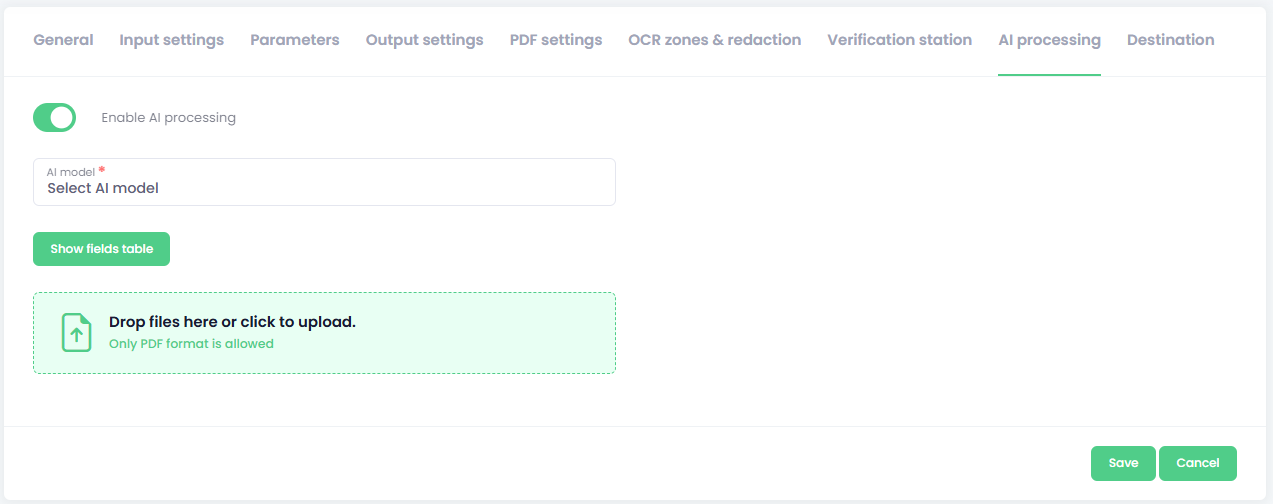
To enable the AI extraction in the document workflow, enable it at the AI processing tab.
-
Select the AI model.
-
Predefined models automatically provide a list of predefined fields and tables that can be extracted from each document. You can find the complete list of available fields and tables at: Document Intelligence Models .
The general document model requires you to upload the document template. Once uploaded, the AI extraction analyses the document and presents a list of the available fields it has detected. -
You can modify the extracted fields and tables by clicking the Show fields table button.
A detailed description of how to manage fields and tables is provided below.
How to handle the available fields and tables
Fields extraction
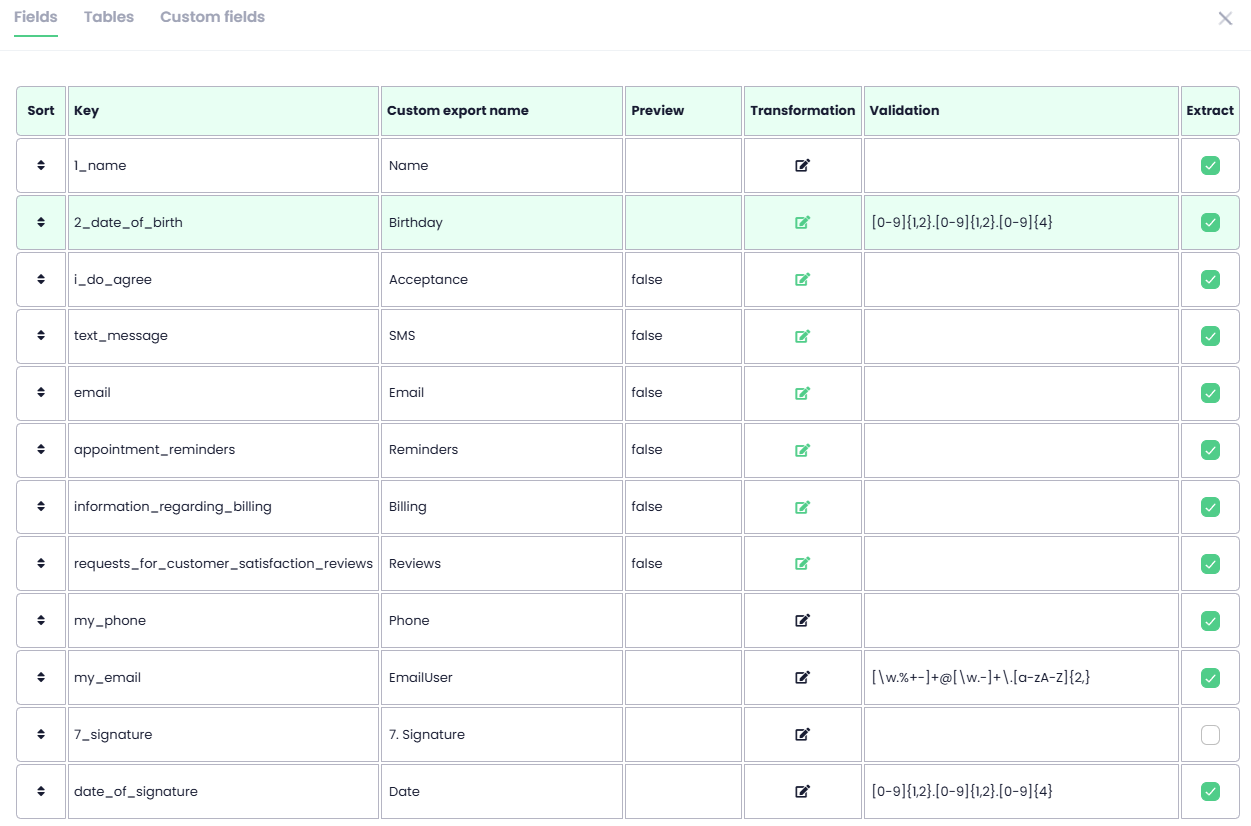
Once you open the available fields and tables, you get a table of detected or predefined fields.
Each field has followinng settings:
-
Key - original key value provided by AI.
-
Custom export name - allows you to modify the original key value for subsequent use. Once the value is defined, it must be used when referencing it—for example, in the filename, destination, or metadata export.
-
Preview - value extracted from the testing file.
-
Transformation – the extracted value can be modified using a set of transformation commands. To create a transformation, click the icon

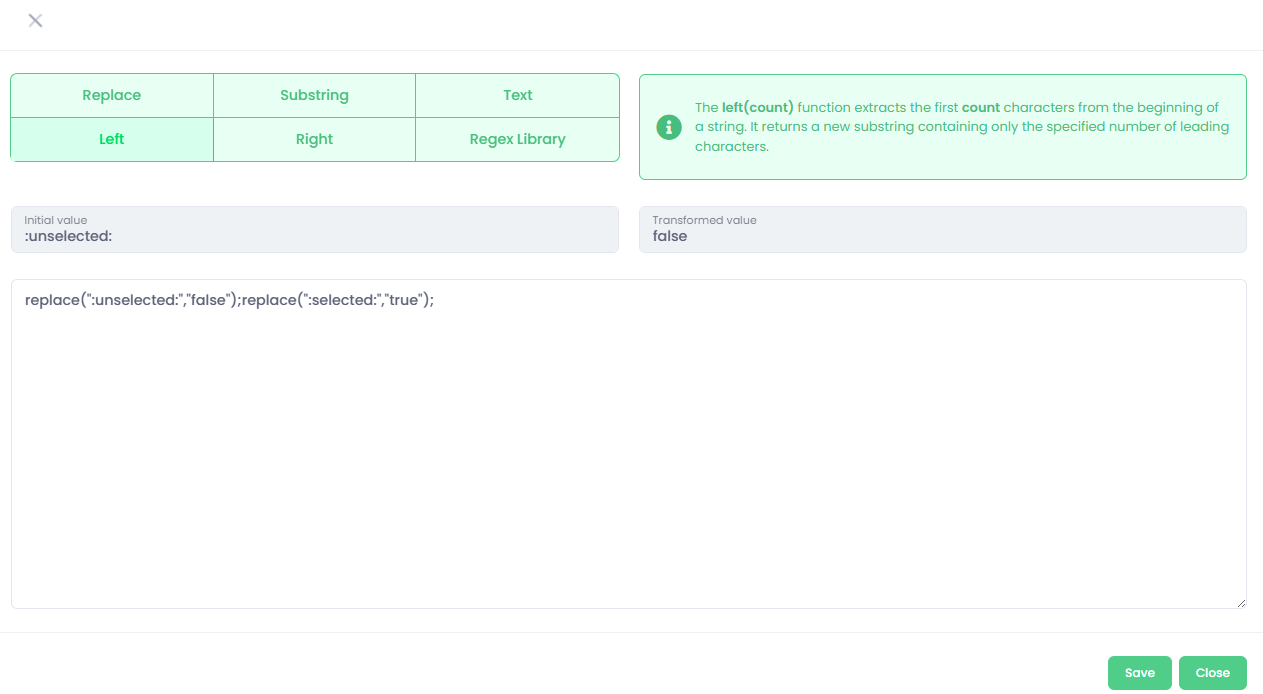
Available commands include: Replace, Substring, Text, Left, Right, and Regex.
A description of each command is displayed when you hover your mouse over its name.
The individual operations are applied sequentially. This means that the first command is executed on the original text, and the next command is then applied to the result of the previous one.
If you want to execute each command on the original value, list each command on a new line.
The final output is then composed of the resulting values from each individual line.
Once you have configured the commands, click Save. -
Validation - You can write a regular expression to verify that the extracted value matches the required pattern. If the value does not match, and the verification station is enabled, the verification becomes mandatory, and the user must correct the value so that it meets the expected format.
The description of regular expressions can be found here: How to Write Regular Expressions: A Practical Guide -
Extract - By ticking this option, you confirm that you want the field to be extracted from the document and used for the next processing.
Tables extraction
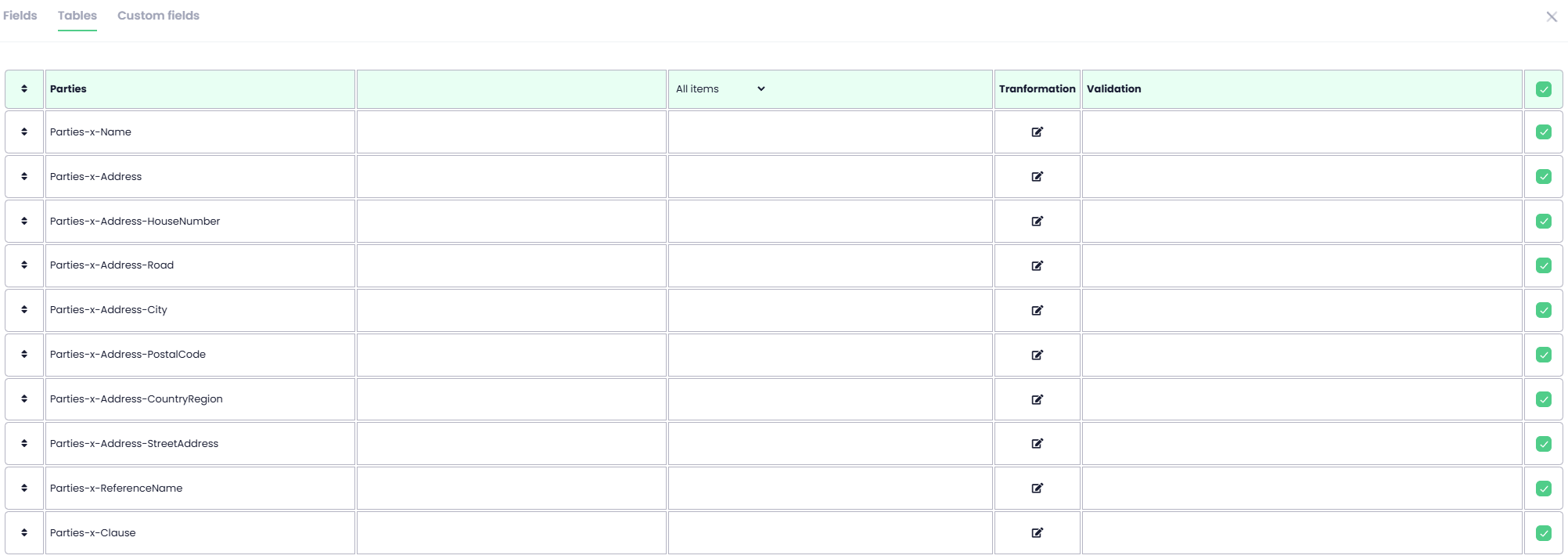
AI extraction processes tables in the same way as fields. Each table may contain multiple fields, and the configuration is identical to standard fields.
Additionally, you can choose whether the table should extract all items or only specific rows. This is configured by changing the option from All items to Selected items.
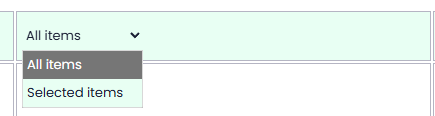
After selecting Selected items, you need to specify which rows you want to extract.

Custom fields
Document Intelligence also provides custom fields, which allow you to specify field names in a prebuilt model (such as the Invoice model) and retrieve their corresponding values.
To add a new field, select Add custom field, then enter the desired field name in the key field. The service will automatically search the document and return the associated value.

Custom field extraction is currently available with general and prebuilt models, excluding the Contract prebuilt model.