
OCN local delivery allows you to store documents within your local network using the OptimiDoc Cloud Node (OCN) deployed on‑premises. The OCN maintains a secure, bidirectional connection with the datacentre and can receive requests from the cloud to store documents directly in local or shared folders. The OCN does not require any public IP address or port forwarding. All communication is handled over secure HTTPS connections.
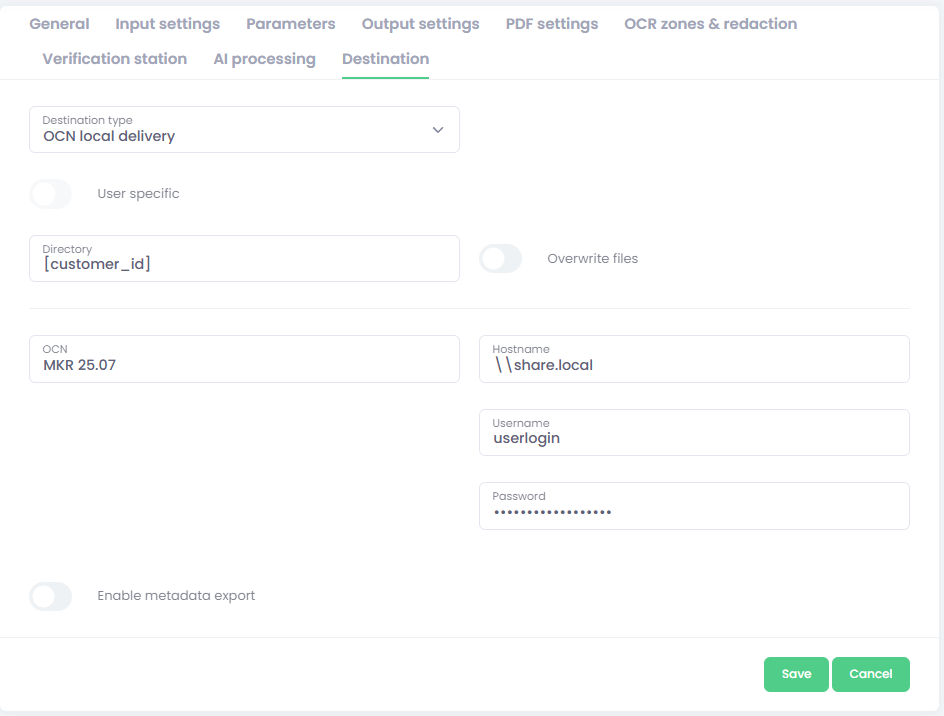
-
Select the OCN local delivery destination type.
-
Fill required settings:
-
Enter parameter configuration:
-
Directory - Specify the final document directory.
You can use parameters to dynamically create the final folder.-
Local path:
C:\OptimiDoc\Output -
Network share:
\192.168.x.x\Deliver -
Using parameters
\192.168.x.x\Deliver\[current_month].[current_year] -
Using OCR Zones
\192.168.x.x\Deliver\[zone:barcode]
-
-
Overwrite files – enable this option to replace an existing file in the destination if it has the same name.
If the option is disabled, OptimiDoc Cloud will add a suffix to the document name, such as _001, to avoid overwriting. -
OCN – Select the OptimiDoc Cloud Node that will be used for document delivery.
-
When delivering files to a different storage location, you must explicitly define the destination details:
-
Hostname – Specify the hostname.
-
Username – Specify a user account with sufficient permissions to write files and create folders at the specified location.
-
Password – Specify the password for the configured user account.
-
-
Enable metadata export – activate this option to save a metadata file alongside the document.
Configuration of metadata files is described here: Metadata export.
-
Important: Do not use .\ in the username field. Doing so causes files to be saved to the C:\ drive of the Windows OCN instead of the intended destination.