
-
To create a new advanced list, click the Add advanced list button in the document workflow list.
-
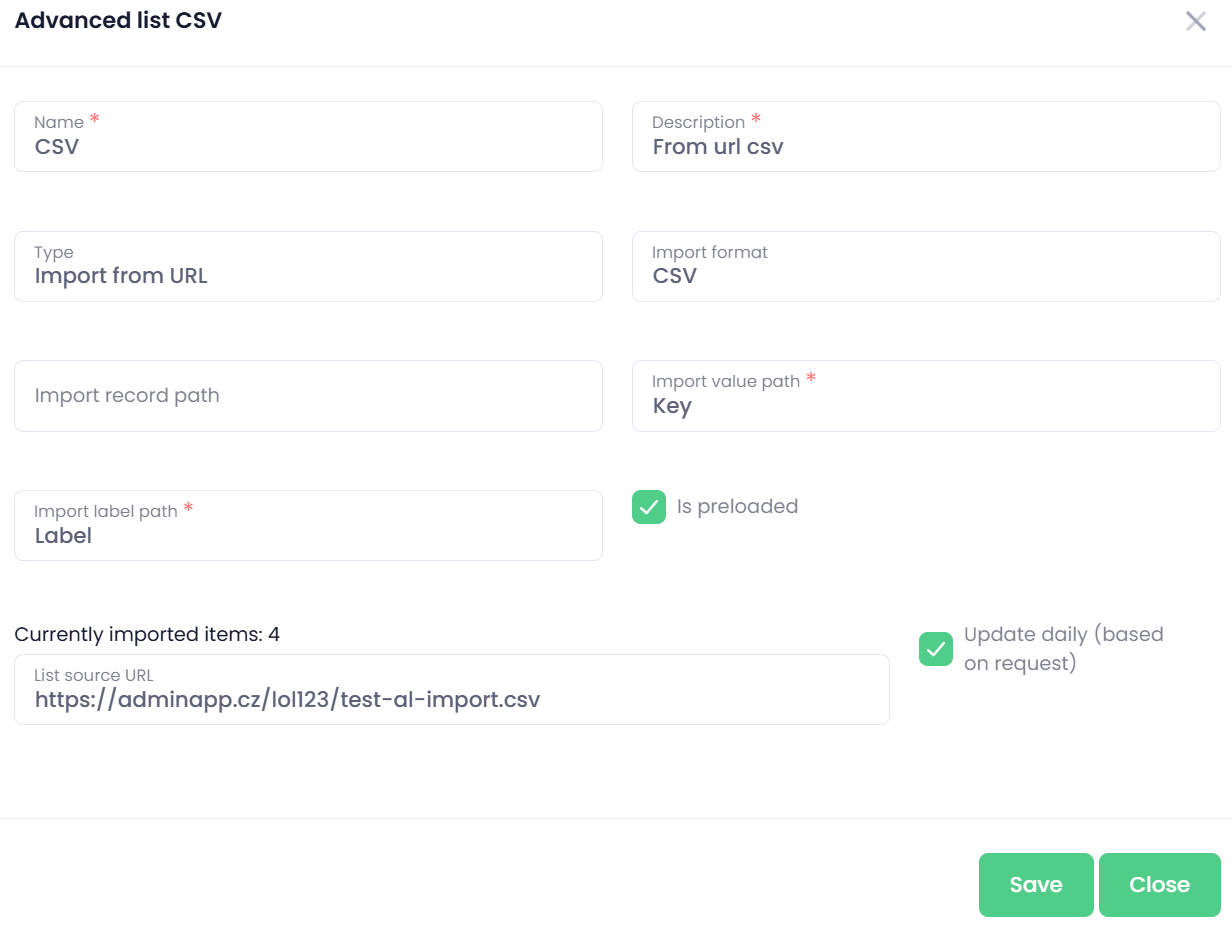
In the Advanced List pop‑up window, fill in the required details for creating a new advanced list:
-
Name – Enter the name of the parameter.
-
Description – Provide a brief description of the parameter’s purpose.
-
Type – Import from URL – A URL‑based parameter. OptimiDoc Cloud downloads the file from the provided URL and retrieves the items.
-
Import format – Select the file type used as the data source. OptimiDoc Cloud supports the following formats:
-
CSV
-
JSON
-
XML
-
-
Import record path - Specifies the path to the individual items within a JSON or XML structure. This tells OptimiDoc Cloud where to locate the records inside the XML/JSON file or API response in order to extract the list values.
CSV files do not use this field. -
Import value path – Specifies the JSON or XML field from which the final value will be read. This tells OptimiDoc Cloud which item within the XML/JSON structure should be used as the actual parameter value. For CSV files, this field defines the column that will be used as the value.
-
Import label path – Specifies the JSON or XML field from which the displayed label will be read. This determines what the user will see in the list on the MFP panel or in the workflow interface. For CSV files, this field defines the column that will be used as the label.
To get more information on how to work with the different import formats, see the section “How to work with different import formats in Advanced lists.” -
Is preloaded – Determines whether all items are displayed immediately or whether the user must perform a search first. When enabled, the full list is shown directly. When disabled, the user must type a search query in the search field before any items are displayed, which is useful for very large datasets.
-
List source URL – The URL from which OptimiDoc Cloud retrieves the list.
-
Update daily (based on request) – When scheduled mode is enabled, the system automatically refreshes the data once per day. The actual refresh happens on the first request of the day, which triggers the update process.
-
Click the Save button to create the new parameter.