
Basic configuration
-
To create a new advanced list, click the Add advanced list button in the document workflow list.

-
In the Advanced List pop‑up window, fill in the required details for creating a new advanced list:
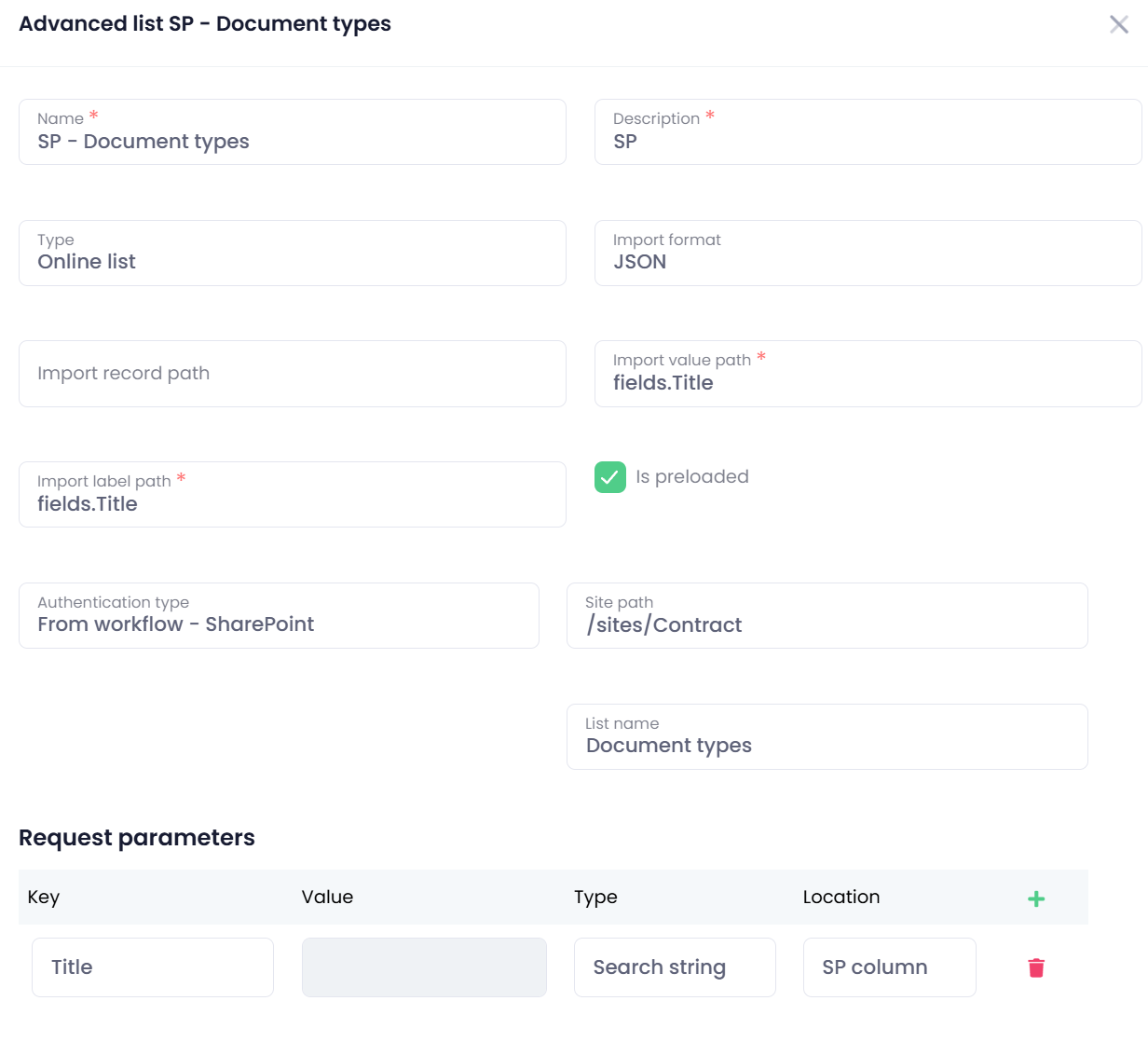
-
Name – Enter the name of the parameter.
-
Description – Provide a brief description of the parameter’s purpose.
-
Import format – Select the file type used as the data source. OptimiDoc Cloud supports the following formats:
-
CSV
-
JSON
-
XML
-
-
Type: Online list – A fully dynamic parameter. OptimiDoc Cloud loads the latest data from a file URL or REST API endpoint every time the user runs a workflow that includes this parameter.
-
Import record path - Specifies the path to the individual items within a JSON or XML structure. This tells OptimiDoc Cloud where to locate the records inside the XML/JSON file or API response in order to extract the list values.
CSV files do not use this field. -
Import value path – Specifies the JSON or XML field from which the final value will be read. This tells OptimiDoc Cloud which item within the XML/JSON structure should be used as the actual parameter value. For CSV files, this field defines the column that will be used as the value.
-
Import label path – Specifies the JSON or XML field from which the displayed label will be read. This determines what the user will see in the list on the MFP panel or in the workflow interface. For CSV files, this field defines the column that will be used as the label.
To get more information on how to work with the different import formats, see the section “How to work with different import formats in Advanced lists.”
-
Is preloaded – Determines whether all items are displayed immediately or whether the user must perform a search first. When enabled, the full list is shown directly. When disabled, the user must type a search query in the search field before any items are displayed, which is useful for very large datasets.
-
Authetication type - OptimiDoc Online list offers different authetication options for the requests:
-
None - No authentication is applied.
-
Basic html authetication - A simple built‑in authentication method where the system uses static credentials entered in the configuration.
-
Login - The username of the account that has permission to access the target URL.
-
Password - The password of that account
-
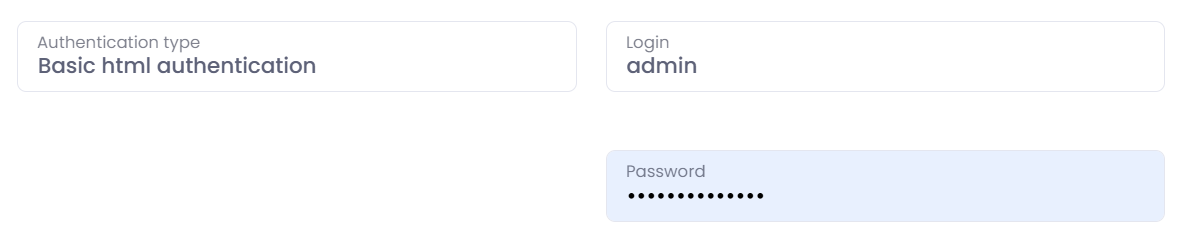
-
-
From workflow - When using From workflow authentication, the Advanced List retrieves data using the same authentication method that is configured in the selected scan workflow.
To use this option correctly, the final destination of the workflow must correspond to the chosen authentication method.
Supported workflow‑based authentication types:-
ONS – Uses the authentication defined in a workflow that has an ONS destination configured.
-
SharePoint – Uses the authentication defined in a workflow that has a SharePoint destination configured. Read more for detailed information about SharePoint list configuration: How to configure a SharePoint list.
-
-
OAuth 2.0 - OAuth 2.0 is a secure industry-standard authentication method.
To use this method, fill in the required details:-
Authorization endpoint URL – Address where the user is redirected to sign in.
-
Token endpoint URL – Address that returns the access/refresh token.
-
Client ID – Identifier of the registered application.
-
Client secret – Secret key assigned to the application.
-
Scopes – Space‑separated permissions (e.g.,
users.read.all sites.readwrite.all)
Redirect URI that you need for OAuth authetication: https://[datacentre_shortcut, eg. eu, uk, us].optimidoc.cloud/AdvancedLists/OAuthCallbackExample: https://eu.optimidoc.cloud/AdvancedLists/OAuthCallback
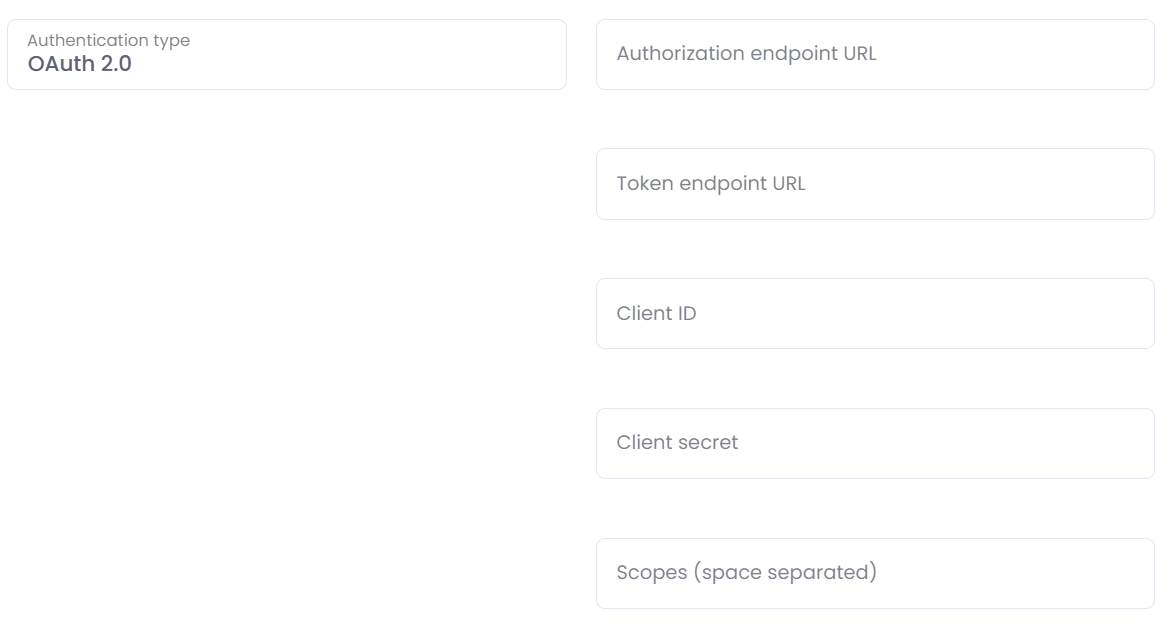
-
-
Filtering options and Requests parameters
For Online Advanced Lists, filtering and request parameters define how OptimiDoc builds the request used to fetch list items from the source system.
In practice, you can control:
-
request method (
GETorPOST), -
query parameters,
-
URL placeholder replacement,
-
request headers,
-
search behavior,
-
runtime values from system/terminal placeholders.
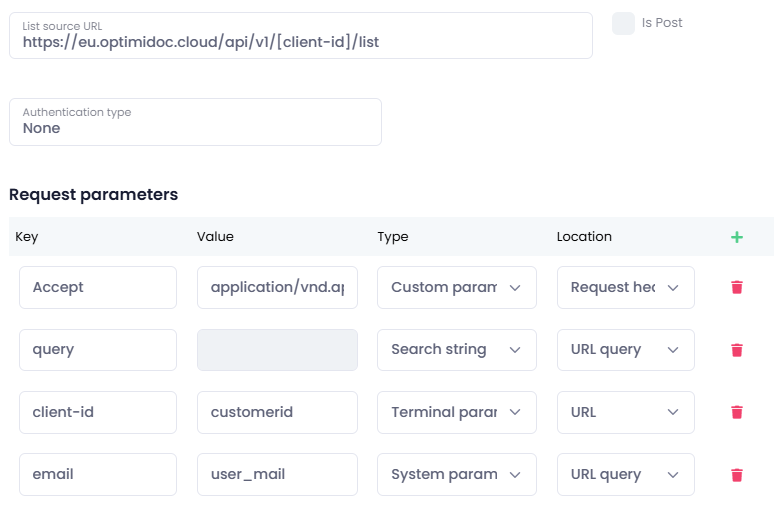
The table has four columns: Key, Value, Type, Location
Each row defines one dynamic part of the online request.
Parameter Types
Search string
Use this when the value should come from the user's live search text at the MFP terminal/web submit editor.
Behavior:
-
Valueis not used (it is disabled in UI) -
The current search text is injected automatically at runtime
-
This search text is URL-encoded
Typical use:
-
Pass the user search into the query parameter
q -
Inject search text into URL placeholder
-
Define a full-text column for SharePoint mode
System parameter
Use this when the value should come from the OptimiDoc system parameters (placeholder formatting). This is the same placeholder mechanism used in other workflow areas, such as output filenames and formatted text fields.
Typical use:
-
values based on runtime context,
-
values derived from known placeholders.
Custom parameter
Use this for fixed literal values.
Typical use:
-
Static tenant code
-
Fixed mode flag
-
Fixed API version parameter
Terminal parameter
Use this when the value should come from the MFP terminal as placeholder data available in OptimiDoc. This is resolved through the same placeholder engine as system parameters.
Behavior:
-
Valueshould contain the terminal parameter name -
The runtime terminal value is injected automatically when found
-
Terminal values used in URL/query contexts are URL-encoded
Parameter Locations
URL query
Adds row as query parameter:
-
?Key=ResolvedValue
Use for:
-
endpoint filters,
-
paging parameters,
-
query-based search.
Request header
Adds row as HTTP header:
-
Key: ResolvedValue
Use for:
-
API keys,
-
custom header routing,
-
feature flags expected in headers.
URL
Uses row to replace placeholders in the List source URL.
How to use:
-
Put a placeholder in the
List source URL, for example:https://api.example.com/customers/[customerId]/items -
Add request parameter row:
Key = customerIdLocation = URLType = ...(Search/System/Custom/Terminal)
At runtime, [customerId] is replaced by the resolved value.
SP column
This location is used for the From workflow - SharePoint authentication mode.
Behavior:
-
When the auth type is SharePoint workflow mode, the
SP columnis the active location for filtering rows -
Other locations are hidden in the UI
-
Keyis treated as a SharePoint column name
How Filtering Is Resolved at Runtime
For online list lookup, OptimiDoc resolves request parameters in this order:
-
Replaces
URLlocation placeholders in theList source URL. -
Builds a query string from
URL queryrows. -
Applies runtime system/terminal placeholder resolution to URL/query context.
-
Adds
Request headerrows. -
Sends a request with the method from
Is Post.
This makes it possible to combine static and dynamic filters in a single request.
SharePoint-Specific Behavior (From workflow - SharePoint)
When the auth type is From workflow - SharePoint:
-
Parameter location is handled as
SP column -
One
search stringrow defines the full-text search column -
Non-search rows are treated as exact filters (
Key = column,Value = filter value) -
Values can still be dynamic (
System parameter/Terminal parameter) or fixed (Custom parameter)
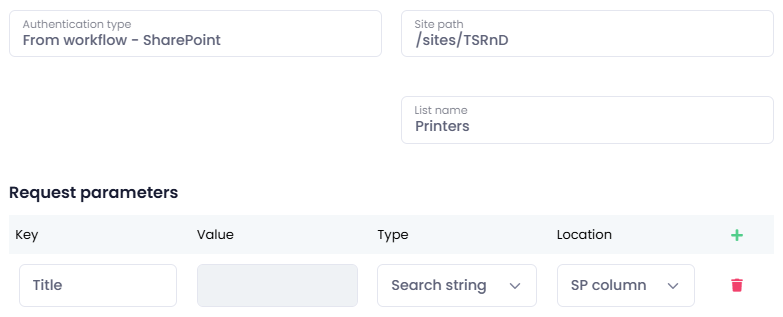
Recommendation:
-
Use exactly one
Search stringrow for predictable full-text behavior, -
Use additional rows for exact column filters.
Common Setup Patterns
Pattern 1: Standard API search via query parameter
Use when the endpoint expects a search in the query string:
-
List source URL = https://api.example.com/items -
Add row:
Key = qType = Search stringLocation = URL query
Result example:
-
https://api.example.com/items?q=invoice
Pattern 2: Search in URL path segment
Use when the endpoint expects a search directly in the URL path:
-
List source URL = https://api.example.com/items/search/[term] -
Add row:
Key = termType = Search stringLocation = URL
Pattern 3: Static filter + dynamic search
Use when the endpoint expects both fixed and dynamic filters:
-
Row A:
Key = qType = Search stringLocation = URL query -
Row B:
Key = statusValue = activeType = Custom parameterLocation = URL query
Result example:
-
https://api.example.com/items?q=invoice&status=active
Pattern 4: Header-based API key
Use when the source endpoint requires an API key header:
-
Add row:
Key = X-API-KeyValue = your-real-keyType = Custom parameterLocation = Request header
Pattern 5: SharePoint filtered lookup
Use in From workflow - SharePoint mode:
-
Row A:
Key = Title(or your chosen full-text column)Type = Search stringLocation = SP column -
Row B:
Key = DepartmentValue = FinanceType = Custom parameterLocation = SP column
Common Mistakes
Search does not affect the results
Check:
-
At least one row has
Type = Search string -
The row location is correct for your source (
URL query,URL, orSP column) -
For URL replacement,
Keymatches the placeholder name inList source URL
Placeholder in URL is not replaced
Check:
-
Placeholder format in URL is
[key] -
Matching row exists with
Location = URL -
Row
Keymatches the placeholder name exactly
Header auth is not applied
Check:
-
Parameter location is
Request header -
The header key is valid and expected by the source API
SharePoint filtering behaves unexpectedly
Check:
-
Auth type is set to
From workflow - SharePoint -
SP columnrows are used -
Only one
Search stringrow is used for full-text column selection -
The remaining rows are exact filters
Best Practices
-
Start with one
Search stringquery filter and confirm the lookup works. -
Add static custom filters one by one.
-
Add URL placeholders only when the endpoint requires path-based routing.
-
Use
Request headerfor API keys and transport metadata. -
In SharePoint mode, keep filtering rows simple and explicit by column name.