
This Advanced List type allows you to connect to a SharePoint list, search through its items, and use the retrieved values inside your workflow.
To ensure the list works correctly, all columns you want to use must be indexed. You can manage indexes by opening the SharePoint list settings and selecting Indexed columns.
This explanation will be displayed on the demonstration printer list.
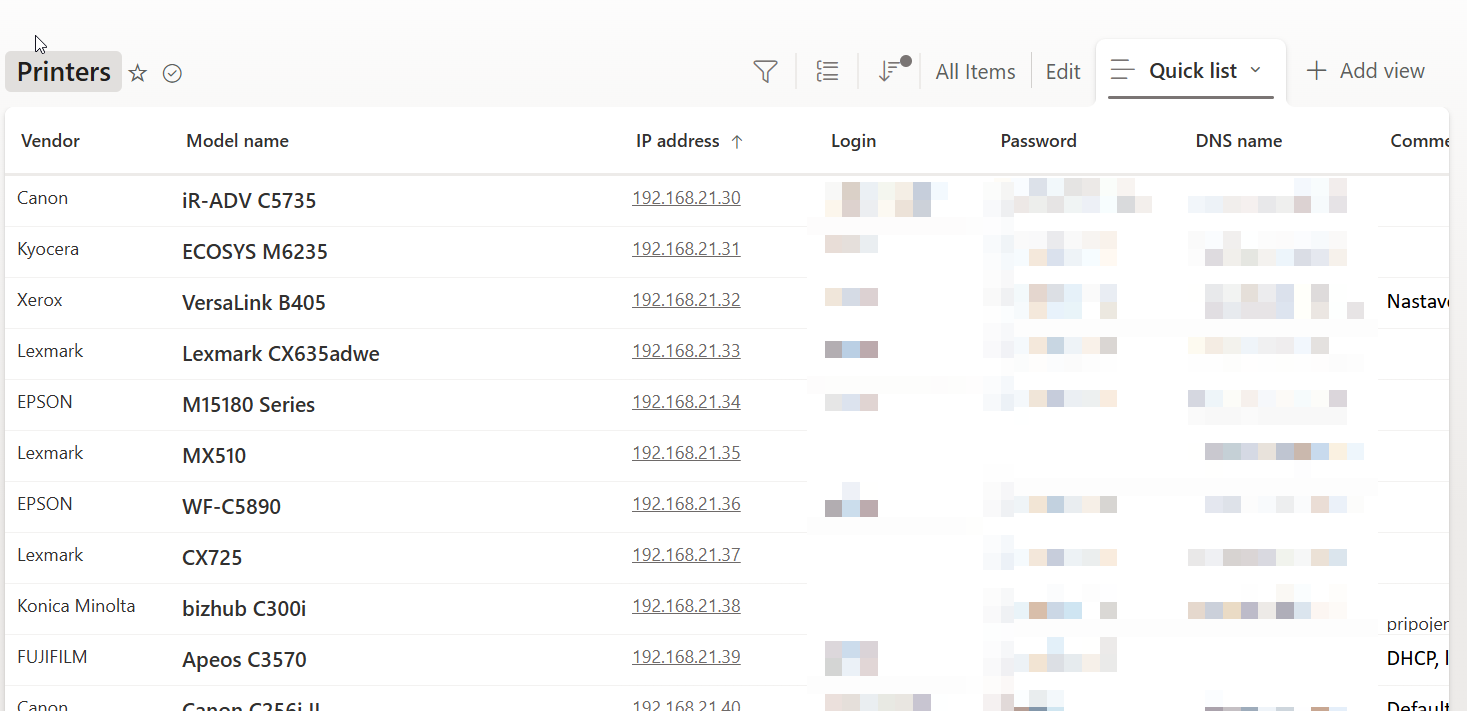
How to configure the column indexing
-
Open the SharePoint list in the web interface and go to List settings.
-
Under Columns, select Indexed columns.
-
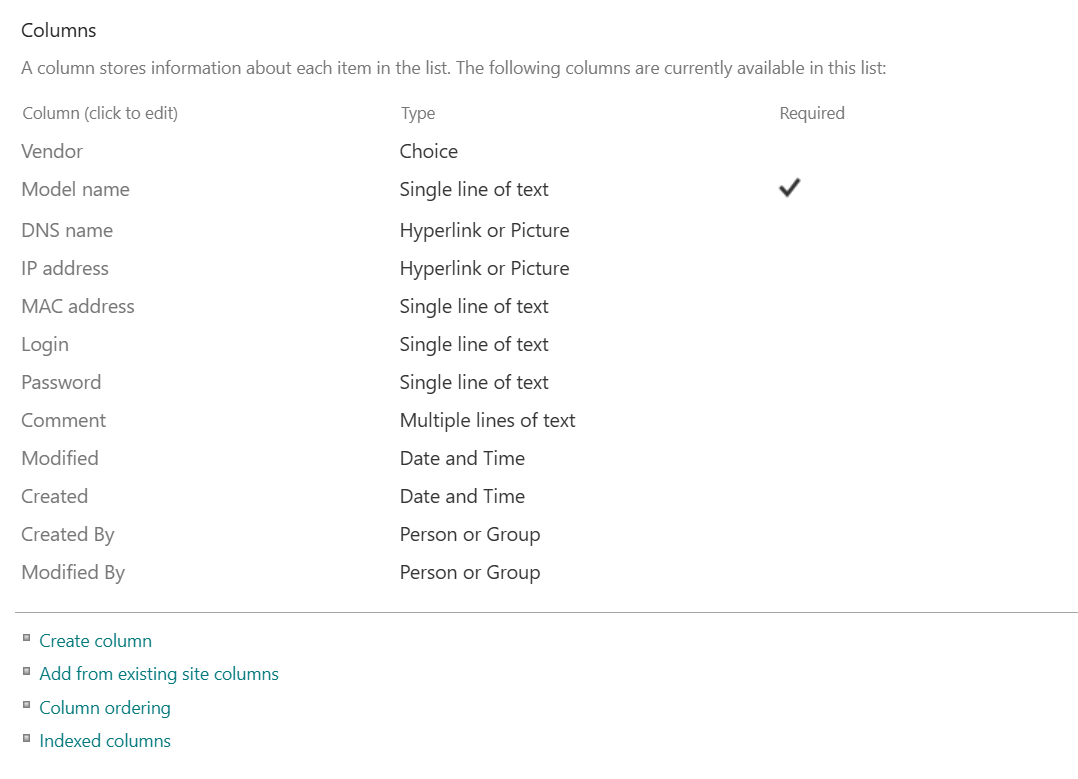
Check whether the required column is already indexed.
-
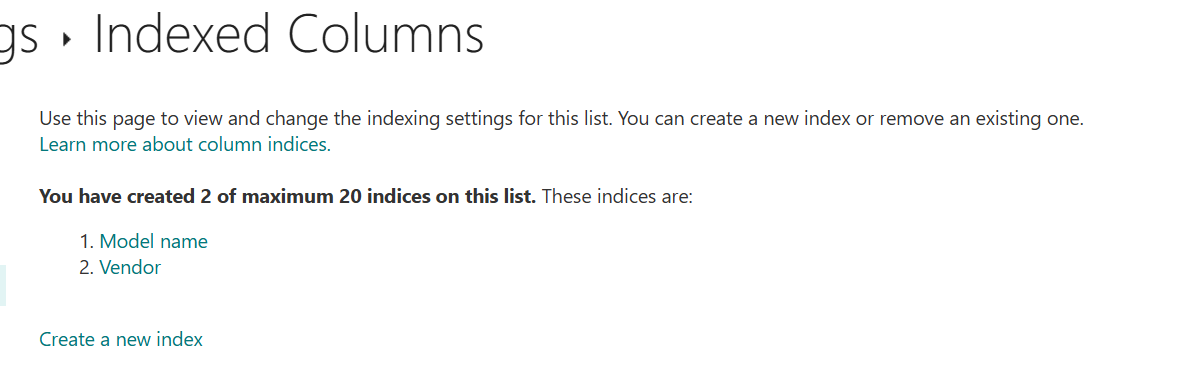
If it is not listed, click Create a new index and select the column you want to index.
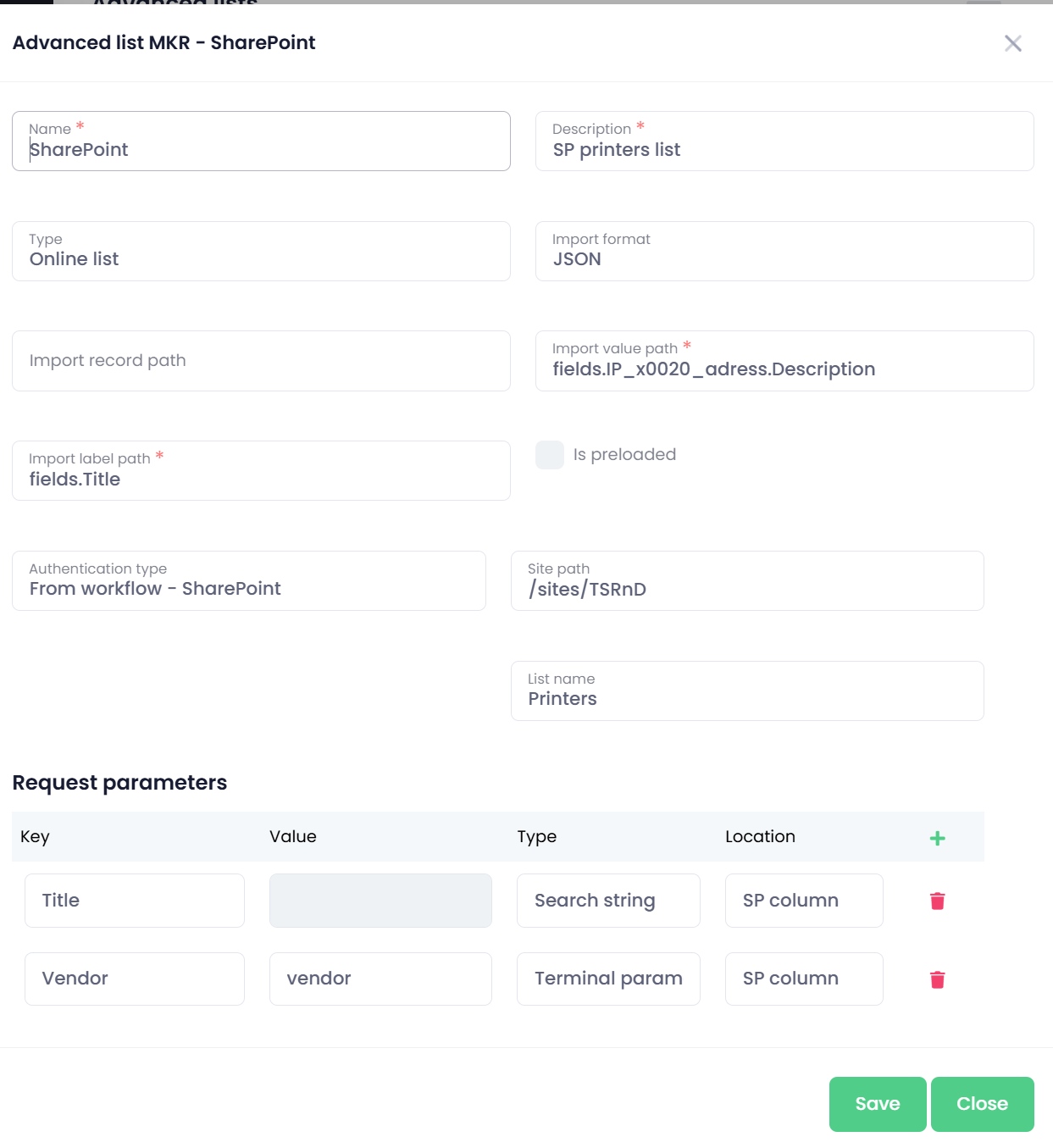
SharePoint list configuration in OptimiDoc Advanced lists
-
Name – Enter the name of the parameter.
-
Description – Add a short explanation of what the parameter is used for.
-
Type – Select Online list.
-
Import format – Choose JSON.
-
Import record path – Leave empty.
-
Import value path / Import label path
-
To return the ID of a list item, enter: id
-
To return a column value, enter: fields.<column_name>
(Replace<column_name>with the actual internal name of the SharePoint field.)
-
-
Authentication type - choose From workflow - SharePoint
-
Site path - The SharePoint site location containing the list.
-
List name - The title of the list you want to use.
-
Requested parameters
-