
The Google Workspace import source enables OptimiDoc Cloud to synchronise users directly from the organisation’s Google directory.
Administrators can configure attribute mapping, PIN and card import behaviour, filtering rules, and SSO username formatting.
All configuration options are located under Users → Import → Import Sources → Google Workspace.
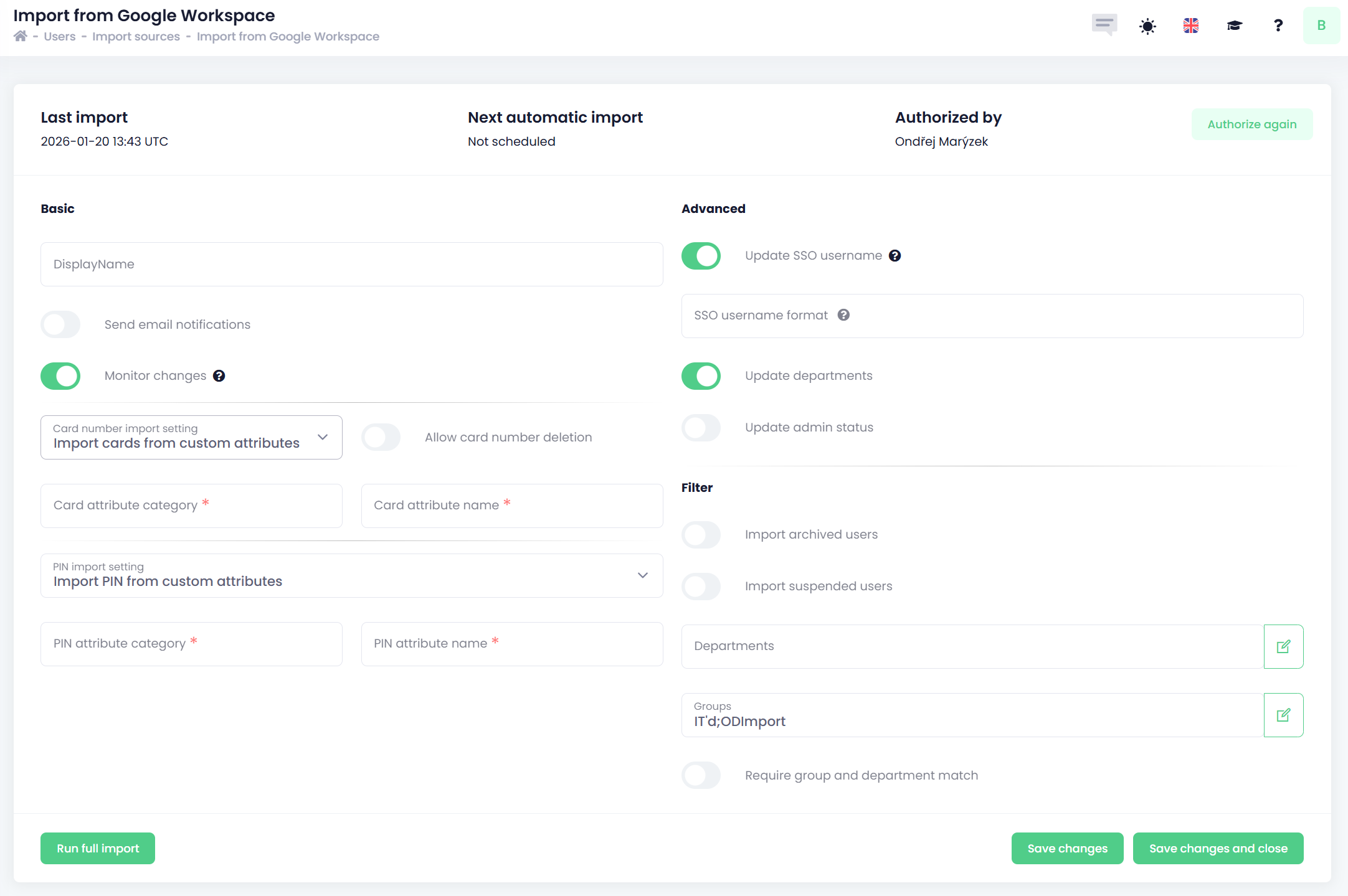
At the top of the Google Workspace import page, OptimiDoc Cloud displays:
-
Last synchronisation time
-
Next planned synchronisation time
-
User who authorised the import
This allows administrators to quickly verify the operational state of the integration.
How to setup the Google Workspace user import
The Google Workspace import configuration consists of two areas:
-
Basic Configuration
-
Advanced Configuration
Basic Configuration
The Basic configuration defines how the import operates, how often synchronisation is performed, and how specific attributes (cards, PINs) are handled.
-
Display Name
-
A custom name for the import source.
-
This name appears in the Import Sources list.
-
-
Send E‑mail Notifications
-
When a new user is created through any import source, OptimiDoc Cloud automatically sends a welcome e‑mail to the user.
-
This notification includes essential information for accessing the system, such as login details and initial instructions (if enabled in tenant settings).
-
The content of the welcome email can be customised in the Custom email section of the OptimiDoc Cloud Admin Portal.
-
-
Monitor changes
Enables near real‑time synchronisation using WebHooks.
(Microsoft documentation: https://learn.microsoft.com/en-us/graph/webhooks) -
Card Number Import Settings
Determine how card numbers are imported from Google Workspace:-
Don’t modify card numbers
Card numbers in OptimiDoc Cloud remain unchanged. -
Import cards from standard attributes
Uses standard Google Workspace attributes to import card numbers.-
Card attribute name
Specific attribute name (standard or custom) used for import.
-
-
Import cards from custom attributes
Uses custom‑defined attributes created in Google Workspace.-
Card attribute category
Category name used when importing from custom attributes. -
Card attribute name
Specific attribute name (standard or custom) used for import. -
Custom attribute creation guide:
https://support.google.com/a/answer/6208725?hl=en#zippy=%2Cadd-a-new-custom-attribute
-
-
Allow card number deletion
-
Disabled → Only new cards are added, existing ones remain untouched.
-
Enabled → All existing card numbers are replaced with those from Google Workspace.
-
-
-
PIN Import Settings
Control how PINs are imported or generated:-
Don’t modify PIN
Existing PINs remain unchanged. -
Generate PIN when empty
Generates a PIN for every user who does not have one.
Existing non‑generated PINs are preserved.-
PIN length
Number of digits in the automatically generated PIN.
-
-
Generate PIN for new users
When enabled, new users receive an automatically generated PIN.-
PIN length
Number of digits in the automatically generated PIN.
-
-
Import PIN from standard attributes
Uses standard Google Workspace attributes for PIN import.-
PIN attribute name
Specific attribute name for PIN import.
-
-
Import PIN from custom attributes
Uses user‑created Google Workspace attributes.-
PIN attribute category
Category name of the custom PIN attribute. -
PIN attribute name
Specific attribute name for PIN import.
-
-
Advanced Configuration
The Advanced configuration controls SSO username formatting, department updates, and filtering behaviour.
-
Update SSO Username
When enabled, the user’s SSO name is updated during every import.SSO Username Format
If left empty → The user’s e‑mail is used.Available placeholders:
[user_sam_account_name]
[user_principal_name]
[user_email_nickname]
[user_mail_nickname]
[user_full_name], [user_name]
[user_given_name], [user_first_name]
[user_family_name], [user_last_name], [user_surname]
[user_mail], [user_email]
EXAMPLES
To create SSO name in format “Snow John”:
[user_last_name] [user_first_name]
To create SSO name in format “domain\jsnow”:
domain\[user_sam_account_name]
-
Update Departments
When enabled, the user’s department is synchronised during every import. -
Update admin status
Google Workspace provides an IsAdmin attribute.
When enabled, OptimiDoc Cloud automatically assigns an administrative role (e.g., CustomerAdmin) if the user is marked as an admin in Google Workspace. -
Filtering Settings
These filters control which users are included in the import:-
Import disabled users
If enabled, disabled Google Workspace users are imported as well. -
Import guest users
If enabled, guest users are synchronised. -
Departments
Only users from the specified departments are imported. -
Groups
Only users from the selected groups are imported. -
Require group and department match
-
Disabled → User must match either group OR department.
-
Enabled → User must match both criteria.
-
-
Saving Settings and Import
After modifying any import settings, click the Save button to store the configuration.
The updated settings will be applied during the next scheduled synchronisation, or immediately if a manual import is triggered.
To perform a full synchronisation, click Run full import.
Reauthorising the Import Source
To refresh or renew the permissions:
-
Click Authorize again.
This is required when authorization tokens expire or when administrative permissions are changed.
The Microsoft Google Workspace import source provides full integration with the organisation’s Microsoft 365 identity directory. It consists of two configuration areas: Basic and Advanced settings.