
Import Sources allow OptimiDoc Cloud to integrate with external identity providers and synchronise users automatically. Using Import Sources, administrators can maintain an up‑to‑date user directory without manual CSV uploads or local Active Directory tools.
OptimiDoc Cloud currently supports the following external identity systems:
Import Sources are recommended when:
-
The organisation uses Microsoft 365 / Entra ID for user identity management
-
The organisation uses Google Workspace as the primary directory
-
Central IT requires automated provisioning and lifecycle management
-
Users are frequently added, removed, or updated
Each tenant can define multiple import sources, each with its own configuration and synchronisation rules.
Import Sources Overview
The Import Sources section displays all configured external systems used for user provisioning and synchronisation. For each source, administrators can review key operational information that helps monitor the integration’s status and behaviour.
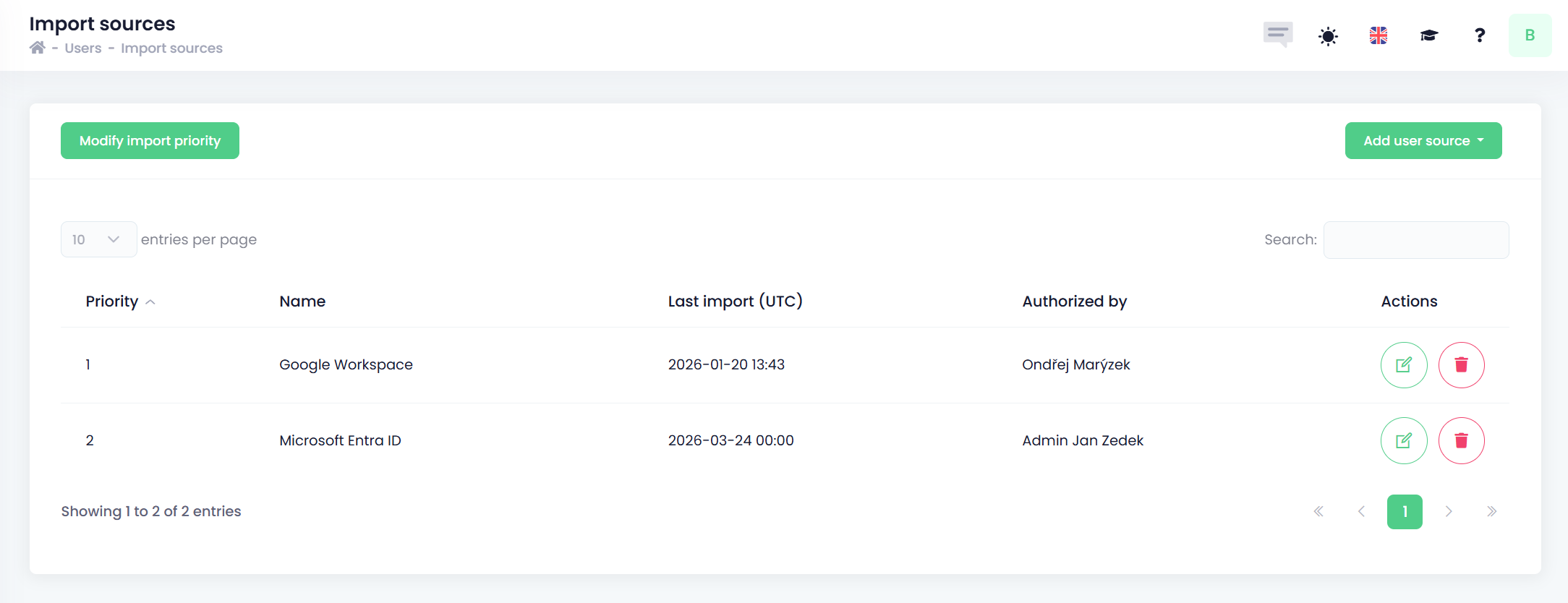
Available information about each import source
-
Priority
Indicates the source’s position in the processing order. Higher‑priority sources override lower‑priority ones when the same user exists in multiple systems. -
Name
The descriptive name assigned to the import source during configuration (e.g., EntraID – Production, Google Workspace EU). -
Last Import Time
Shows the date and time when the most recent synchronisation occurred, allowing administrators to verify that automated imports are running as expected. -
Authorised By
Displays the user account or identity that authorised or granted access for the integration (e.g., Microsoft or Google administrator).
This overview provides a clear and immediate understanding of all connected systems and their operational state, helping administrators maintain accurate, reliable user data within the tenant.
Adding a New Import Source
To add a new import source:
-
Navigate to Users → Import → Import Sources.
-
Click the Add User Source button located in the top‑right corner of the page.
-
From the list of available source types, select the desired import source (e.g., Microsoft Entra ID, Google Workspace).
-
Follow the on‑screen configuration steps to authorise and connect the selected system.
Microsoft EntraID configuration
Google Workspace configuration
Once completed, the new source will appear in the Import Sources list and will participate in the next synchronisation cycle according to its assigned priority.
Import Priority and Conflict Resolution
When multiple import methods are active within a single OptimiDoc Cloud tenant, the system resolves user data based on the user’s unique e‑mail address. This ensures that each user is represented only once, even if they originate from several different import sources.
Behaviour When a User Exists in Multiple Sources
-
Primary matching key:
Users are identified based on their e‑mail address. -
Source priority handling:
If the same user is provided by more than one import source, OptimiDoc Cloud ignores data from sources with lower priority.
Only the highest‑priority source is used as the authoritative identity for that user. -
Internal (manually created) users:
Internal OptimiDoc Cloud users may be merged with users imported from any source, provided the e‑mail address matches.
This mechanism ensures a clean, de‑duplicated, and predictable user structure across mixed environments (CSV, Local AD, Entra ID, Google Workspace).
Modifying Import Source Priority
Administrators may adjust the order in which import sources are processed. This determines which system acts as the authoritative source for user attributes.
To change the priority:
-
Navigate to Users → Import → Import Sources.
-
Click the Modify import priority button.
-
A list of all import sources is displayed in priority order (top = highest priority).
-
Drag and drop individual sources up or down to adjust their ranking.
-
Confirm the changes by saving the updated order.
The new priority takes effect for the next scheduled synchronisation or for the next manual Sync Now action.