
The Users list displays all users created directly in OptimiDoc Cloud as well as users synchronised from external sources, such as Microsoft Entra ID or Google Workspace.
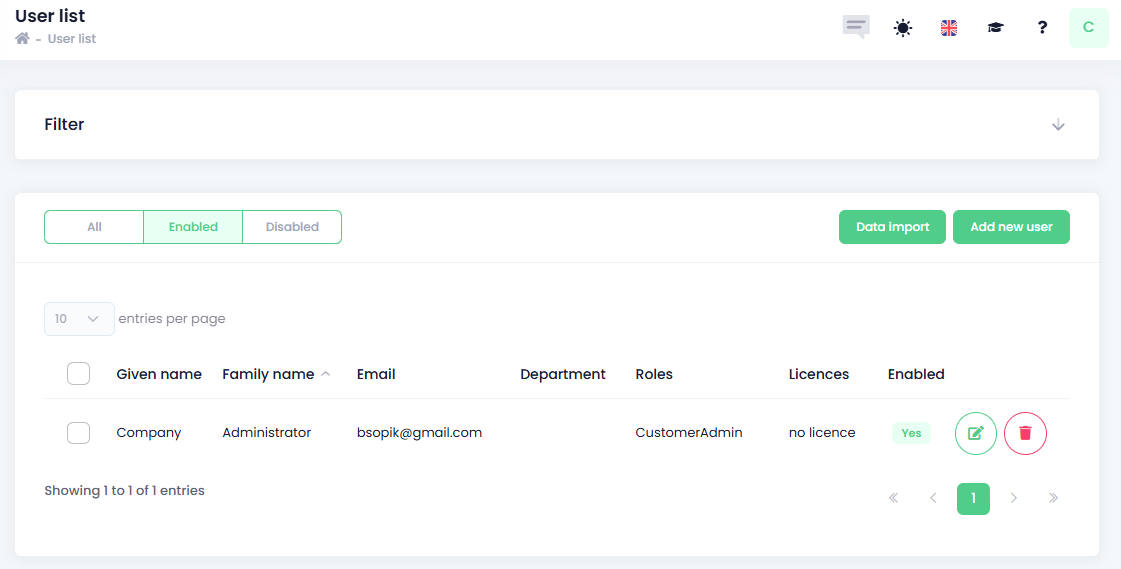
Available information:
-
Given Name – User’s given (first) name
-
Family Name – User’s family (last) name
-
Email – User’s email address
-
Department – Department assigned to the user
-
Roles – Roles assigned to the user that define access to OptimiDoc features and sections
-
Licences – Licence assigned to the user when a user‑based licensing model is enabled for the tenant.
-
Enabled – Indicates whether the user account is active or disabled
-
Operations – Available actions for the selected user
-

-
-
User list filtering
You can filter the user list using the following parameters:
-
Given Name - Filter users by their first name.
-
Family Name - Filter users by their surname.
-
Email - Filter users by email address.
-
Department - Show users assigned to a specific department.
-
Role - Filter users based on their assigned roles.
-
Licence - Filter users by licence type. This option is available when user‑based licensing is enabled for the tenant.
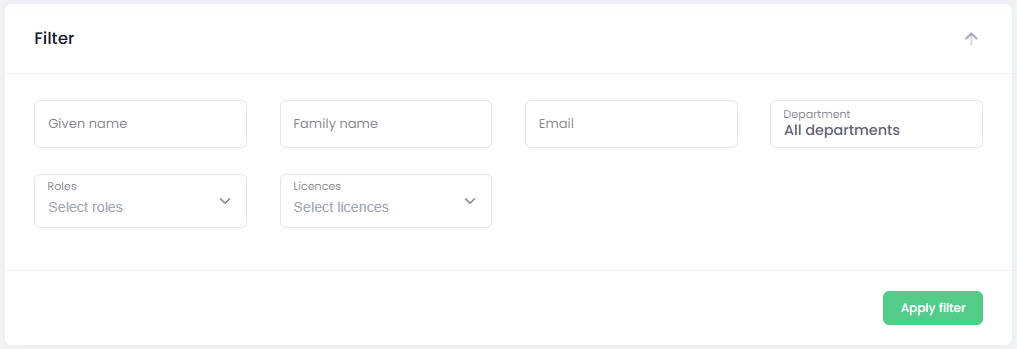
Additionally, you can choose to display enabled users only, disabled users only, or all users by using the status switch.

How to Manually Create a New User
-
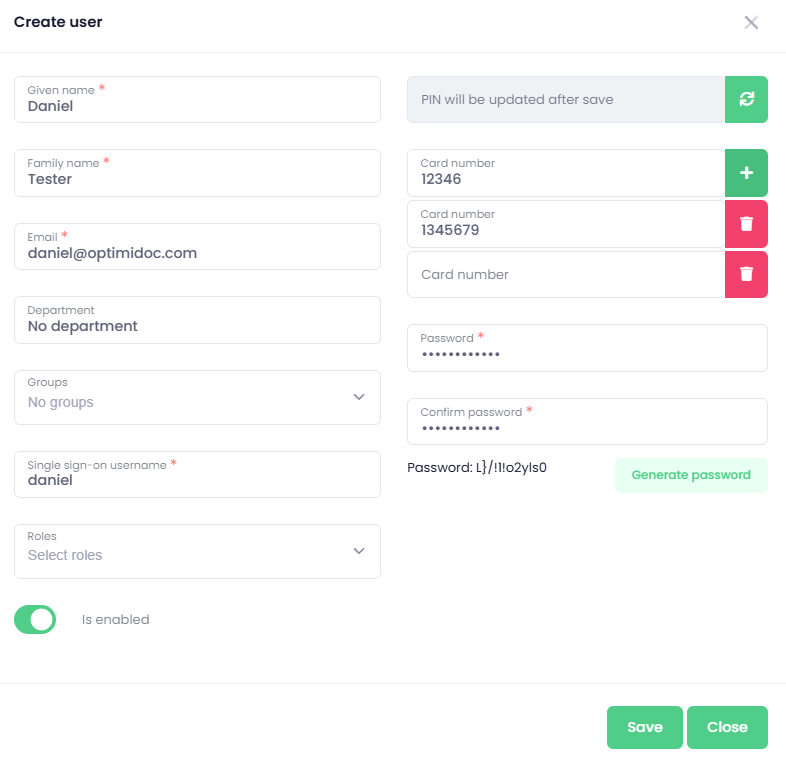
Click Add New User.
-
Fill in the user information:
-
Given Name – User’s given (first) name
-
Family Name – User’s family (last) name
-
Department – Department assigned to the user
-
Email – Email address used for sending system notifications and messages
-
Groups – Groups to which the user is assigned for access control and policy assignment
-
Single Sign‑On Username – Identity attribute used for SSO to the OptimiDoc Cloud embedded application; when an external third‑party authentication application is used on the device, this value must exactly match the login username passed from that application to the device.
By default, the user’s email address can be used. -
Roles – Roles assigned to the user that define access to OptimiDoc features and sections.
Available roles:-
Standard User – Default role with no additional permissions assigned; access is limited to the Workplace section.
-
Report Manager – Allows access to reporting features and visibility into usage and cost reports.
-
Customer Admin – Grants administrative access to customer configuration and management within OptimiDoc Cloud.
-
-
PIN – Used for authentication of the embedded application or to identify the user during card assignment when an unknown card is registered in the system.
-
Card Number – Used for user identification during card authentication; multiple cards can be assigned to a single user.
-
Password – Securely stored password; cannot be displayed and can be regenerated if forgotten
-
Enabled – Determines whether the user account is active or disabled
-
-
Save the user to complete the creation.
Data import
Operation used for importing cards or PINs for existing users.
To import data:
-
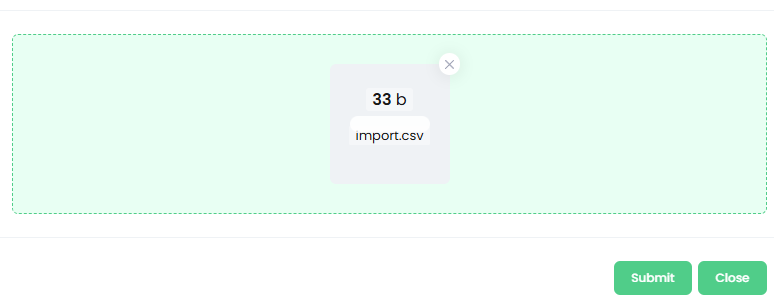
Click Data Import.
-
Upload the data file.
-
Click Submit.
-
After submission, an import summary is displayed.
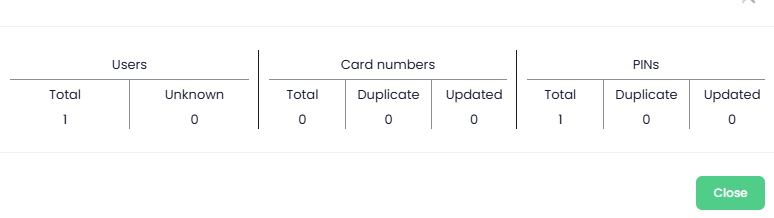
The import file can be provided in CSV or JSON format.
CSV Template:
email,pin,card
test@optimidoc.com,123456,98754646
JSON template:
[
  {
    "email": "john.smith@optimidoc.com",
    "pin": "123456",
    "card": "abcdef"
  },
  {
    "email": "jane.doe@optimidoc.com",
    "pin": "654321",
    "cards": [
      "foo",
      "bar"
    ]
  }
]
Email is mandatory. PIN and card number are optional; however, at least one of them must be provided.
Bulk operations
Multiple operations can be performed on one or more users directly from the Users list.
To perform an operation, select one or multiple users and then choose the required action from the top menu.
