
The simplest method for importing or synchronising users into OptimiDoc Cloud is through a CSV file. This option is ideal for manual onboarding, bulk updates, or initial user provisioning.
How to Import Users from a CSV File
-
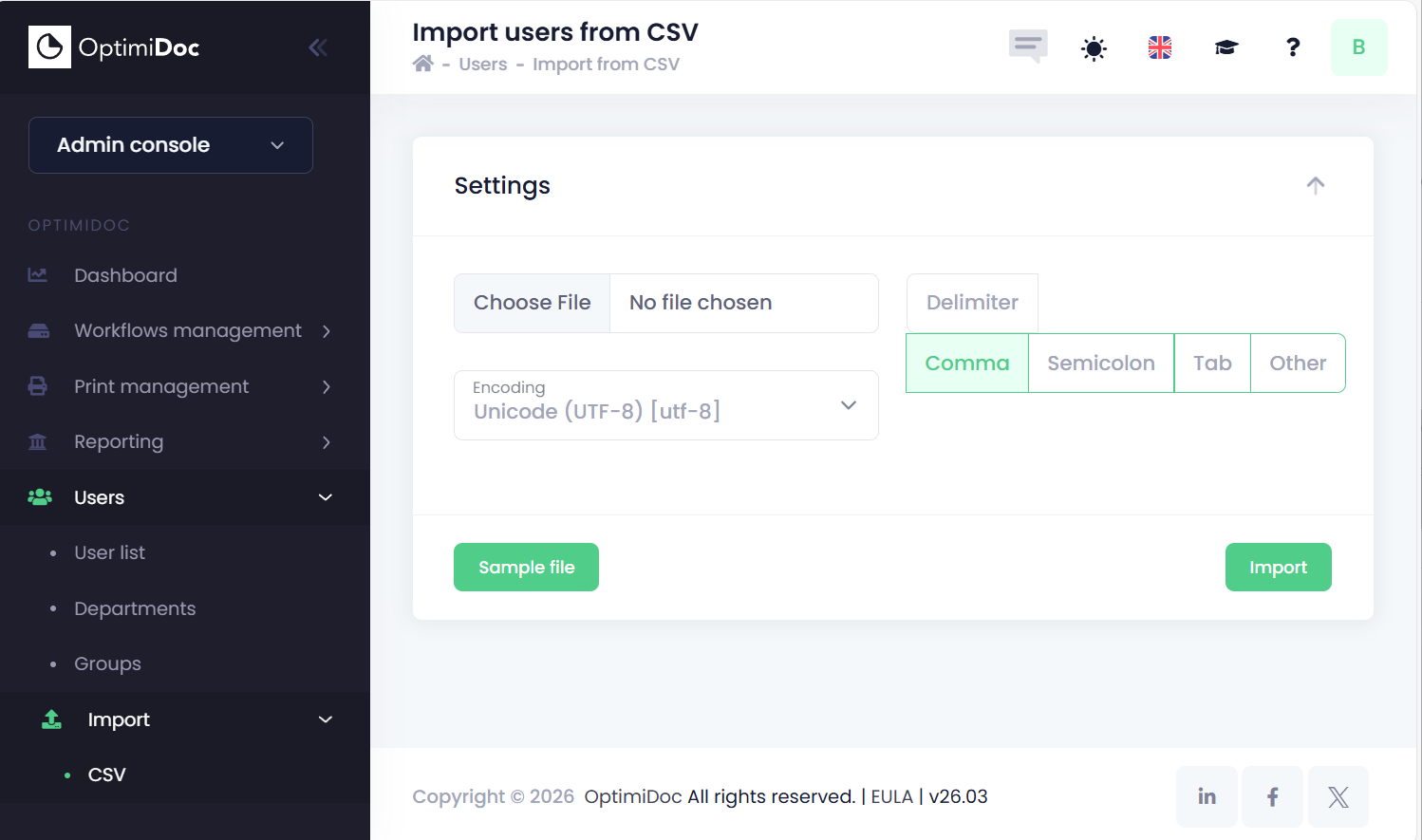
Navigate to Users → Import → CSV in the OptimiDoc Cloud Admin Portal.
-
Click Choose file and select the CSV file from your local storage.
-
Configure the file settings:
-
Encoding – Select the encoding used in the CSV file (e.g., UTF‑8).
-
CSV delimiter – Specify the character used to separate values (commonly a comma or semicolon).
-
-
(Optional) Download the predefined template by clicking Sample file. This ensures the correct column structure is used.
-
Click Import to start the processing
-
Import summary appears.

OptimiDoc Cloud keeps track of all users previously created via CSV import. During any subsequent CSV import, the system automatically performs a synchronisation:
-
Existing users included in the new CSV file are updated based on the latest data.
-
Users missing from the CSV file are removed from the tenant to ensure the user list remains fully aligned with the imported data set.
This mechanism allows administrators to maintain an accurate and consistent user directory using a single authoritative CSV source..
CSV sample file
FirstName,LastName,Email,Password,Department,SsoUsername,IsEnabled,IsAdmin,Pin,CardNumber,NotifyAboutNews
John,Smith,john.smith@example.com,Pass-123,Example department,j.smith,True,False,1234,'card1,card2',True

# The "FirstName", "LastName", "Email" fields are required
# The "Password" field is required only for new users, for existing users you can leave this value empty to keep the current password
# The "Password" field must be at least 6 characters long and must contain at least one letter and one number
# The "Department", "SsoUsername", "IsEnabled", "IsAdmin", "Pin", "CardNumber" and "NotifyAboutNews" fields are optional and can be omitted completely
# If you don't specify the "Department", "SsoUsername", "Pin" or "CardNumber" columns in the header row, the current value will not be changed
# SsoUsername - single sign-on username
# The "Pin" field is a number
# There could be more than one "CardNumber" value if they are comma-separated and enclosed in single quotes, like 'card1,card2,...'
# The "IsEnabled", "IsAdmin" and "NotifyAboutNews" fields can be either "True" or "False"
# The "IsEnabled", "IsAdmin" and "NotifyAboutNews" fields can also be left empty if you don't want to change the current value
# The default values for the optional fields are:
#		IsEnabled - True
#		IsAdmin - False
#		NotifyAboutNews - False
#		All other optional fields are left empty by default