
Local Active Directory Configuration
To configure synchronisation with a local Active Directory, open the Active Directory Sync Tool in Windows Forms mode.
Double‑click ADImport.exe to launch the application.
The application consists of two configuration tabs:
-
Active Directory – configuration of the connection to the customer’s local AD
-
OptimiDoc Cloud – configuration of authentication and synchronisation behaviour for the OptimiDoc Cloud tenant
Active Directory Tab
The Active Directory tab is used to define how the Sync Tool connects to the customer’s AD environment and what data will be imported.
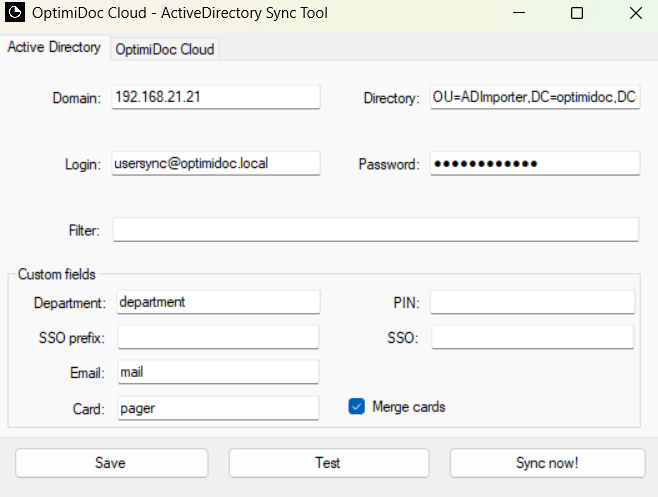
Active Directory Attributes
-
Domain – The domain name of the Active Directory.
-
Login – A user account with sufficient rights to read from the directory.
-
Directory – The specific Organisational Unit (OU) or directory path containing the users to be imported.
-
Password – Password for the AD account.
-
Filter – (Optional) LDAP filter used to limit which users are imported. Helpful when importing only a subset of accounts.
Custom Fields
These fields define how specific AD attributes map to OptimiDoc Cloud user properties:
-
Department – (Optional) AD attribute containing the user’s department name.
-
SSO prefix – (Optional) Prefix added before the sAMAccountName to create a correct Single Sign‑On identity. Useful when external authentication systems prepend domain or prefix values.
-
PIN – (Optional) AD attribute representing the user’s PIN.
-
Email – AD attribute containing the user’s e‑mail address (required for cloud identity).
-
Card – AD attribute containing the card number used for device authentication.
OptimiDoc Cloud Tab
The OptimiDoc Cloud tab defines how the tool connects to the specific tenant and which synchronisation rules apply.
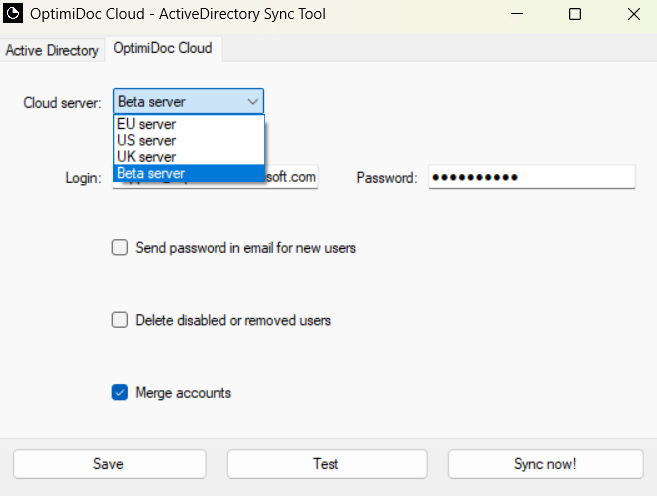
OptimiDoc Cloud Attributes
-
Cloud server – Select the OptimiDoc Cloud data centre used by the customer’s tenant.
-
Login – E‑mail address of the tenant administrator used for authentication.
-
Password – Administrator’s password.
-
Send password in email for new users – When enabled, OptimiDoc Cloud automatically generates a password for newly created users and sends it to them via e‑mail.
-
Delete disabled or removed users – When enabled, users who are disabled or deleted in AD are removed from OptimiDoc Cloud.
-
Merge accounts – Internal OptimiDoc Cloud users with the same e‑mail address will be merged with imported AD accounts.
Operations Available in the Sync Tool
The following actions are available above the configuration panel:
Save
Stores the configuration into a settings.json file.
This allows re‑use of the configuration for future synchronisation tasks.
Test
Executes a connection and import simulation.
A pop‑up window displays a preview of users or any error messages if the configuration is invalid.
Preview Window
Displays a list of users detected based on the current configuration, including their status (new, updated, ignored).
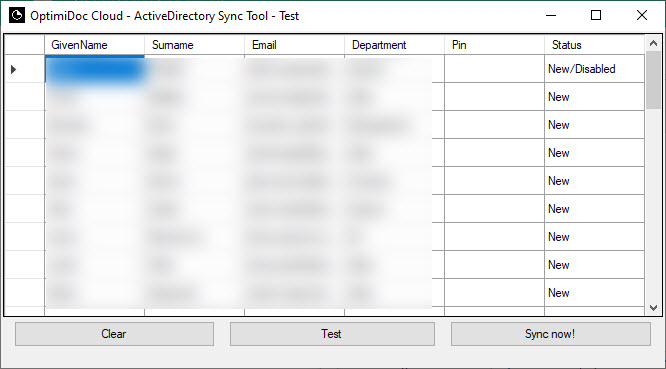
Available operations include:
-
Clear – Clear the preview.
-
Test – Re‑run the test.
-
Sync now – Trigger immediate synchronisation.
Sync now!
Starts the actual synchronisation process and imports users into OptimiDoc Cloud.