
Scheduled Task Configuration for Periodical Active Directory Import
OptimiDoc Cloud supports automated, periodic synchronisation of users from a local Active Directory using Windows Scheduled Tasks. This ensures that changes in the customer’s directory (new users, updated data, or removed accounts) are regularly reflected in the OptimiDoc Cloud tenant.
The scheduled task executes the ADImport.exe tool in command‑line mode with the sync argument.
Configuring the Scheduled Task
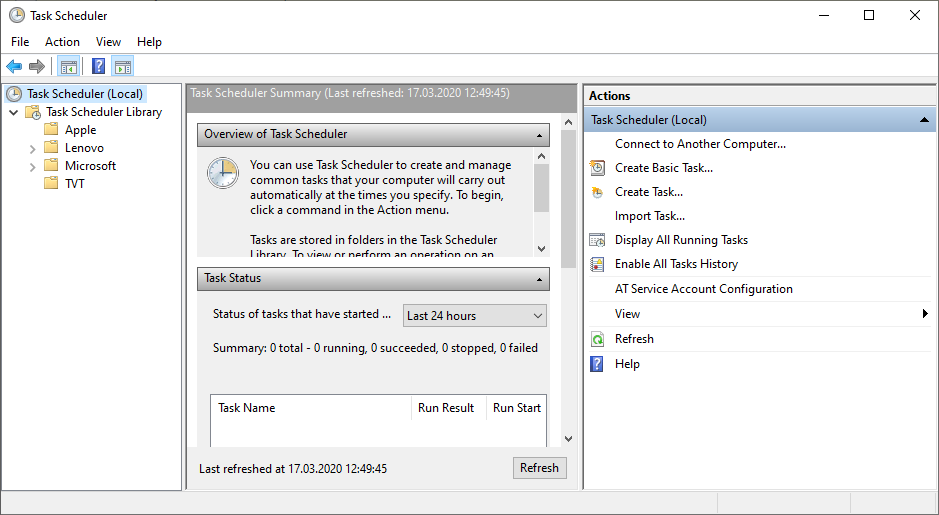
1. Open Task Scheduler
-
Open the Start Menu.
-
Search for Task Scheduler and launch the application.
2. Create a New Task
-
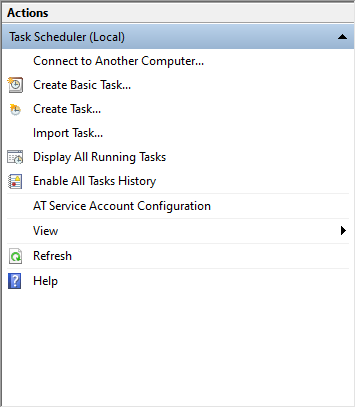
In the Actions menu, click Create Task.
-
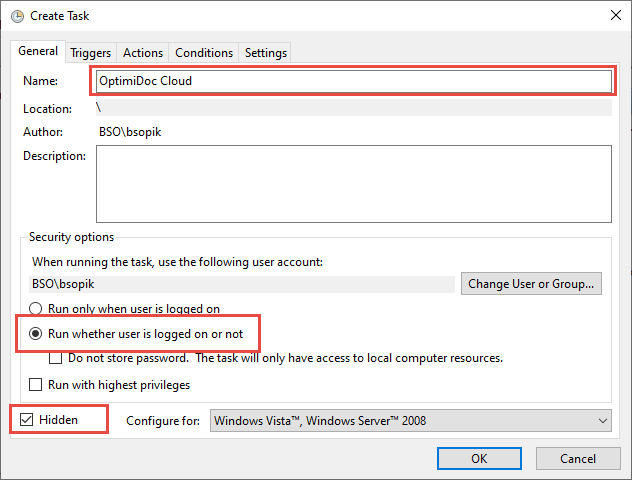
Configure the General tab:
-
Name – Provide a descriptive task name (e.g., OptimiDoc AD Sync).
-
Security options:
-
Tick Run whether user is logged on or not.
-
(Optional) Select Run with highest privileges if required by the environment.
-
-
Hidden – Enable this option to allow the task to run in the background without showing Windows pop‑ups.
-
3. Define the Trigger
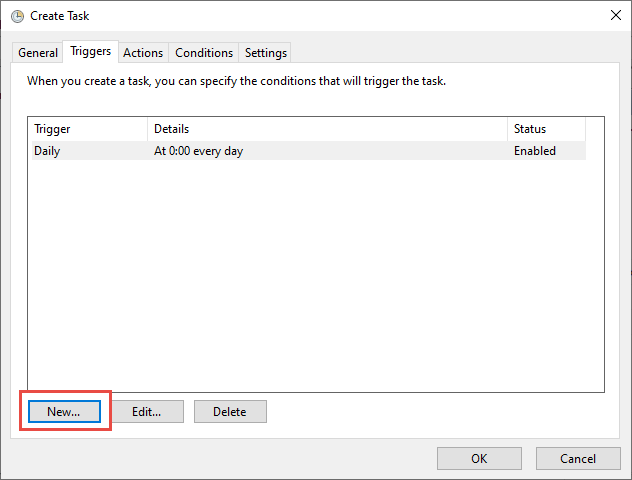
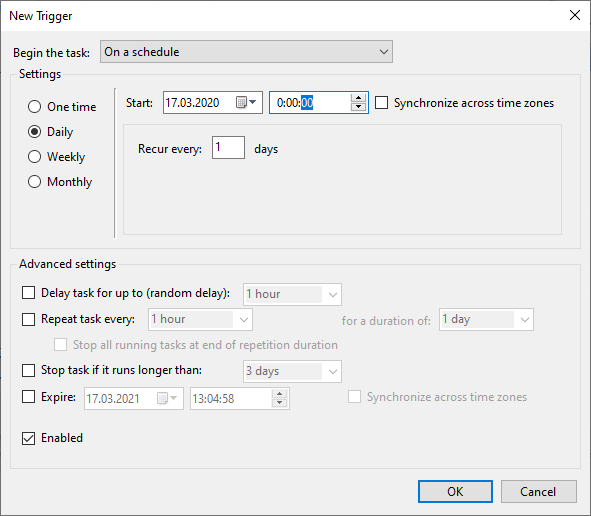
Click New… to create a trigger that defines when and how often the synchronisation occurs.
Configure the trigger according to the desired schedule, for example:
-
Daily, every 1 day
-
Repeat task every 1 hour (optional)
-
Enabled checkbox must be ticked
Once done, click OK.
4. Define the Action
-
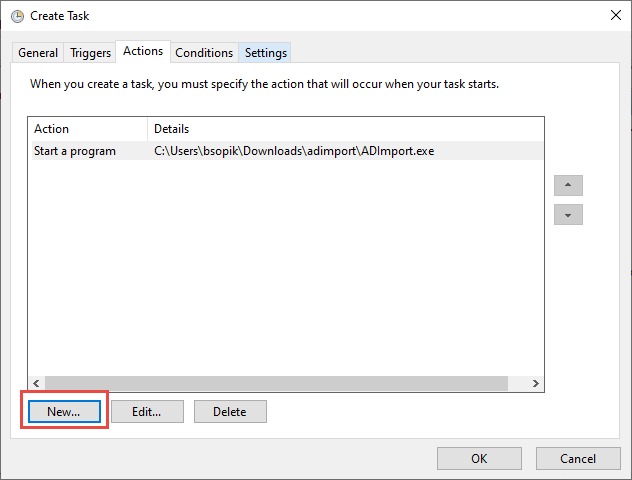
Select the Actions tab.
-
Click New… to add an action.
-
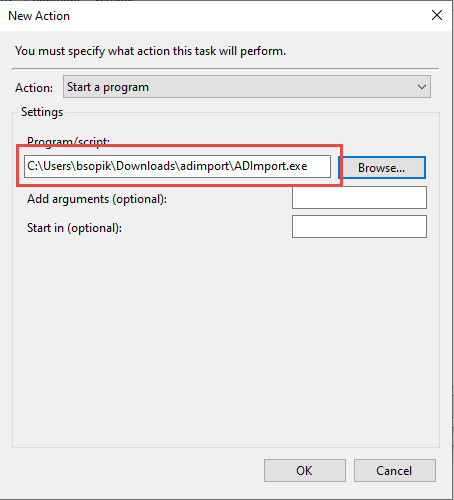
Choose Start a program.
-
Provide:
-
Program/script – Full path to ADImport.exe
Example:C:\OptimiDocADSync\ADImport.exe -
Add arguments (optional) –
sync
-
This ensures the tool runs in command‑line mode and performs user synchronisation.
5. Save and Activate the Task
Click OK to save the new task.
Windows will prompt for administrator credentials to run the task under the configured security context. Enter the required credentials to finalise the setup.
Notes and Important Information
🖹 NOTE
You can run the tool manually from the command line to validate the configuration before scheduling:
ADImport.exe sync
This allows you to check connectivity, configuration, and AD attribute mapping.
🗲 IMPORTANT
The tool stores a log file named log.txt in the same directory as ADImport.exe.
This log contains details about:
-
successful imports
-
updated users
-
removed users
-
detected errors
It is recommended to periodically monitor this log file to verify successful synchronisation.