
The OptimiDoc Cloud Node (OCN) is used for functionalities that require a presence within the customer’s local network.
Supported Functionality
-
Xerox embedded functionality
-
Device authentication
-
Accounting
-
Mobile authentication
-
-
Mobile authentication for Ricoh, Kyocera, and Lexmark devices
-
Printing via the Mobile application or the Web Digital Workplace
-
Local print job spooling
A complete description of the installation process is available here:
The OptimiDoc Cloud Node (OCN) is automatically registered in OptimiDoc Cloud once the installation and configuration are completed.
After installation, the OCN is disabled by default and must be explicitly enabled before it can be used.
If the OCN is not visible in Device Management, check that the OCN is correctly configured and that the device can connect to the internet.
OCN configuration
-
Click the Edit button on the selected device.
-

A pop‑up window displays the settings of the selected OCN.
-
Modify the device settings as required and save the changes.
General settings
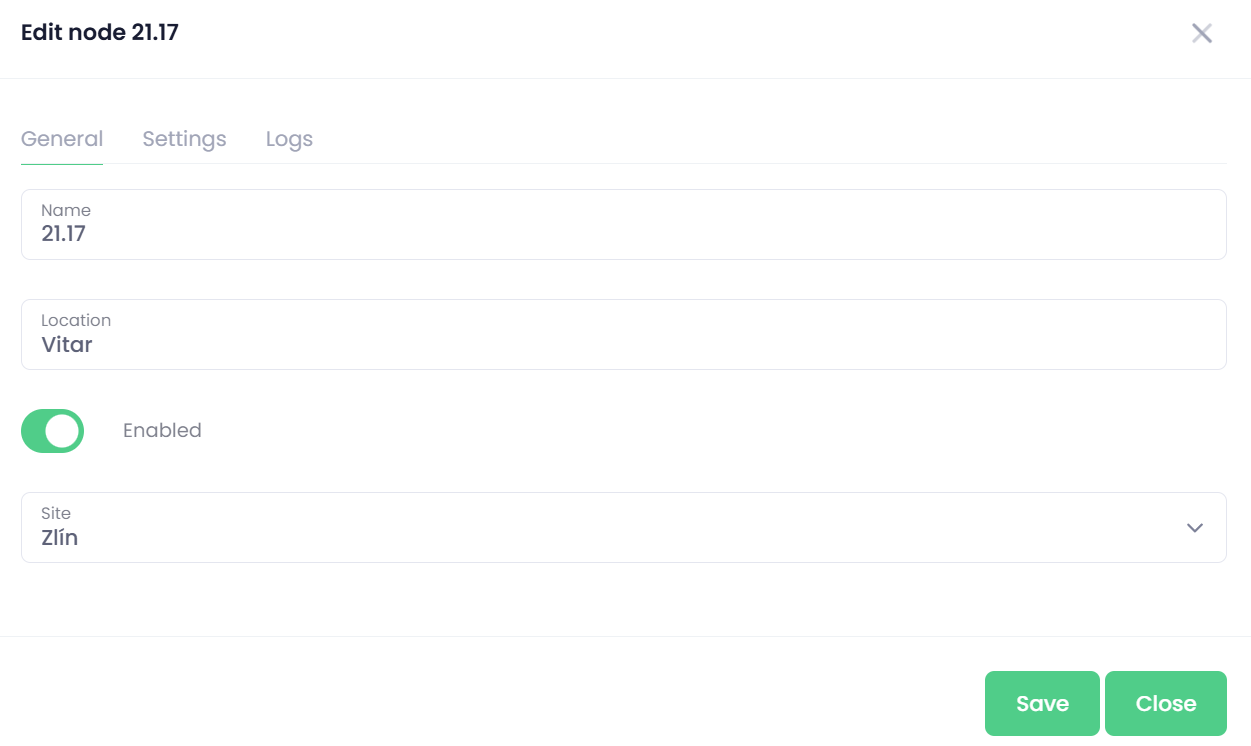
-
Name – The name of the node, typically defined during the initial setup.
-
Location – Used for filtering and easier orientation within the environment.
-
Enabled – Indicates whether the selected OptimiDoc Cloud Node (OCN) is enabled.
-
Site – Defines the site in which the OptimiDoc Cloud Node (OCN) is deployed. Based on the selected site, the OCN is used for communication with other devices within the same site.
The OCN must have network connectivity to all devices assigned to the same site.
Settings
The Settings tab allows you to enable or disable specific OCN functionalities and configure their parameters.
-
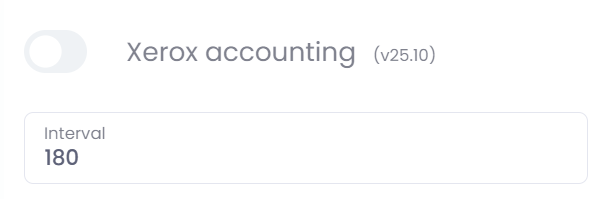
Xerox Accounting – Enables the retrieval of accounting logs from Xerox multifunction devices.
-
Interval – Defines the polling interval, in seconds, at which the accounting logs are fetched from the device.
-
-
Xerox Authetication - Enables device authentication on Xerox multifunction devices and supports remote authentication via the Mobile application.
-
Kyocera Authetication - enables remote authentication via the Mobile application.
-
Lexmark Authetication - enables remote authentication via the Mobile application.
-
Ricoh Authetication - enables remote authentication via the Mobile application.
-
Mobile Print – Enables print release via the Mobile application or the Web Digital Workplace.
To support this functionality, at least one OptimiDoc Cloud Node (OCN) with Mobile Print enabled must be available within the site. -
Local pull print
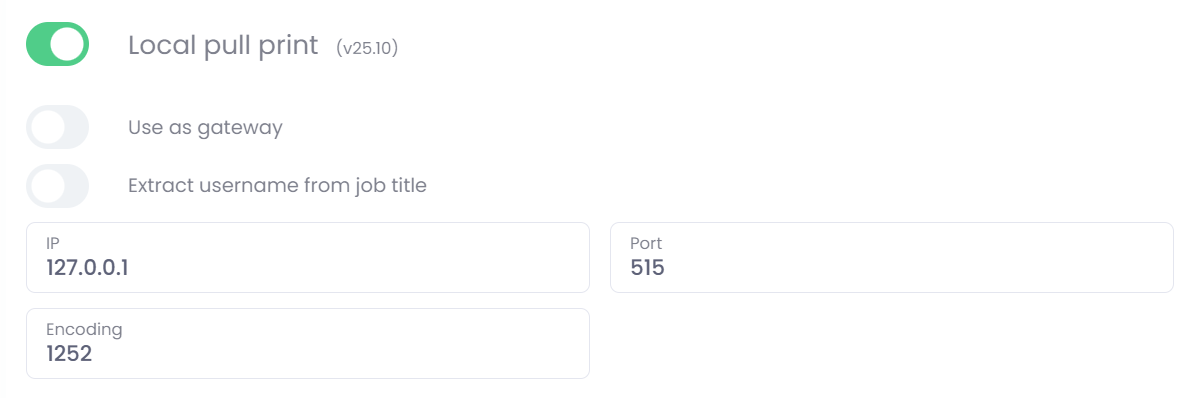
Enables the local LPR spooler. When enabled, the OptimiDoc Cloud Node (OCN) can accept incoming print jobs via LPR within the local network.Accepted print jobs can be processed using one of the following scenarios:
-
Local spooling with release via embedded application
Print jobs are spooled locally on the OCN and released by the user through the device’s embedded OptimiDoc application.
Local spooling is supported by Xerox, Ricoh, and HP. -
OCN as a gateway
When enabled, the OCN acts as a gateway that transfers incoming print jobs to the user’s default, user‑specific virtual spooler for further processing.
Alternatively, a direct delivery to a specific printer can be requested.The individual processing scenarios are described in separate sections:
-
-
Printing from shared workstations and VDI environments , where user identification is required.
-
-
Configuration Parameters
IP – The IP address on which the local print spooler is accessible.
Port – The port used for spooling print jobs. LPR uses port 515 by default and typically does not need to be changed.
Encoding – Defines the print file encoding used for LPR delivery.
Extract username from Job Title – This functionality is intended for specific systems (for example, SAP) that store user identification information in the print job title.
By enabling this option, OptimiDoc Cloud can extract the user identity from the job title, even in scenarios where the job sender is identical for all print jobs.
To define which part of the job title contains the user name, you can use a regular expression to extract the required value.
Logs
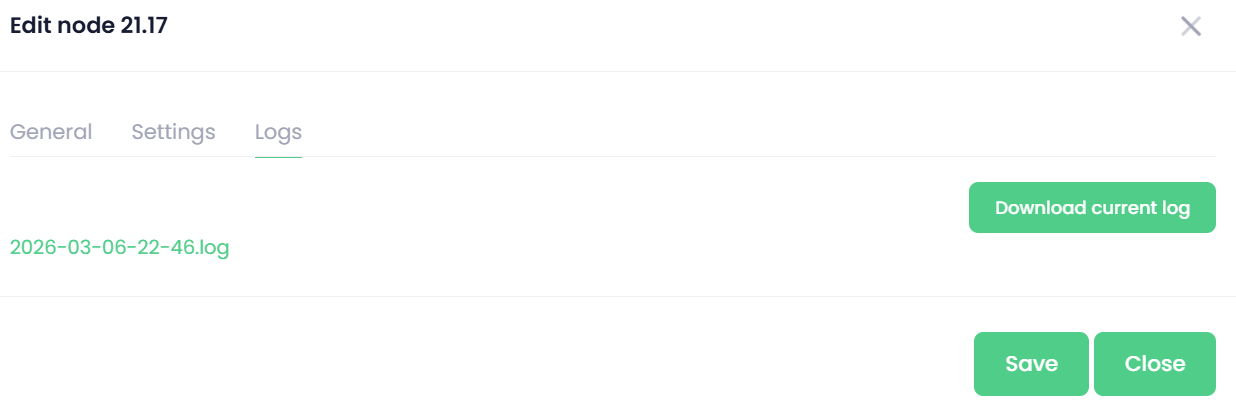
The Logs tab allows you to remotely download log files from the local OptimiDoc Cloud Node (OCN).
To download the most recent logs, click Download current log. Once the log file is uploaded to the OptimiDoc Cloud datacentre, it is listed and available for download in this tab.
OCN Auto-update
The OptimiDoc Cloud Node (OCN) supports automatic update functionality. This allows you to trigger an update for a specific OCN directly from Device Management.
When a new version is available, an Auto‑update 
The auto‑update process takes time and requires a restart of the OptimiDoc Cloud Node (OCN).
It is therefore recommended to perform updates outside of business hours to avoid service disruption.