
Authorised apps provides a detailed overview of all mobile and desktop client applications that have been authorised by users to access OptimiDoc Cloud services within the company tenant.
Application access is granted through a user‑driven authorisation process, based on secure authentication and authorisation mechanisms. During this process, users explicitly approve an application to access OptimiDoc Cloud on their behalf. The resulting authorisation tokens are securely stored and used to authenticate subsequent requests made by the application.
This section allows administrators to:
-
Review which applications are currently authorised
-
Identify the associated users and application types
-
Revoke application access when required, immediately invalidating the corresponding authorisation tokens.
In OptimiDoc Cloud, there are two primary application types:
-
Mobile applications – Applications used on mobile devices to support functions such as authentication, print release, and document submission.
-
Desktop applications – Applications installed on user workstations to enable printing, device deployment, and downloading the processed document from OptimiDoc destination.
Information, installation and configuration of Mobile and Desktop applications is described in sections:
Mobile apps
List of connected OptimiDoc Cloud applications installed on iOS and Android devices.
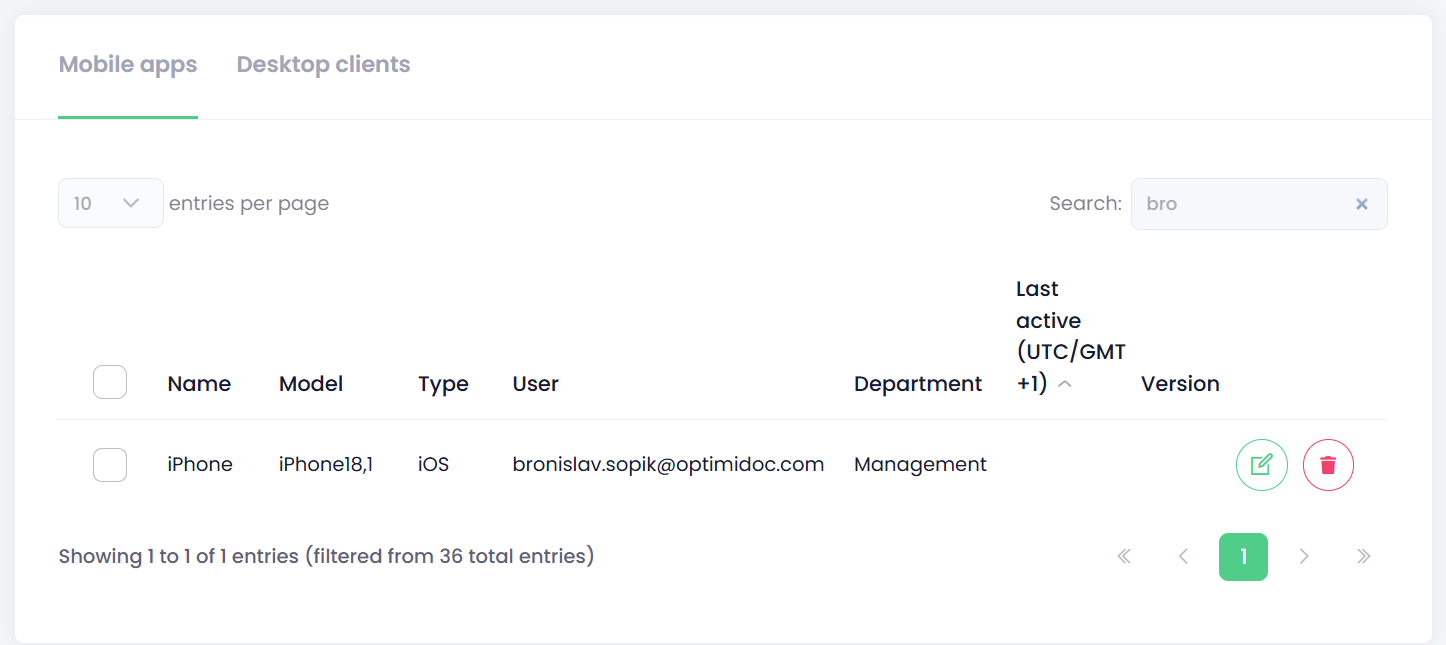
Available information:
-
Name – User‑defined name of the device
-
Model – Hardware model on which the application is installed
-
Type – Operating system type
-
User – Email address of the user who authorised access on the device
-
Department – User’s department
-
Last active – Date and time of the last activity on the device
-
Version – Installed application version
-
Operations – Available actions for the selected device
-

-

-
Desktop clients
List of OptimiDoc Cloud Clients connected to the OptimiDoc Cloud tenant.
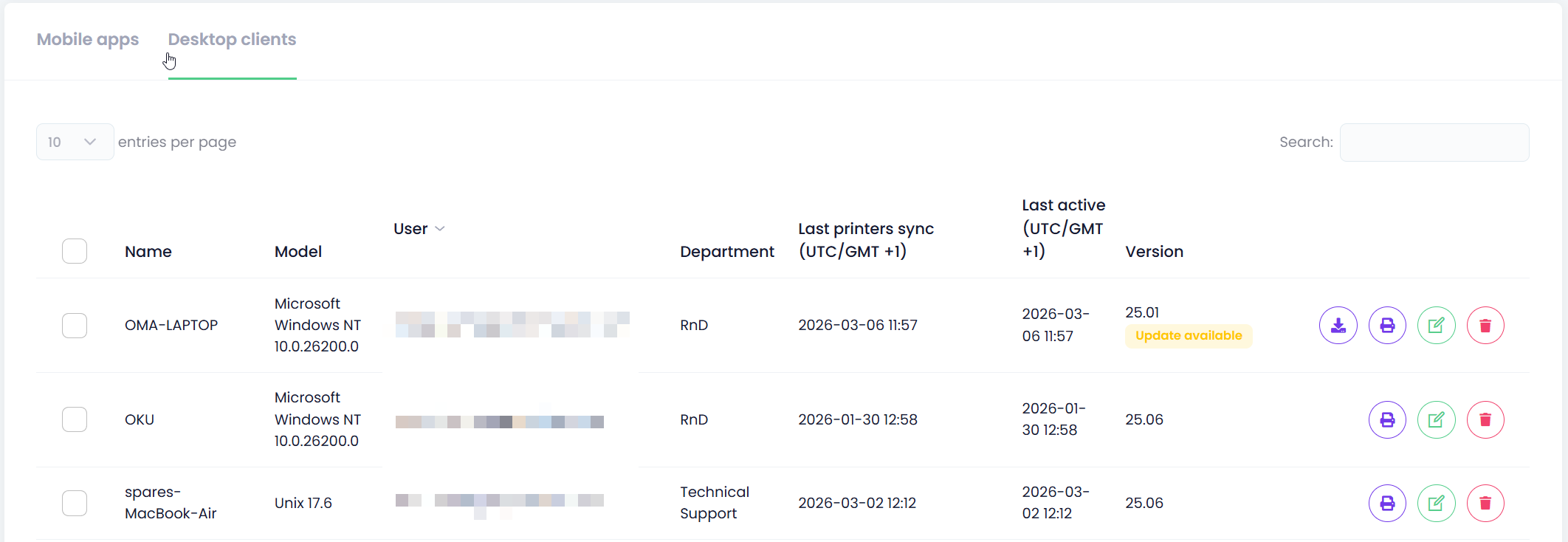
Available information:
-
Name – workstation domain name
-
Model – Operating system of workstation.
-
User – Email address of the user who authorised access on the device.
-
Department – User’s department.
-
Last printer sync - Date and time of the last printer synchronisation performed on the workstation.
When printer synchronisation is scheduled, a status tag
-
Last active – Date and time of the last activity on the device.
-
Version – Installed OptimiDoc Cloud Client version.
When an ODC update is scheduled, a status tag
When a new version of the OptimiDoc Cloud Client (ODC) is available, a status tag
is displayed.
-
Operations – Available actions for the selected device.
-

Schedules a printer synchronisation task. Once scheduled, the OptimiDoc Cloud Client checks all printers defined in the system and updates them according to the current device configuration and print connector settings. Printers that were not created by the OptimiDoc Cloud Client remain untouched. -

Schedules a remote, silent update of the OptimiDoc Cloud Client to the latest available version. After scheduling, the client starts the update process during its next periodic synchronisation cycle.-
This feature is available for the Windows version only.
-
-
Removes the device from the tenant and revokes the user’s authorisation. -
Allows modification of the device name.
-