
The MFP device type represents a device with an embedded OptimiDoc application installed.
A list of available embedded applications, including installation instructions and supported functionality, is provided in the relevant section.
The MFP device is automatically registered in OptimiDoc Cloud once the embedded application is installed and successfully configured on the device. The device is disabled after installation by default.
If the device is not visible in Device Management, check that the embedded application is correctly configured and that the device can connect to the internet.
MFP configuration
-
Click the Edit button on the selected device.

-
A pop‑up window displays the settings of the selected MFP.
-
Modify the device settings as required and save the changes.
MFP device settings
General Settings
-
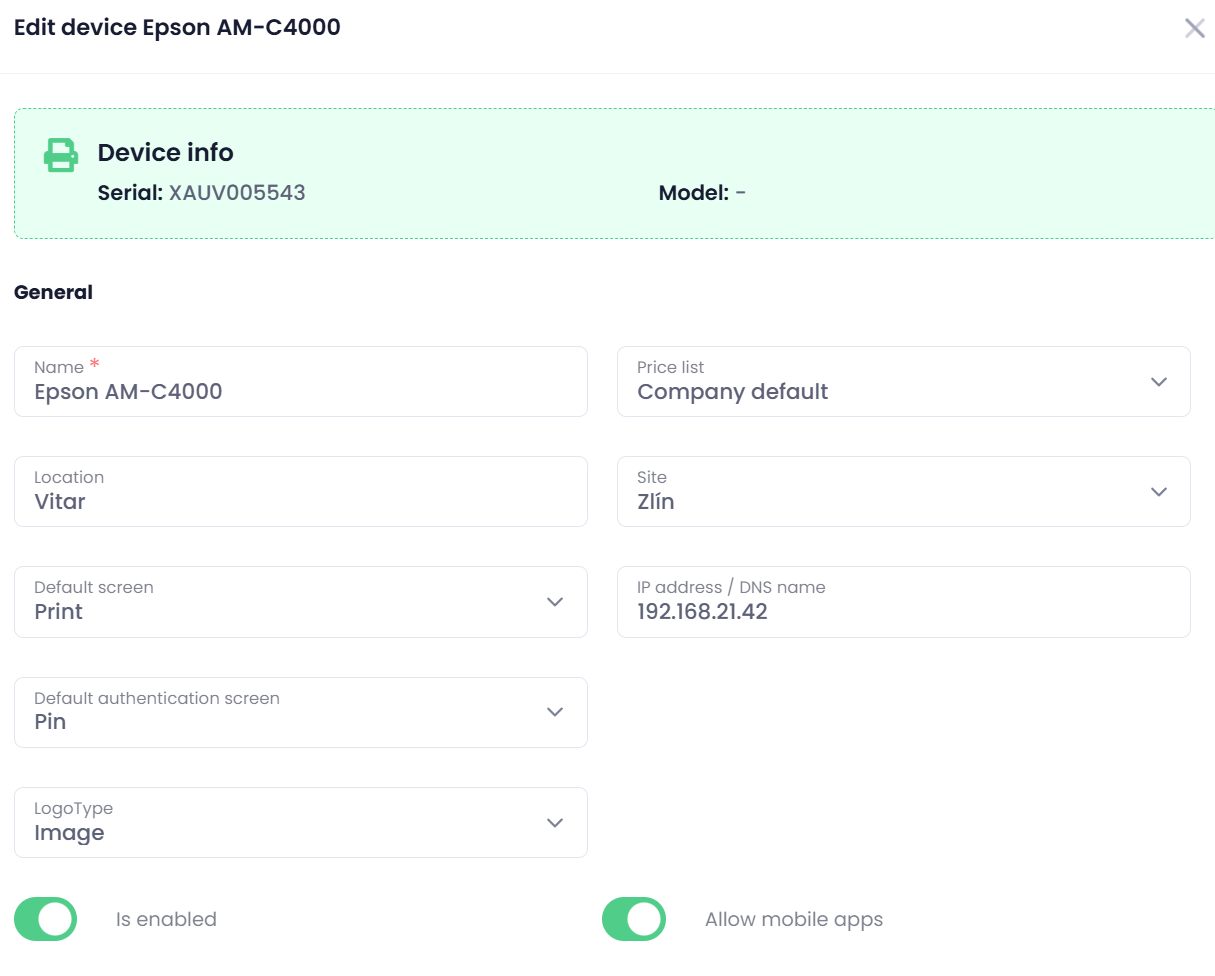
Name – Logical name of the device.
-
Location – Physical or organisational location of the device.
-
Default screen – Select whether the Scan or Print screen is displayed by default when the OptimiDoc application is started.
-
Default authentication screen – Select the default authentication method shown to users.
Available authetication options:-
User list
-
PIN
-
SSO
-
The Default authentication screen option is available only for Epson, Sharp, and Fujifilm devices.
For all other manufacturers, authentication settings are configured directly on the device.
-
Logo type – Choose whether to display a custom logo or a QR code for authentication via the mobile application.
-
Price list – The price list used for calculating operation costs.
Price list configuration is described in the following section Price Lists .
You can select either the default company price list or a specific price list assigned to the device. -
Site – Site to which the device is assigned.
-
IP address / DNS name – Local IP address or DNS name of the MFP or printer.
-
Is Enabled – Enables or disables the device in OptimiDoc Cloud.
Important:
Every newly registered device is disabled by default and must be explicitly enabled for OptimiDoc Cloud functionality to be available.
-
Allow mobile apps – When enabled, users can release print documents or authenticate on the device using the mobile application or the web Digital Workplace.
To support this functionality, a running and correctly configured OptimiDoc Cloud Node (OCN) must be assigned to the same Site as the device.
Printing and Drivers
OptimiDoc Cloud provides centralised distribution of printers to users’ workstations, including automatic deployment of print drivers and print settings configuration.
A complete description of printer distribution and configuration is available here:
How Centralised Management Without Print Servers Works in OptimiDoc Cloud
The OptimiDoc Cloud Client must be installed on users’ workstations to support printer deployment functionality.
A complete description of the installation process is available here: OptimiDoc Cloud Client (OCC)
The user guide can be found in the following section. OptimiDoc Cloud - End-User Guide
-
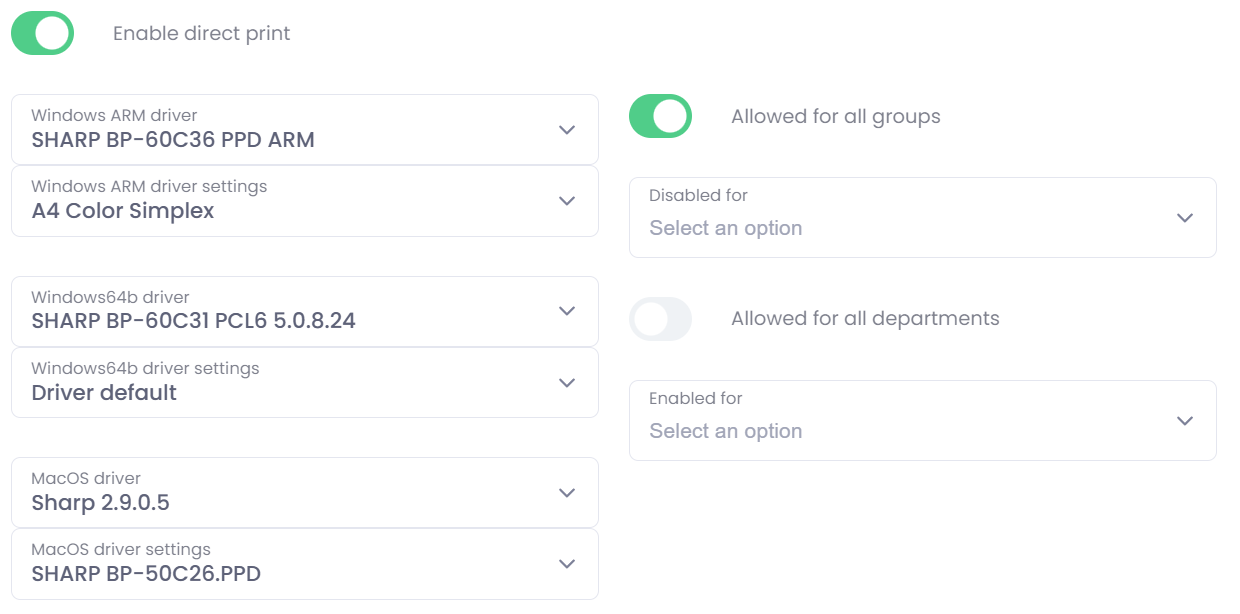
Enable direct print – When enabled, the device is automatically deployed to users’ workstations based on the assigned access rights.
-
Driver configuration
Before deployment, the print driver and its print settings must be properly configured to ensure correct functionality.
You must specify the appropriate driver for each platform used within your organisation. OptimiDoc Cloud supports the following platforms:-
Windows ARM
-
Windows 64‑bit
-
macOS
Each platform requires a separate driver selection and individual print settings configuration.
-
Management of print drivers and print settings is described in the following section:
Authentication and Access
-
Access Rights for Device Creation on Workstations
Access rights for device creation on workstations can be defined using user groups, departments, or a combination of both. This flexible access model allows administrators to precisely control which users can create and use devices on their workstations.
For example, you can grant access to direct printing to an accounting printer exclusively to users belonging to the Accounting department.
More detailed information about configuring Groups and Departments is available in the Users section.
Access Control Options-
Allowed for all groups
When enabled, the device is created for all groups in the company.
If access management should be handled exclusively through departments, this option must be disabled. -
Allowed for all departments
When enabled, the device is created for all departments in the company.
If access management should be handled exclusively through groups, this option must be disabled.
-
-
The remaining access‑rights options override the global settings described above. This means that even if access is disabled for all groups or all departments, you can explicitly define selected groups or departments for which the device should or should not be created on workstations.
These override options allow fine‑grained control by specifying which groups or departments are permitted or denied the ability to use direct printing without device authentication.
Licensing
Available only when using the per‑device licensing model.
-
Licence – Licence assigned to the device:
-
None
-
Lite -
-
Professional
-
Allow Print
-
Saving Changes
-
Save – Saves the configuration without pushing changes to client workstations.
-
Save and update Clients – Saves the configuration and triggers an OptimiDoc Cloud Client update, ensuring that changes to device deployment are applied immediately on user workstations.
MFP device delete
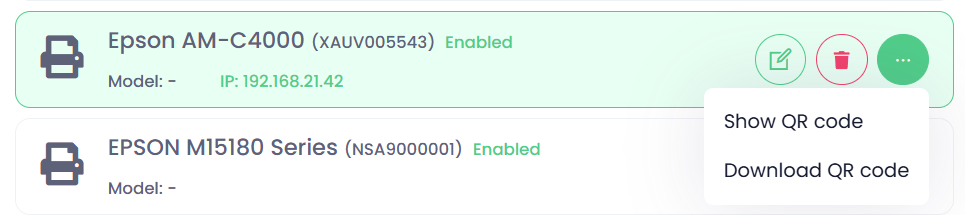
To remove a device from OptimiDoc Cloud, click the trash icon next to the selected device.

Other Operations
Under Other operations, you can display or download a QR code that can be used for print release via the OptimiDoc Cloud Mobile application.
To support this functionality, a running and correctly configured OptimiDoc Cloud Node (OCN) must be assigned to the same Site as the device.