
The OptimiDoc Virtual Spooler is a universal, secure print queue that works across all supported operating systems. Instead of sending a job directly to a printer, jobs are held securely on a remote server or in a cloud storage destination. Jobs are only released and printed once a user authenticates with a MFP device
For better understanding, check the section: How Cloud‑Based Pull Printing and Secure Release Works
How to create Virtual spoler
To add a new virtual spooler, Add Print Connector in the Print Connectors list.
Each virtual spooler includes a comprehensive set of configuration options, organised into the following sections:
General
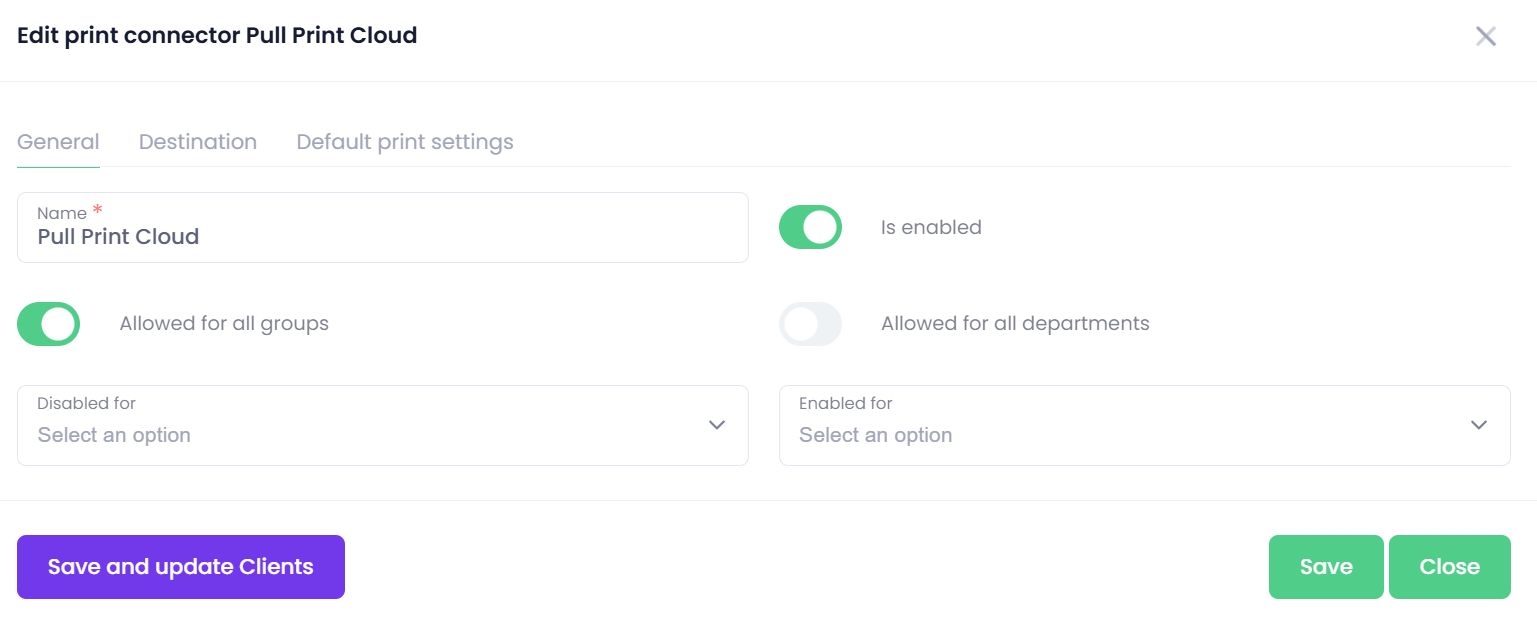
This section contains the core settings that define to whom the virtual spooler will be accessible.
-
Name - The name of the Virtual Spooler as it will appear on the MFP panel and in the user interface.
-
Is enabled - Enables or disables the Virtual Spooler.
When disabled, users will not see this pull‑printing option on the device. -
Access Rights Definition
Access rights for the Virtual Spooler can be controlled using user groups, departments, or a combination of both.
This allows you, for example, to make the Pull Printing spooler available only to the Managers group or only to the Sales department.
More information about configuring Groups and Departments is available in the Users section.-
Allowed for all groups - When enabled, the Virtual Spooler is accessible to all user groups.
If you prefer to manage access only via departments, disable this option. -
Allowed for all departments - When enabled, the Virtual Spooler is accessible to all departments.
If you prefer to manage access only via groups, disable this option. -
Overrides for Groups and Departments
The remaining access‑rights options allow you to override the general settings above.
This means that even if access is broadly enabled or disabled for all groups or all departments, you can still specify exactly which groups or departments:-
are allowed to use the Virtual Spooler
-
are not allowed to use the Virtual Spooler
-
-
These settings refine and fine‑tune access control to meet organisational requirements.
-
Disabled/Enabled for (groups/departments)
Use these options to explicitly include or exclude individual groups or departments from accessing the Virtual Spooler.
-
Destination
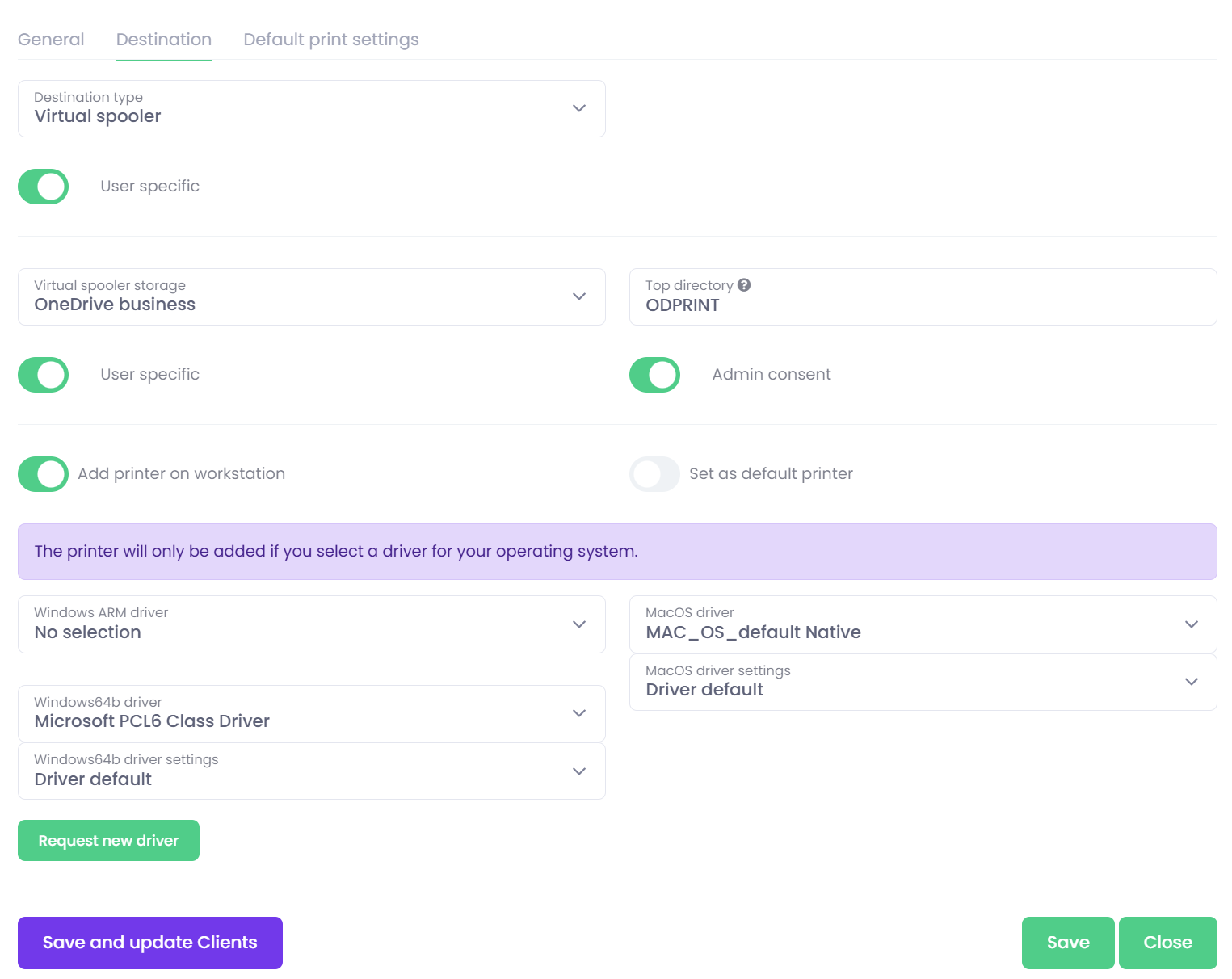
Set the Destination type to “Virtual Spooler”
Set the configuration options>
-
User specific
The User‑specific option defines who can see and release documents stored in this Virtual Spooler.-
Disabled:
All users who have access to this spooler can view and release all documents sent to it by any user.
This effectively creates a shared print queue. -
Enabled:
Only the user who submitted the document to the spooler can see or release their own print jobs.
This creates a private pull‑printing queue.
This feature allows administrators to configure the spooler either as a personal pull‑printing queue for individual users or as a shared queue for team‑based scenarios.
Shared queues are useful, for example:-
when an assistant needs to collect documents printed by a manager
-
when multiple accountants send invoices to a single spooler for central processing
-
when a department wants a common queue for shared output
-
-
Virtual spooler storage
This setting defines where print jobs processed by the Virtual Spooler will be stored.
By default, OptimiDoc Cloud uses its own dedicated internal spooler assigned to your tenant.
However, you can also configure the Virtual Spooler to store print jobs in a third‑party cloud storage location.-
Using a Third‑Party Cloud Storage
If you select a supported third‑party storage provider, you must specify additional parameters:-
Top directory - The directory path in the cloud storage where print jobs will be saved
(example:PullPrintJobs).
This folder is created or used as the root for all spooler‑generated files. -
User‑specific storage - Defines whether print jobs are stored:
-
In one globally authorised storage
(all jobs from all users stored in a single cloud folder), or -
In each user’s personal cloud storage
(jobs stored under the user’s individual authorised account)
If User‑specific storage is enabled, each user must authorise access to their chosen cloud storage provider before using the pull‑printing functionality.
-
-
Supported Cloud Storage Providers
The Virtual Spooler can store print jobs in the following third‑party cloud services:-
Google Drive
-
OneDrive (Personal / Business)
-
SharePoint Online
-
Box
-
Dropbox
-
-
-
Cloud Storage Authorisation
Each cloud storage used by a Print Connector must be explicitly authorised.
Authorisation is required either:
-
By the end user, when user‑specific storage is enabled, or
-
By an administrator, when using a globally authorised storage shared by all users.
The authorisation process for cloud storage is the same as the one used for scan destinations.
Please refer to the Document Workflows → Destinations section for detailed, step‑by‑step authorisation instructions for each supported cloud storage provider.
Note:
-
Unprinted documents in the OptimiDoc Spooler are automatically removed after 3 days
-
Unprinted documents in any cloud storage are deleted after 5 days
-
Printed documents are deleted after 3 hours
-
Print from Workstation Options
OptimiDoc Cloud, together with the OptimiDoc Cloud Client, can deploy native printers directly to users’ workstations.
When a user prints a document to the Virtual Spooler, the client automatically transfers the print job to the cloud spooler for secure pull printing.-
Add printer on workstation
When enabled, the Virtual Spooler printer is automatically installed on the user’s workstation.
If disabled, the printer will not appear in the operating system’s printer list and will only be visible as a spooler inside the OptimiDoc Dashboard. -
Set as default printer
Sets the deployed printer as the default printer on the user’s workstation. -
Windows driver and driver settings
Select the print driver and any related driver configuration that will be used when installing the printer on Windows workstations. -
macOS driver and driver settings
Select the print driver and any related driver configuration for macOS workstations.
-
Missing Drivers
If the required print driver is not available in the list, you can upload it to your driver database.
For detailed instructions, see the guide at:
Print drivers