
Configuring a Print Destination allows users to access their files directly on the device panel and request prints from integrated storage solutions. OptimiDoc Cloud supports both user-specific (personal storage) and non-user specific (shared departmental storage) connectors.
Configuring Cloud Storage
OptimiDoc Cloud integrates with leading cloud providers to streamline document access. To set up a cloud-based destination:
-
Navigate to Print management > Print connectors within the Admin Console.
-
Select Add connector and choose your destination type (e.g. Dropbox, OneDrive, Google Drive).
-
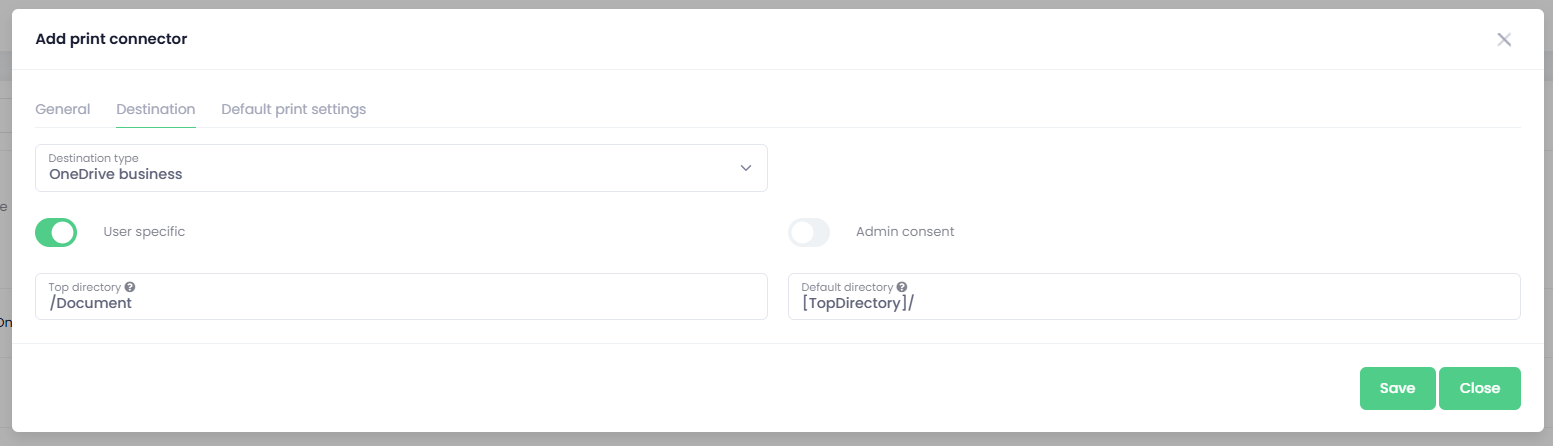
Define the Top Directory (the highest level accessible to the user) and the Default directory shown upon opening the connector.
User Authorization
Cloud destinations utilize OAuth 2.0 technology to ensure maximum security. Authorization methods vary based on the connector type:
-
Personal Connectors: Every user must authorize the connector individually via the Private Destinations widget on their Workplace dashboard.
-
Global Connectors: Administrators can use the Admin Consent feature for Office 365/ Google Workspace destinations to authorize the connector once on behalf of all users in the organization.
Note: If you change a spooler or destination path, any print jobs currently in the old queue will not be migrated and will no longer be available for release.