
OpitmiDoc Cloud embedded application can be configured in two ways: centrally via the HP Command Centre or manually through the device panel.
Configuration via the HP Command Centre
-
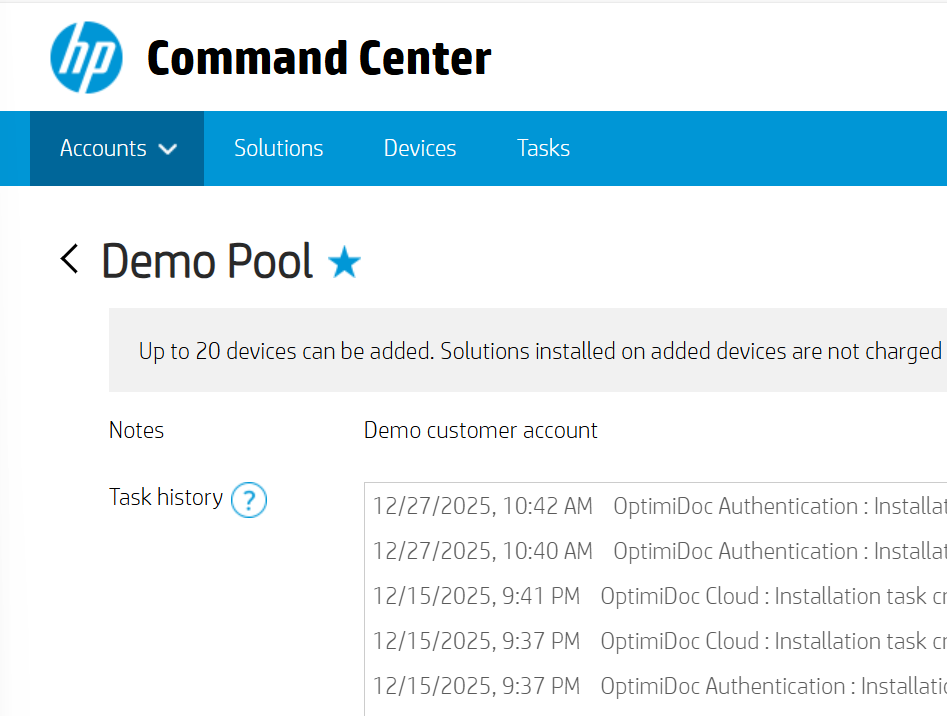
Open the https://www.hpcommandcenter.com/, login and go to the selected Accounts page.
-
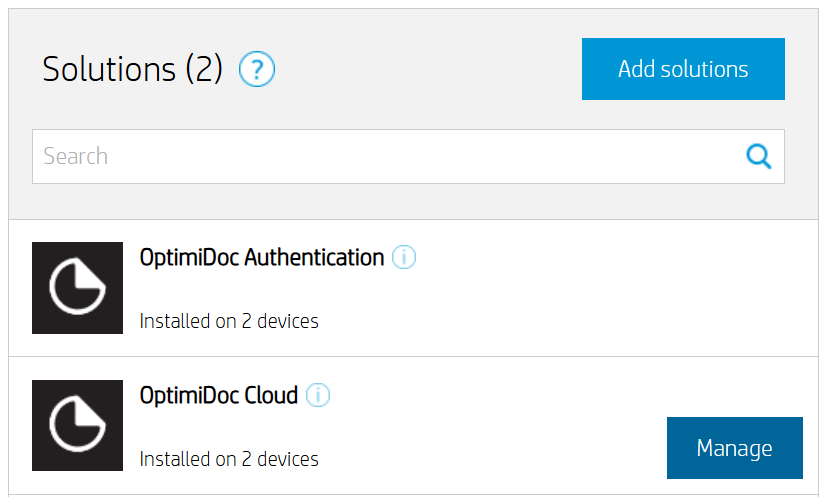
In the Solutions section, select OptimiDoc Cloud, then click Manage.
-
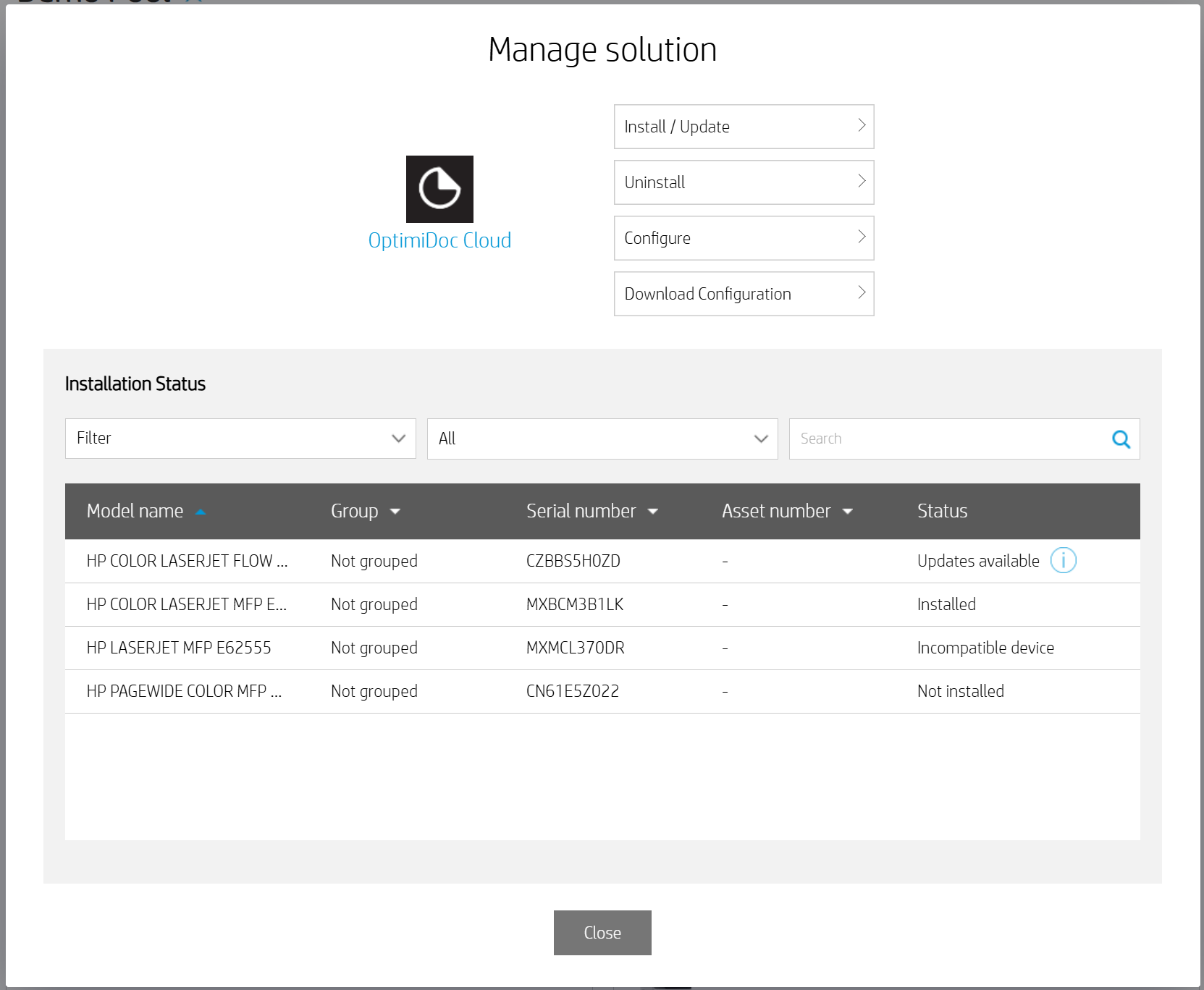
In the Manage Solution window, click Configure.
-
Define the configuration
-
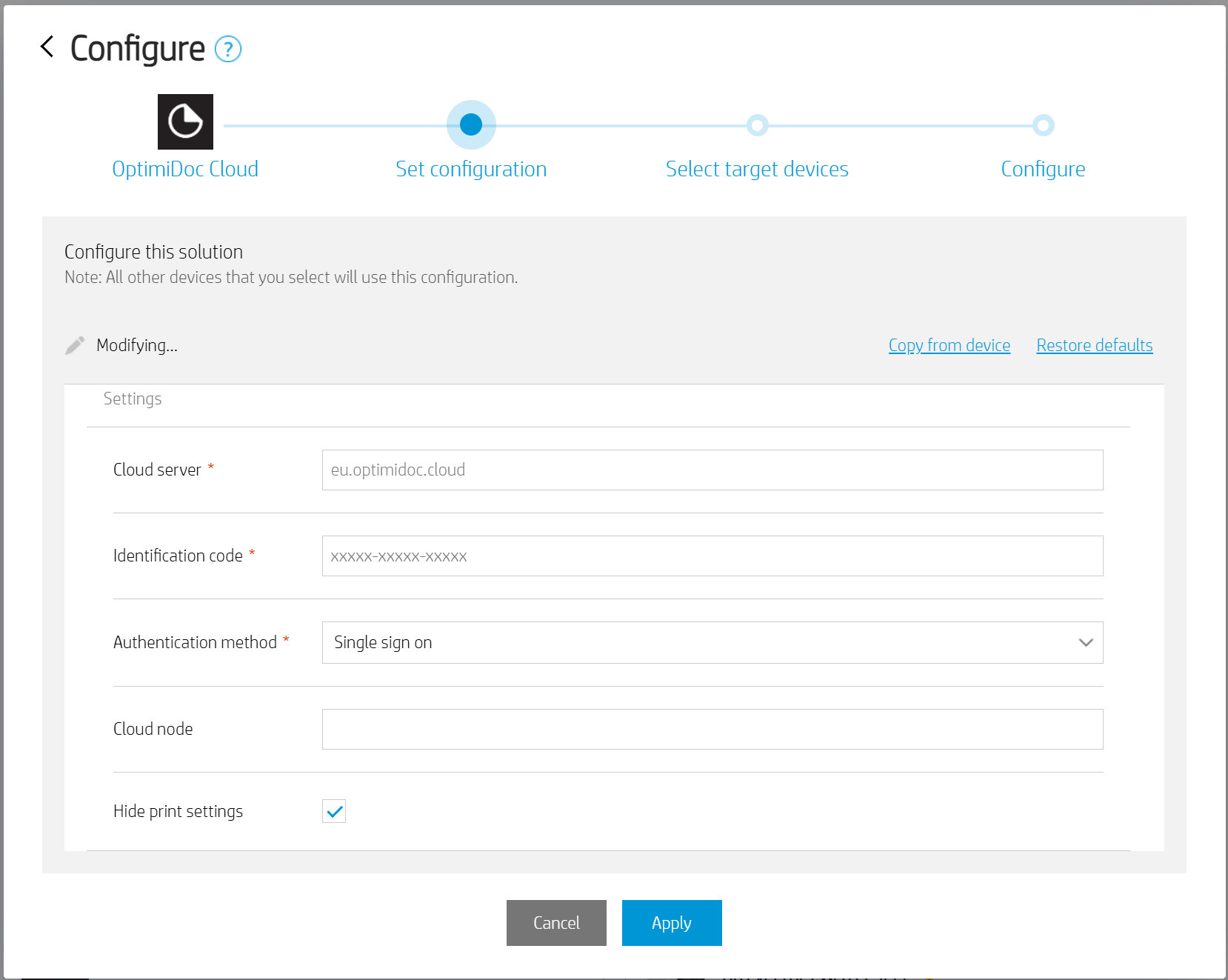
Cloud server - select the requested data centre. List of datacentres is here: Geolocations of Datacentres
-
Identification code - unique tenant’s code available at OptimiDoc Cloud Administration Portal.
-
Authentication method - the way in which users are going to authenticate to the device
-
PIN - users enter their personal PIN to access their print and scan interface.
-
User list - users select their account from a list of available user profiles.
-
Single sign on - Select the Single Sign‑On option when you want the device to obtain user information from a third‑party authentication application or from OptimiDoc Cloud Authentication. If the OptimiDoc authentication application is installed, Single Sign‑On is automatically chosen by default.
When the application starts, the OptimiDoc Cloud app receives the user login provided by the device. This login is then matched against the Single Sign‑On field stored in the OptimiDoc Cloud user database.
-
-
Cloud Node - obsolete functionality for printing from the local spooler of OCN.
-
Hide print settings – The HP Workpath SDK currently cannot modify print settings on the device panel for PCL and PS print jobs. It is recommended to enable this option whenever users print using these languages. When this option is enabled, users no longer see the finishing options on the device panel during document release, helping to avoid confusion.
-
If the OptimiDoc authentication application is selected, Single Sign‑On will be automatically enabled by default.
-
Click Next.
-
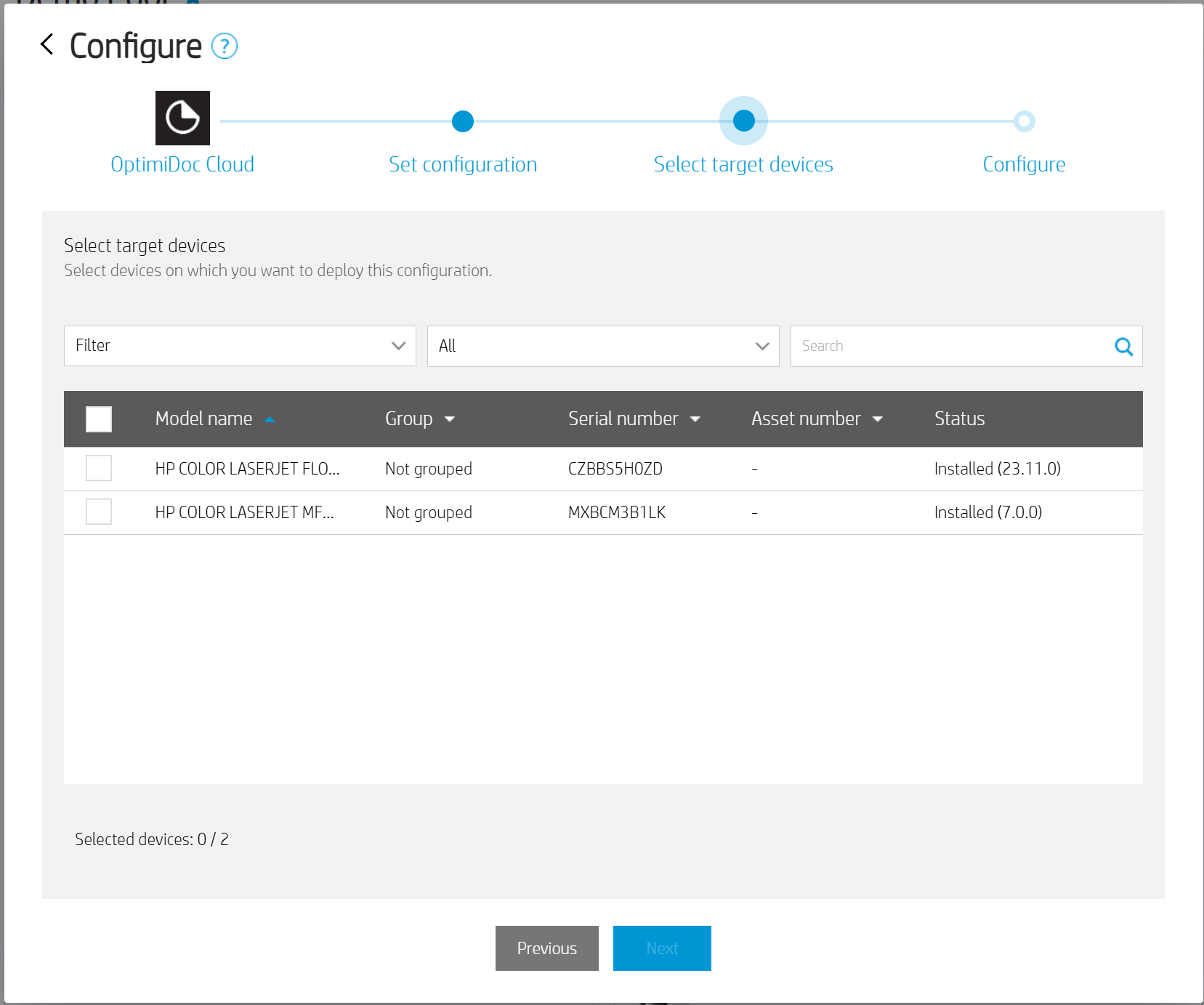
Select target devices and click Next.
-
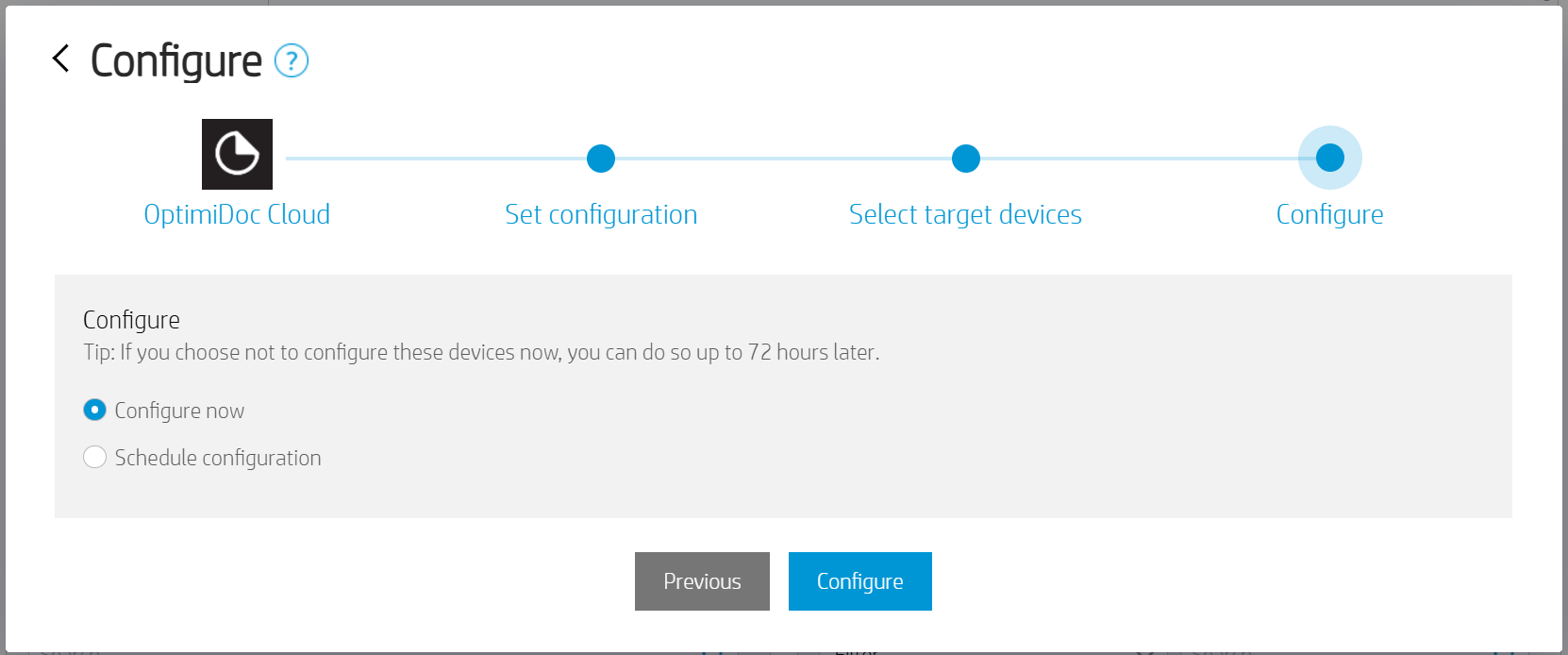
Schedule the configuration time or configure now and click Configure.
-
Done.
Once the configuration has been applied from the HP Command Centre, manual configuration on the device is no longer possible.
Once the application has been installed and configured, it must be enabled in the OptimiDoc Cloud Portal: OptimiDoc Cloud application enablement. This step is required if it was not already completed during the installation of the OptimiDoc Authentication application.
Manual configuration through the device panel
-
Go to the device panel.
-
Open OptimiDoc application.
-
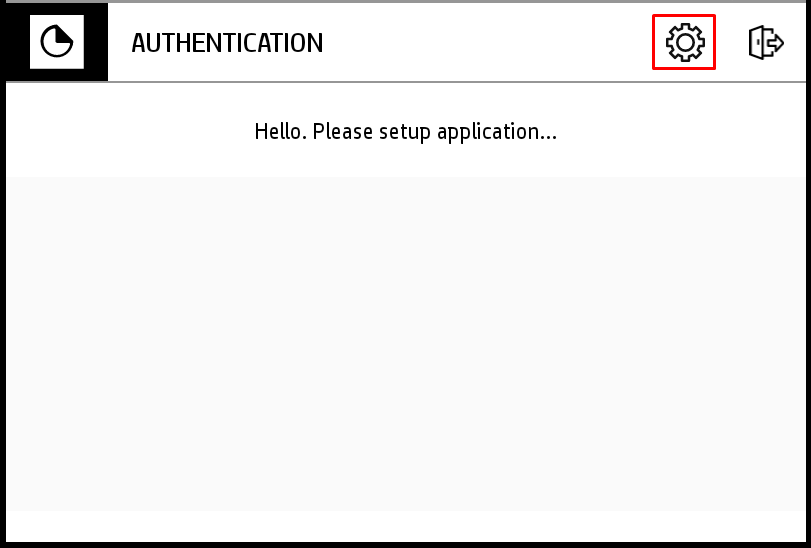
Click the Settings icon on the OptimiDoc app screen.
-
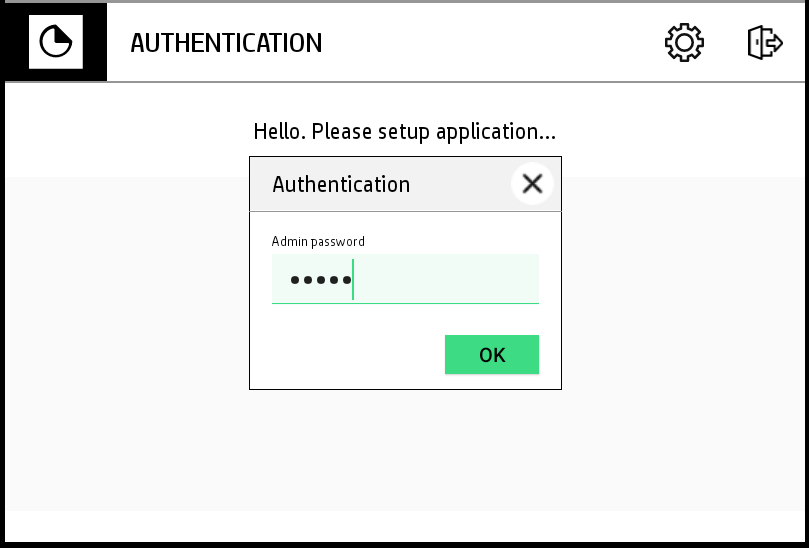
Enter the admin password (the default OD admin password is device serial number) and click OK.
-
Enter the configuration:
-
Cloud server - select the requested data centre. List of datacentres is here: Geolocations of Datacentres
-
Identification code - unique tenant’s code available at OptimiDoc Cloud Administration Portal.
-
Authentication method - the way in which users are going to authenticate to the device
-
PIN - users enter their personal PIN to access their print and scan interface.
-
User list - users select their account from a list of available user profiles.
-
Single sign on - Select the Single Sign‑On option when you want the device to obtain user information from a third‑party authentication application or from OptimiDoc Cloud Authentication. If the OptimiDoc authentication application is installed, Single Sign‑On is automatically chosen by default, and the setting is not visible.
When the application starts, the OptimiDoc Cloud app receives the user login provided by the device. This login is then matched against the Single Sign‑On field stored in the OptimiDoc Cloud user database.
-
-
Cloud Node - obsolete functionality for printing from the local spooler of OCN.
-
Hide print settings – The HP Workpath SDK currently cannot modify print settings on the device panel for PCL and PS print jobs. It is recommended to enable this option whenever users print using these languages. When this option is enabled, users no longer see the finishing options on the device panel during document release, helping to avoid confusion.
-
Add a valid screenshot of the app
-
Click SAVE.
-
Enable the MFP: OptimiDoc Cloud application enablement.