
If the OptimiDoc Authetication is used, then you need to lock to the device and configure the embedded application.
Card reader support is automatically enabled when the OptimiDoc Authentication app is configured.
OptimiDoc Authetication application supports Elatec, inePro and HP readers.
Device locking
-
Open the printer's web page and sign in as an administrator.
-
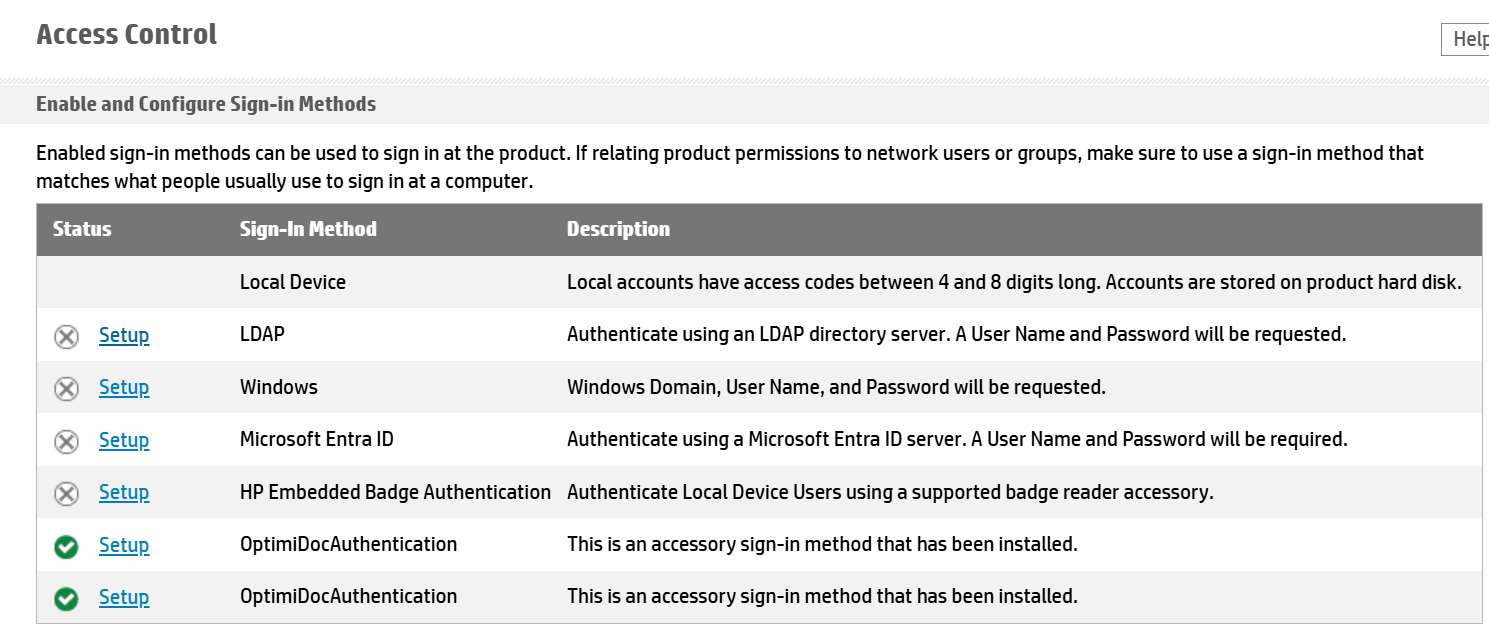
On the Security tab, select Access Control in the menu.
-
In the section Enable and Configure Sign-In Methods, click Setup in OptimiDoc Authetication Sign-In Method.
-
Check Enable OptimiDocAuthetication and click OK.

-
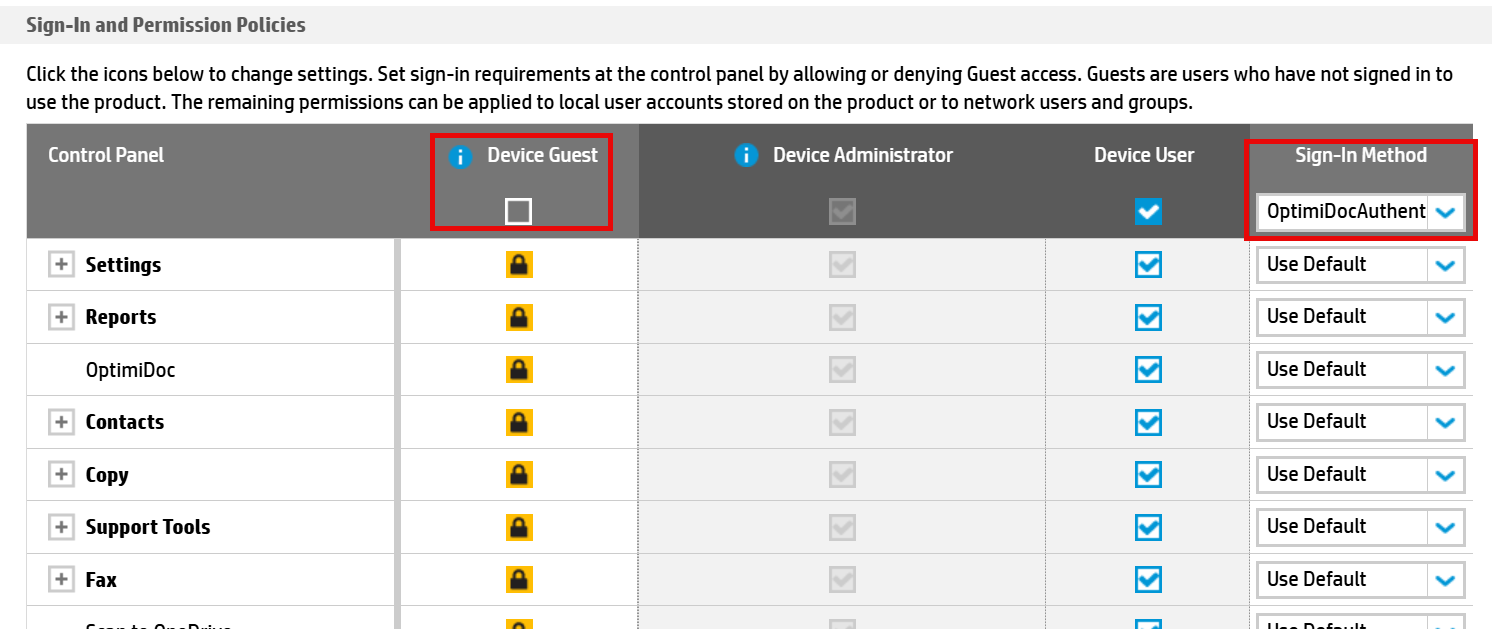
Scroll to Sign-In and Permission Policies, disable the Device Guest and set OptimiDoc Authetication as the default authetication.
-
Click Apply.
If you want certain applications to remain accessible without authentication, enable the Device Guest mode and select which applications should stay open.
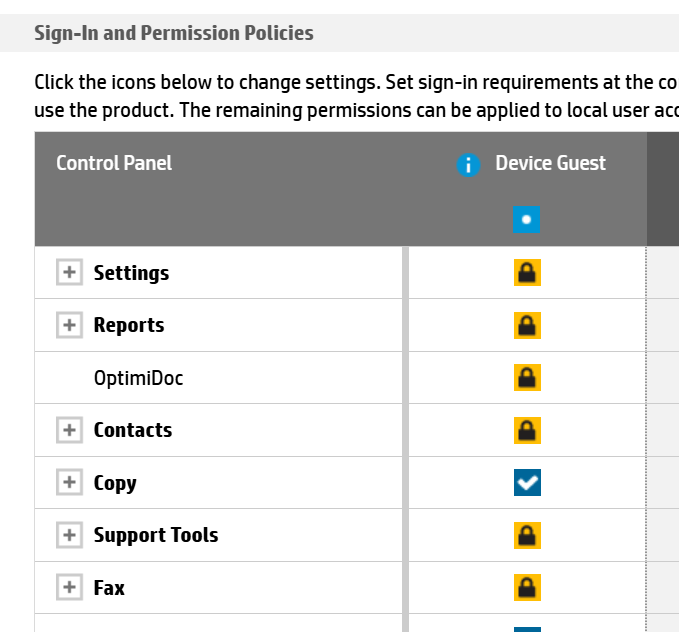
OptimiDoc Authetication configuration
Embedded applications can be configured in two ways: centrally via the HP Command Centre or manually through the device panel.
Configuration via the HP Command Centre
-
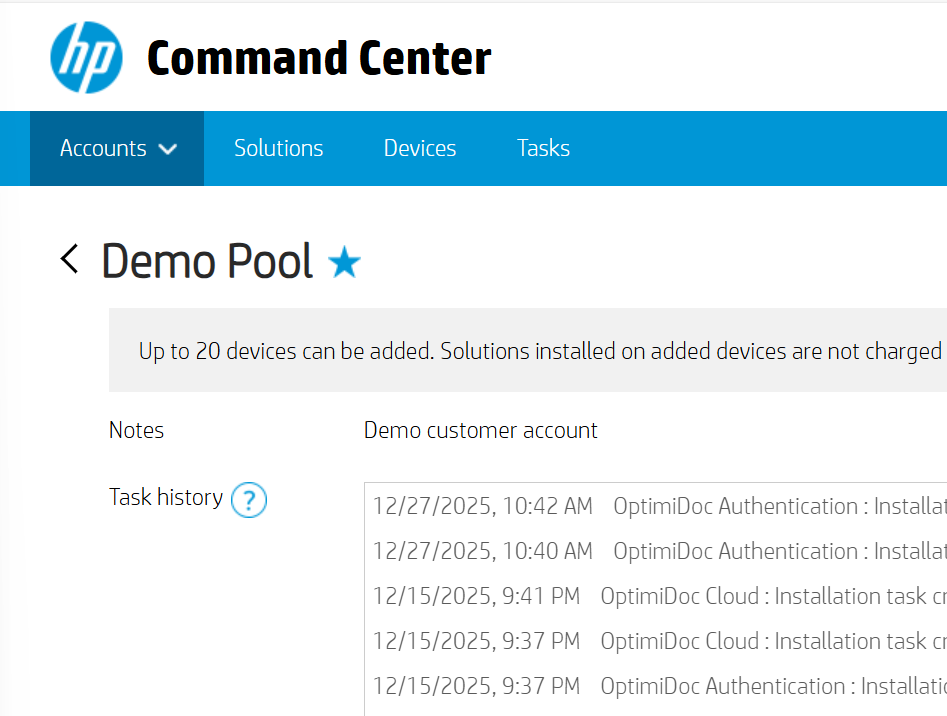
Open the https://www.hpcommandcenter.com/, login and go to the selected Accounts page.
-
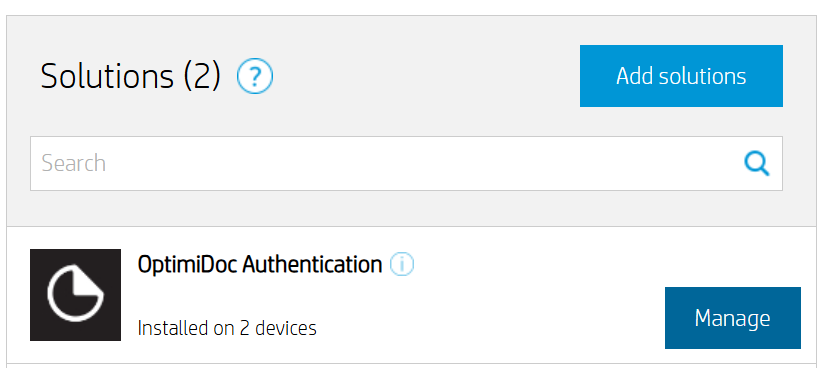
In the Solutions section, select OptimiDoc Authentication, then click Manage.
-
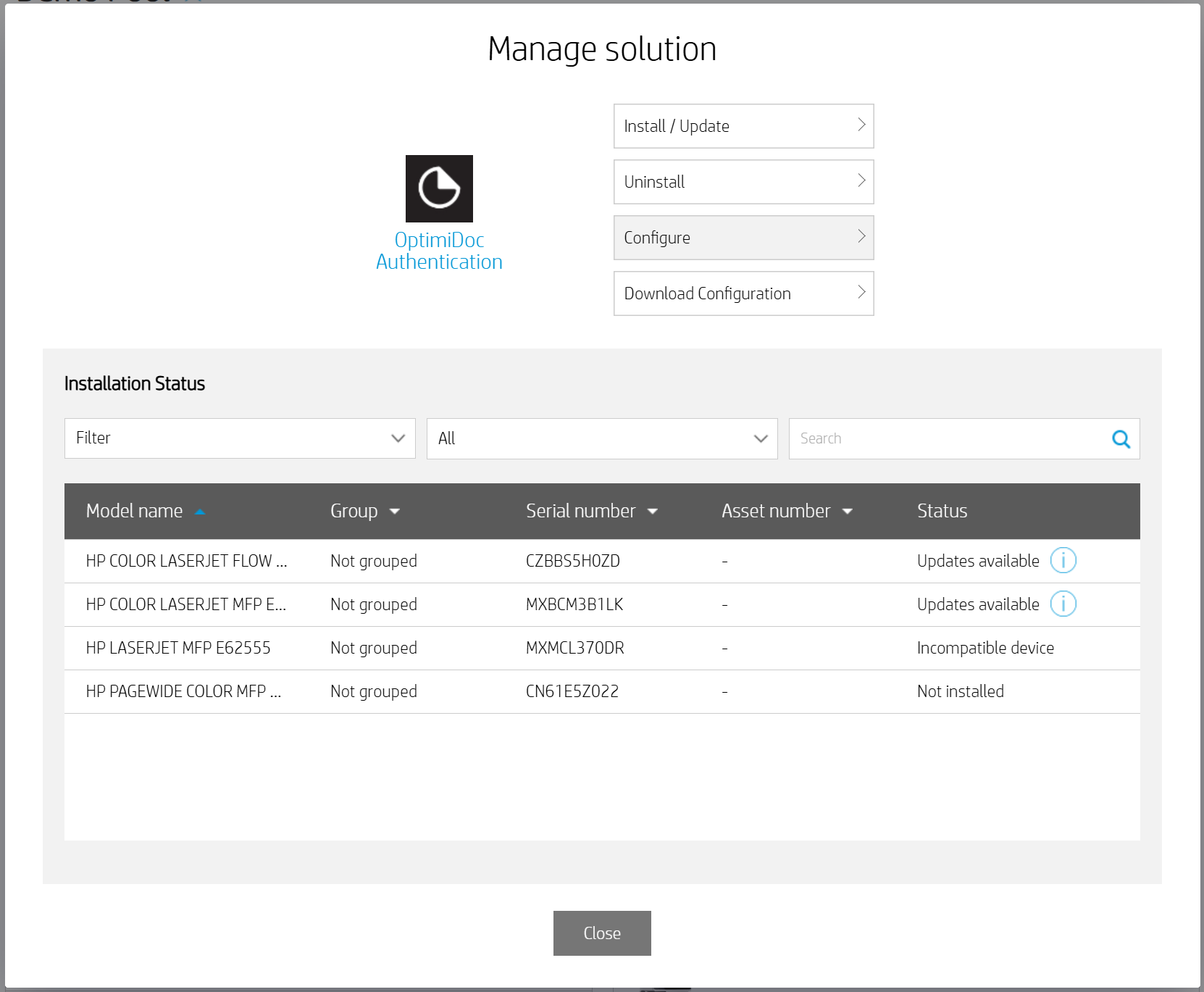
In the Manage Solution window, click Configure.
-
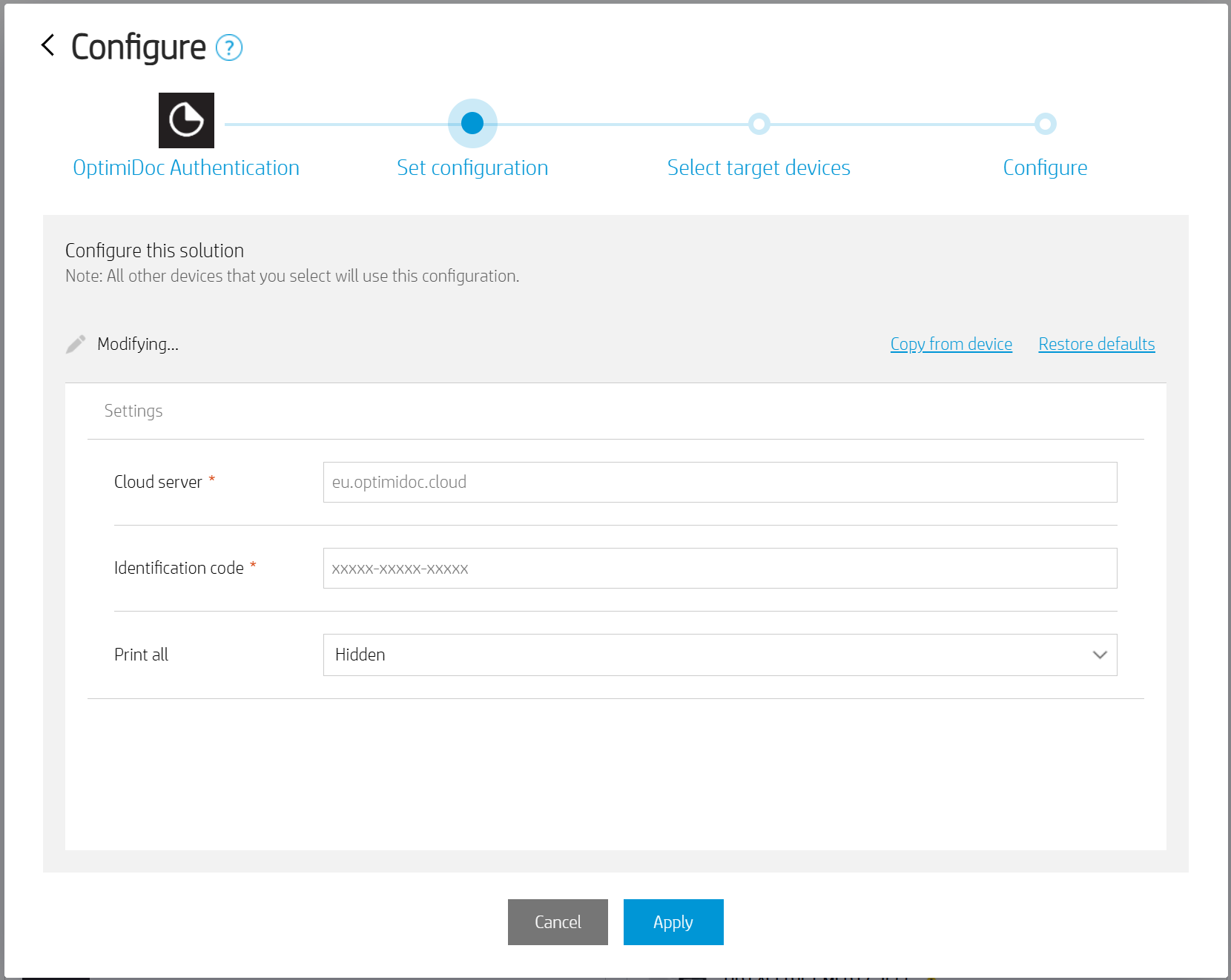
Define the configuration
-
Cloud server - select the requested date centre. List of datacentres is here: Geolocations of Datacentres
-
Identification code - unique tenant’s code available at OptimiDoc Cloud Administration Portal.
-
Print all - obsolete functionality for printing from the local spooler of OCN.
-
-
Click Next.
-
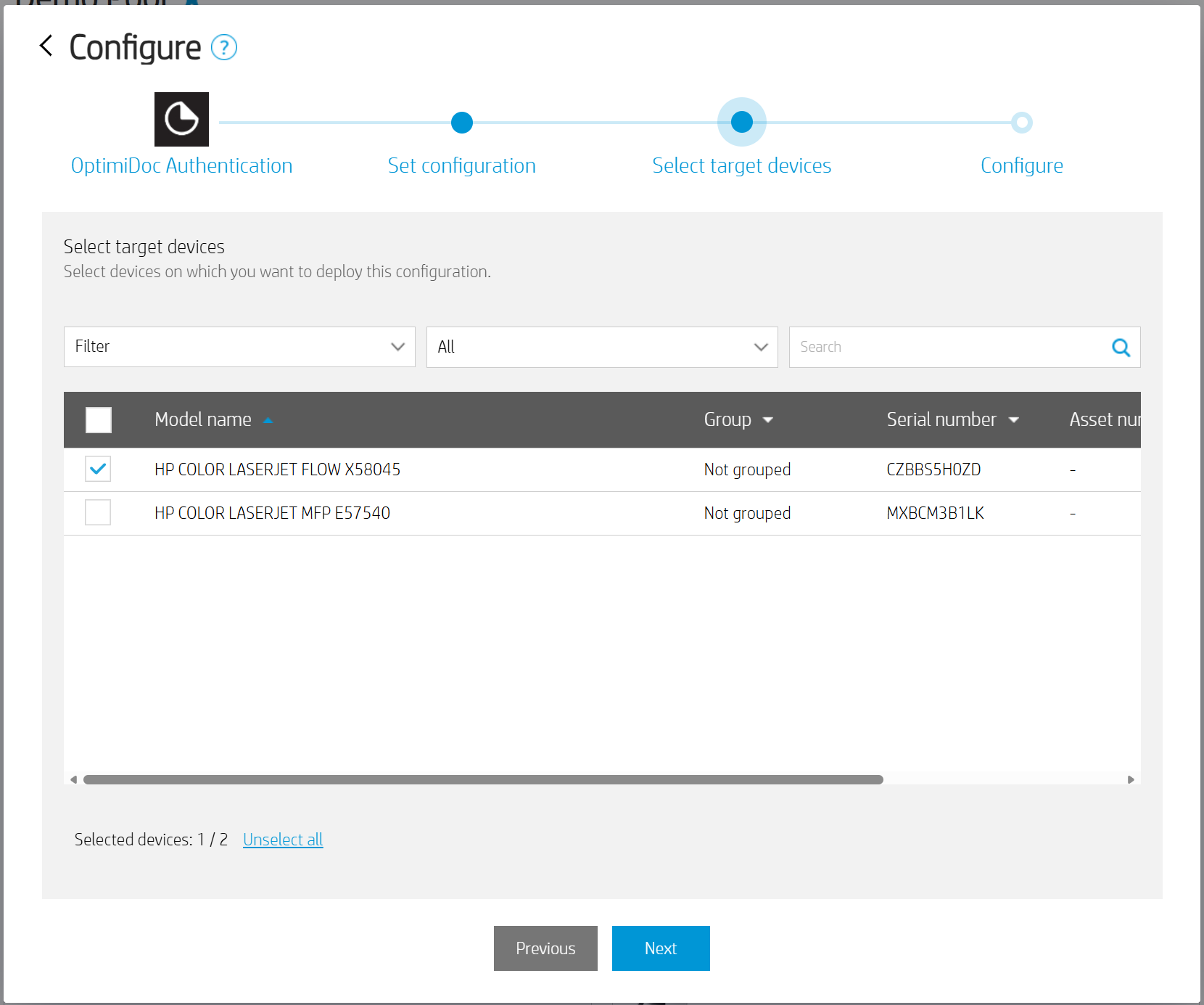
Select target devices and click Next.
-
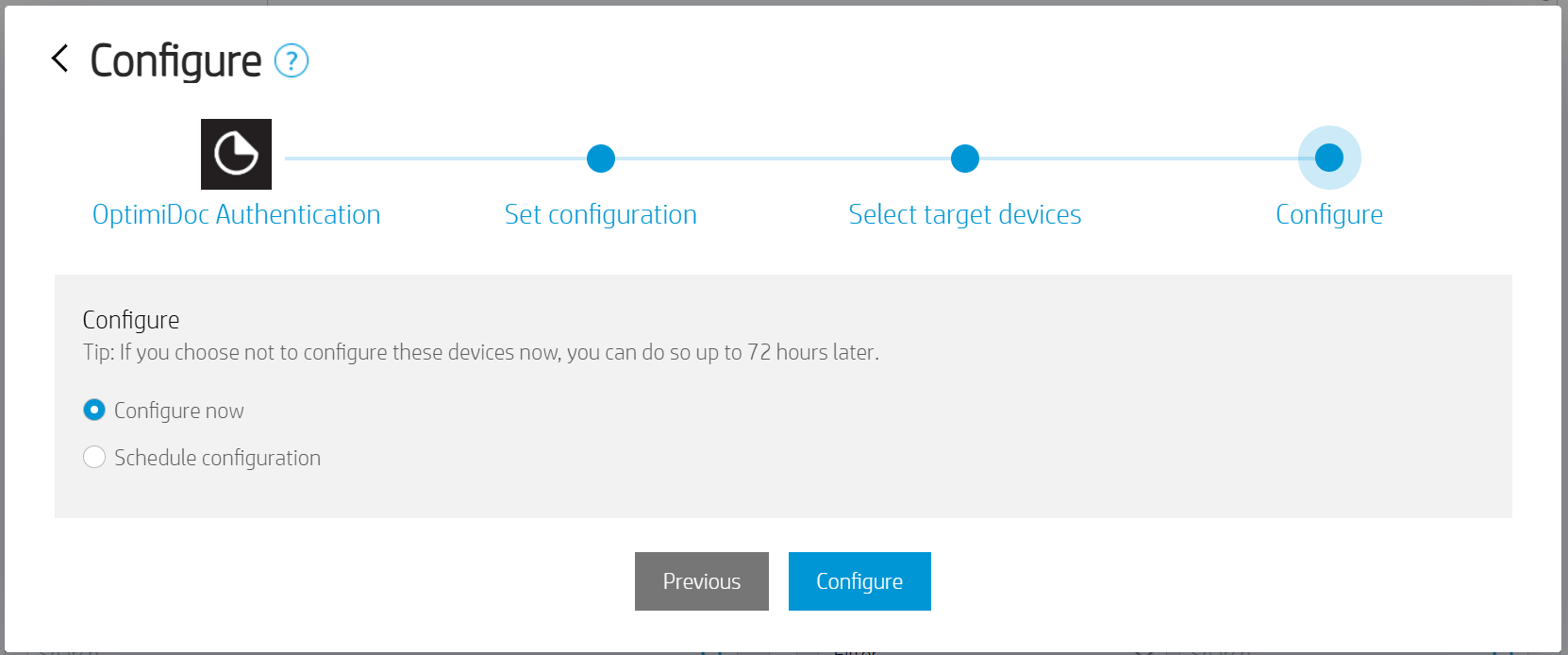
Schedule the configuration time or configure now and click Configure.
-
Done.
Once the configuration has been applied from the HP Command Centre, manual configuration on the device is no longer possible.
Once the application has been installed and configured, it must be enabled in the OptimiDoc Cloud Portal under the Devices section.
Manual configuration through the device panel
-
Go to the device panel.
-
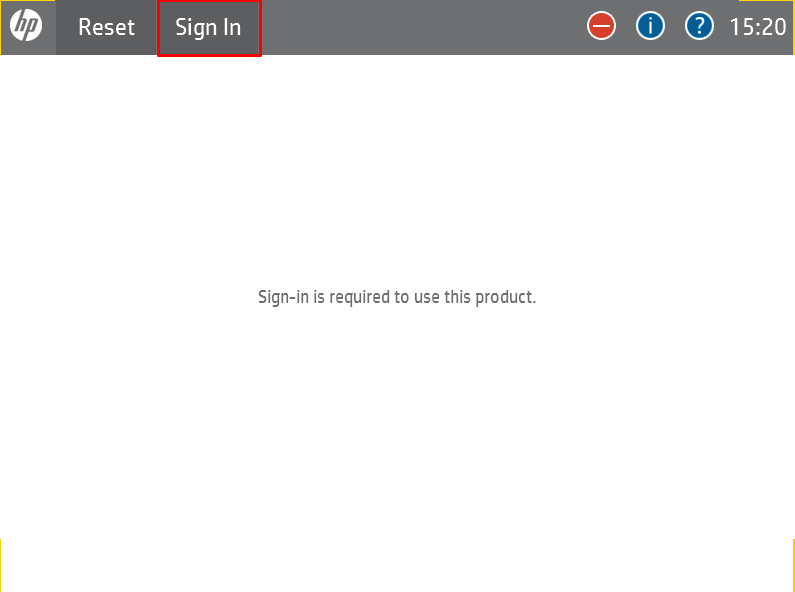
Click Sign In.
-
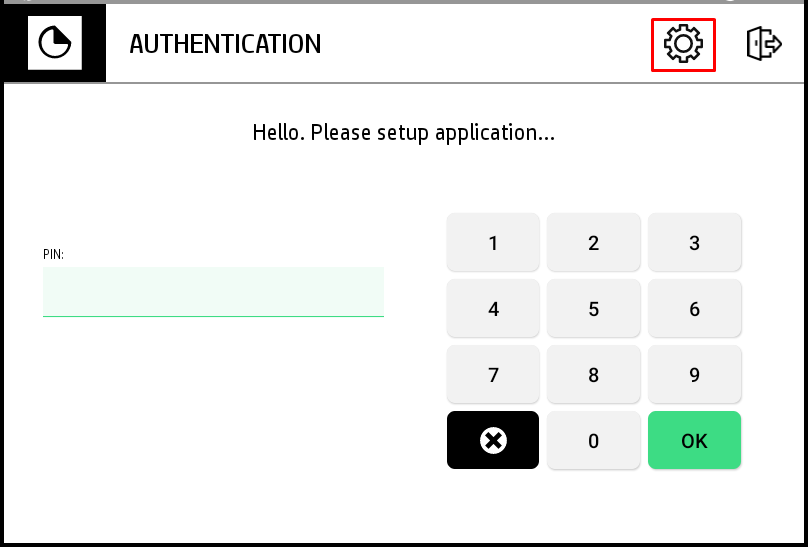
Click the Settings icon on the OptimiDoc Authetication screen.
-
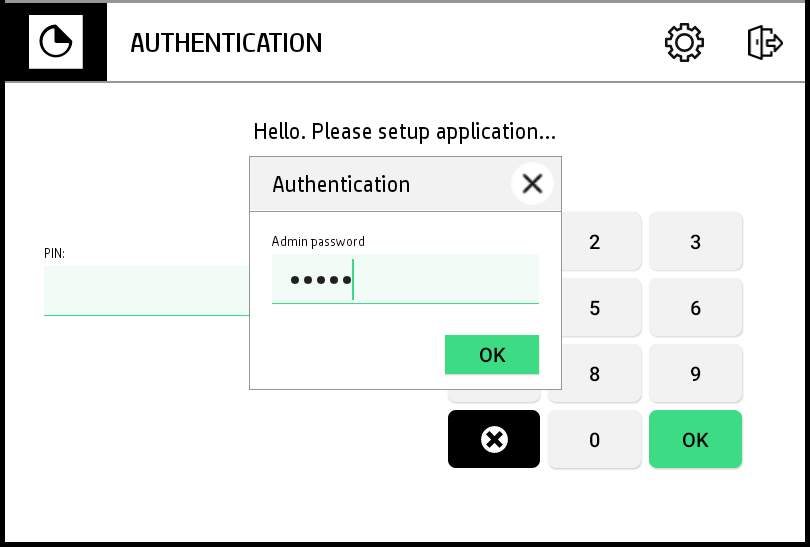
Enter the admin password (the default OD admin password is device serial number) and click OK.
-
Enter the configuration:
-
Cloud server - select the requested date centre. List of datacentres is here: Geolocations of Datacentres
-
Identification code - unique tenant’s code available at OptimiDoc Cloud Administration Portal.
-
Print all - obsolete functionality for printing from the local spooler of OCN.
-
Admin password - password to enter the OptimiDoc Authetication app settings.
-
Add a valid screenshot of the app
-
Click SAVE.
-
Enable the MFP: OptimiDoc Cloud application enablement.