
OptimiDoc Cloud offers a wide range of functionality within its device application.
The following overview provides a clear introduction to what the embedded application can do—and where its limitations may apply.
To check which functions or limitations a particular brand has, please use the Device Matrix available on the OptimiDoc Partner Portal.
User interface
Each device manufacturer offers different levels of user‑interface customisation and determines where the embedded application can be installed on the device.
|
Layout |
Each device manufacturer offers different levels of user‑interface customisation and determines where the embedded application can be installed on the device. |
|---|---|
|
Rebranding |
The interface can be customised with a company logo and background image on the authentication screen, ensuring consistent corporate branding across devices. |
|
Localizable |
Full language‑localisation support allows the interface to adapt to the user’s preferred language. |
|
Region support |
The application is available in multiple regions; however, some manufacturers may restrict OptimiDoc Cloud usage to specific areas, such as the EMEA region. |
|
rebrainding picture |
|
Authetication
OptimiDoc Cloud supports two distinct authentication layers on multifunction printers (MFPs):
-
Device authentication
-
Application (embedded app) authentication
Device Authentication
Authentication that unlocks the MFP itself.
Ensures that only authorised users can access the device (copy, scan, print queue, workflows, etc.), regardless of whether they use OptimiDoc Cloud.
|
Authentication by Card |
RFID/proximity‑card login with card assignment. Card assignment :
|
|---|---|
|
Authentication by PIN |
Login using a user‑specific numeric PIN. |
|
Authentication by Mobile App |
Login via the mobile application by selecting the device from a list or scanning a QR code. |
|
Authentication by User List |
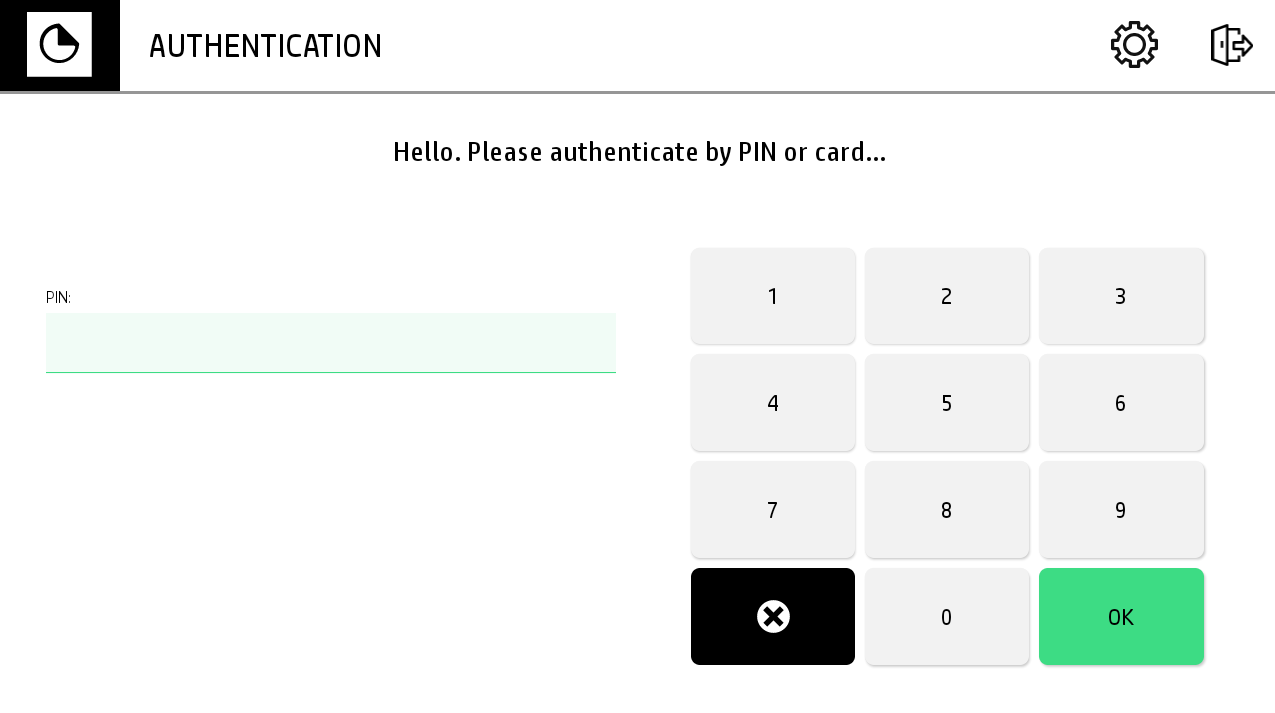
To authenticate, the user selects their account from a populated list of users. |
Application Authentication
Authentication is performed inside the OptimiDoc Cloud embedded application.
It identifies the user for OptimiDoc Cloud services, workflows, access rights, personal storage, and pull‑print documents. The device itself remains open or may be secured separately by another authentication application.
|
Application authentication by User List |
To authenticate, the user selects their account from a populated list of users. |
|---|---|
|
Application authentication by PIN |
Login using a user‑specific numeric PIN. |
|
Application authentication SSO (3rd‑party) |
SSO (Single Sign‑On) authentication in the OptimiDoc Cloud embedded application allows the user to bypass logging in directly within OptimiDoc. Instead, OptimiDoc relies on another trusted authentication system already running on the MFP — this may be the device’s native authentication or any third‑party print management application. This method is mainly used when a customer wants to keep their existing print management solution and use OptimiDoc only for document capture, ensuring a seamless user experience without duplicating logins. |
|
user list |
Access Rights and Accounting
The OptimiDoc Cloud device application enforces each user’s access rights to ensure they can only view and perform operations permitted by their role and organisational configuration. These permissions are defined in the OptimiDoc Cloud portal, where administrators specify which document workflows, scan settings, and print capabilities are available to individual users or departments. Once a user authenticates—via card, PIN, or user list—the embedded application loads their assigned permissions and applies them immediately on the MFP.
|
Access rights |
Feature-, workflow-, and device-level access control |
|---|---|
|
Colour restriction |
Limits colour print/copy based on user/group |
Accounting is performed by the OptimiDoc Cloud backend, which captures job‑related metadata, including scan and print activity, workflow usage, and release events. For print operations, the device application sends job‑release information securely to the OptimiDoc Cloud system over TLS, ensuring full traceability, accurate reporting, and compliance with organisational governance requirements.
|
Accounted information |
|
|---|
Printing
OptimiDoc Cloud offers a complete, flexible printing experience—combining instant direct printing, secure cloud‑based pull printing through virtual spoolers, and seamless access to personal or company cloud storages directly from the device panel—while providing full control over finishing options, print policies, and job management.
|
Direct printing |
Users can print documents immediately by sending them directly to a selected device, allowing instant release without using a pull‑print queue. |
|---|---|
|
Cloud Pull Printing - Virtual spooler print connector |
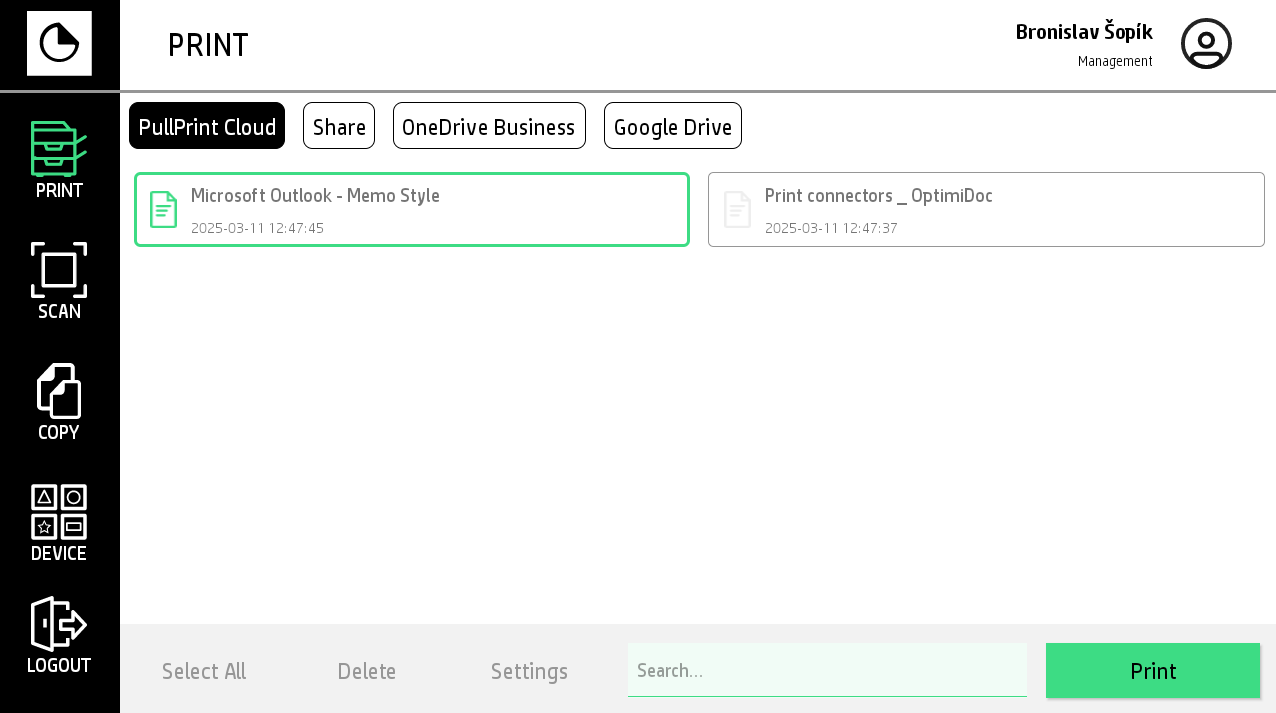
Users can securely submit documents to a protected Pull Print queue, ensuring their print jobs remain confidential until they choose to release them at any supported device. Depending on the configuration, documents can be stored in:
|
|
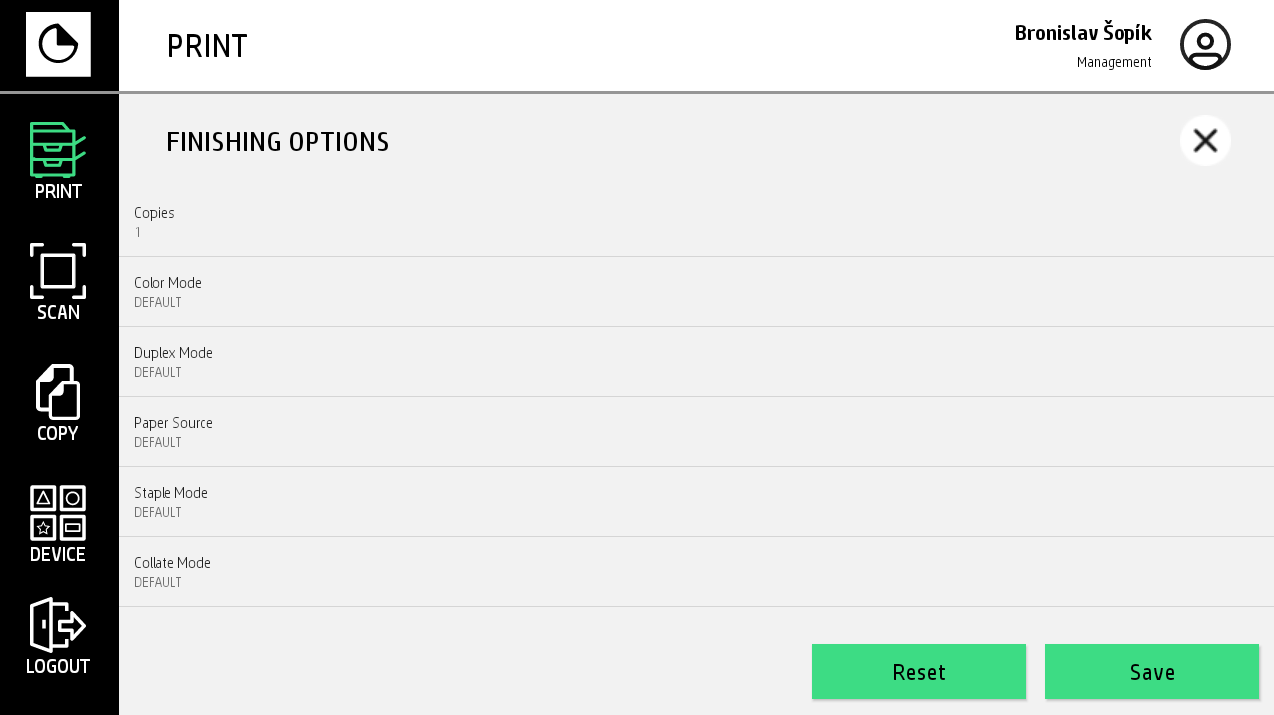
Finishing options |
Duplex, stapling, punching, and device-specific finishing. |
|
Printing defaults |
Enforced defaults (e.g., B/W, Duplex). |
|
Force Duplex/BW |
Print restrictions allow administrators to enforce mandatory print policies—such as Black & White only or Duplex only—ensuring users cannot modify these settings at the device or during job submission. |
|
Job management |
View, delete, release, and modify print jobs in virtual spoolers. |
|
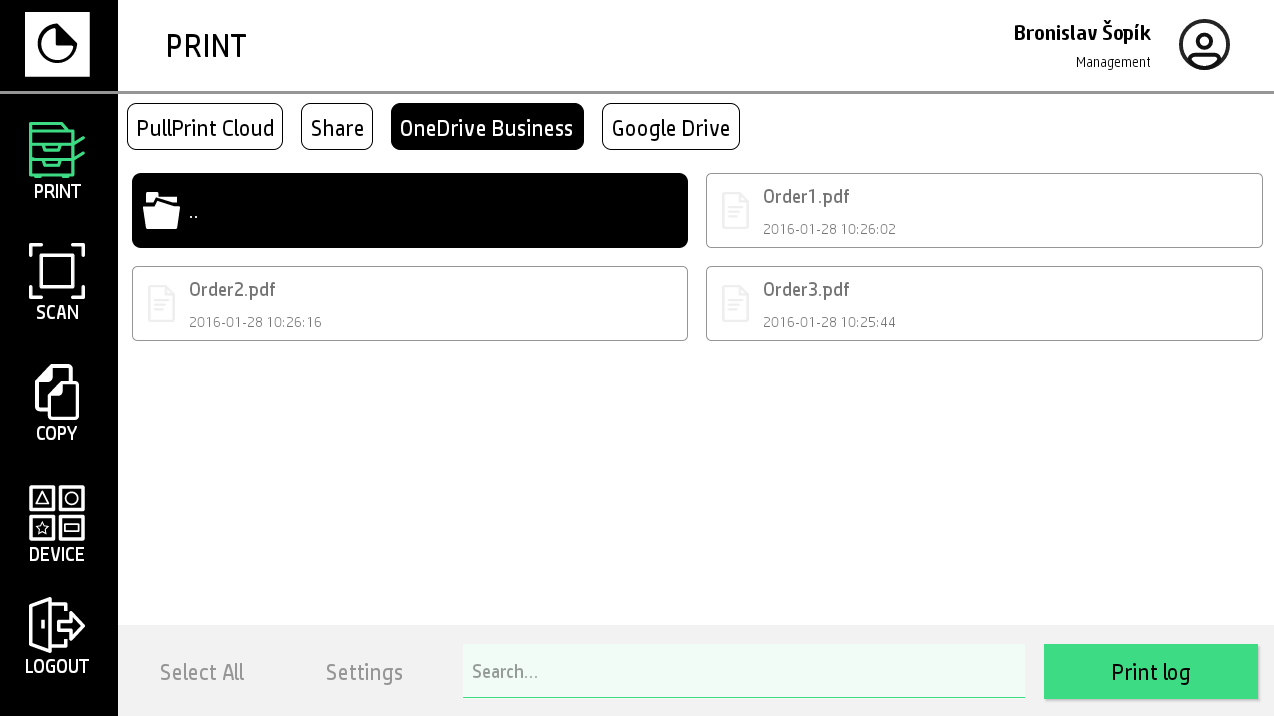
Print connectors - Cloud Storage |
Users can access their cloud storage directly from the device panel, browse folders, list available documents, and release selected files for printing without needing a workstation. |
|
|
|
|
Document capture
The device application provides users with an advanced, user‑friendly interface for document capture. Instead of being limited to basic “scan to email” or “scan to folder” functions, users can select tailored workflows, adjust detailed scan settings, and enter required document metadata directly on the device panel—ensuring accurate processing and seamless delivery to the desired destination.
|
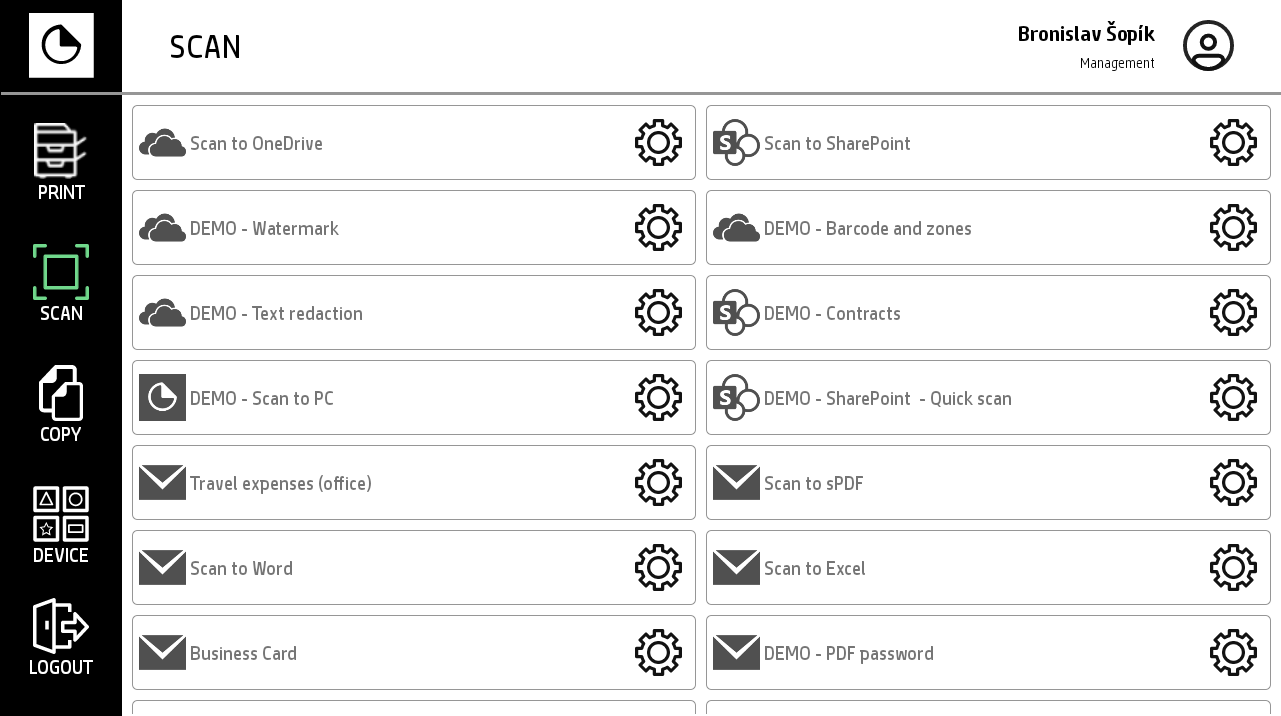
List Document Workflows |
The device application displays a list of available document workflows, enabling users to initiate a scan with a single click or open the workflow detail to adjust scan settings and enter required metadata before processing. |
|---|---|
|
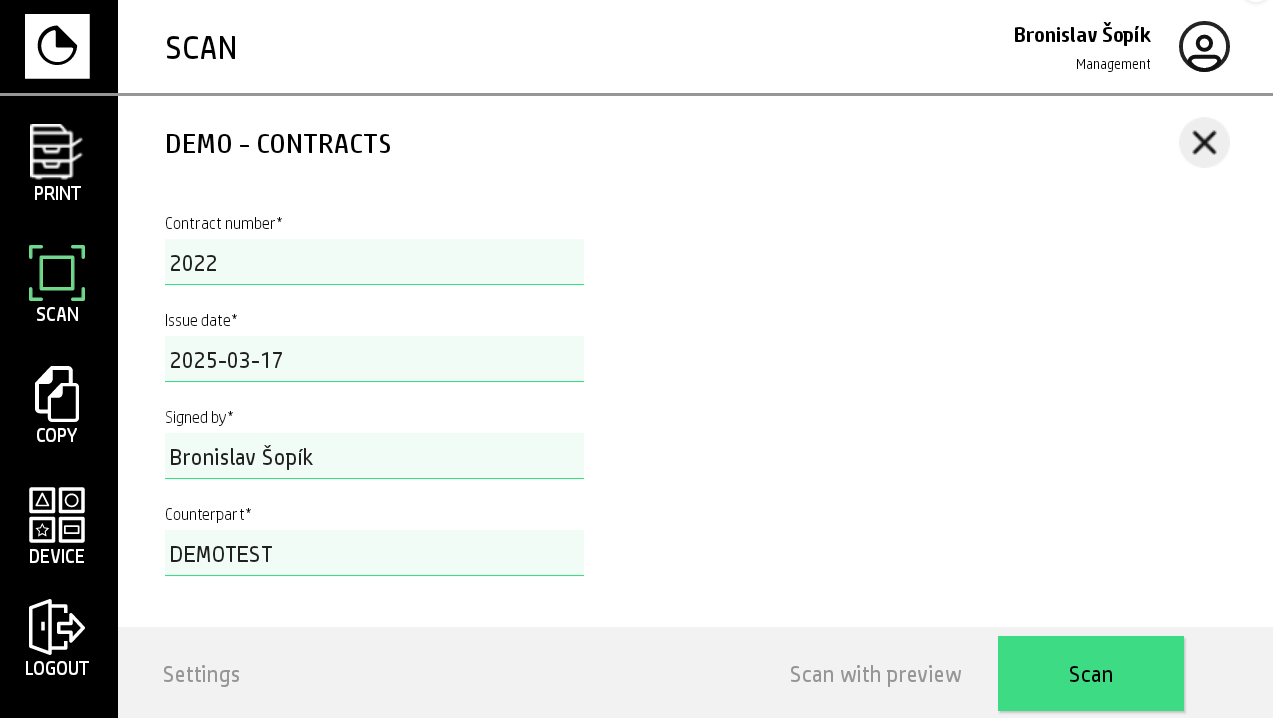
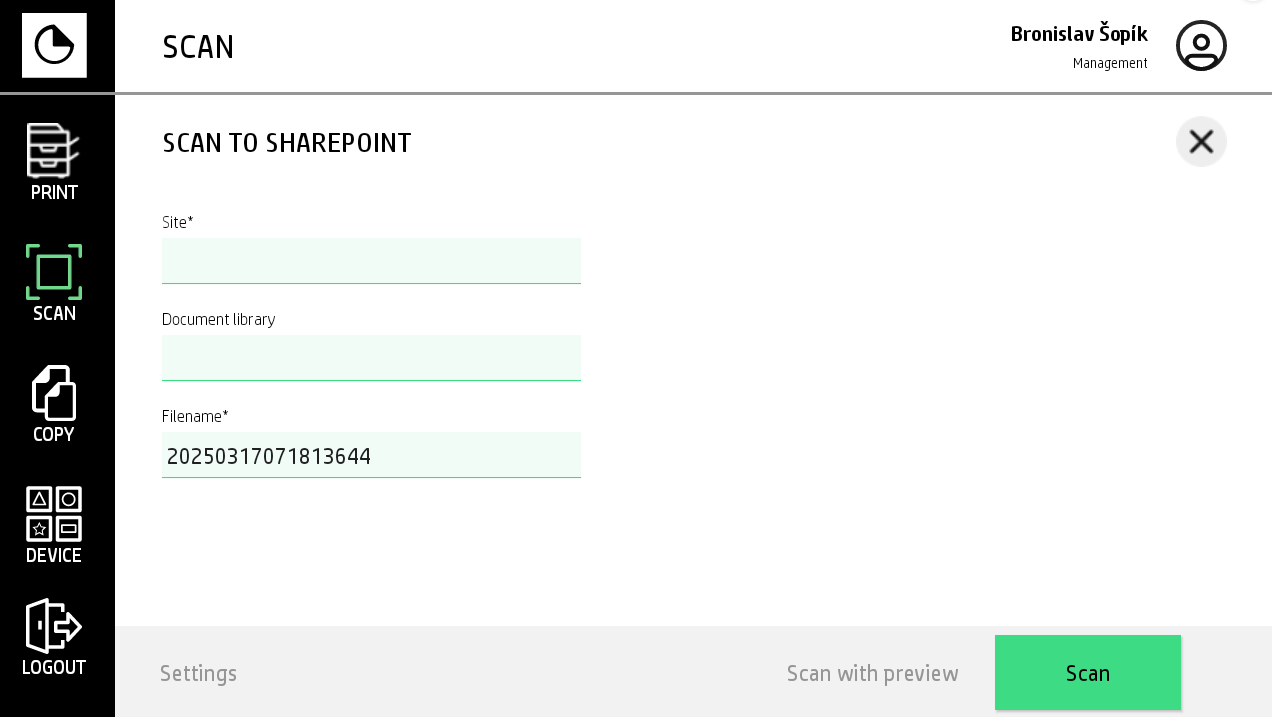
Manual parameters |
Manual metadata allows users to describe the scanned document during the capture process. Each metadata field can be configured as required or optional, and administrators may define a pre‑filled (default) value to speed up the workflow. Metadata ensures accurate document classification, automated processing, and correct delivery to the final destination. Supported Metadata Types
|
|
Job assembly |
Combine multiple scans/pages into one job |
|
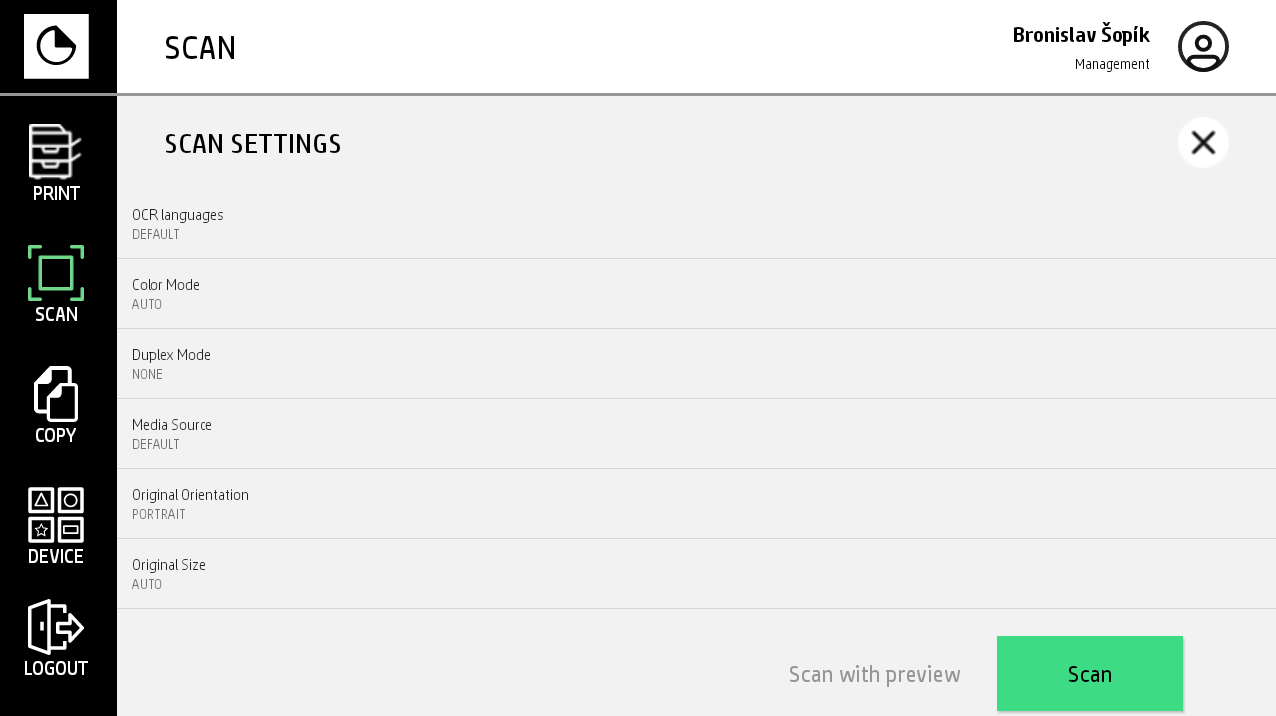
Scan setting definition |
Predefined resolution, colour mode, duplex, formats |
|
Document preview |
Preview pages before submitting workflows |
|
|
|
|