
All devices need to have HP Workpath enabled and be connected to the HP Command Centre.
Accounting and Capture functionality requires the installation of Root Certificate.
HP Workpath enablement
-
Open the printer's web page and sign in as an administrator.
-
On the Security tab, select General Security in the menu.
-
In HP Workpath platform, select Enable.
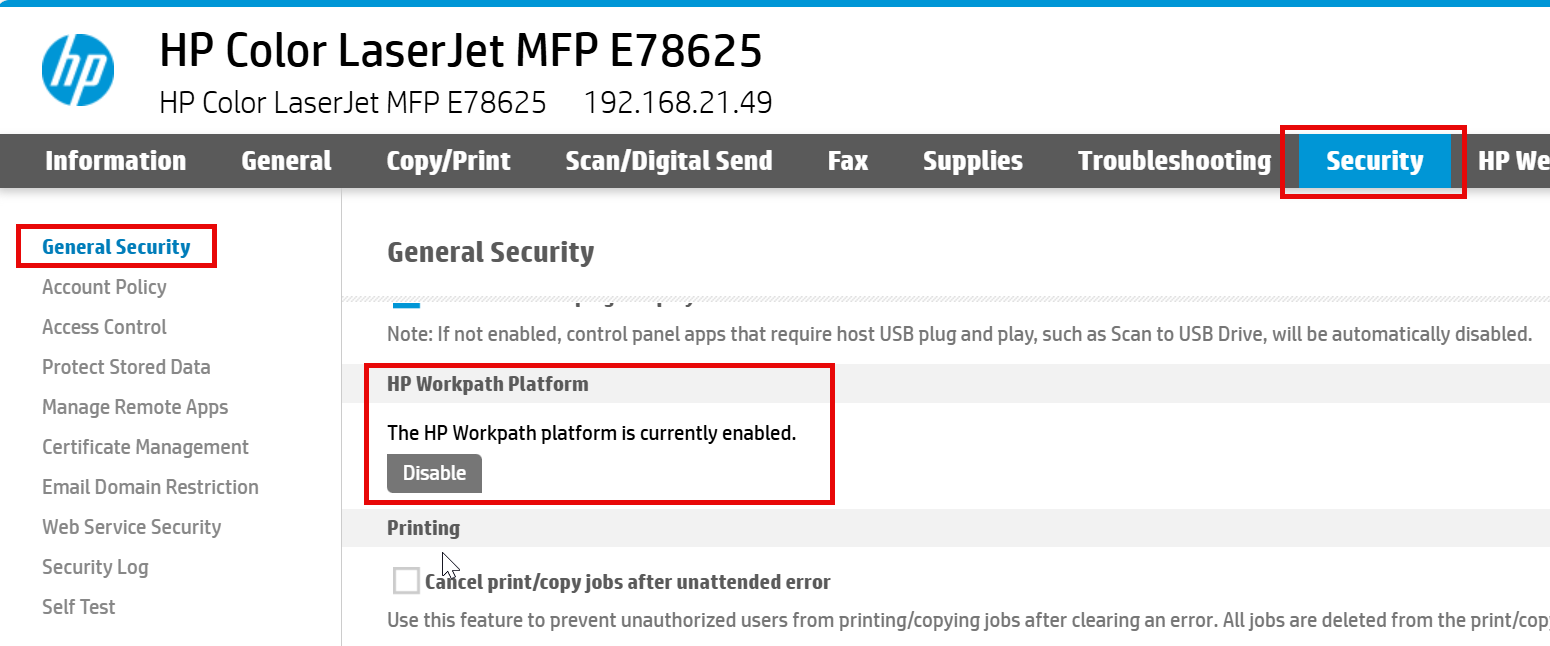
-
Select Restart.
Connection to HP Command Centre
-
Go to the device and open the HP Command Centre application.

-
Select Continue.
-
When the printer prompts you to sign in, follow the on-screen instructions to sign in with your phone or computer.
-
Dod2lat na hovno VPN
Installation of the Root Certificate on device
-
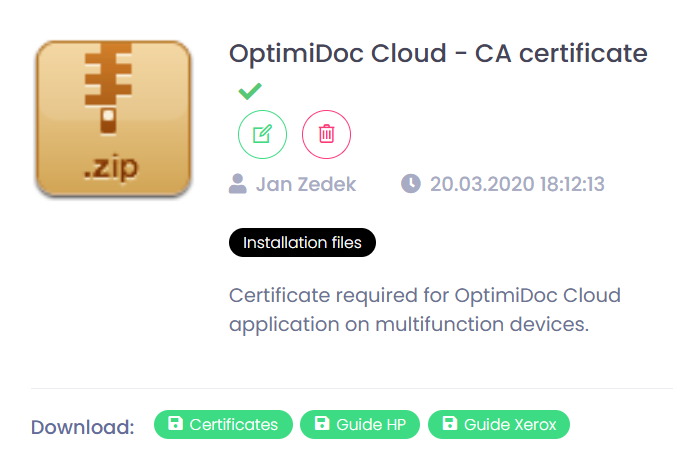
Open the OptimiDoc Partner Portal and download the certificate from InfoHub > OptimiDoc Cloud section, OptimiDoc Cloud – CA certificate for HP devices file.
-
Extract the RootCertificate.zip file to some temporary location.
-
Open the printer's web page and sign in as an administrator.
-
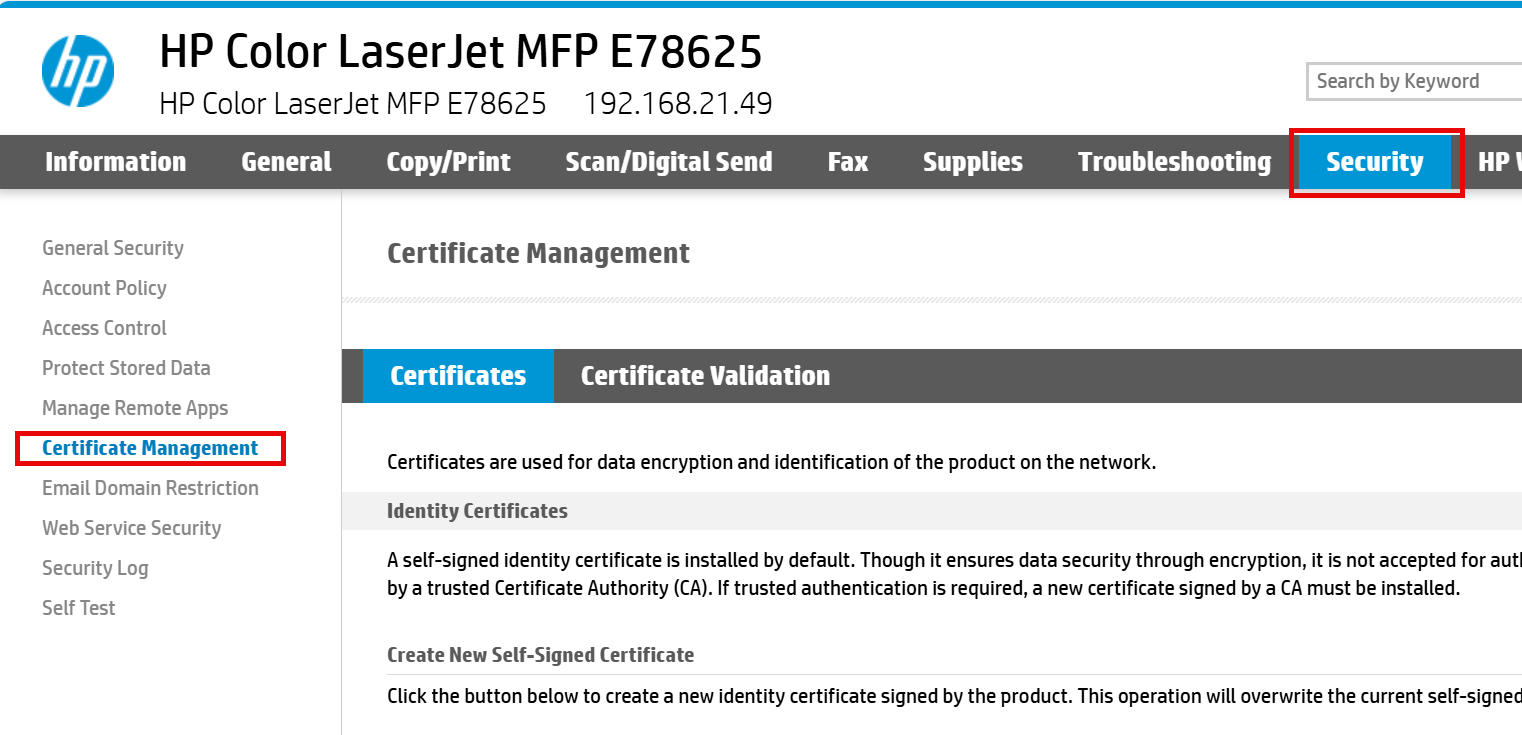
On the Security tab, select Certificate Management in the menu.
-
Scroll to CA Certificates section, choose GoDaddy Root Certificate Authority – G2.pem file and click Install.

-
Done.
Without the certificate installed, the accounting data and scanned documents will not be delivered to OptimiDoc Cloud.