
The Integration section contains configuration options that enable OptimiDoc Cloud to connect with external systems and services. Administrators can manage credentials, authorisations, and integration‑specific settings used across scanning, printing, and user‑management features.
Google Workspace integration
OptimiDoc Cloud uses a multi‑tenant Google application created and maintained by OptimiDoc to integrate with Google Workspace services.
This default application is fully compliant with Google’s security requirements and undergoes an annual CASA penetration test approved by Google to ensure continued certification and safe operation.
Using Your Own Google Application
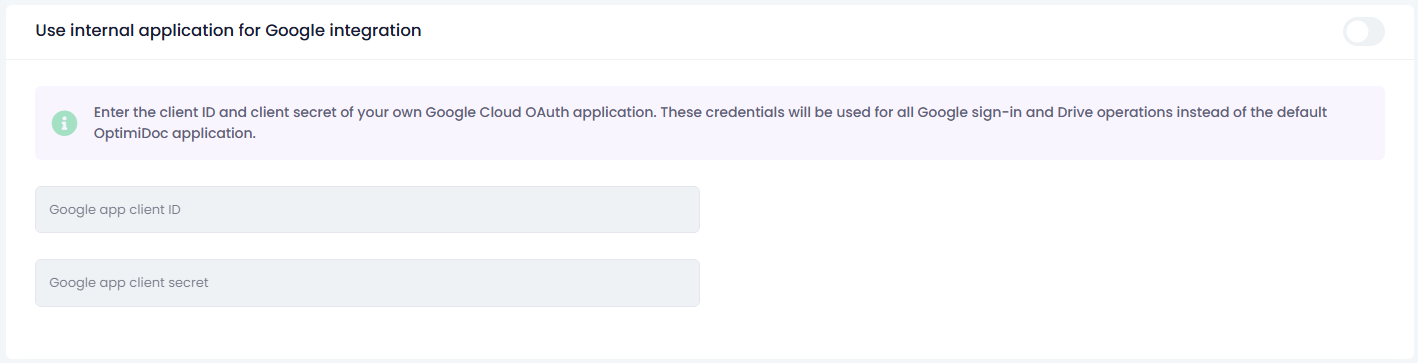
If you prefer to use your own Google Workspace application instead of the default OptimiDoc integration, you must manually create the application and enter the corresponding Client ID and Client Secret into the integration settings.
This option allows full control over your organisation’s Google API authorisation and security policies.
A step‑by‑step guide for creating a custom internal application is available here:
Google Workspace – Internal Application Creation Guide
SAML 2.0
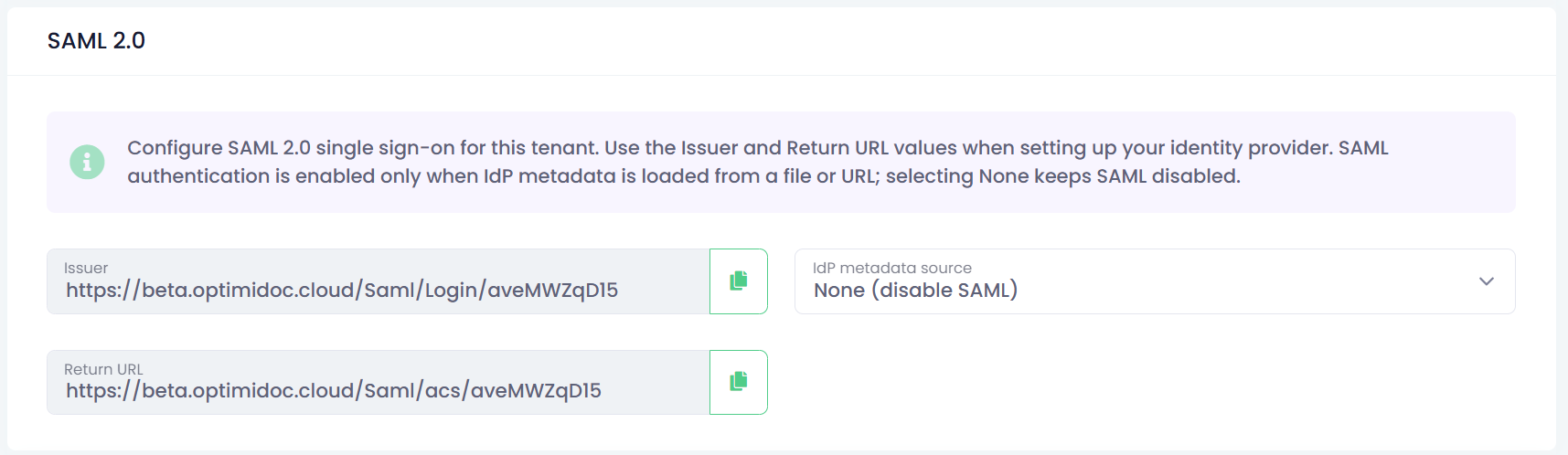
The SAML 2.0 configuration allows you to enable Single Sign‑On (SSO) for your OptimiDoc Cloud tenant.
Use the Issuer and Return URL values from this page when configuring your Identity Provider (IdP).
SAML authentication becomes active only after IdP metadata is loaded from a file or URL.
If None is selected, SAML remains disabled.
SAML 2.0 authentication is not supported for signing in to the OptimiDoc Cloud web portal.
Use a custom SMTP server
Enable this option to configure a custom SMTP server that OptimiDoc Cloud will use to deliver email notifications to users within your company.
When a custom SMTP server is defined, all system‑generated emails—such as welcome messages, password resets, PIN notifications, and workflow alerts—are sent through your organisation’s own mail server instead of the default OptimiDoc Cloud service.
Supported SMTP Servers and Authentication Methods
OptimiDoc Cloud supports three authentication types for SMTP delivery:
1. General SMTP Server (Basic Authentication)
Use this option when connecting to any standard SMTP server.
Configuration Steps
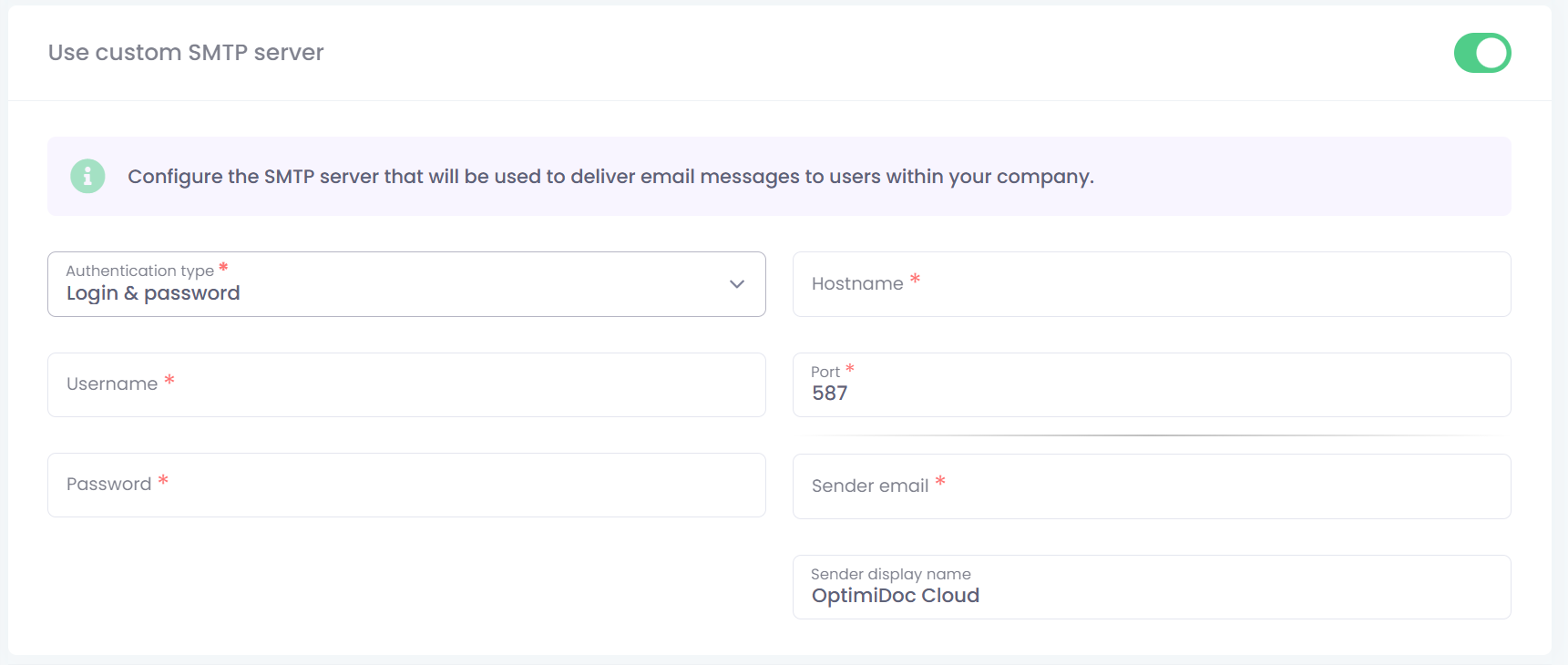
Select Login & Password as the authentication type and fill in the required fields:
-
Username – SMTP authentication username
-
Password – SMTP authentication password
-
Hostname – SMTP server address (e.g., smtp.company.com)
-
Port – Port number used for SMTP delivery (commonly 587 or 465)
-
Sender email – Email address shown as the sender of all notifications
-
Display name – Friendly “From” name shown to recipients
2. Google Workspace OAuth2
Use this option to send emails through Google Workspace using secure OAuth2 authentication.
Configuration Steps
-
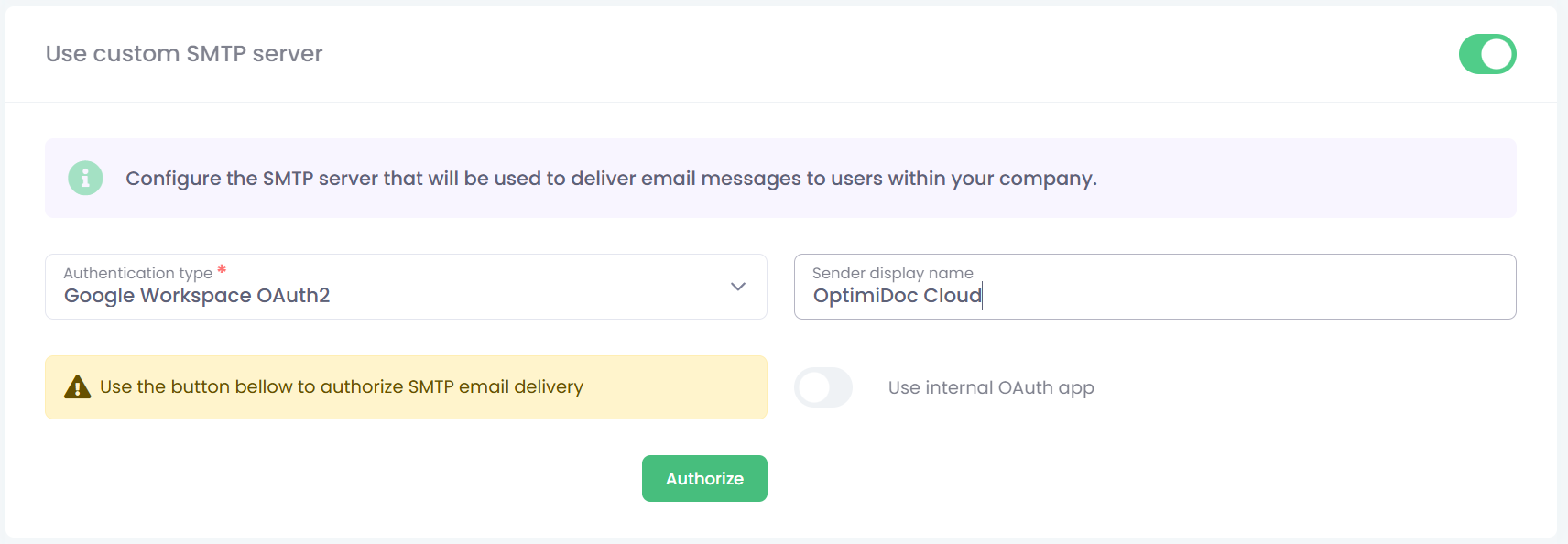
Select Google Workspace OAuth2 as the authentication type.
-
Enter a Display name (shown in the email “From” field).
-
Optionally, you can use your own Google Workspace internal application to authorise OptimiDoc Cloud for sending emails through Google SMTP servers.
To enable this, tick Use internal OAuth app and fill in the Client ID and Client Secret of your custom Google application. -
Click Authorise and complete the Google authorisation prompts to grant SMTP sending permission.
3. Microsoft 365 OAuth2
Use this option to send emails via Microsoft 365 / Exchange Online using OAuth2 authentication.
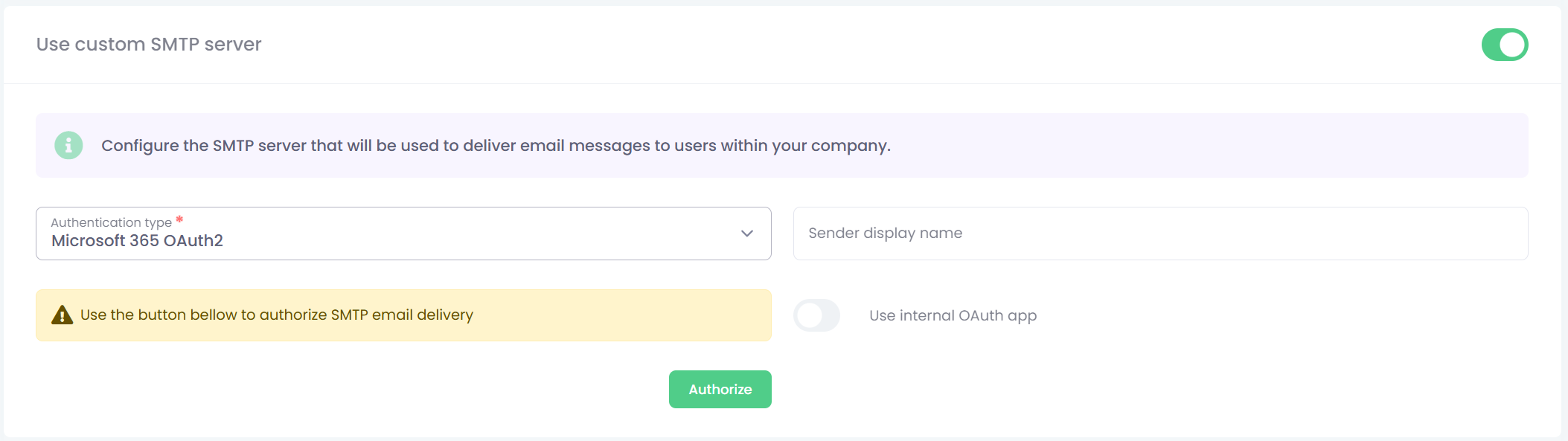
Configuration Steps
-
Select Microsoft 365 OAuth2 as the authentication type.
-
Enter a Display name for outgoing messages.
-
Optionally, you can use your own Microsoft 365 internal application to authorise OptimiDoc Cloud for sending emails through Microsoft SMTP servers.
To enable this, tick Use internal OAuth app and fill in the Client ID and Client Secret of your custom Google application. -
Click Authorise and complete the Microsoft authorisation process to grant SMTP sending rights.