
The Personalisation section allows administrators to tailor the OptimiDoc Cloud user experience across both the Workplace interface and multifunction devices (MFPs). These options make it possible to control which features users can access, and to apply custom branding to device login screens. By configuring workplace widgets and MFP interface elements, organisations can create a streamlined, visually consistent environment that reflects their identity and shows only the tools that users need.
Allowed Workplace Widgets
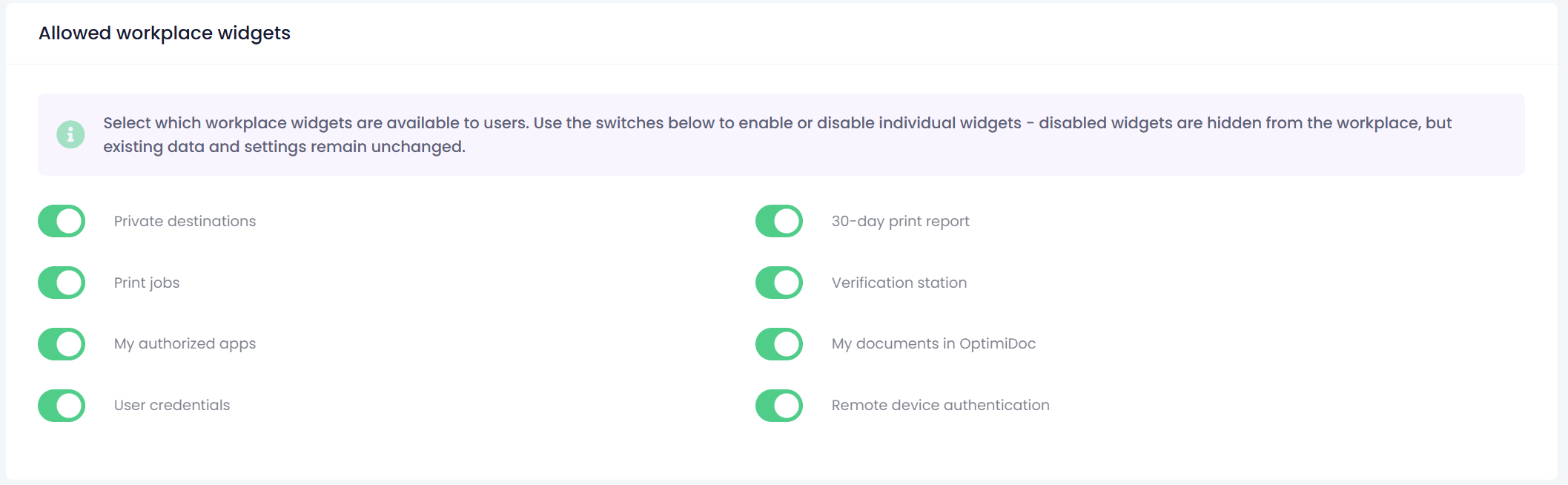
The Allowed Workplace Widgets section enables administrators to control which widgets are available to users in the Workplace interface.
Use the switches to enable or disable individual widgets:
-
Enabled widgets are visible and accessible to users.
-
Disabled widgets are hidden from the Workplace UI, but all existing data and configuration remain intact.
This allows organisations to tailor the Workplace environment to their needs and simplify the user interface by showing only relevant functions.
MFP Personalisation
The MFP Personalisation section allows administrators to customise the visual appearance and user experience on multifunction devices (MFPs) connected to OptimiDoc Cloud.
These settings enable organisations to apply their own branding to the MFP login screen and user interface.
MFP Terminal Logo
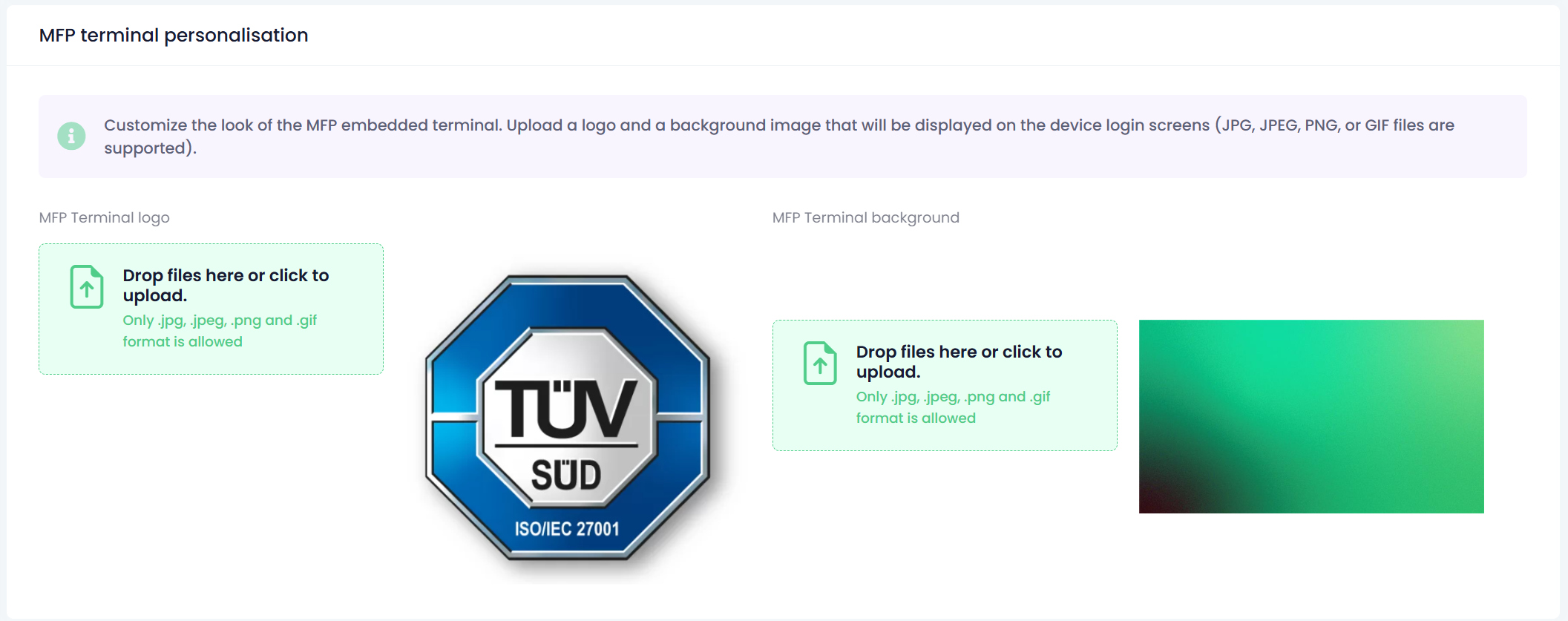
This option allows you to upload a custom company logo that will be displayed on the authentication screen when users access OptimiDoc Cloud on the MFP.
-
Suitable for corporate branding and a professional device appearance.
-
Supported formats: GIF, PNG, JPEG or JPG.
MFP Terminal Background
You can replace the default OptimiDoc Cloud background image with your own custom background for the MFP login screen.
Image Requirements
-
Maximum file size: 3 MB
-
Supported formats: GIF, PNG, JPEG or JPG.
-
Recommended resolution: 800 × 600 px
This recommended resolution ensures smooth performance and compatibility across all supported MFP devices.