
PowerBI Data Export provides administrators with advanced analytical capabilities to visualize organization-wide print and scan activity. This feature utilize a dedicated template to transform your tenant’s information into an interactive report, offering deeper insights and trend analysis than standard static exports.
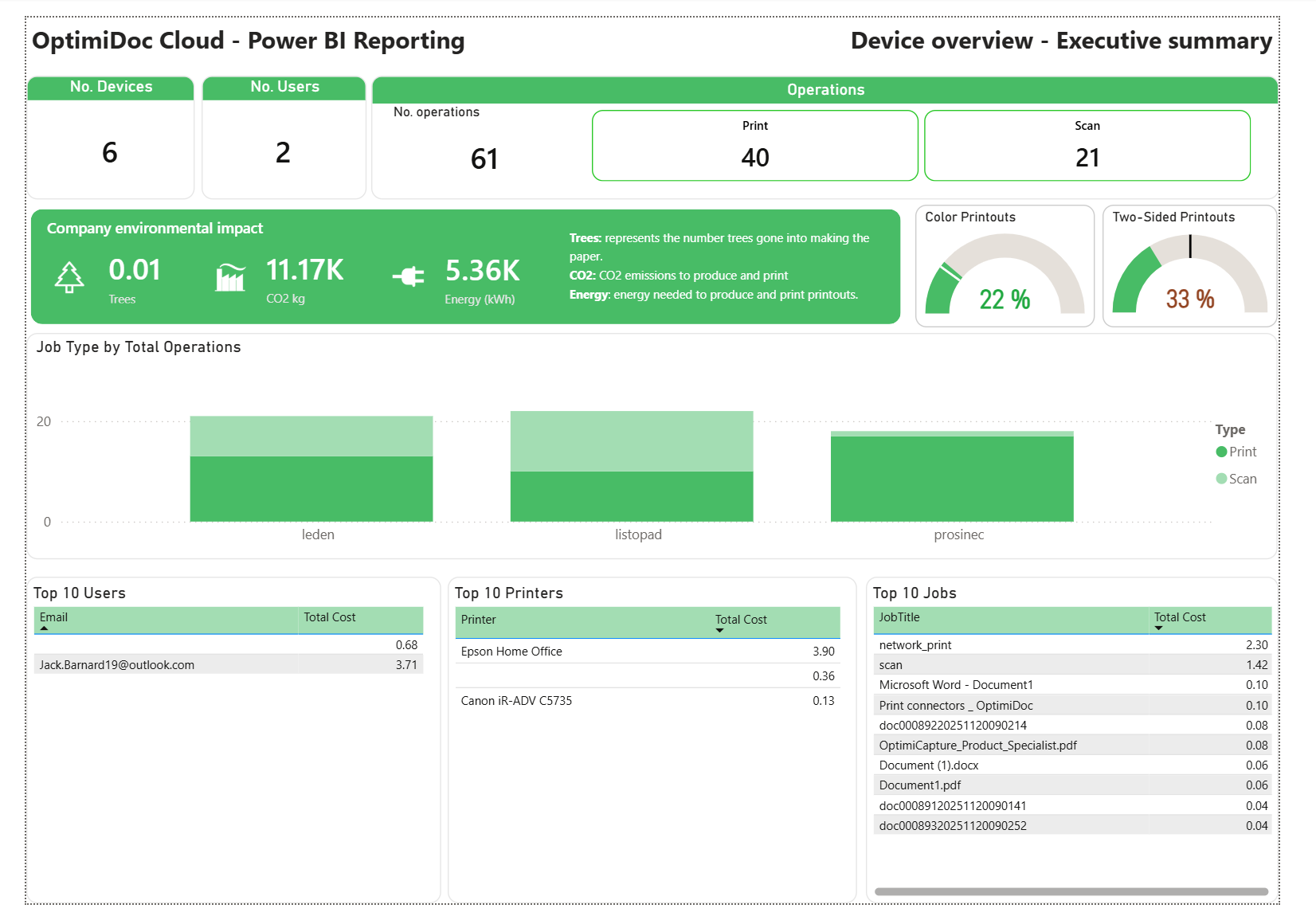
The PowerBI template can be downloaded from Admin Console > Reporting > Data Export > PowerBI Template and includes the following pieces of information.
Company Dashboard: A comprehensive overview of basic company information for a defined reporting period. This can then be filtered down by job type, month, user and even down to a specific device.
Cost Analysis: A breakdown of costs filtered by departments or users. Visual charts track trends in job types and color verses Black & White and help essential trends within your company.
Device Utilization: An analysis of workload and associated costs for individual devices or specific locations to provide a better understanding of the cost on a per-device basis.
Print Job Analysis: Insights into printing habits, costs and operations performed. Interactive charts allow for reverse filtering, such as tracing specific job sizes to identify file types and print dates.
Setting up Data Export
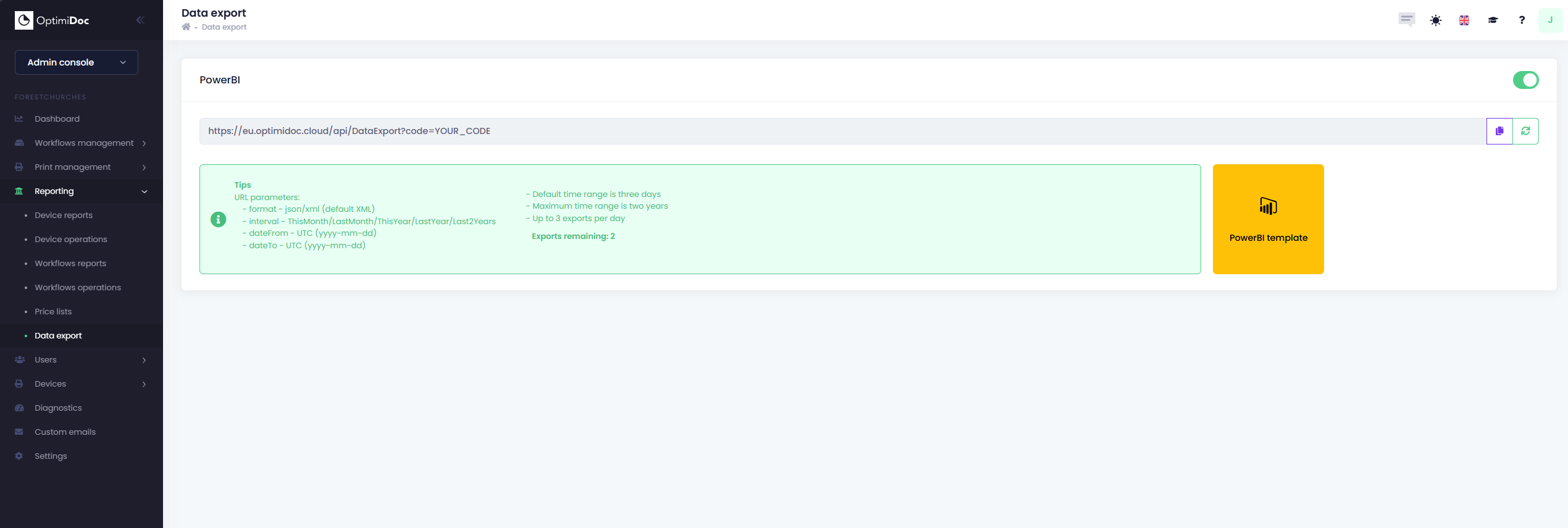
To setup the PowerBI export, you first need to enable it under Admin Console > Reporting > Data Export. Then you can download the template and import it into your organizations PowerBI.
Note: Data can be exported up to a maximum of three times a day.
Once imported, open the template and navigate to Home > Transform data > Edit Parameters. Here, please proceed to fill out the variables as follows.
-
URL address: The URL generated by OptimiDoc when you enabled data export
-
Interval: Select how far back you would like OptimiDoc to look for your data.
Parameters
When exporting your data from OptimiDoc, administrators can also specify a custom date range from which to pull the data.
Example: https://eu.optimidoc.cloud/api/DataExport?code=YOUR_CODE&dateFrom=2026-01-01&dateTo=2026-01-31
The above example is configured to pull all the data from OptimiDoc between January 1st - 31st 2026.