
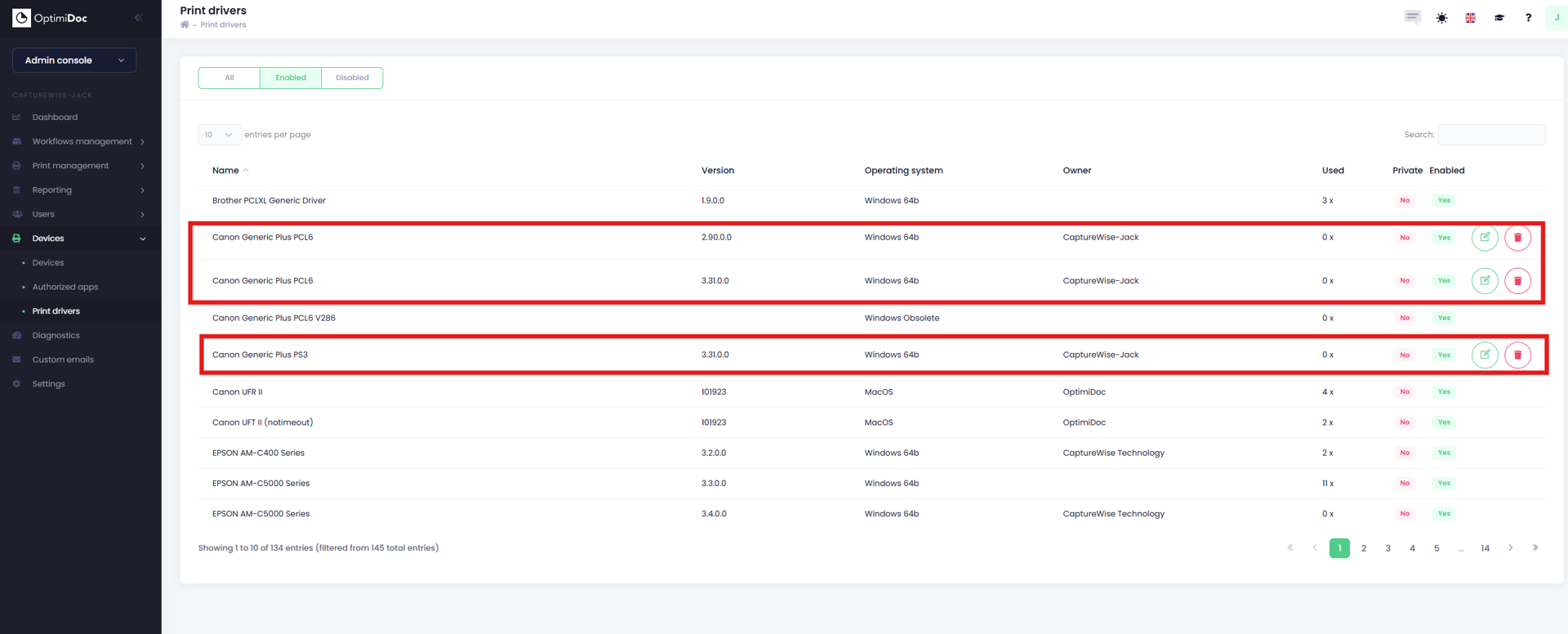
All drivers available for your tenant are listed on the Print Drivers page. Each driver entry includes the following information:
-
Driver name - The name of the print driver.
-
Driver version - The specific version of the driver. Multiple versions of the same driver may be available.
-
Operating system - The operating systems supported by the driver. Supported platforms include:
-
Windows (64‑bit)
-
Windows ARM
-
macOS
-
-
Owner - The tenant that uploaded the driver. This is typically your tenant, OptimiDoc, or your managing partner.
-
Used - Indicates how many print connectors and printers currently use the driver.
-
Enabled - Specifies whether the driver can be assigned to printers or virtual spoolers.
If a driver is disabled, it remains assigned to existing printer configurations but cannot be selected for new configurations
-
Operations
-

-

-
Driver details and print settings
To view driver details and configure print settings, click the Edit
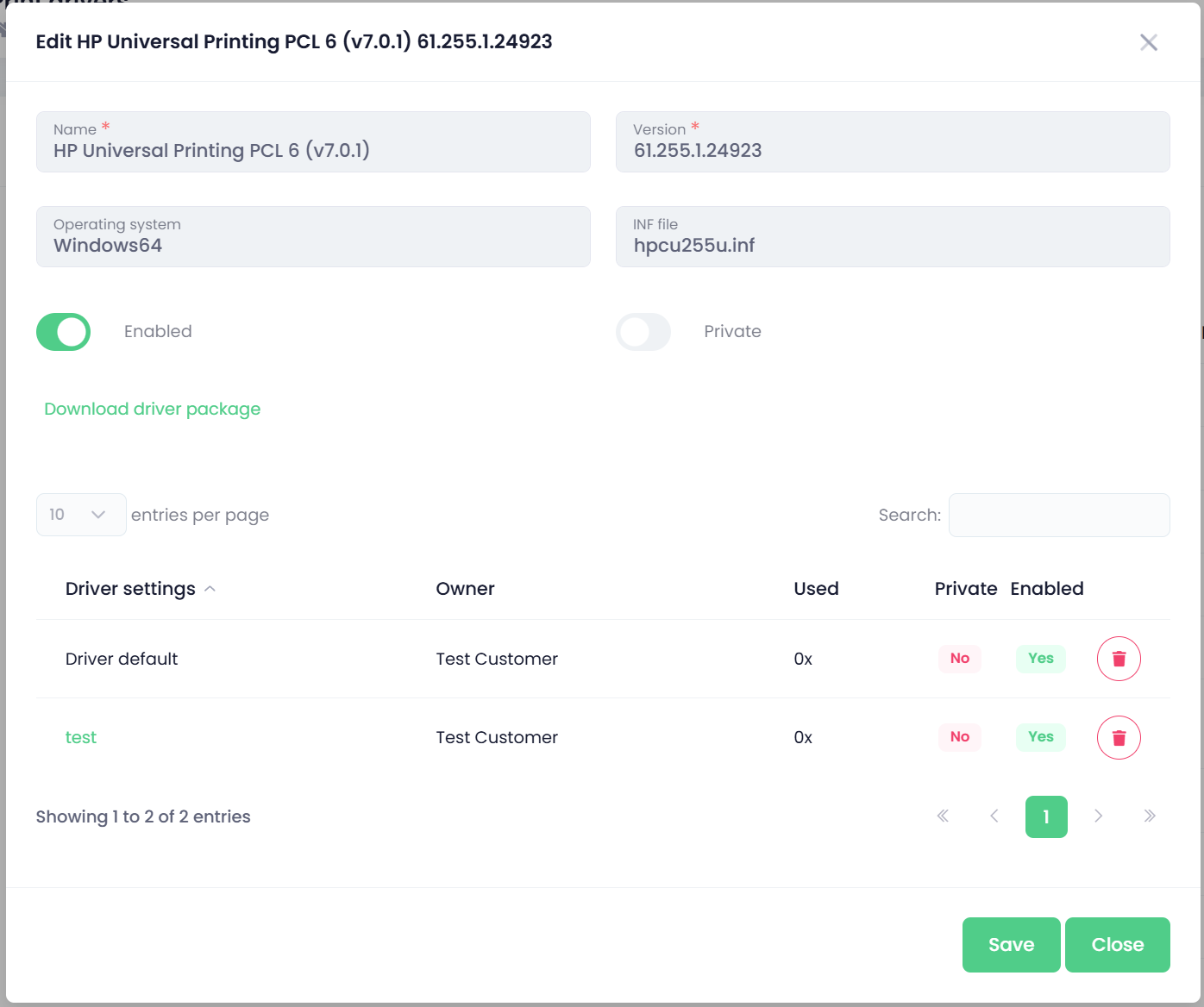
From the driver details view, you can:
-
enable or disable the driver for future use,
-
download the driver package,
-
view, manage or delete the available print settings.