
OptimiDoc Cloud provides a wide selection of pre‑uploaded drivers that can be used for standard print configurations. In some scenarios, however, administrators may need to upload their own drivers—for example, to use a specific driver version or a vendor‑specific driver not available by default.
To support this, OptimiDoc Cloud provides the Printer Migration Tool (PMT), which allows administrators to upload custom drivers and create configuration profiles for those drivers.
Driver Availability
OptimiDoc Cloud supports self‑managed driver uploads only for Windows print drivers.
If you require macOS print drivers, please contact OptimiDoc Support.
The support team will upload the required macOS drivers on your behalf, as self‑managed driver installation is not available for macOS.
The installation of the OptimiDoc Printer Migration Tool is described in the following section: OptimiDoc Printer Migration Tool
Step 1 - Prerequisites for Uploading Drivers
Before uploading a print driver, ensure that the following requirements are met:
-
Required permissions
You must be assigned the Customer Admin role in the tenant. -
Valid printer IP address
The printer associated with the driver must have a valid IP address configured.
This does not need to be a live network address—loopback addresses (for example,127.0.0.1) or any other valid IP format are supported.
Step 2 - Authentication to your tenant
Before uploading print drivers and print settings, you must sign in to the OptimiDoc Cloud tenant:
-
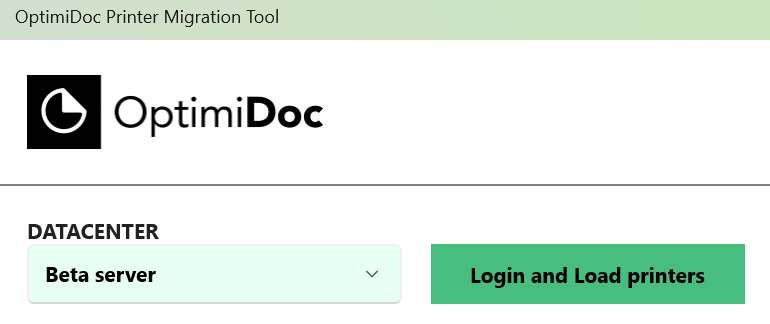
Select the appropriate datacentre and click Log in and load printers.
-
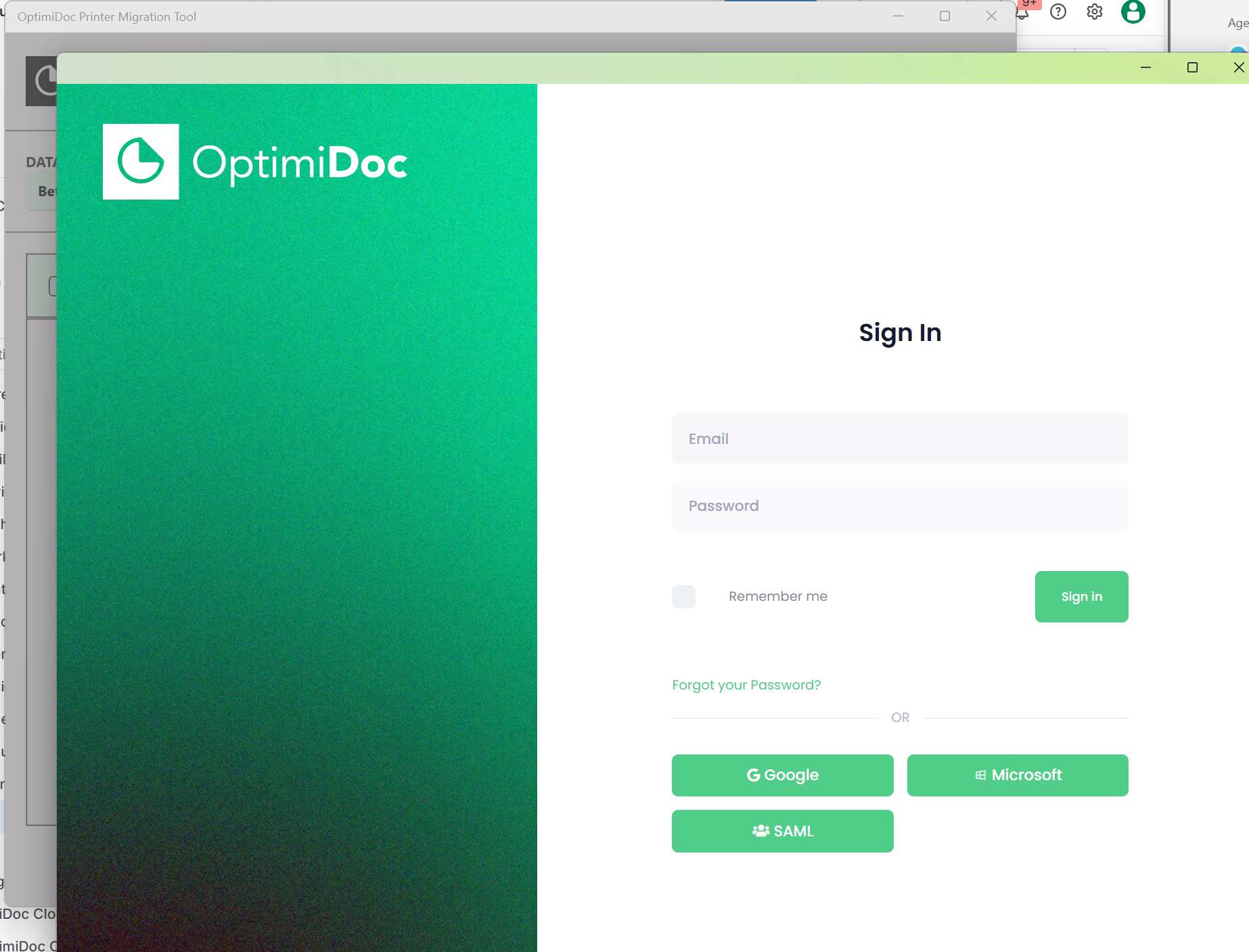
A new pop‑up window opens with the OptimiDoc Cloud authentication page. Sign in using your preferred authentication method.
-
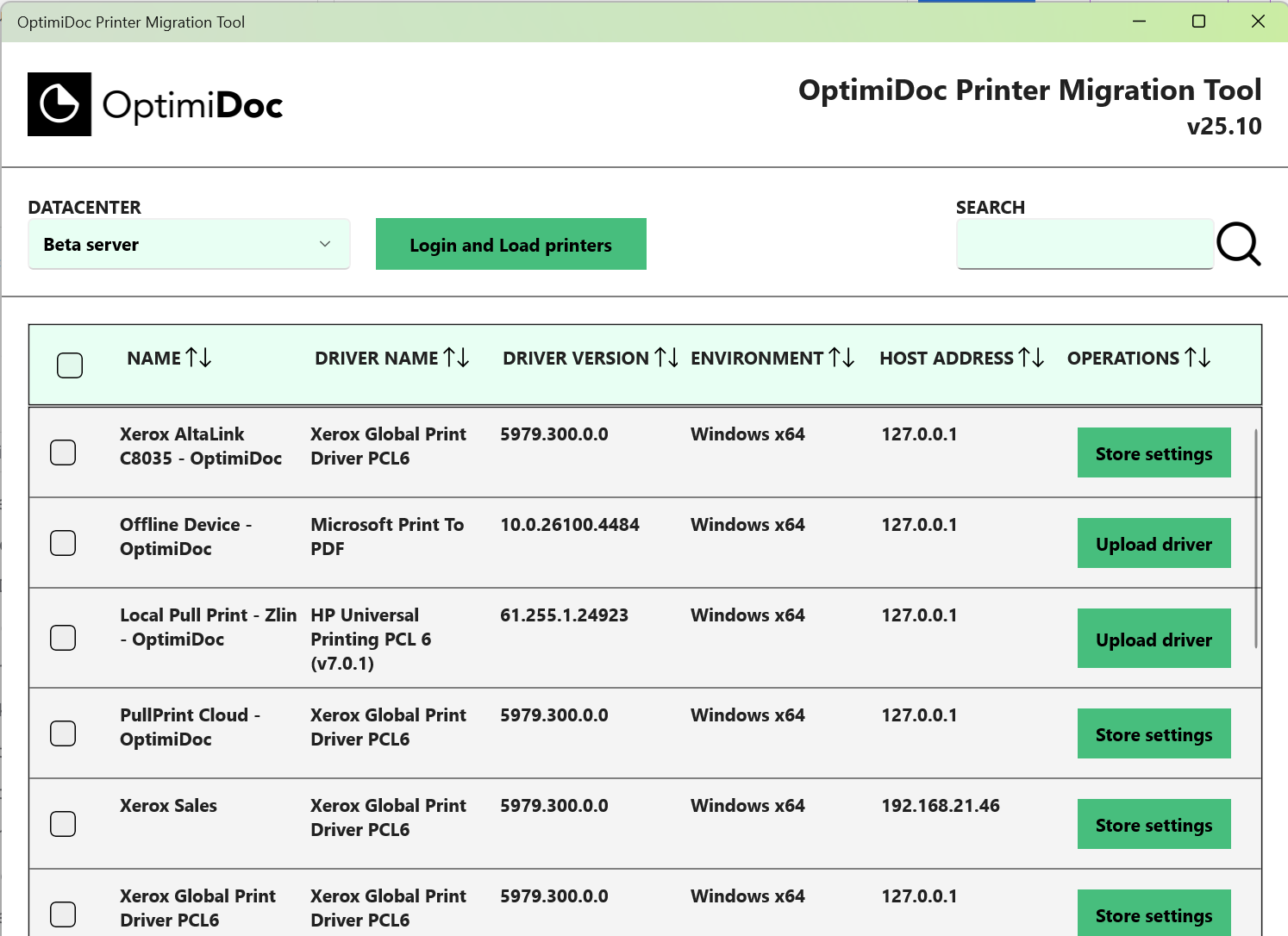
After authentication, the OptimiDoc Printer Migration Tool lists all printers available on the workstation or server.
Step 3 - Uploading a Driver or Print settings
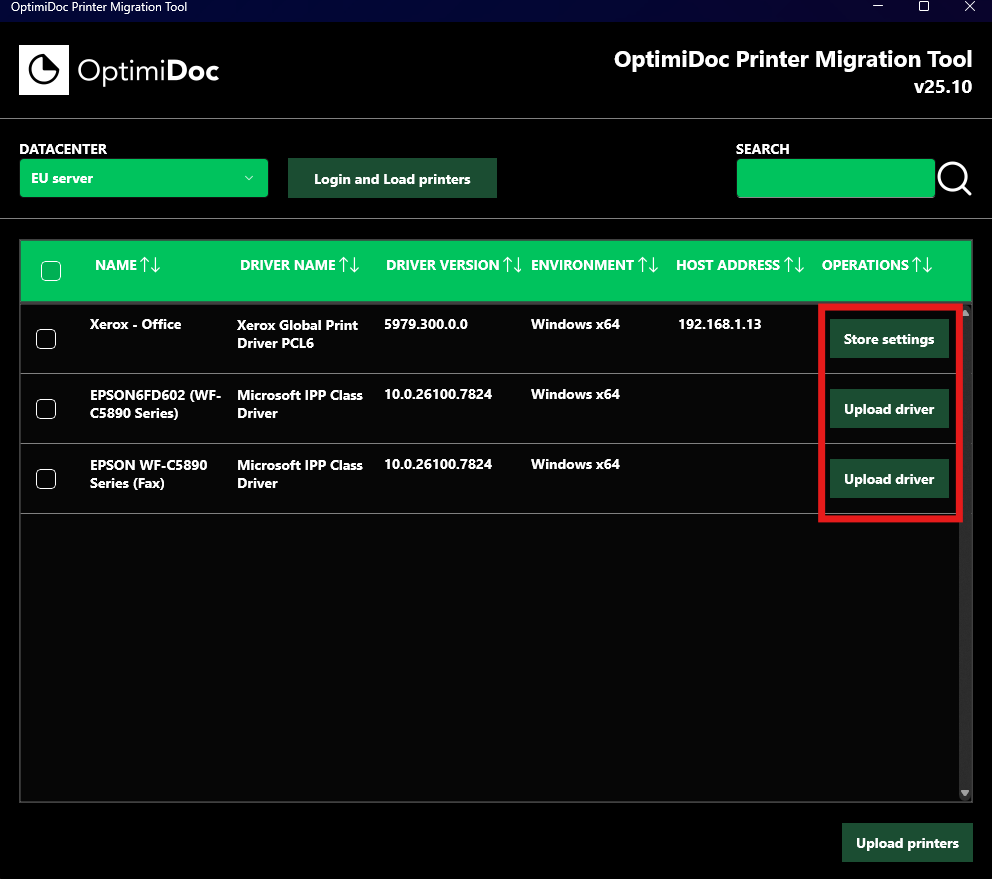
The list of printers displays detected printers along with the following details:
-
Printer name,
-
Driver name,
-
Driver version,
-
Supported operating systems,
-
Printer address,
-
Available operations:
-
Upload driver – This action is available when the driver does not already exist in the OptimiDoc Cloud Global Drivers or the partner‑managed driver repository.
When you click Upload driver, the selected driver is automatically uploaded to your tenant’s driver database.
-
Store settings – This action is available when the driver already exists in the customer, partner, or global driver repository. In this case, the driver does not need to be uploaded again; however, you can store and manage predefined print settings for your deployments.
A single driver can have multiple print settings profiles, allowing different configurations to be applied to selected devices or print connectors as required.
-
-
The final option is to upload the complete printer to OptimiDoc Cloud as a device.
To do this, select the printers you want to synchronise and click Upload printers.
The OptimiDoc Printer Migration Tool then automatically creates and configures the printer in the Devices section, uploads the associated driver, and stores the print settings.