
-
Open the device web interface.
-
Log in to the device as an administrator.
-
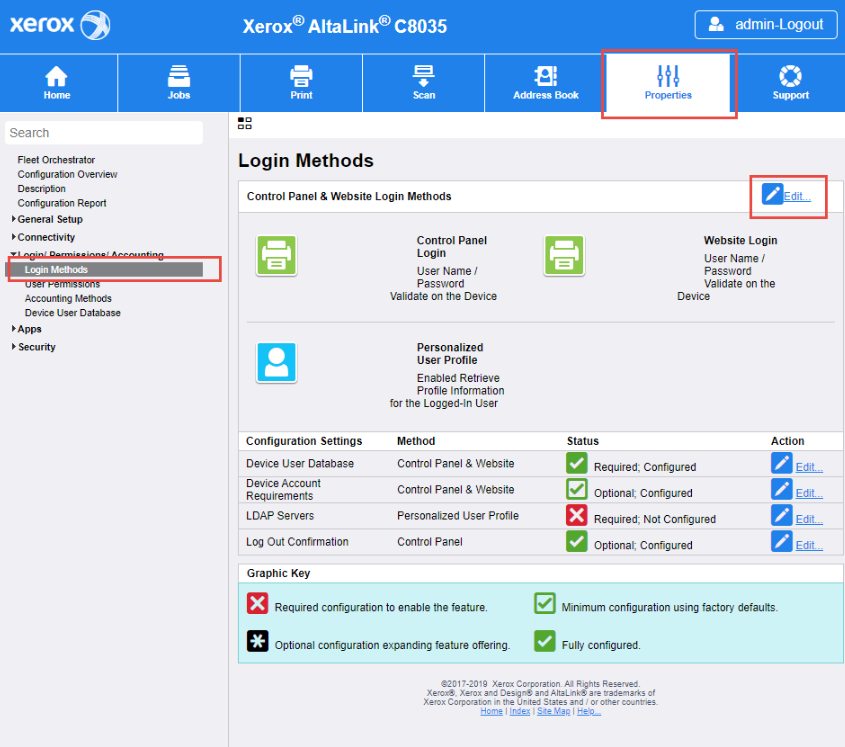
Go to the Properties section.
-
Continue to the Login Permissions/Accounting > Login methods tab.
-
Click Edit Control Panel & Website Login Methods.
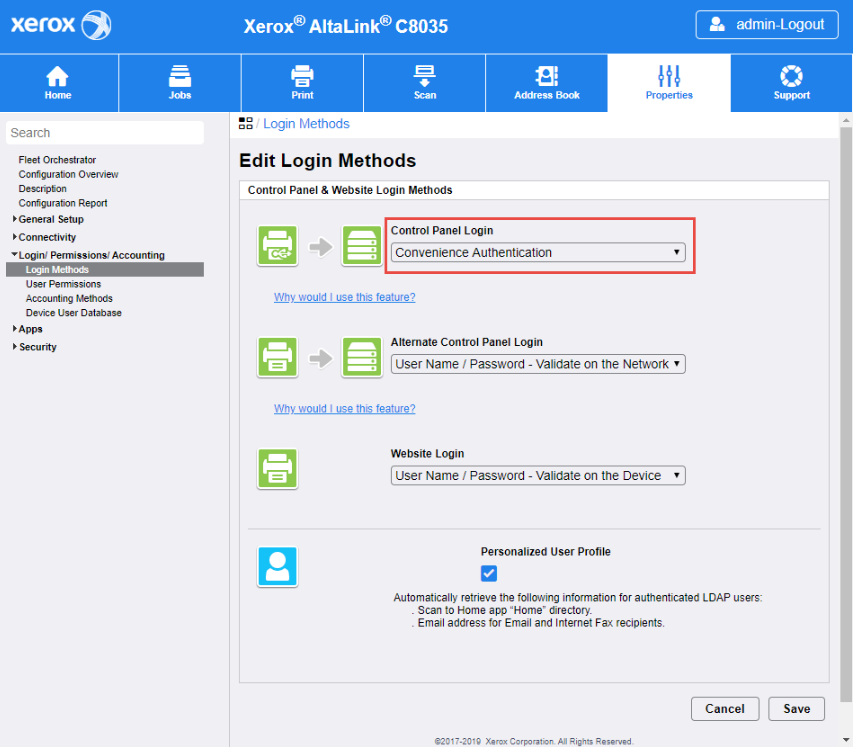
5. Configure Control Panel Login to Convenience Authentication.
-
Click Save.
-
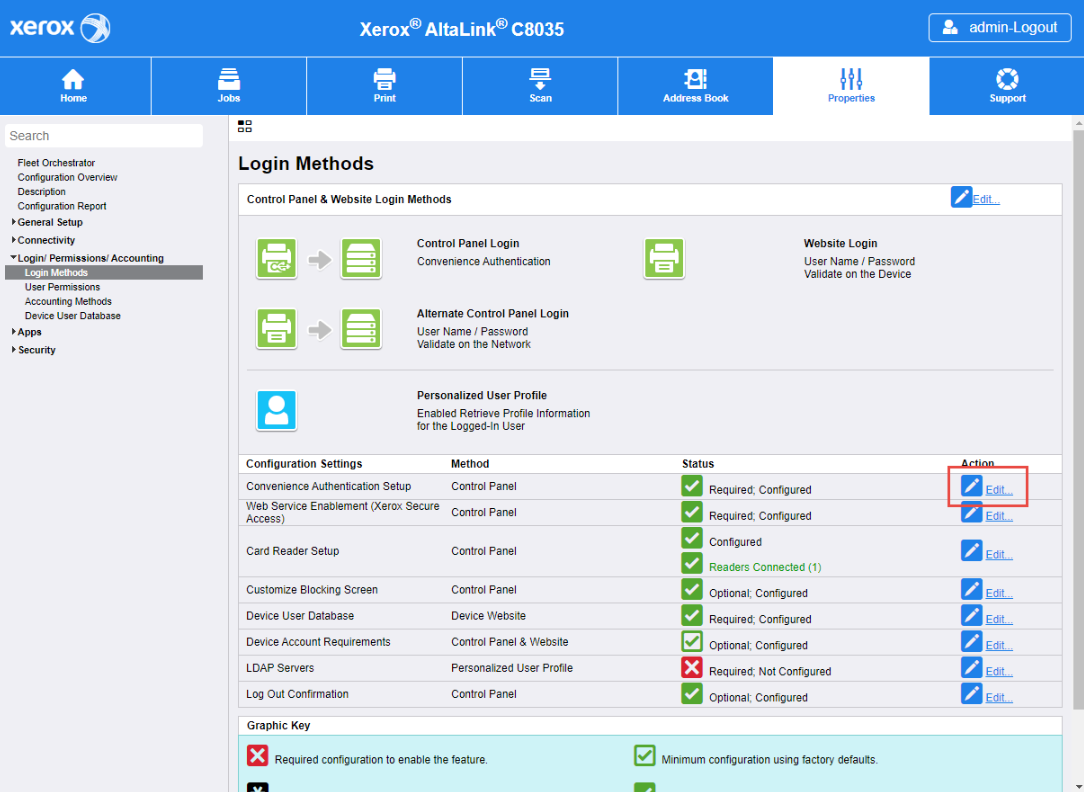
Click Edit Convenience Authentication Setup.
-
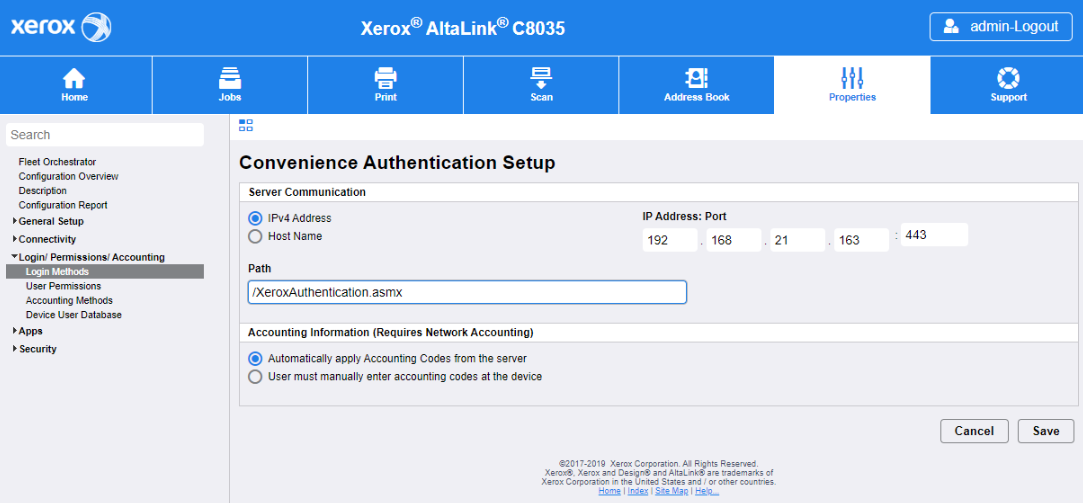
For Server Communication select IPv4 Address.
-
For IP Address Port enter IP address of OptimiDoc Cloud Node (OCN) and port :443.
-
For Path enter /XeroxAuthentication.asmx?ip=ENTER_IP_ADDRESS_OF_THE_DEVICE and replace “ENTER_IP_ADDRESS_OF_THE_DEVICE” by real device IP address.
-
For Accounting Information select Automatically apply Accounting Codes from the server option.
-
Click Save.
-
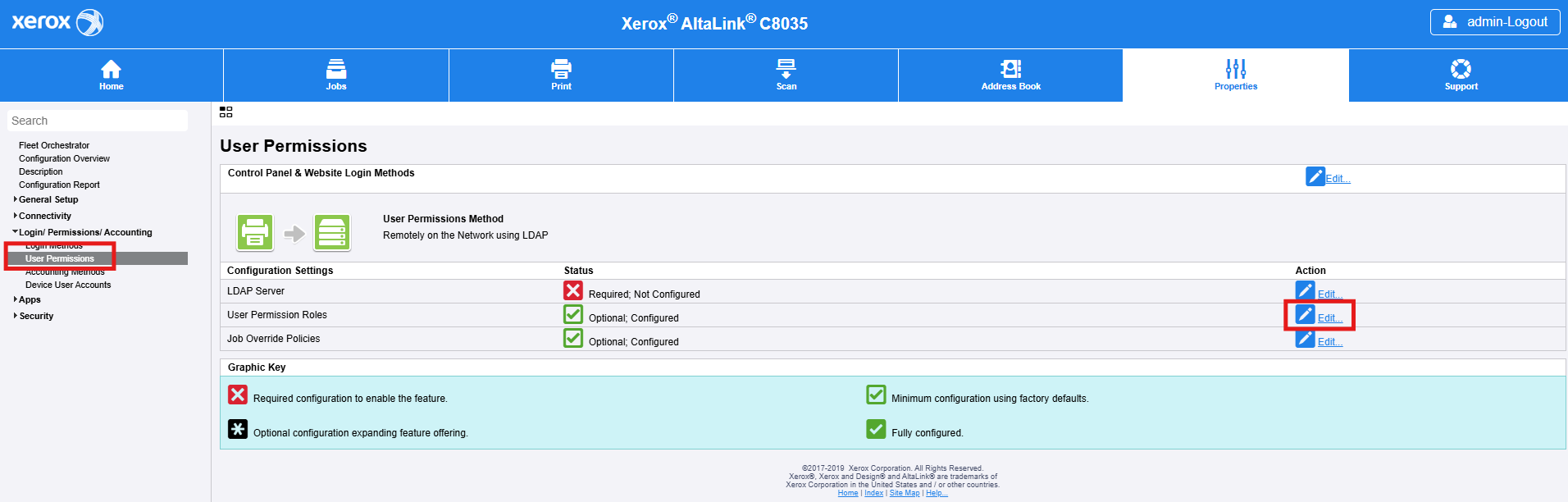
To prevent unauthenticated users from accessing the apps, go to the Login Permissions/Accounting > User Permissions menu.
-
Edit User Permissions Roles.
-
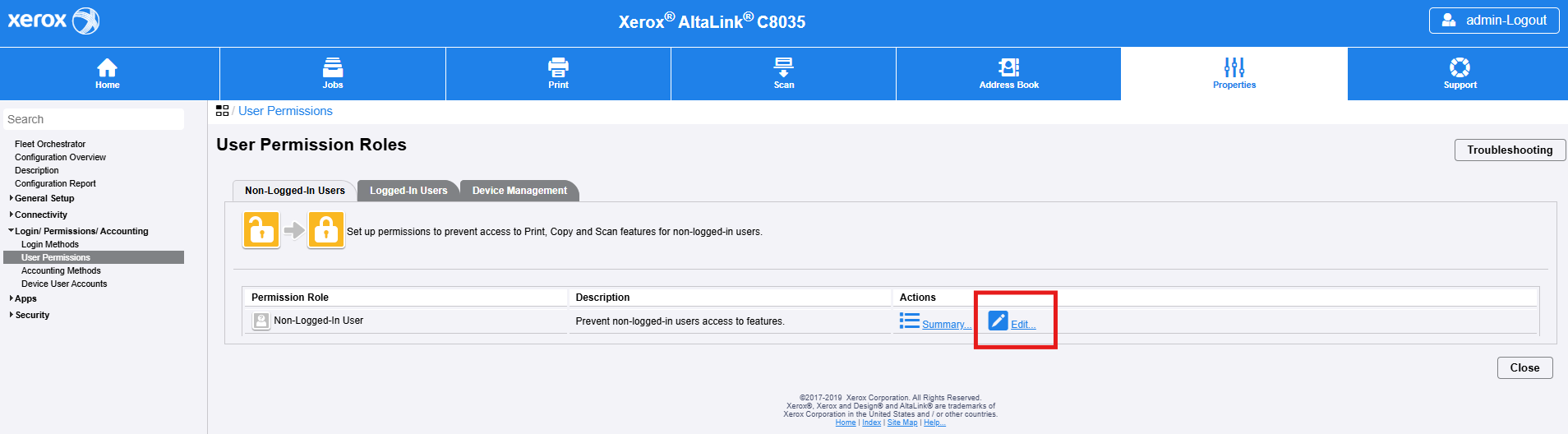
Edit Permission Role for Non-Logged-In User.
-
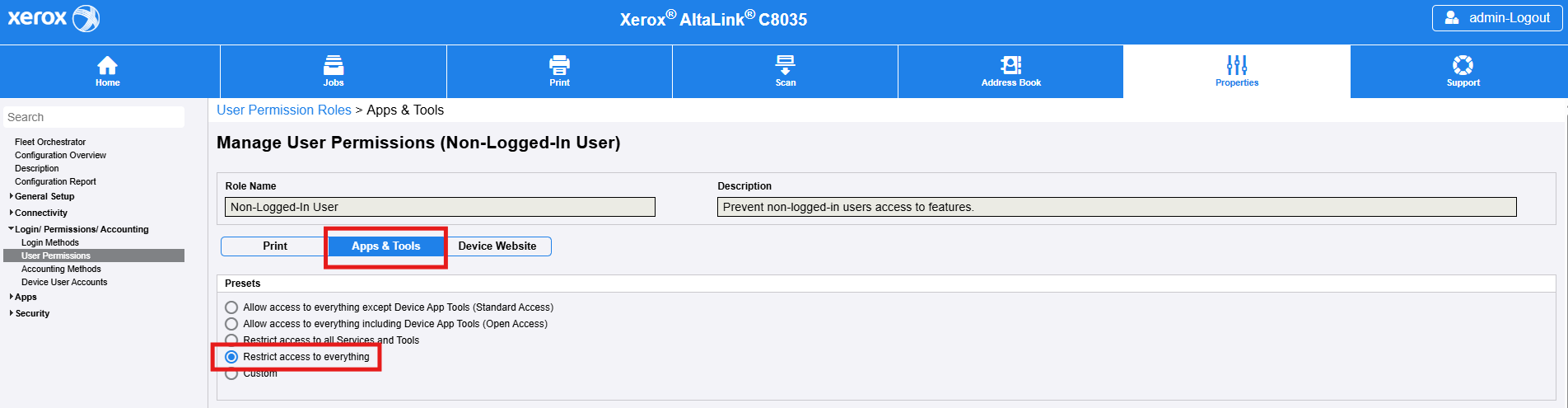
Select Apps & Tools.
-
In the Presets menu select “Restrict access to everything” option.
-
Click Apply.