
The OptimiDoc Device Installer simplifies the implementation of OptimiDoc Cloud in the customer’s environment. Using the application, you can configure one or multiple devices with a single click.
Also prevents human error during the manual configuration.
Installation with OptimiDoc Device Installer
-
Open the OptimiDoc Partner Portal and log in.
-
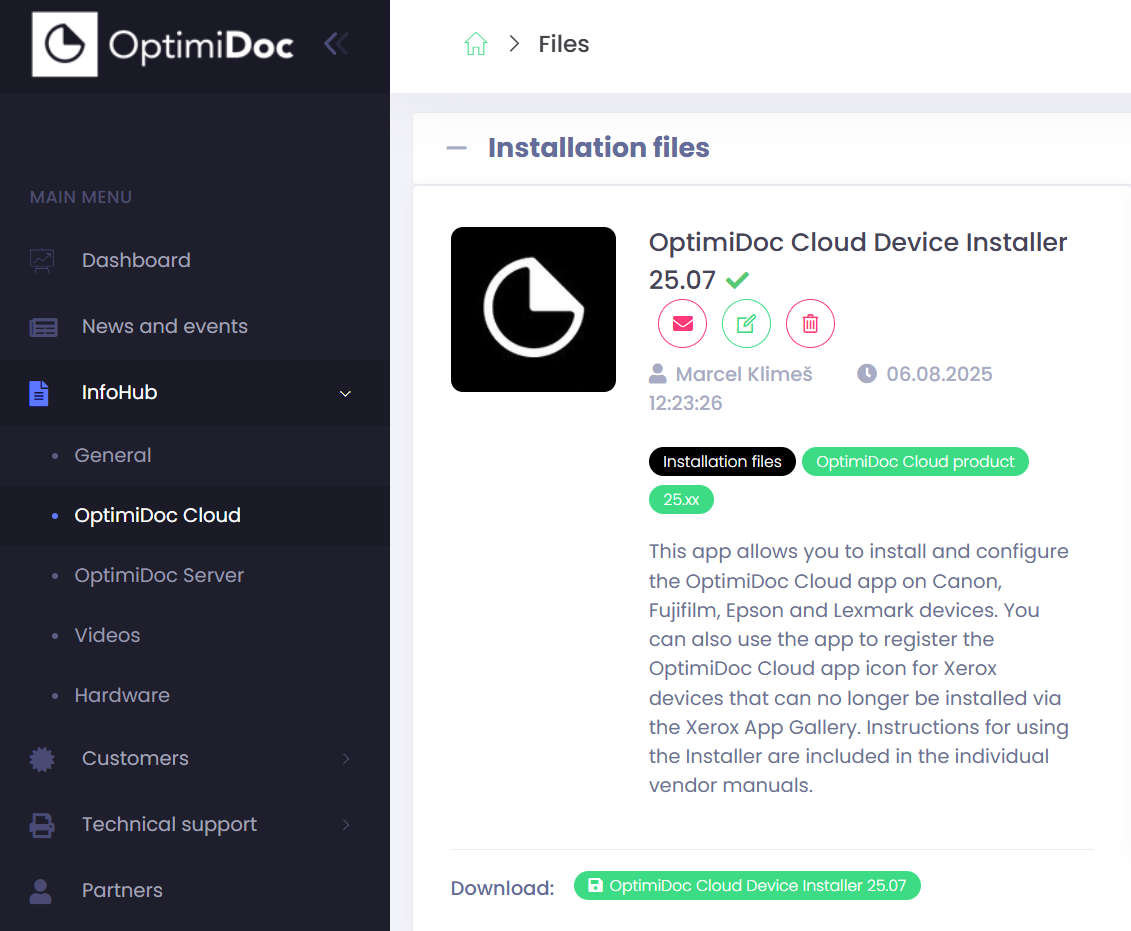
Go to section InfoHub > OptimiDoc Cloud and search for OptimiDoc Cloud Device Installer.
-
Click Download and extract the archive to a temporary location.
-
Run DeviceInstaller.exe.
-
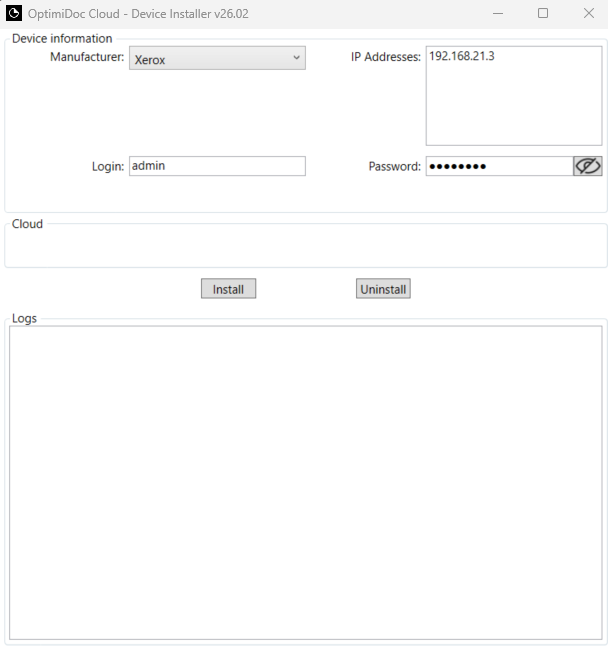
Configure the Installer as follows:
-
Manufacturer – choose Xerox.
-
IP addresses: Enter the device’s IP address. The installer allows you to install multiple devices in a single step. To install several devices, enter multiple IP addresses, each on a separate line.
-
Login: Device administrator username.
-
Password: Device administrator password.
-
-
Click Install.
The installation result is recorded in the installation log. Additional information can be found in the log.txt file which can be found in the following path: C:\Users\<user_name>\AppData\Local\OptimiDoc\Device Installer or by pressing F12 keyboard while you click to the Logs field in the Installer UI.
-
Enable the MFP: OptimiDoc Cloud application enablement.