
If you are using OptimiDoc Authentication, you will need to log in to the device and configure the embedded application.
Card reader support is automatically enabled when the OptimiDoc Authentication app is configured.
OptimiDoc Authentication application supports Elatec and inePro readers.
If you have configured authentication application, you must first log in to the device.
-
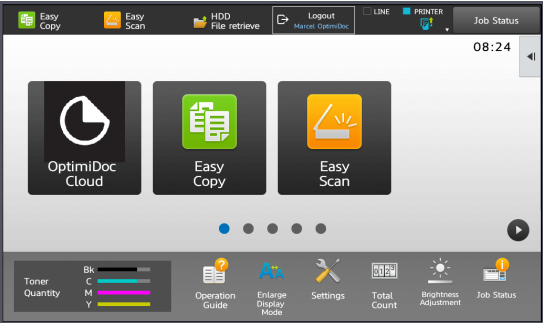
Open OptimiDoc Cloud application.
-
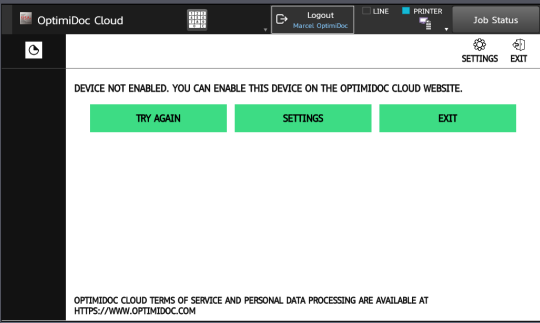
Click on Settings.
-
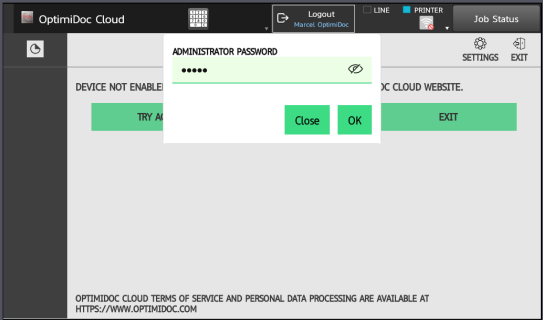
Enter the admin password (the default OptimiDoc admin password is device serial number) and click OK.
-
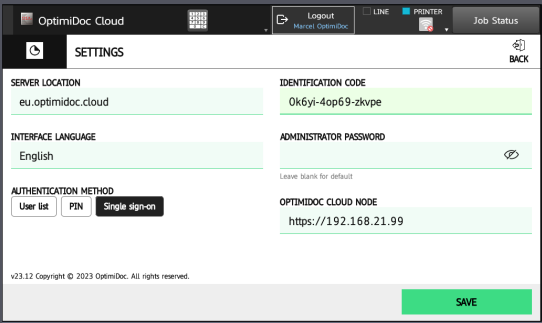
Enter the configuration:
-
Cloud server - select the requested date centre. List of datacenters is here: Geolocations of Datacentres
-
Identification code - unique tenant’s code available at OptimiDoc Cloud Administration Portal. ID code can be found on the OptimiDoc Cloud portal. Once logged in, navigate to the Admin console > Dashboard > Identification code widget and click show value.
-
Interface language - select the application language. List of supported languages is here: https://optimidoc.atlassian.net/wiki/x/swAQ
-
Admin password - password to enter the OptimiDoc app settings.
-
Authentication method - the method by which the user authenticates to the print&scan application.
-
i) User list - a list of users within the tenant on the cloud portal will be displayed. The user logs in by clicking on their name from the list.
ii) PIN - the user authenticates themselves using their PIN, which they have set up on the cloud portal.
iii) Single sign-on - is used in combination with an authentication application. When a user logs into the device using the authentication application, their credentials are transferred to the print&scan application and they do not need to log in again. When the print&scan application is opened, the user who authenticated to the device is automatically logged in.
f. OptimiDoc Cloud Node - if you have registered an OCN or RPi, enter its IP address in the field.
-
Click SAVE.
-
Enable the MFP: OptimiDoc Cloud application enablement.