
Start the OptimiDoc Application Automatically After Login
-
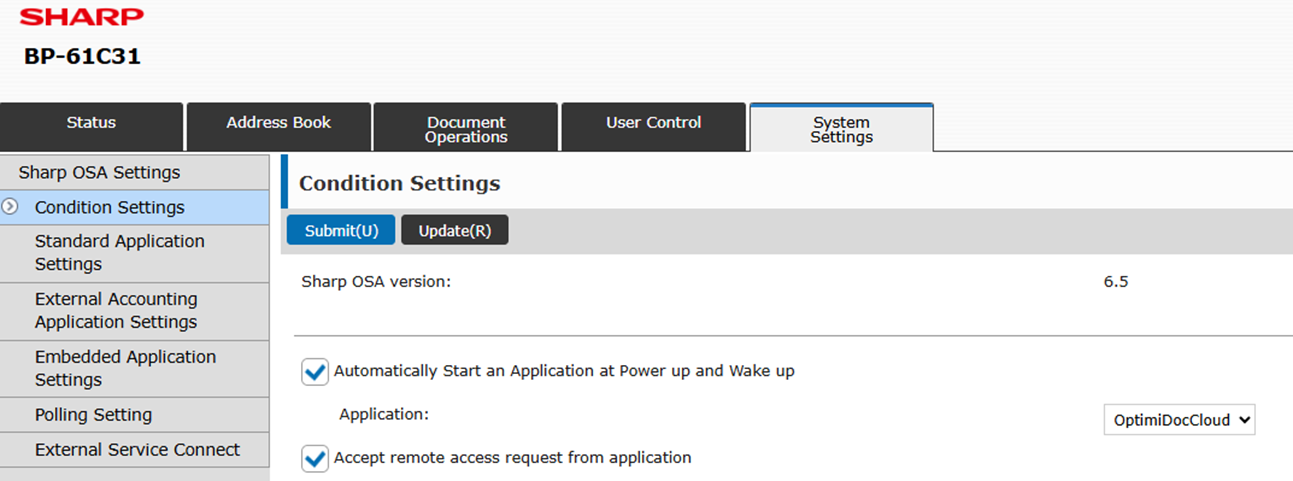
Go to OSA Settings:
https://IP/osa_basic.html -
Enable Automatically start application…
-
From the drop‑down menu, select OptimiDocCloud.
-
Select Submit.
Enabling Direct Printing Without Authentication
-
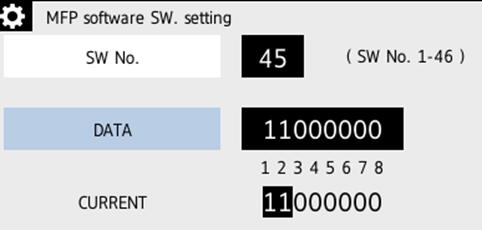
Update Service Mode Setting
-
Change SIM 55‑3 SW45 Bit 2 to 1.
-
-
Configure Authentication Settings
-
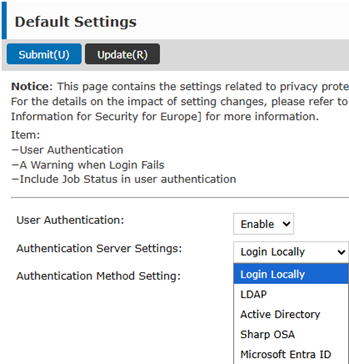
Go to Authentication Settings:
https://ip/account.html -
From the Authentication Server Settings drop‑down menu, select Login Locally.
-
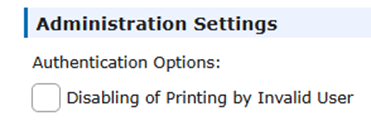
Clear the option Disabling of Printing by Invalid User.
-
Select Submit.
-
Change Authentication Server Settings back to Sharp OSA.
-
Select Submit again.
-
-
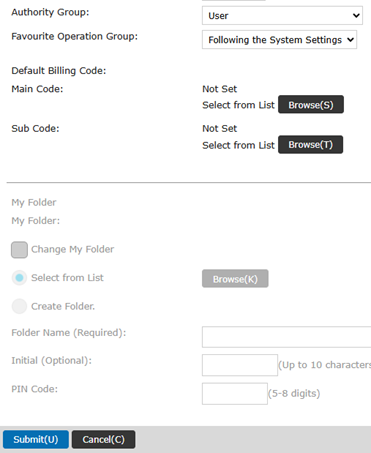
Configure “Other User” Settings
-
Go to Other User Settings:
https://ip/account_user_entry.html?userid=-1 -
Set Authority Group to User.
-
Select Submit.
-