
This section shows how to configure the print&scan application. If you are using also OptimiDoc Authentication application, you will need to configure it first, so you may proceed further (Ricoh - Authentication application configuration).
-
Open the OptimiDoc Print&Scan application from the native menu.
-
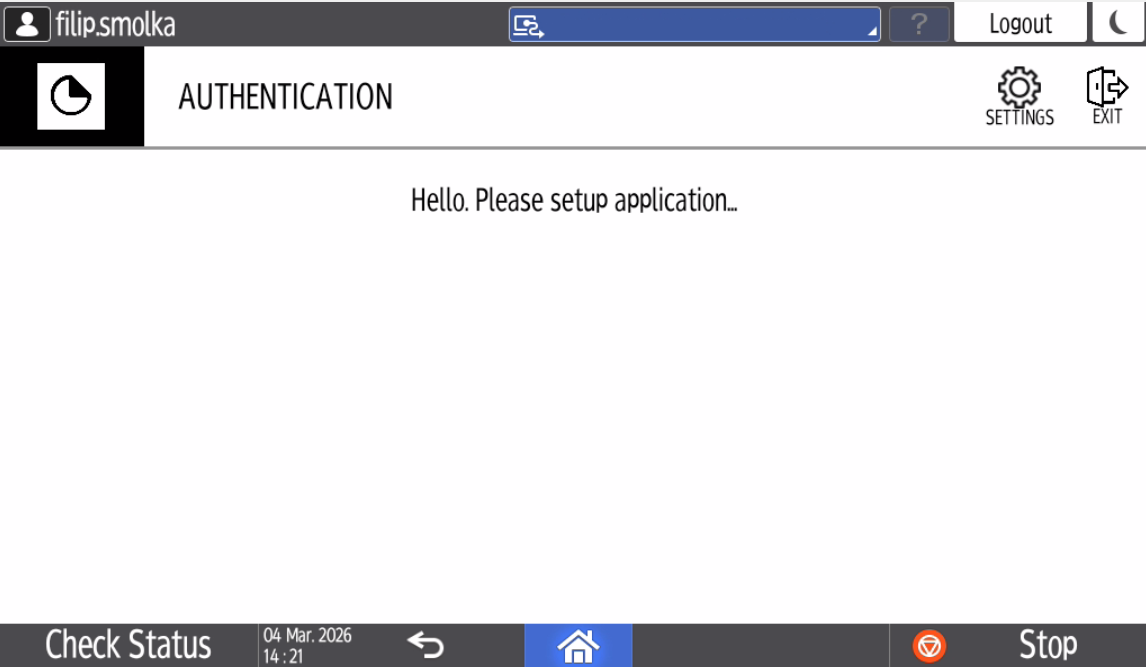
Click the Settings button in the upper right corner of the application.
-
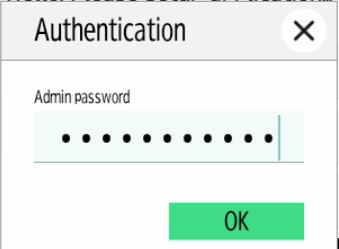
A pop-up window will open. Enter the admin password (the default OptimiDoc admin password is device serial number) and click OK.
-
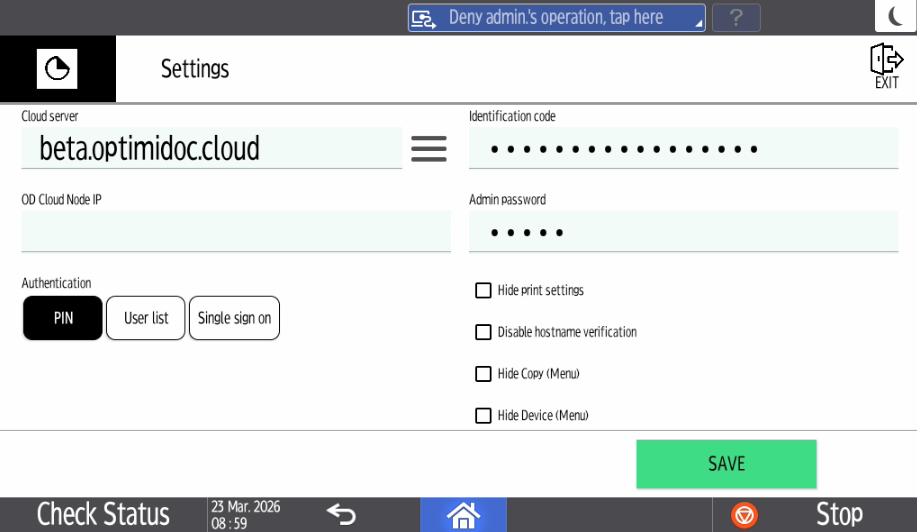
Enter the configuration:
-
Cloud server - select the requested date centre. List of datacenters is here: Geolocations of Datacentres
-
b. Identification code - unique tenant’s code available at OptimiDoc Cloud Administration Portal. ID code can be found on the OptimiDoc Cloud portal. Once logged in, navigate to the Admin console > Dashboard > Identification code widget and click show value.
c. OptimiDoc Cloud Node - if you have registered an OCN or RPi, enter its IP address in the field, so the print spooler is visible after login.
d. Admin password - password to enter the OptimiDoc app settings.
e. Authentication method - the method by which the user authenticates to the print&scan application.
i) PIN - the user authenticates themselves using their PIN, which they have set up on the cloud portal.
ii) User list - a list of users within the tenant on the cloud portal will be displayed. The user logs in by clicking on their name from the list.
iii) Single sign-on - is used in combination with an authentication application. When a user logs into the device using the authentication application, their credentials are transferred to the print&scan application and they do not need to log in again. When the print&scan application is opened, the user who authenticated to the device is automatically logged in.
f. Hide print settings - By checking this button, you will remove the option of finishing adjustments directly on the terminal for all print connectors with the virtual spooler type.
g. Disable hostname verification - Check this box if you want to deactivate all hostname certificates on the device.
h. Hide Copy (Menu) - Check this box if you want to hide copy button from the application menu.
i. Hide Device (Menu) - Check this box if you want to hide device button from the application menu.
j. Exit - Temporarily leaves the configuration section and returns to the default section of the authentication application. Temporary changes made within the application configuration will not be deleted.
-
Click SAVE.
-
Enable the MFP: OptimiDoc Cloud application enablement.
OptimiDoc as default application after login:
IM C models: Settings → Login → System settings → Display → Function priority (Default Displayed Application) → OptimiDoc
MP models: User Tools → Machine Features → Login → Exit → Screen Features → Screen Device Settings → Function Priority → OptimiDoc