
-
Open the OptimiDoc Partner Portal and log in.
-
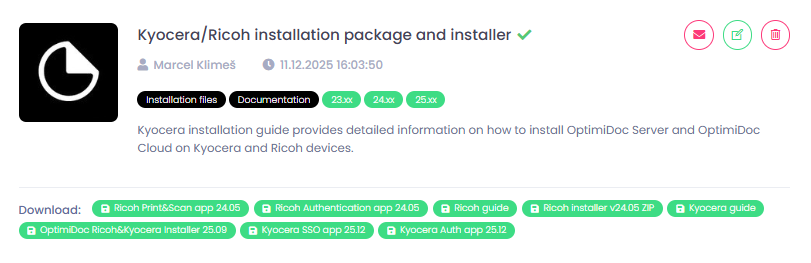
Go to section InfoHub > OptimiDoc Cloud and search for Ricoh installer.
-
Download Ricoh Installer.
-
Unzip the .ZIP file.
-
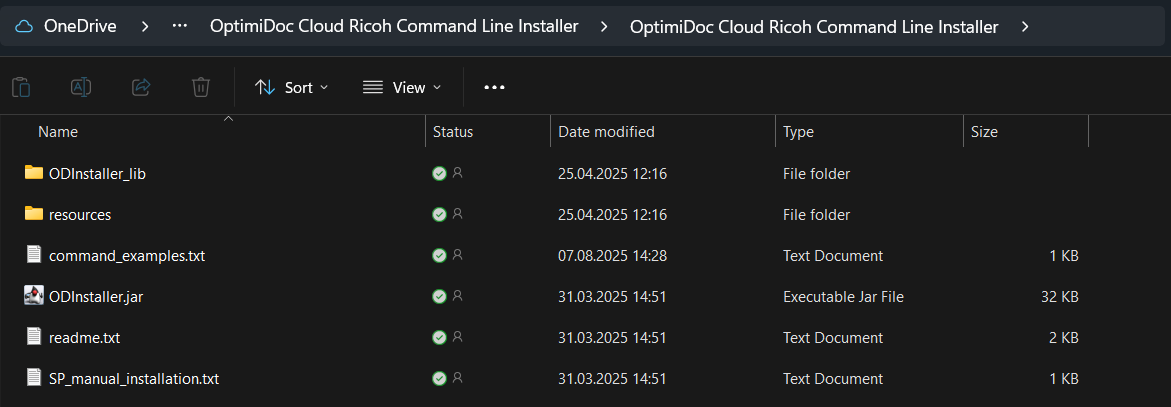
Open the folder, where is located “ODInstaller.jar” file.
-
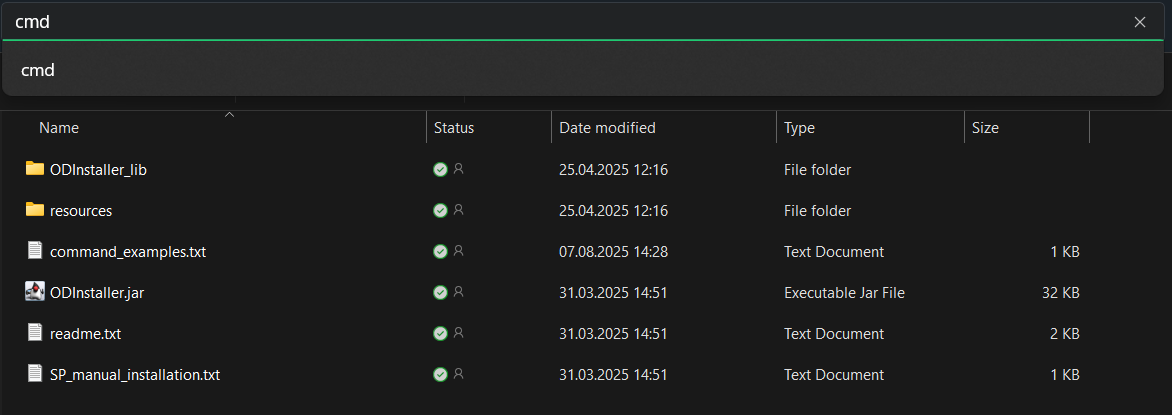
Run the command prompt from this location or simply type "cmd" in the path field to run the command prompt from the directory.
-
Make sure that the Ricoh device on which you will install the application is Java or SOP only, and proceed accordingly.
In case the MFP uses Java, it is necessary to have Java version 1.8.0_392 installed on the device from which the installation will be performed.
Then you need to customize the command. An example with explanations can be found below.
Arguments explanation:
[-m] : MODE
Specify the execution mode of this application. The available modes are as follows:
deploy: Install the application to the MFP.
undeploy: Uninstall the application from the MFP.
verify: Acquires and displays information related to the deployment of the authentication customization application set in the MFP.
If -m MODE is omitted, the default is deploy mode.
[-i] : IPADDRESS
Specify the IP address of the target MFP.
[-f] : SETTINGFILEPATH
Specify the configuration file by relative path from ODInstaller.jar. Also, file extension must be json.
[-am] : APPLICATIONMODE
Specify the application mode:
complete: Deploy the authentication application and print&scan application to the MFP.
apponly: Deploy only the print&scan application to the MFP.
[-n] : USERNAME
Specify the MFPs admin username.
[-p] : PASSWORD
Specify the MFPs admin password.
[-sm] : SPMODE
The SP servlet mode should be specified accordingly, depending on whether the device is Java or SOP only:
java: Deploy the java SP servlet to the MFP.
sop: Deploy the sop SP servlet to the MFP.
Command-line arguments must be entered consecutively with identifiers and values!
Command structure:
java -jar ODInstaller.jar -m MODE -i IPADDRESS -f SETTINGFILEPATH -am APPLICATIONMODE -n USERNAME -p PASSWORD -sm SPMODE
Command example:
java -jar ODInstaller.jar -i 192.168.1.2 -m deploy -f resources/config.json -am apponly -n admin -p Admin123 -sm java
-
Once you have your command ready, enter it into the command line and press Enter.

After completing the installation, it is recommended to restart the device and wait 2-5 minutes after booting up for all service programs to load.