
This applies only in the case of a manual installation.
-
Open the printer’s web interface and sign in as an administrator.
-
In the Epson Open Platform section, select Authetication System > Basic from the menu.
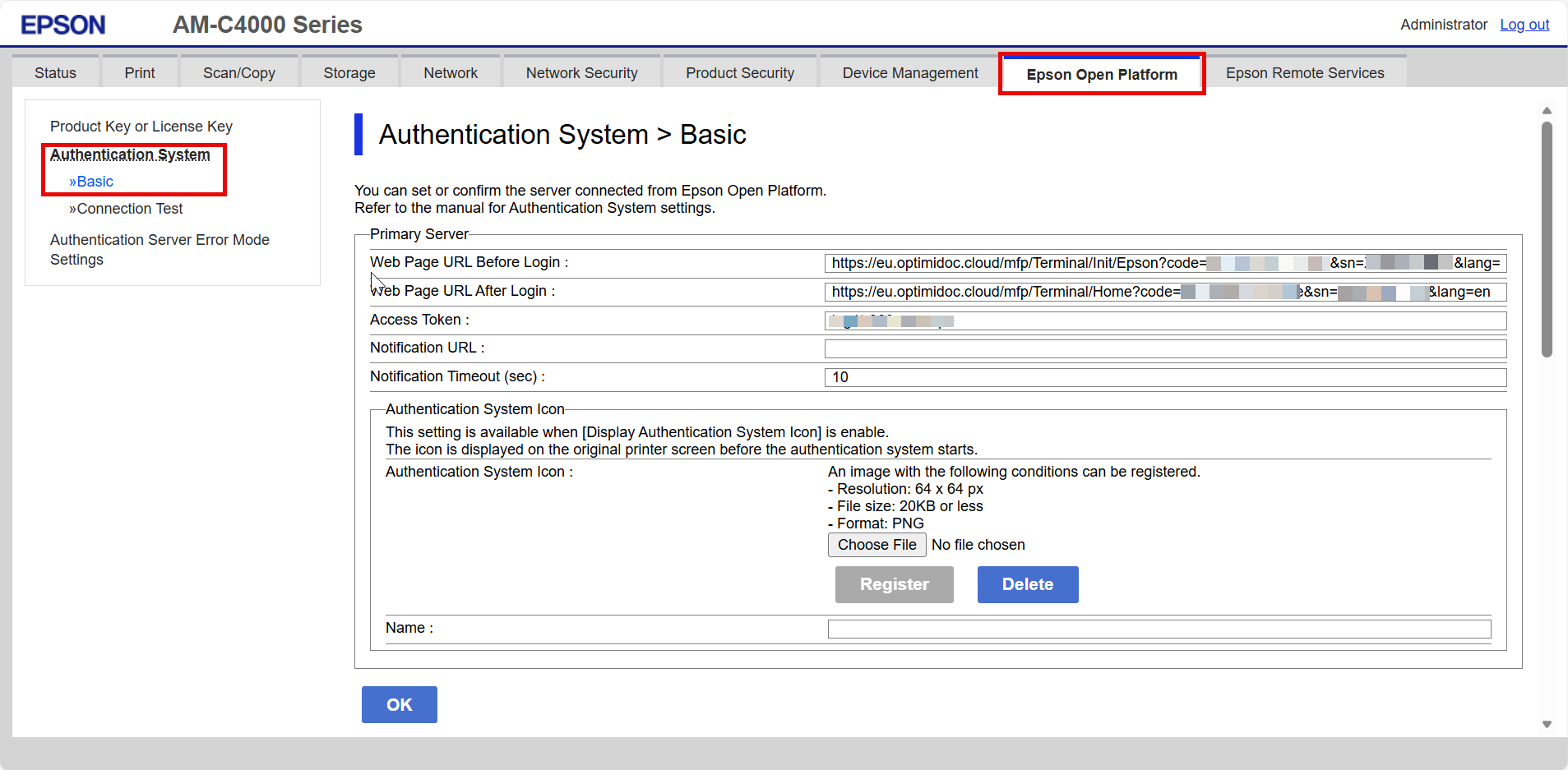
-
Enter the following information:
-
Web Page URL Before Login:
https://<datacentre>.optimidoc.cloud/mfp/Terminal/Init/Epson?code=COMPANY-IDENTIFICATION-CODE&lang=en&sn=EPSON-SERIAL-NUMBER -
Web Page URL After Login:
https://<datacentre>.optimidoc.cloud/mfp/Terminal/Home?code=COMPANY-IDENTIFICATION-CODE&lang=en&sn=EPSON-SERIAL-NUMBER -
Access Token:
COMPANY-IDENTIFICATION-CODE
The application language is defined by thelangparameter in the URL. The following values are accepted: cs, en, de, es, fr, hr, hu, pl, pt-BR, nl.
-
-
Scroll down and update the settings according to the screenshot below.
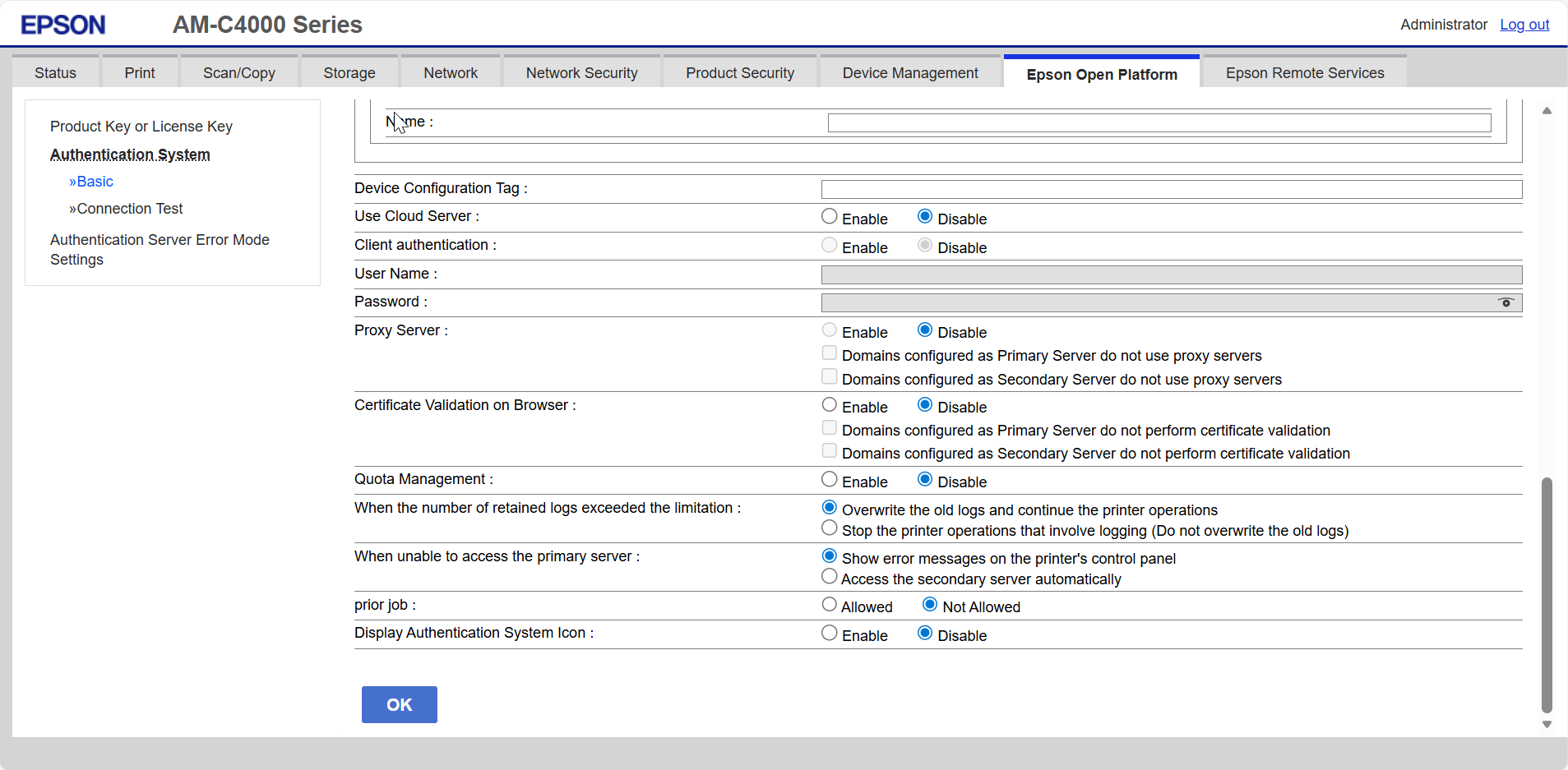
-
Click Ok.
-
Enable the MFP: OptimiDoc Cloud application enablement.