
The OptimiDoc Device Installer simplifies the implementation of OptimiDoc Cloud in the customer’s environment. Using the application, you can configure one or multiple devices with a single click.
Also prevents human error during the manual configuration.
Installation with OptimiDoc Device Installer
-
Open the OptimiDoc Partner Portal and log in.
-
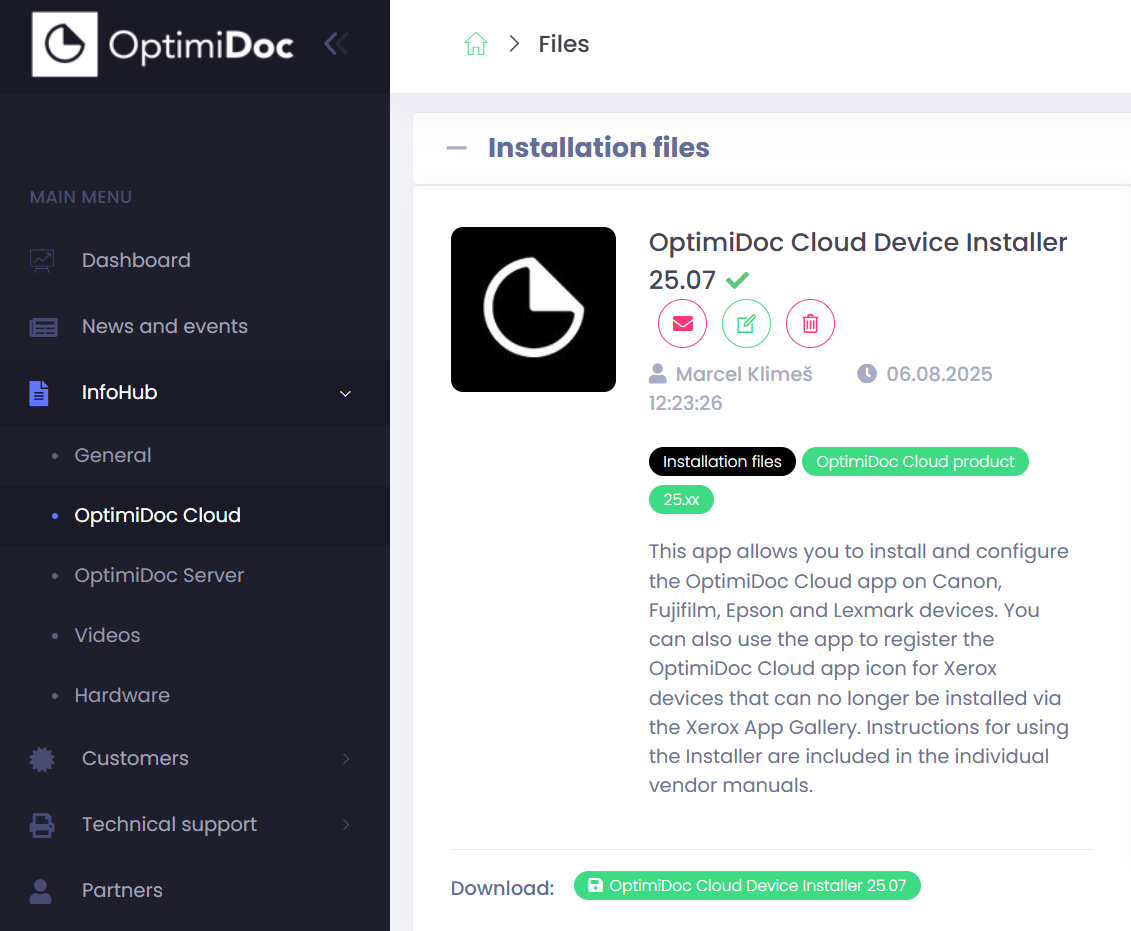
Go to section InfoHub > OptimiDoc Cloud and search for OptimiDoc Cloud Device Installer.
-
Click Download and extract the archive to a temporary location.
-
Run DeviceInstaller.exe.
-
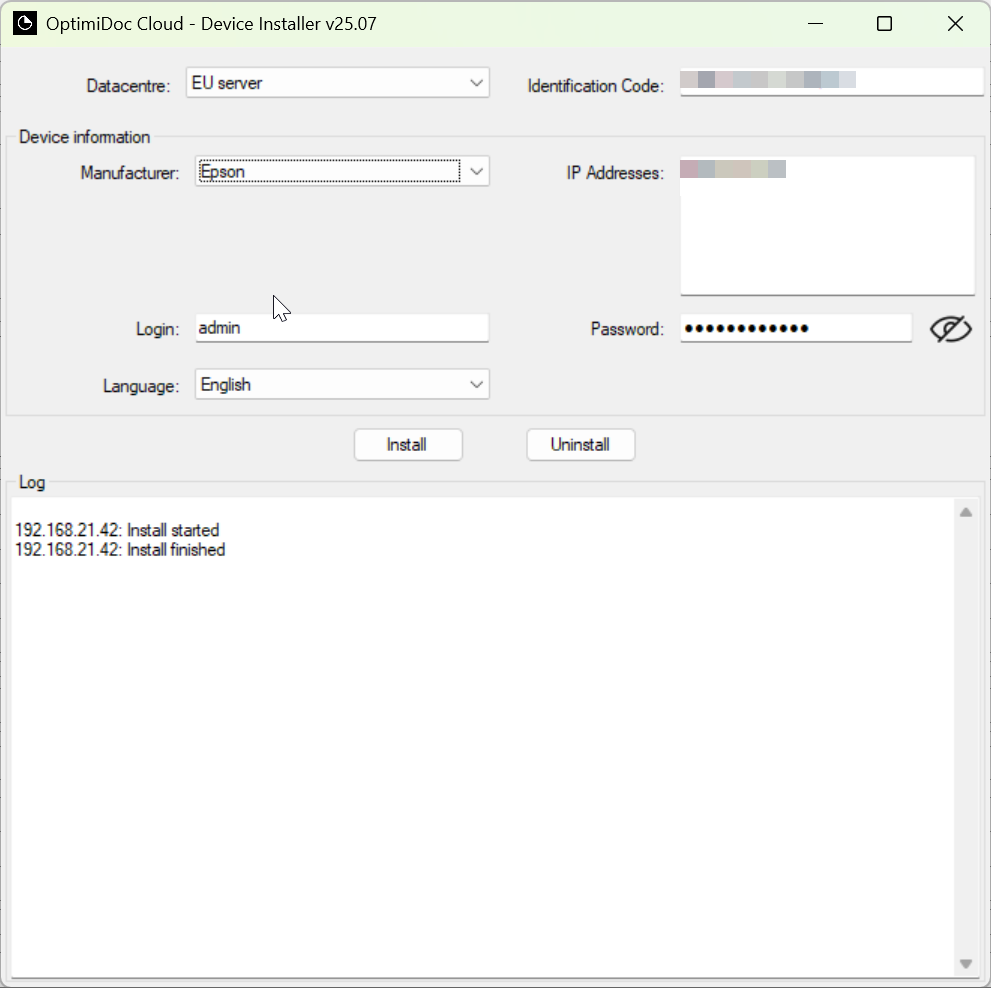
Configure the Installer as follows:
-
Datacentre: Select the data centre from the list.
-
Identification code: enter the tenant's unique identification code
-
Device information:
-
Manufacturer – choose Epson.
-
IP addresses: Enter the device’s IP address. The installer allows you to install multiple devices in a single step. To install several devices, enter multiple IP addresses, each on a separate line.
-
Login: Device administrator username
-
Password: Device administrator password
-
Language: Select the required language from the list.
-
-
-
Click Install.
The installation result is recorded in the installation log. Additional information can be found in the log.txt file located in DeviceInstaller.exe app.
-
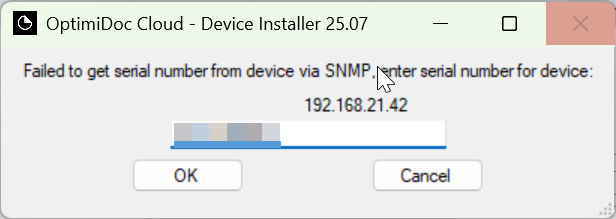
Enter device serial number.
For Epson devices, the installer requires the device serial number, obtained through SNMPv2. This setting is currently not configurable. If the serial number cannot be retrieved automatically, you will be prompted to enter it manually.
-
Enable the MFP: OptimiDoc Cloud application enablement.