
This applies only in the case of a manual installation.
Before starting the installation of OptimiDoc Cloud, the device must be configured.
Creating an OptimiDocCloud User
-
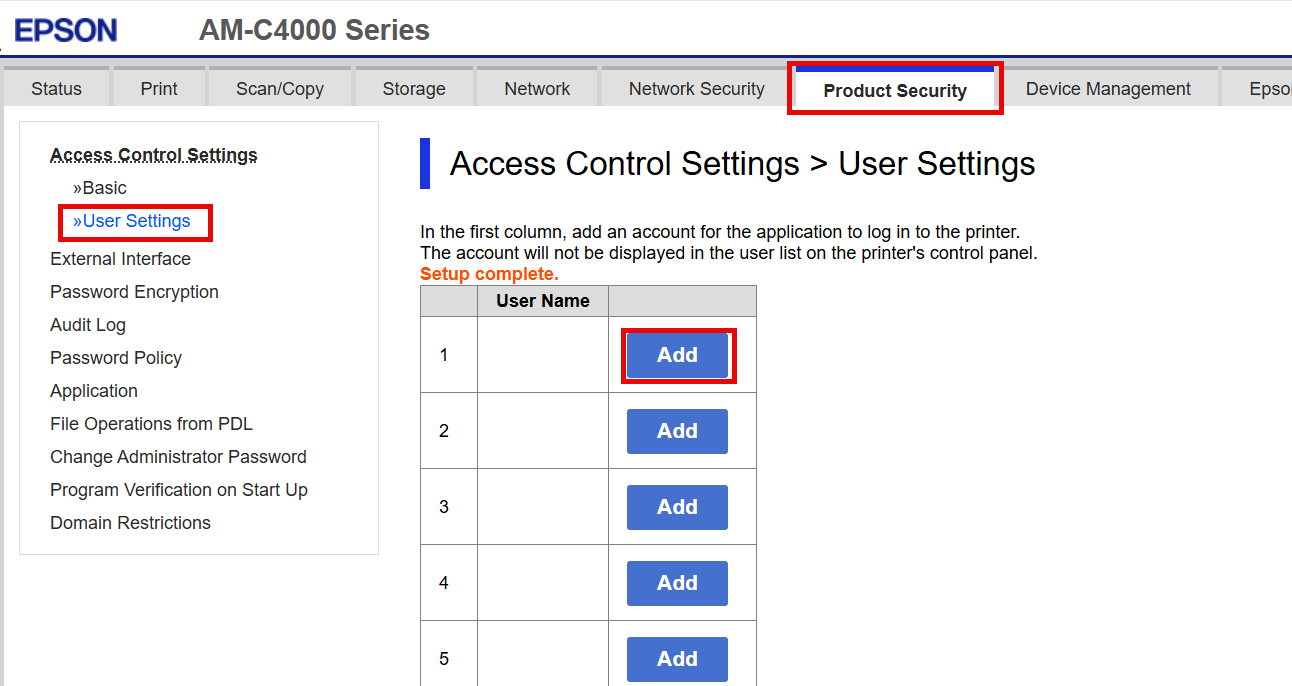
Open the printer’s web interface and sign in as an administrator.
-
In the Product Security section, select User Settings from the menu.
-
Click Add.
-
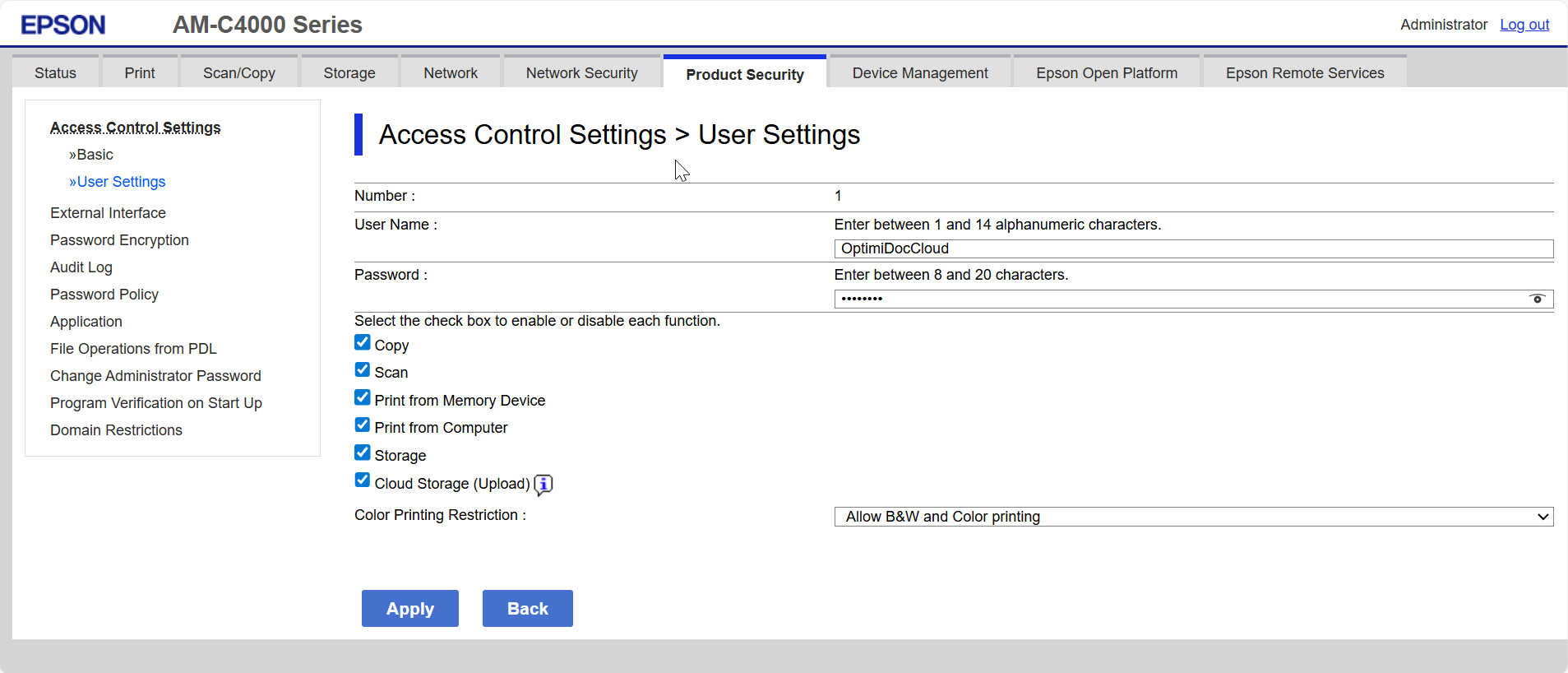
Enter the user details as follows:
-
User Name: OptimiDocCloud
-
Password: 12345678
-
Enable all functions for this user.
-
Set Color Printing Restrictions to Allow B&W and Color printing
-
-
Click Apply.
Enable Access Control
-
Open the printer’s web interface and sign in as an administrator.
-
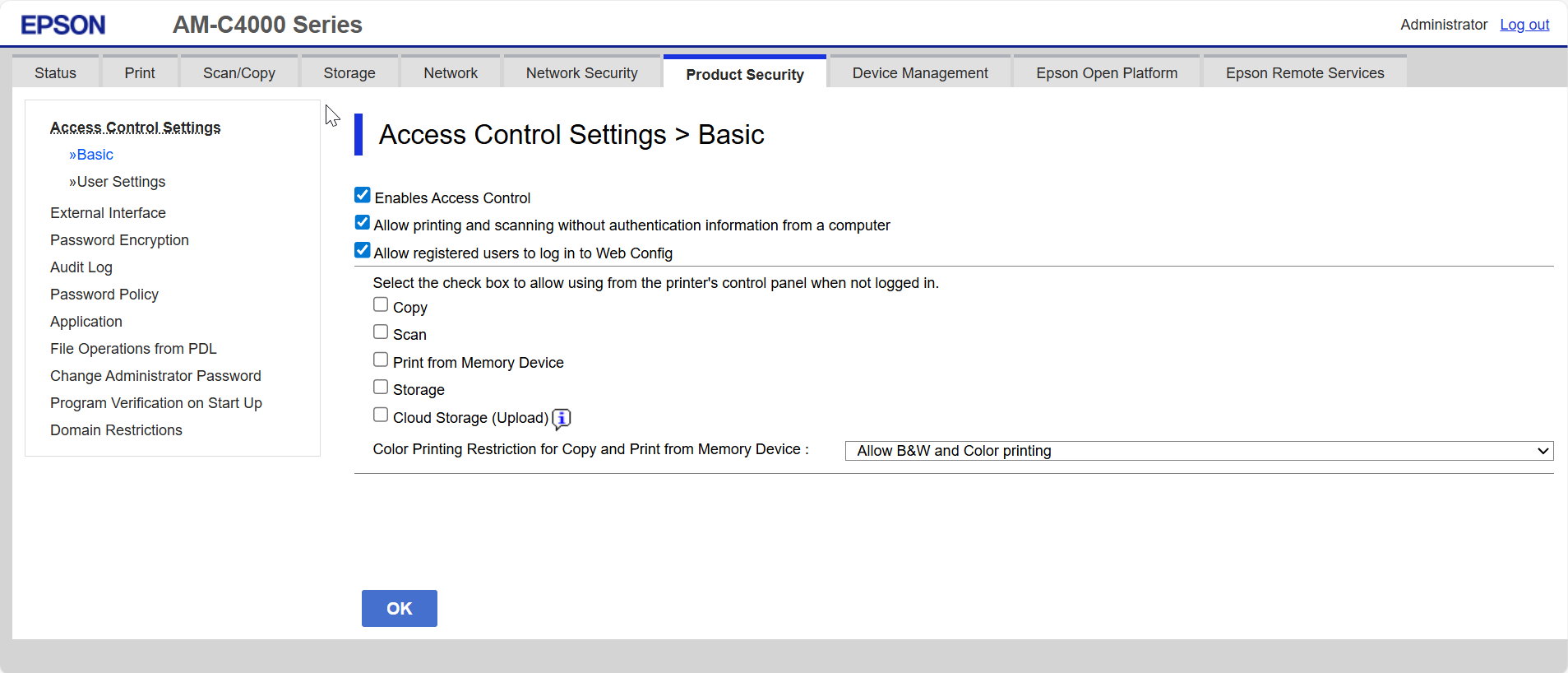
In the Product Security section, select Basic from the menu.
-
Configure the Basis Access Control settings as follows:
-
Enable Access Control
-
Allow printing and scanning without authentication information from a computer
-
Allow registered users to log in to Web Config
-
Set Color Printing Restrictions to Allow B&W and Color printing
-
-
Click Ok.