This section shows how to configure the authentication (PIN, card, user list) application.
-
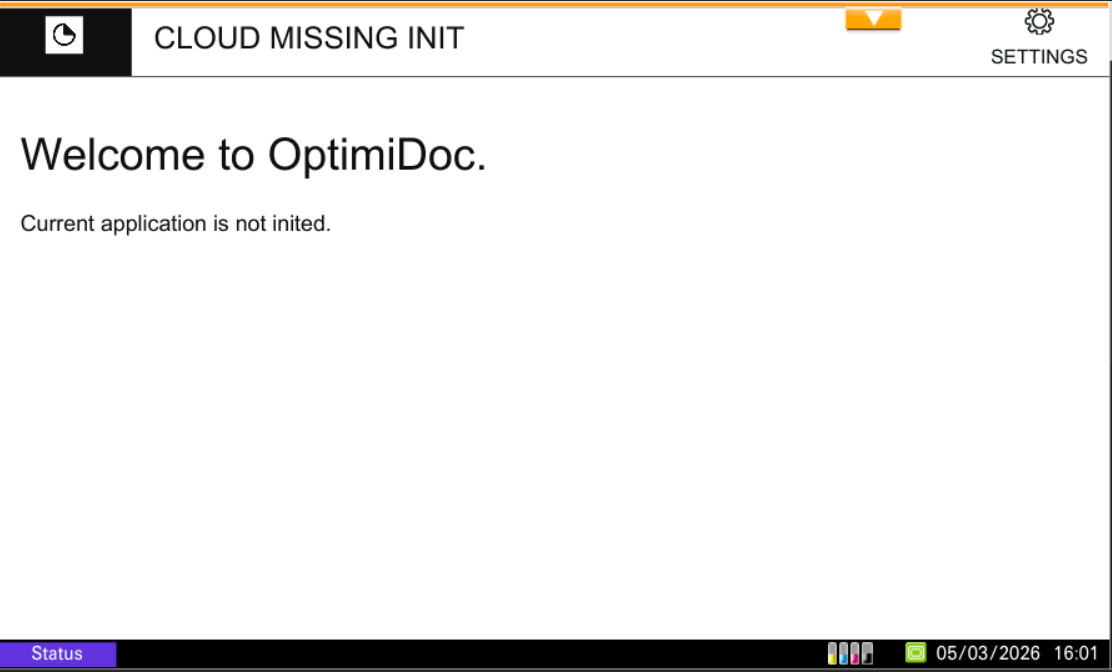
OptimiDoc screen will appear automatically once installed.
-
Click the Settings button in the upper right corner of the application.
-
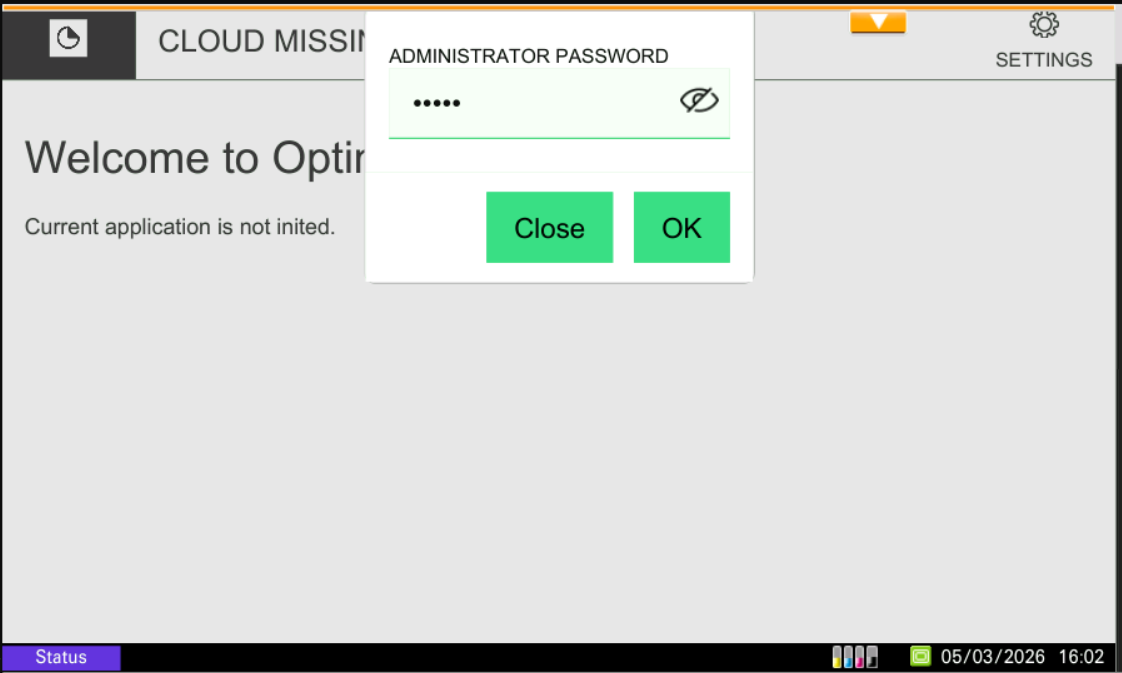
A pop-up window will open. Enter the admin password (the default OptimiDoc admin password is device serial number) and click OK.
-
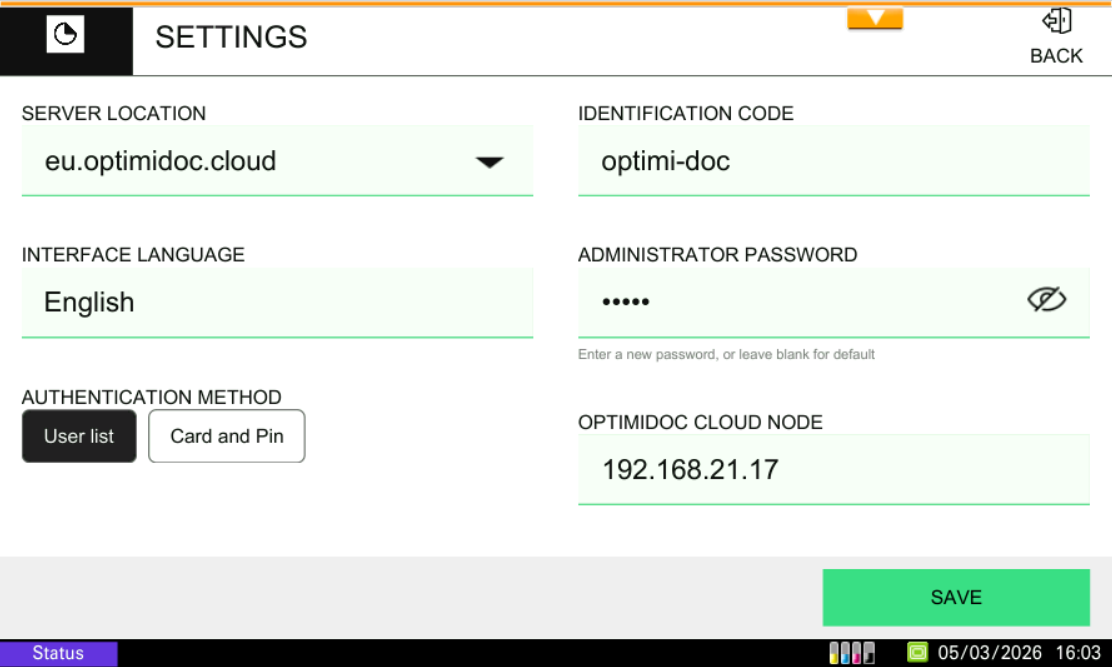
Enter the configuration:
-
Server location - select the requested date centre. List of datacenters is here: Geolocations of Datacentres
-
Interface language - select the application language. List of supported languages is here: https://optimidoc.atlassian.net/wiki/x/swAQ
-
Authentication method - the method by which the user authenticates to the print&scan application.
-
i) User list - a list of users within the tenant on the cloud portal will be displayed. The user logs in by clicking on their name from the list.
ii) Card and Pin - the user authenticates themselves using their PIN, which they have set up on the cloud portal or swipe their cards.
d. Identification code - unique tenant’s code available at OptimiDoc Cloud Administration Portal. ID code can be found on the OptimiDoc Cloud portal. Once logged in, navigate to the Admin console > Dashboard > Identification code widget and click show value.
e. Admin password - password to enter the OptimiDoc app settings.
f. OptimiDoc Cloud Node - if you have registered an OCN or RPi, enter its IP address in the field, so the print spooler is visible after login.
g. Exit - Temporarily leaves the configuration section and returns to the default section of the authentication application. Temporary changes made within the application configuration will not be deleted.
-
Click SAVE.
-
Enable the MFP: OptimiDoc Cloud application enablement.
-
You can now log in to the device.
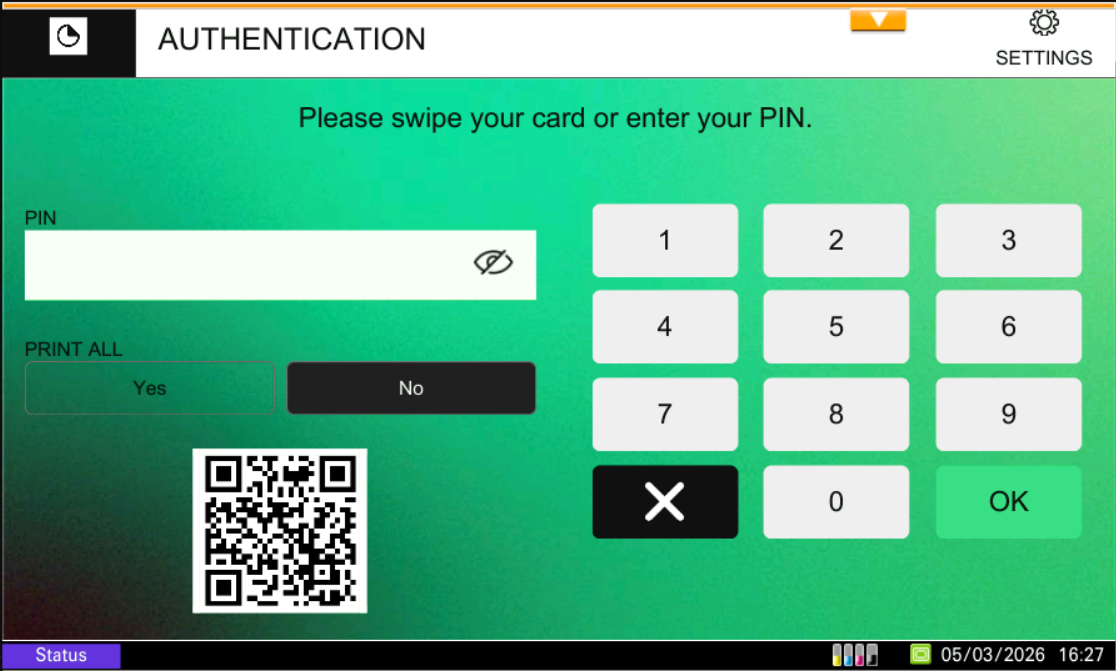
Print All - Applies only to OCN spooler.
a) Yes - All user documents from the OCN spooler will be printed after login.
b) No - No user documents from the OCN spooler will be printed after logging in.
OptimiDoc as default application after login:
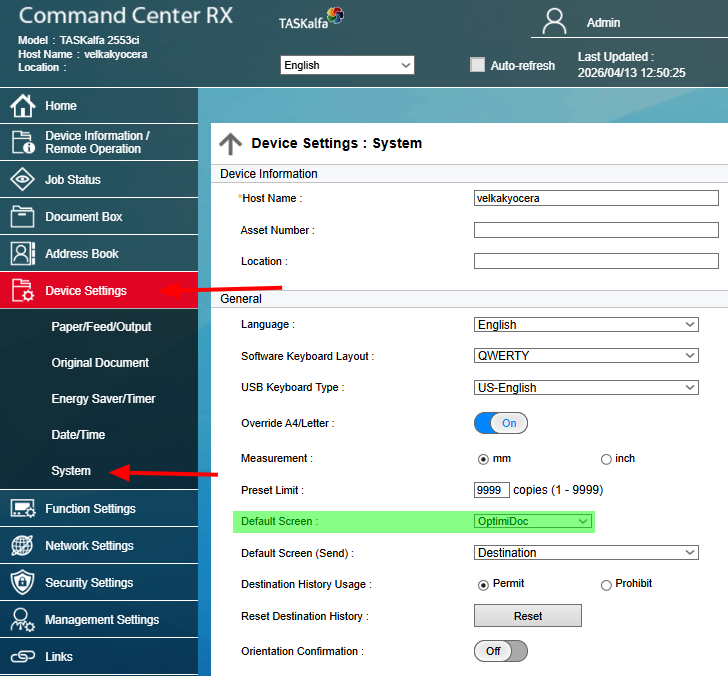
Log in to the device web interface as an administrator and navigate to Device Settings > System > Default Screen and select OptimiDoc.