-
Open the OptimiDoc Partner Portal and log in.
-
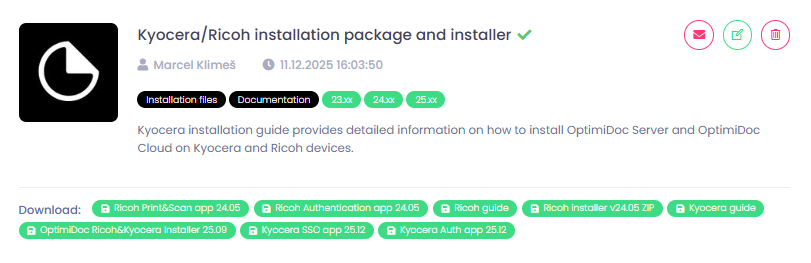
Go to section InfoHub > OptimiDoc Cloud and search for Kyocera installer.
-
Download Kyocera Auth app or Kyocera SSO app. It depends on which authentication method you prefer. Both applications will install the Print & Scan app. However, with the Authentication app, you can authenticate using a PIN, card or user list. With the SSO app, on the other hand, you can only authenticate using SSO.
-
Upload the files to a USB drive.
-
Insert the USB drive into the MFP.
-
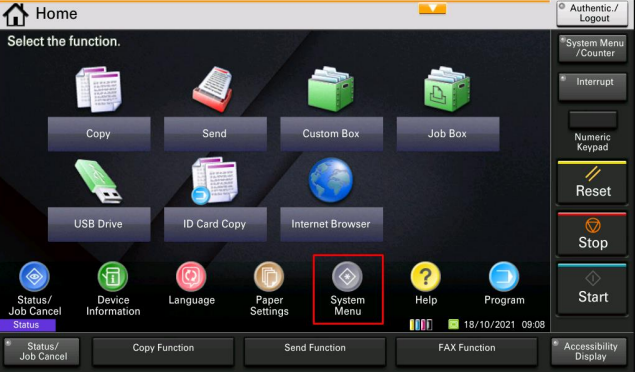
Select System Menu in the MFP terminal.
-
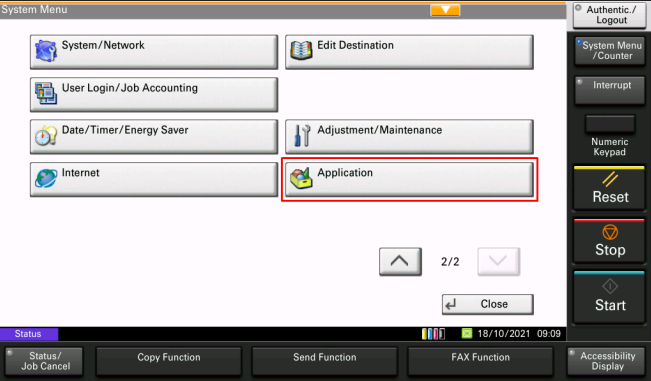
Select Application.
-
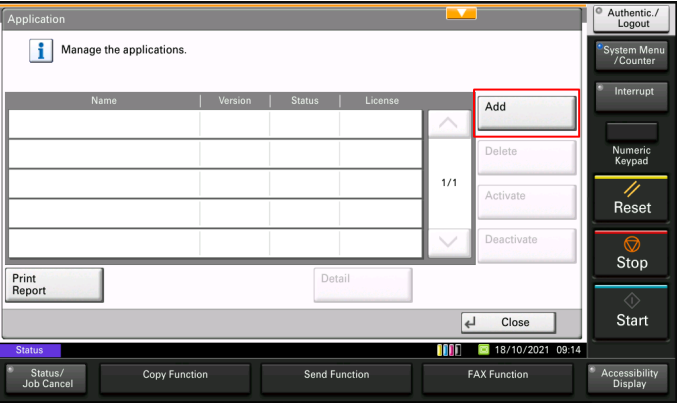
Select Add.
-
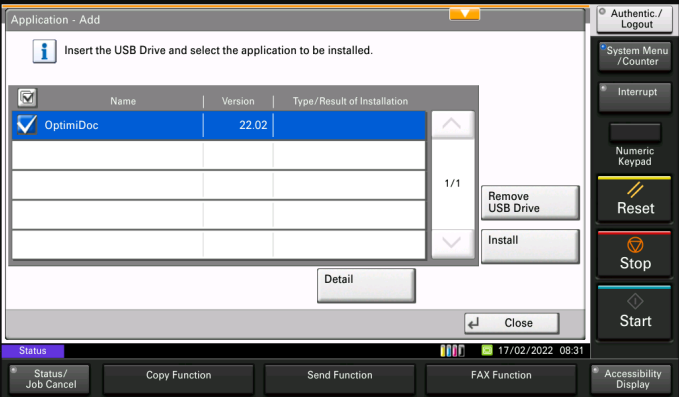
Select OptimiDoc.
-
Click Install.
-
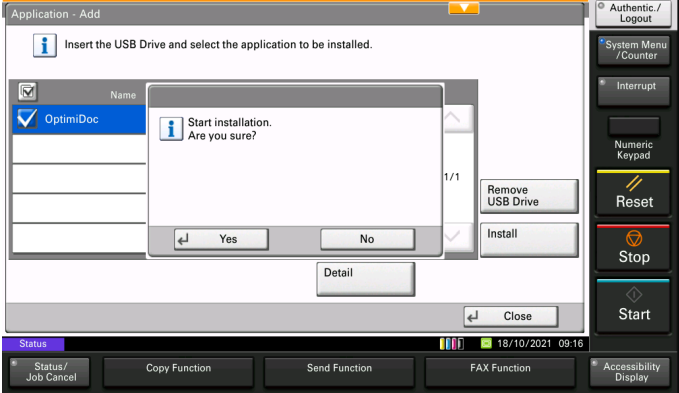
When the confirmation pop-up appears, press Yes.
-
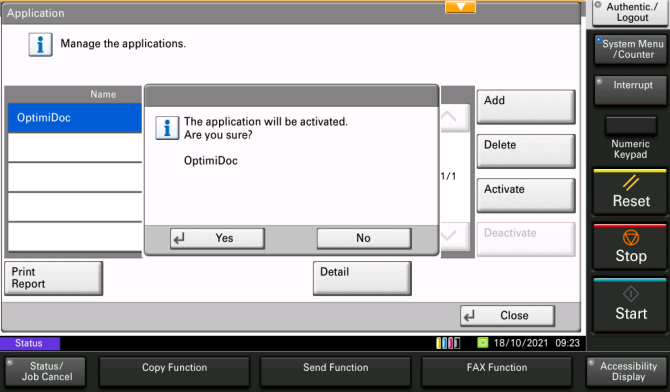
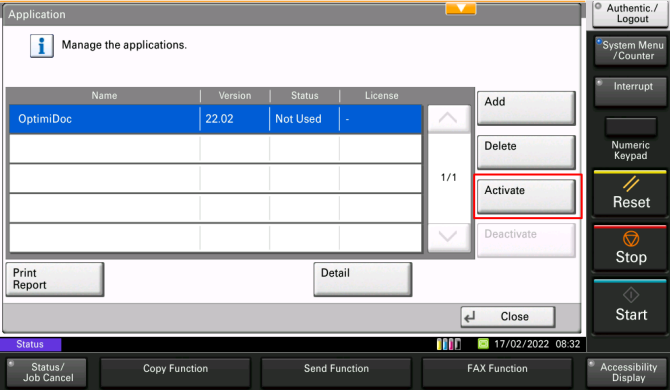
Upon successful installation select the installed OptimiDoc application and activate it.
-
When the confirmation pop-up appears, press Yes.