
The OptimiDoc Cloud Mobile application is available free of charge from the Apple App Store and Google Play.
-
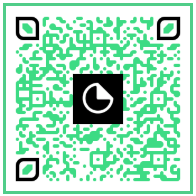
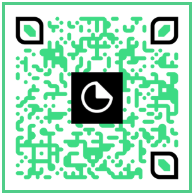
Open the OptimiDoc Cloud application using one of the following links or by scanning the QR code in App Store or Google Play:
|
Android |
iOS |
|---|---|

|

|
|
|
-
Install the application.
-
Once the installation is complete, open the application from the list of installed applications.
-
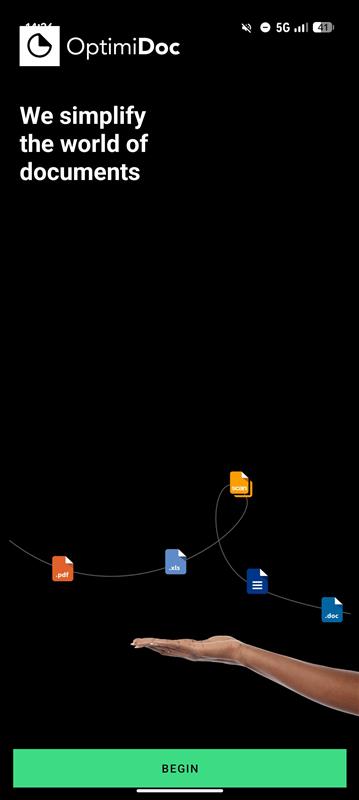
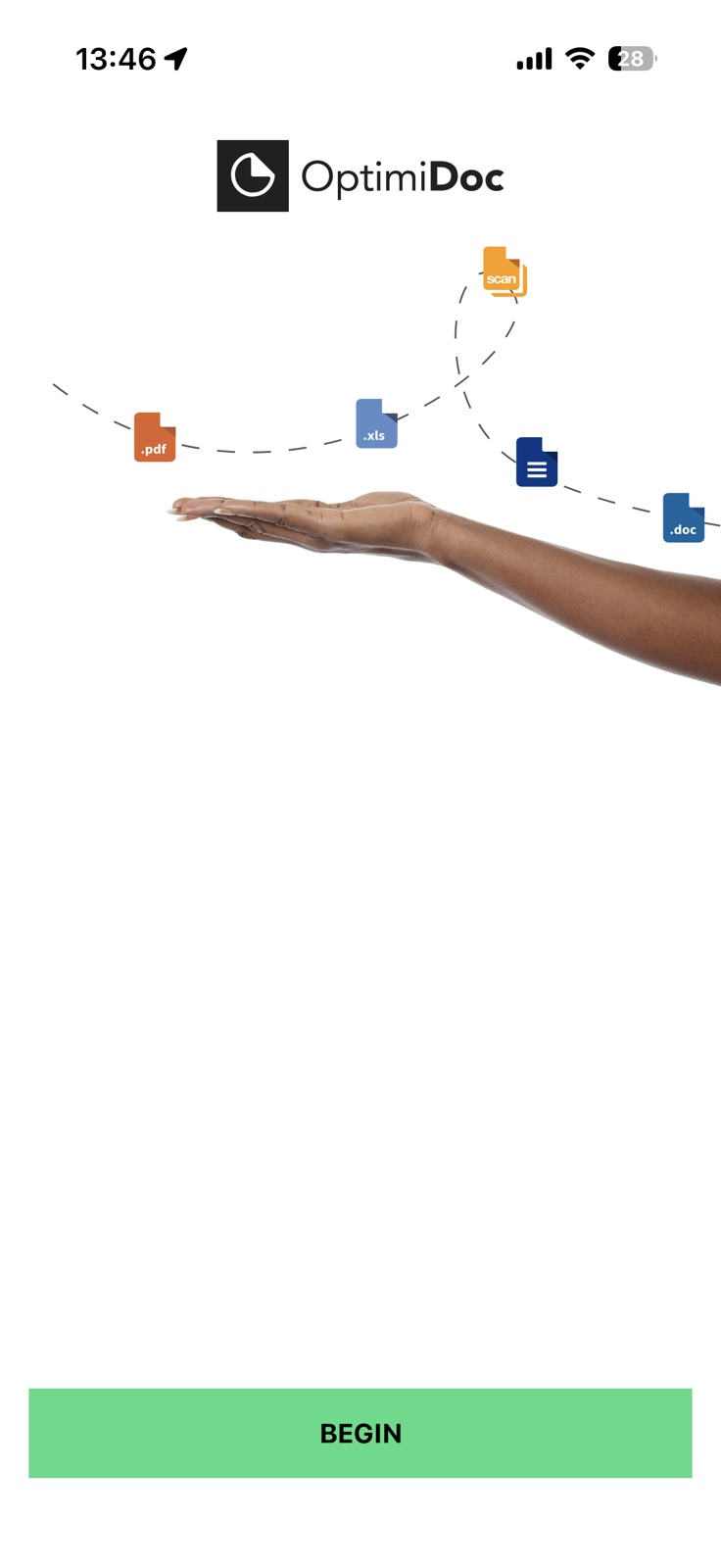
On the initial screen, select Begin.
|
Android |
iOS |
|---|---|
|
|
-
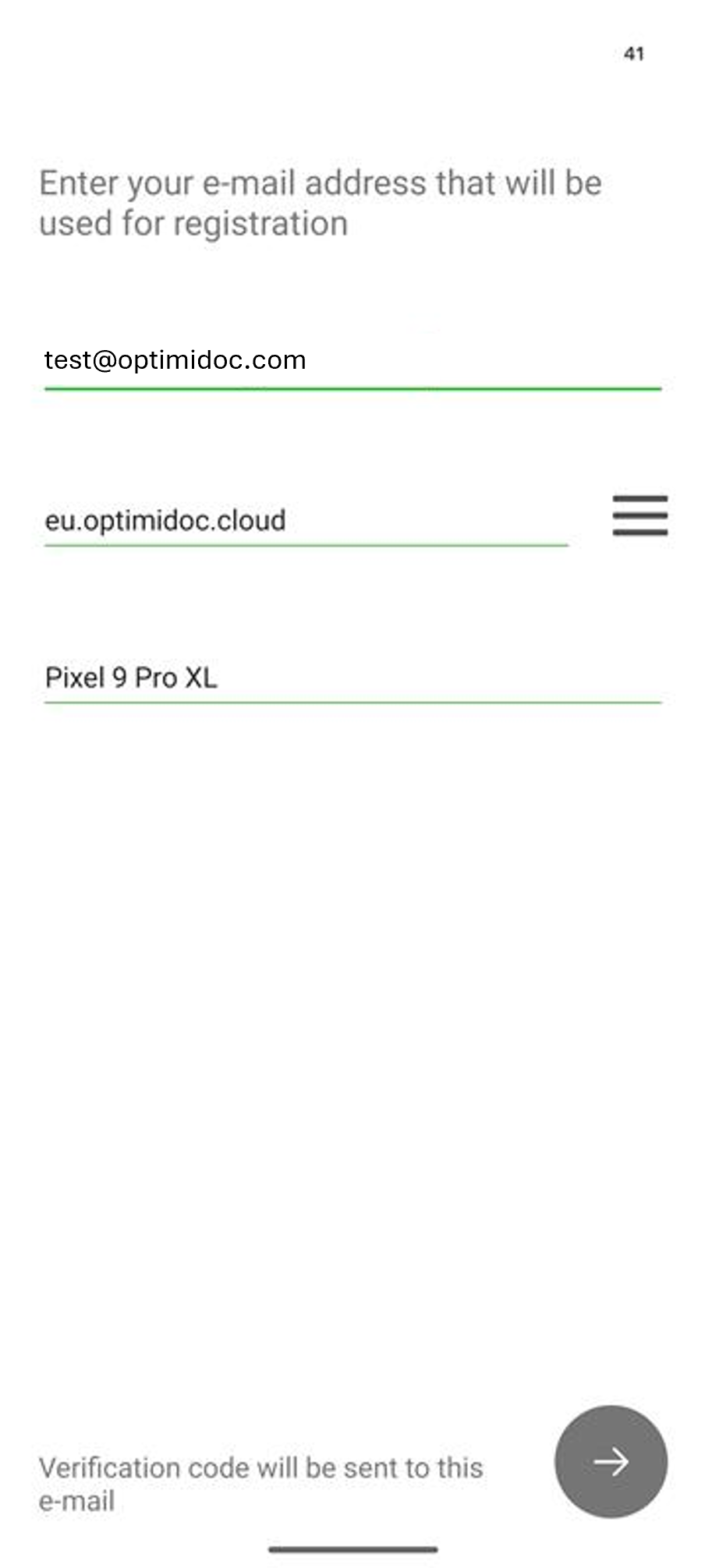
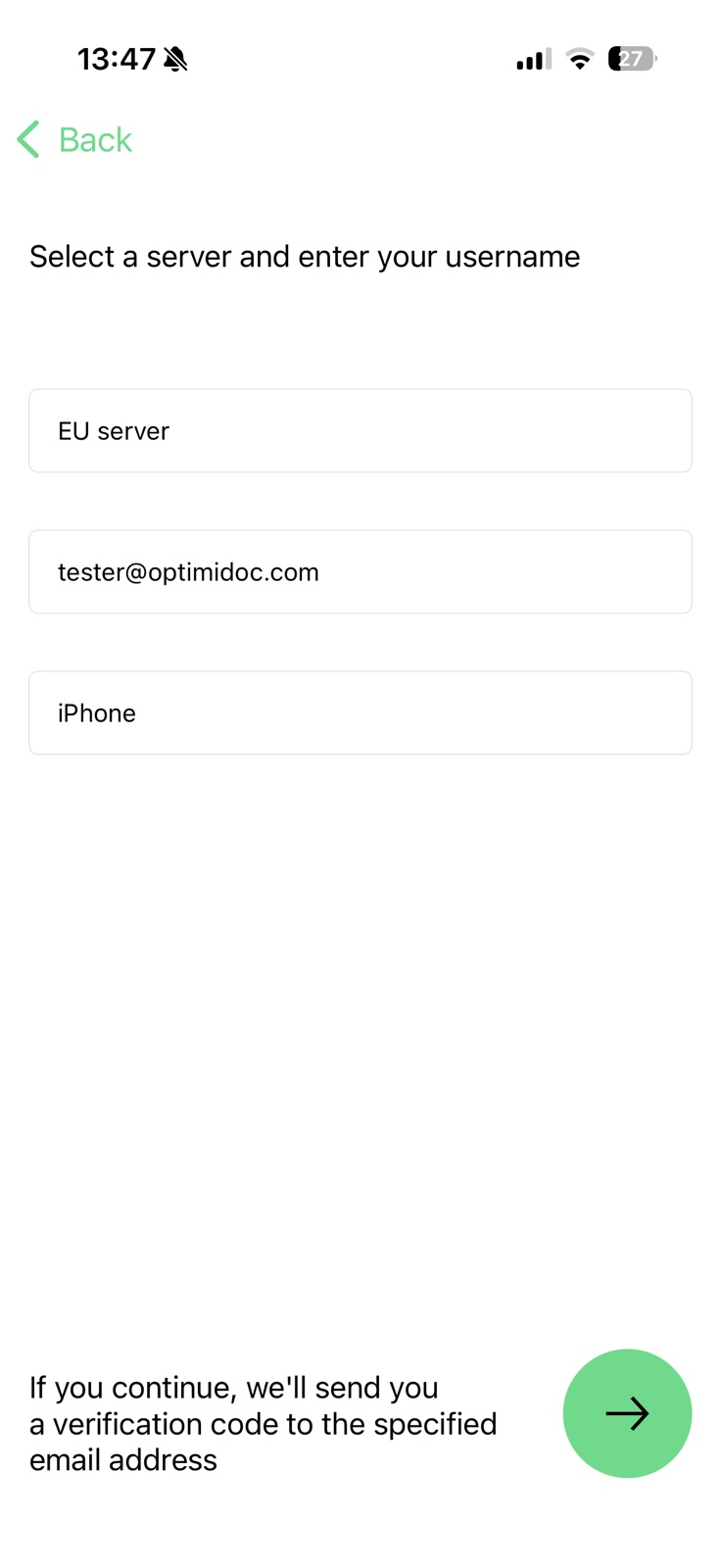
Enter the required information on the authentication screen and select the arrow in the bottom‑right corner to continue:
Server location – The datacentre location of your company tenant.
Email address – Your user email address.
Device name – The name under which the device will be registered in OptimiDoc Cloud.
|
Android |
iOS |
|---|---|
|
|
|
-
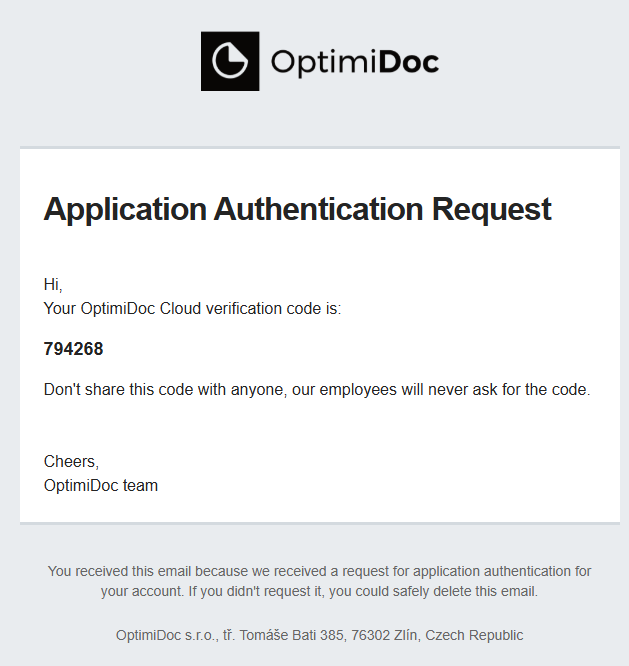
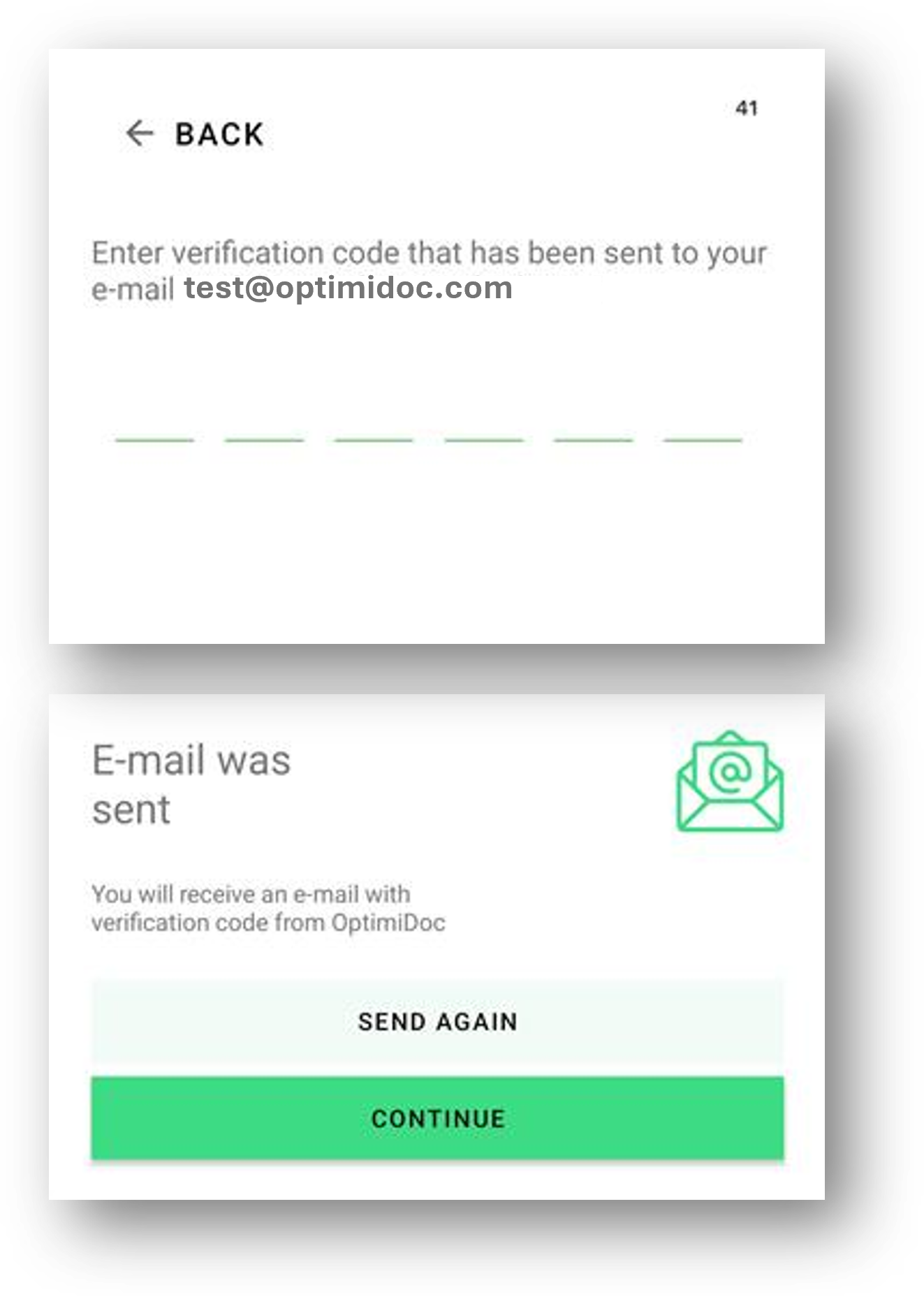
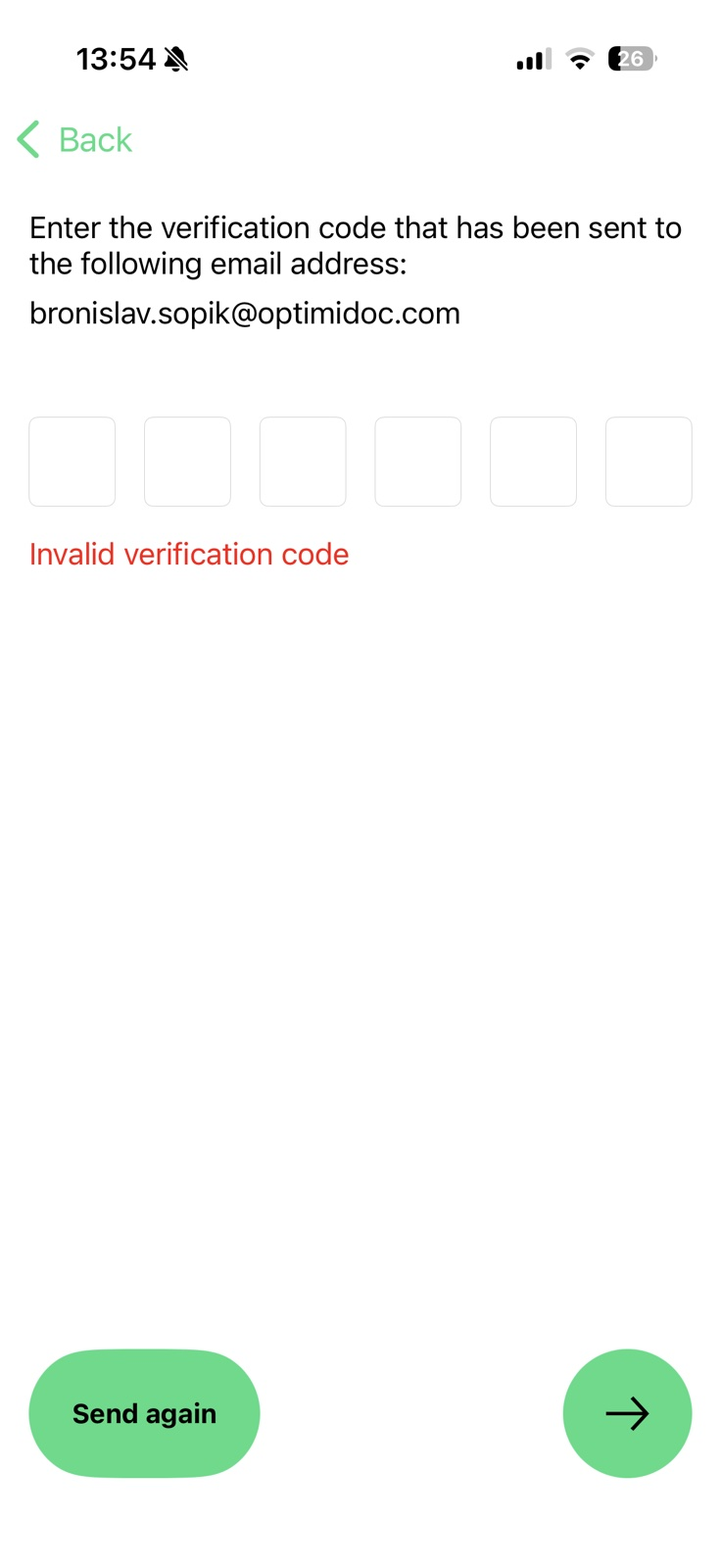
OptimiDoc Cloud sends a one‑time password (OTP) to your email address. Enter the OTP on your mobile device to continue.
|
Android |
iOS |
|---|---|
|
|
-
You are successfully authenticated to OptimiDoc Cloud Mobile.
OptimiDoc Cloud Mobile app Settings
The Settings section allows you to view application information and manage basic application options.
-
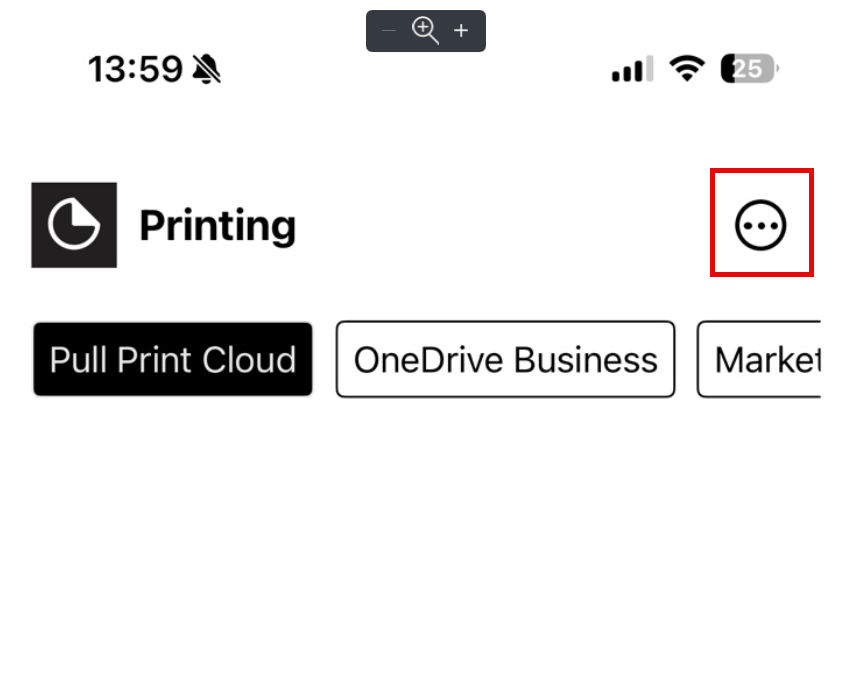
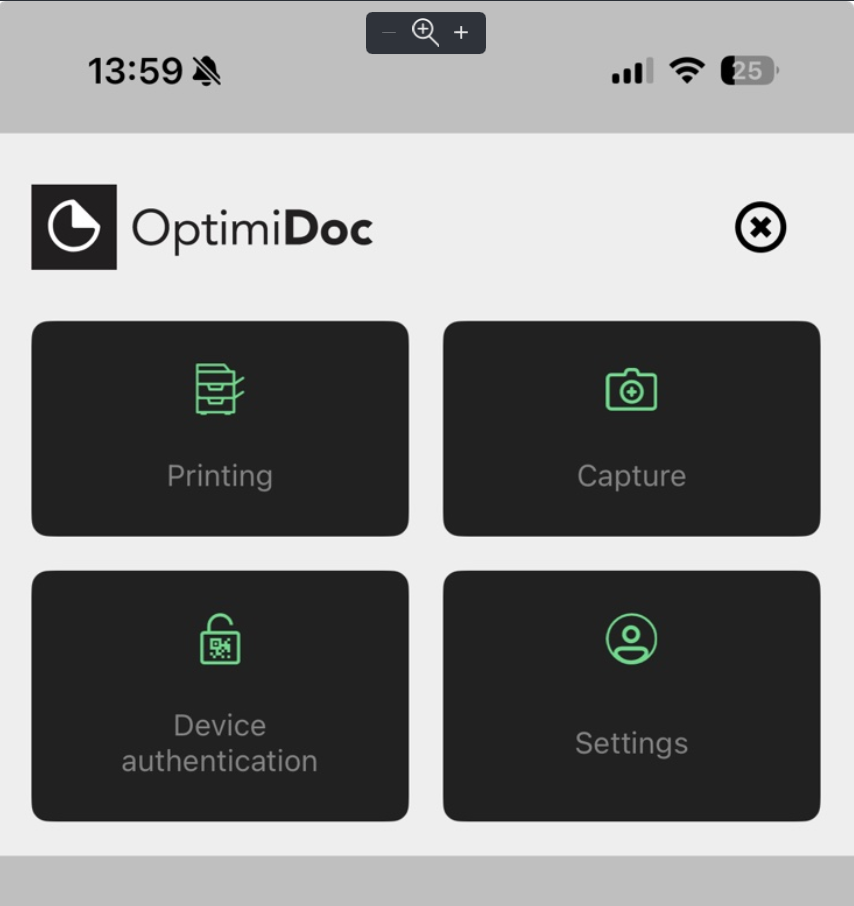
To open the Settings section, select the menu icon in the top‑right corner and then select Settings.
|
Android |
iOS |
|---|---|
|
|
-
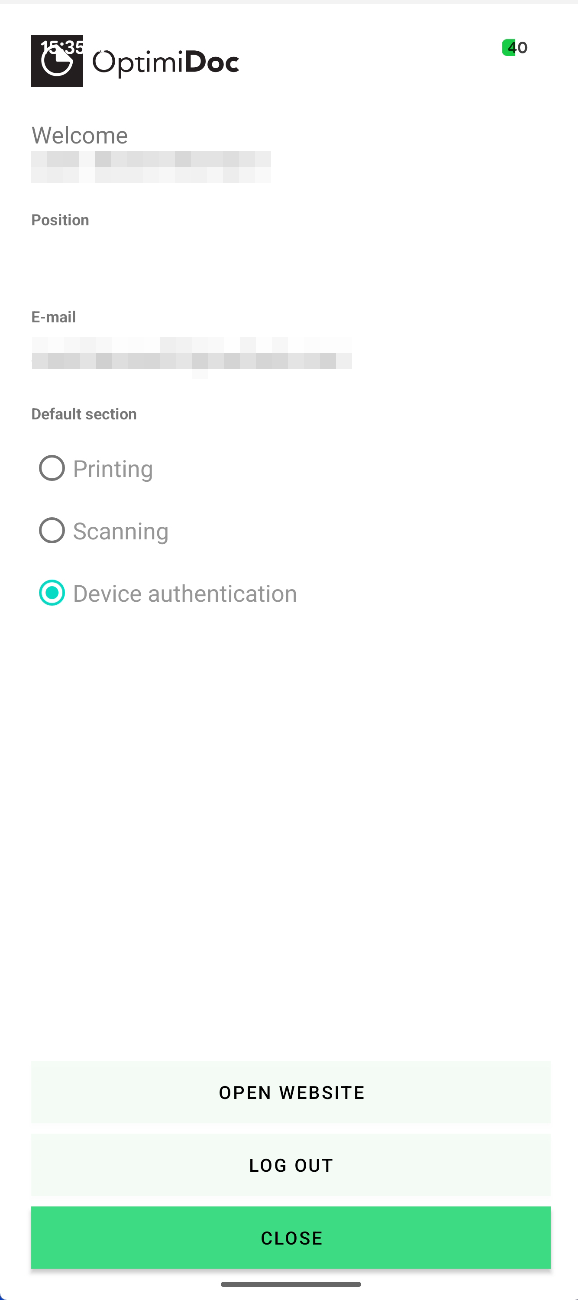
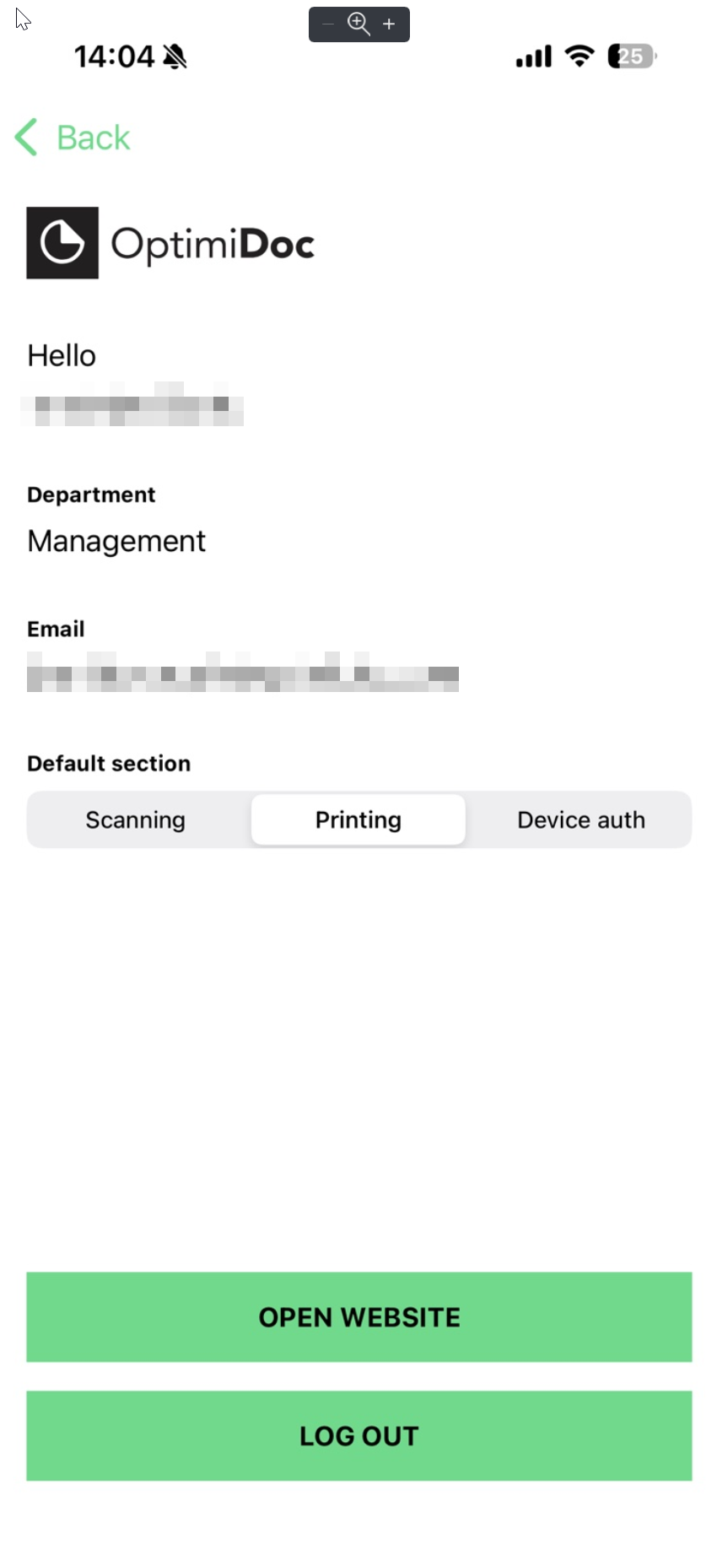
Modify your settings or perform required actions.
Account information – Displays details of the currently signed‑in user and the registered device.
Department – Shows the department of the currently signed‑in user.
Email – Displays the user’s email address.
Default section – Defines the section that is opened by default when the application starts.
Actions
Open website – Opens the OptimiDoc Cloud web portal.
Log out – Signs the user out of the application.
|
Android |
iOS |
|---|---|
|
|