
OptimiDoc Cloud provides a seamless way to access your printing and scanning tasks directly from your smartphone. By using the OptimiDoc mobile application, you can enjoy a touchless login experience, enhancing both security and workplace hygiene.
1. Understanding MFP Authentication
The primary purpose of MFP authentication is to keep your devices secure by locking them for unauthorized users. This prevents potential security violations and ensures that sensitive documents are only accessed by the intended recipient.
OptimiDoc Cloud supports several robust authentication methods to suit different organizational needs:
-
Card Authentication: Users log in by swiping a physical ID card.
-
PIN Code: Accessing the device by entering a personalized security PIN.
-
User List: Selecting your account from a predefined list on the device panel.
-
Single Sign-On (SSO): Use the user credentials authorized on the device at the time of accessing the OptimiDoc app.
2. The OptimiDoc Mobile Application
The mobile app acts as a personal extension of your Digital Workplace. Instead of typing credentials on the shared printer screen, you use your own smartphone to bridge the gap between your digital profile and the physical hardware.
Why use mobile authentication?
-
Touchless Experience: Minimize contact with the physical device by authenticating remotely.
-
Efficiency: Instantly log into the MFP without the need to remember or type complex passwords.
-
Security: Your credentials stay on your personal device.
3. Requirements and Prerequisites
Before you can use mobile authentication, ensure the following requirements are met:
Supported Devices Mobile authentication is primarily supported on modern Multi-Function Printers (MFPs) and that you have the "Remote Device Authentication" option enabled by an administrator.
-
Compatible Manufacturers: OptimiDoc Cloud is currently supported on devices from manufacturers like HP, Xerox, Ricoh, and others.
-
Specific Models: For a detailed list of compatible hardware, please check the "Device Matrix" documentation on the Partner Portal.
Prerequisites
-
Mobile App: Download and install the OptimiDoc application from the Google Play Store or Apple App Store.
-
User Profile: You must have an active account in your organization's OptimiDoc Cloud tenant.
-
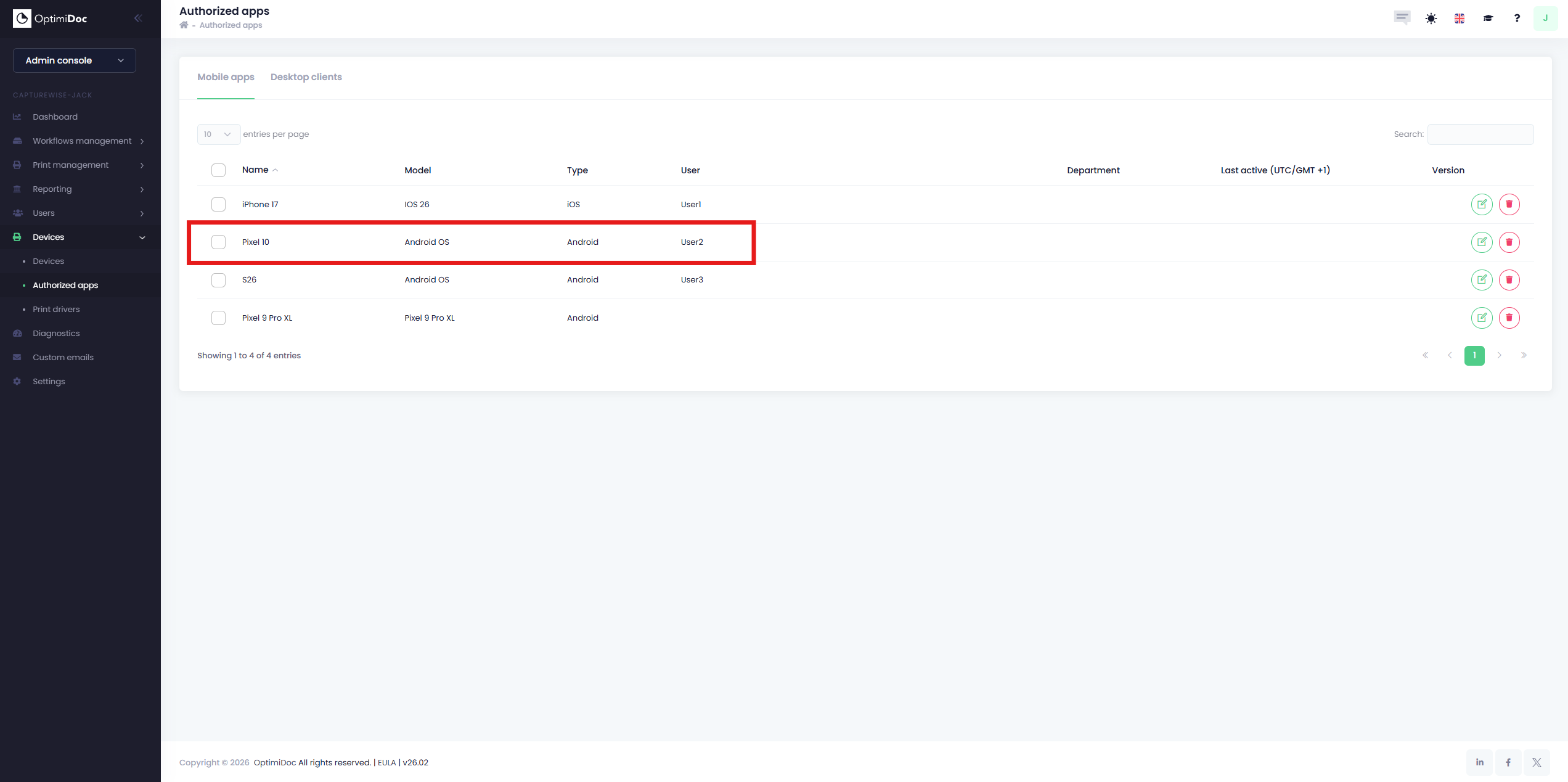
App Authorization: Your mobile device must be registered in the Authorized Apps section of your Workplace.
-
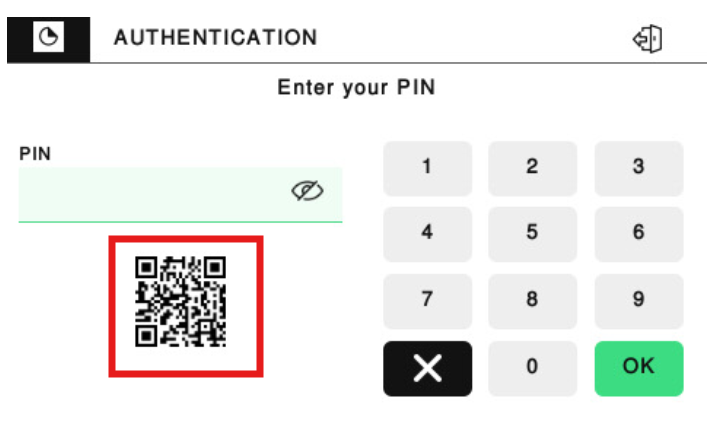
Hardware Prep: The physical MFP must have a generated QR code clearly visible on the device for scanning.
4. Setting Up and Performing Authentication
Follow these steps to perform a touchless login at your office MFP:
Initial Setup
-
Open the OptimiDoc mobile app on your smartphone.
-
Select your server location (e.g., EU, US, or AU) and enter your registered email address.
-
Enter the verification code sent to your email to complete the initial authorization.
Performing Authentication at the Device
-
Open the App: Launch the authorized OptimiDoc app as you approach the MFP.
-
Scanning the QR Code:
-
Click on the Scan QR code button within the app.
-
If prompted, allow the app to use your mobile camera.
-
Point your camera at the QR code located on the MFP.
-
-
Alternative Selection: If the QR code is not available, you can click Select from list and choose the specific printer from the available devices at your site.
-
Instant Login: Once the code is recognized or the device is selected, the physical MFP will instantly unlock and sign you into your OptimiDoc profile.