Customer and Partner tenants can be managed from the Customers and Partners sections in the main left‑hand menu.
Customers/Partners list
In these sections, you can add, search for, modify, delete and disable tenant accounts.
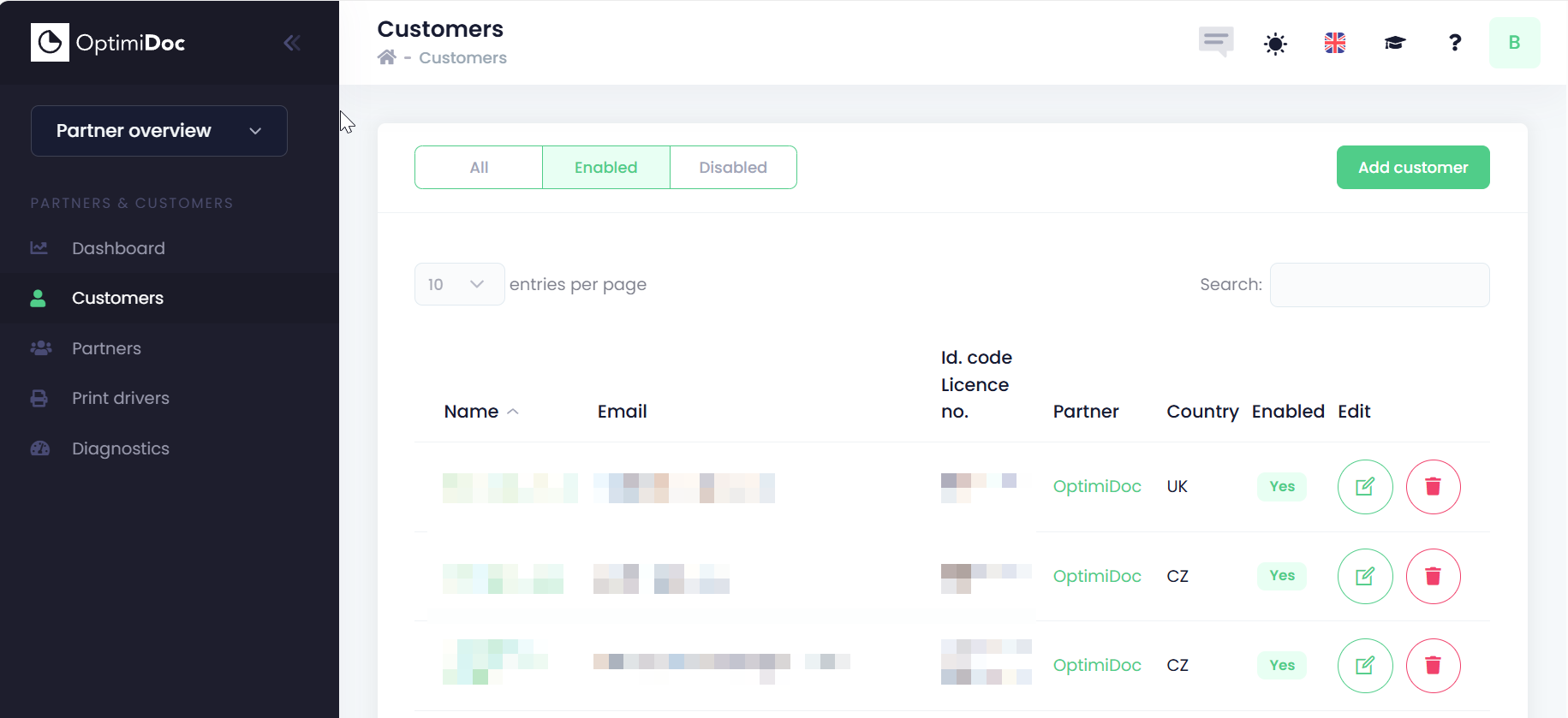
The list displays key information about each customer, including their contact email, licence details, and identification code.
Open tenant details
-
Click the tenant's name.
-
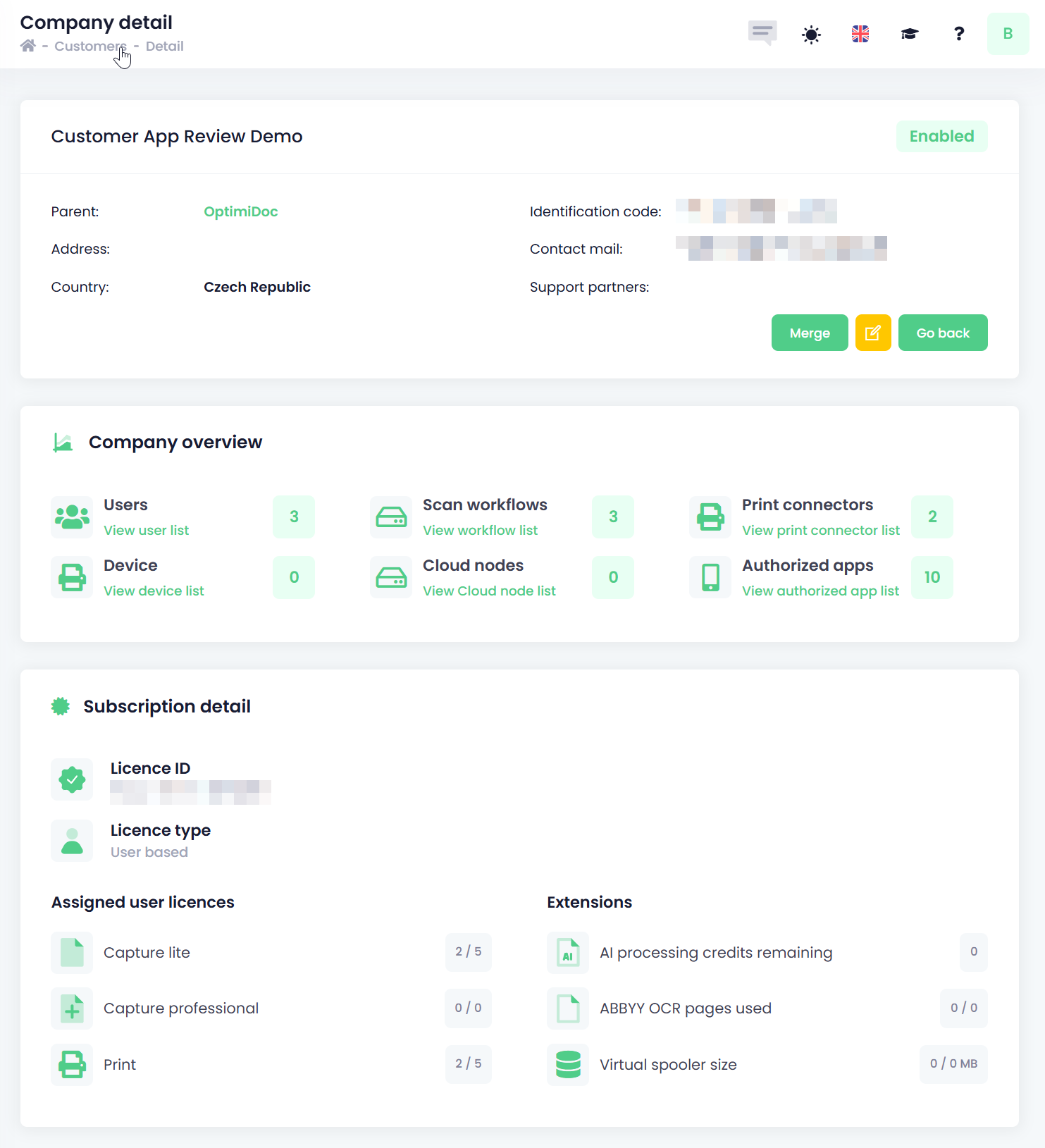
A new window displays the tenant’s details. This view provides a general overview of the tenant’s infrastructure as well as their subscription information.
Tenant Support Mode
As a support partner, you have access to the customer’s tenant configuration and management interface.
-
Click


-
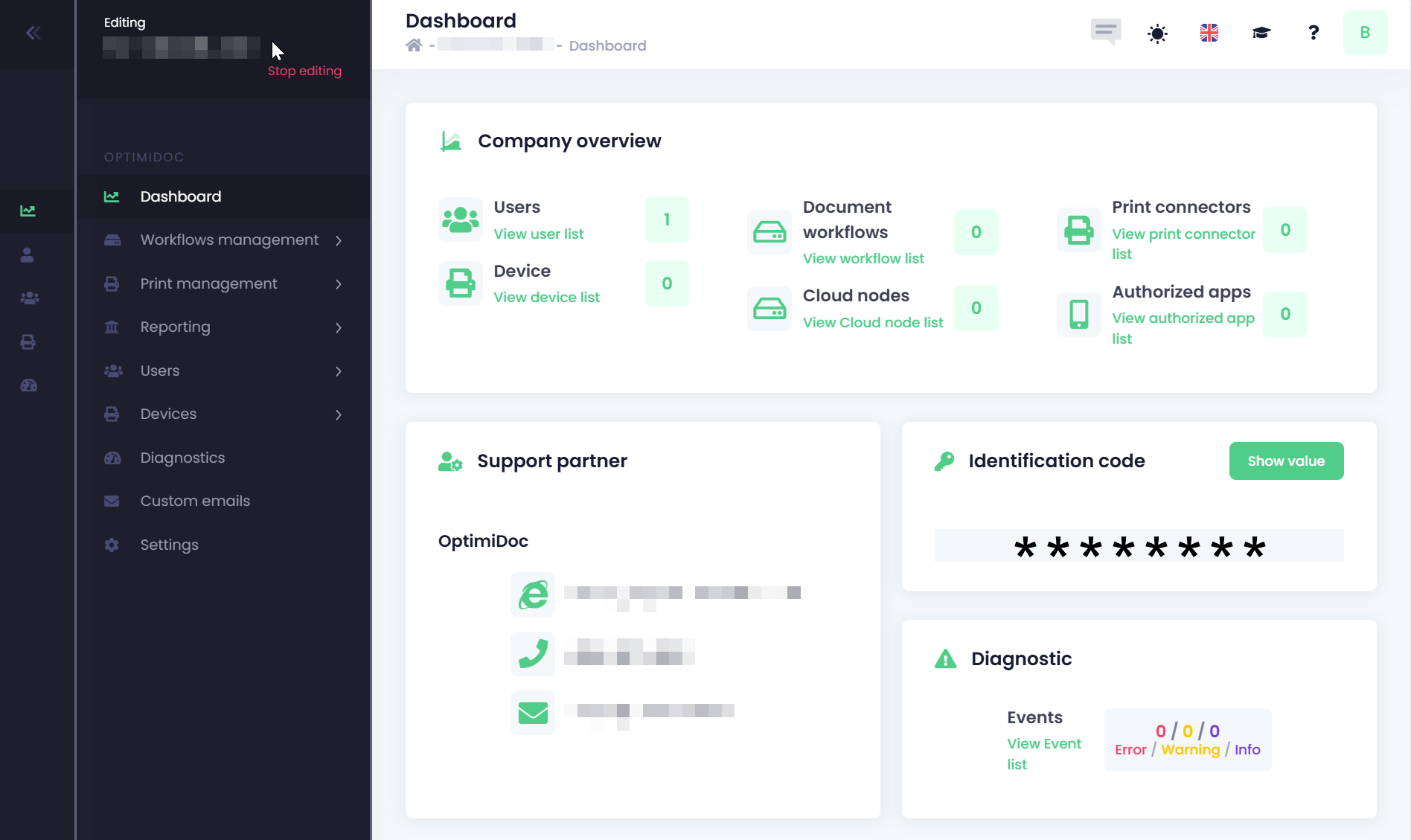
A new window will open the Administration interface of the selected tenant. From there, you can modify the tenant’s settings directly from your own account.
-
To exit Tenant Support Mode, click Stop editing in the top‑left corner.
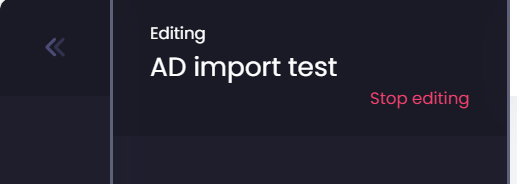
All activities performed by your account within a tenant’s environment are recorded in the Activity Log.
Disable/Enable tenant
-
Click the