
-
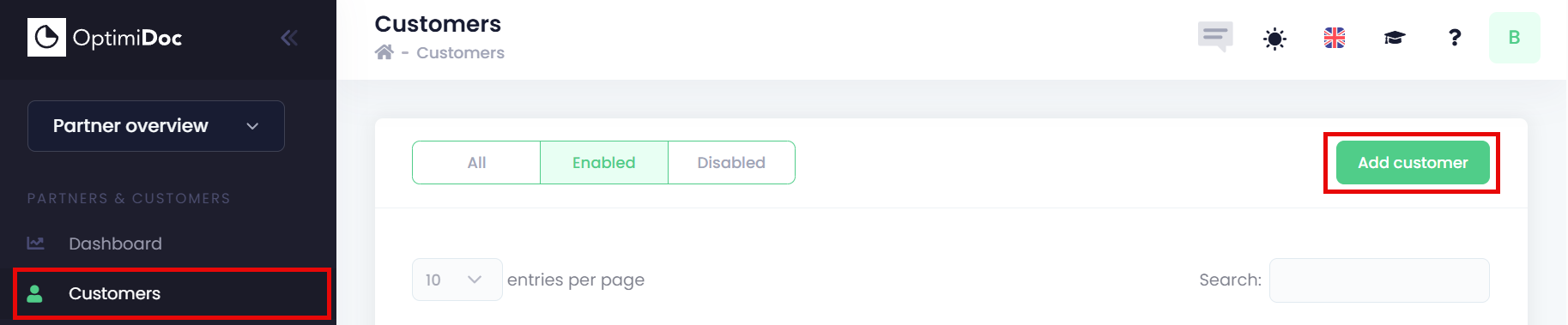
To create a new customer or partner, either click New customer/partner directly from the Dashboard, or open the Customers page and select Add customer.

or
-
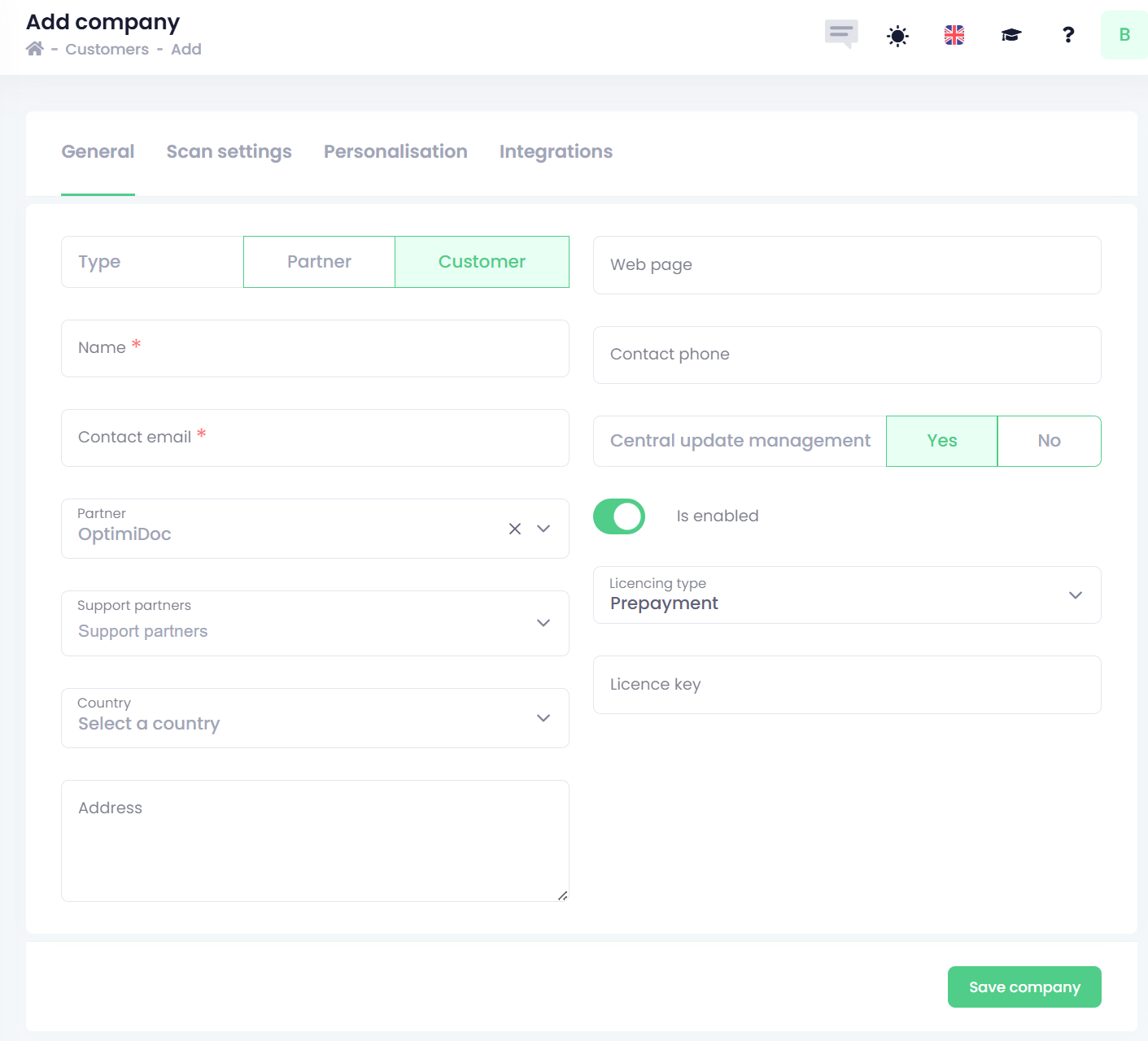
In the Add customer window, fill in the required details for the new customer:
-
Type – Select whether the company is a Partner or a Customer.
-
A Customer tenant does not have permission to create or manage its own sub‑customers or partners.
A Partner tenant, on the other hand, can create and manage its own sub‑customers or partners through the Partner section.
-
-
Name – Enter the partner’s or customer’s company name.
-
Contact email – The email address of the partner/customer administrator.
-
Support partners – Select the companies that are authorised to support the customer and modify their configuration. If you leave this field empty, only the customer can administer their environment. It is highly recommended to always add your own company as a support partner during the initial implementation phase.
-
Country – The partner’s or customer’s country.
-
Address – The partner’s or customer’s address.
-
Web page – The URL of the partner’s or customer’s website.
-
Contact phone – The phone number of the partner/customer administrator.
-
Enabled – Defines whether the company is active or inactive.
-
Licence key – A licence key may be provided directly by OptimiDoc for the partner or customer. Alternatively, you can request a new trial licence for a customer through the OptimiDoc Partner Portal.
-
-
Click Save company. Other tabs can be configured later by the customer or you.