
1. Submission Phase – How the Job Enters the Cloud Pull Queue
Users can submit print jobs from a workstation with an installed OptimiDoc Cloud Client (OCC), the web interface, the mobile application, or the Chromebook extension.
-
When printing from a workstation with the OCC, the client uploads the document to the user’s designated pull‑print storage location according to the configured pull‑print mode:
-
Customer Cloud Pull‑Print Storage
The OCC sends the document to the user’s assigned cloud storage (such as OneDrive or Google Drive) using a temporary access token issued by the OptimiDoc Cloud Datacentre. -
OptimiDoc Cloud Pull‑Print Storage
The OCC sends the document directly to the OptimiDoc Cloud Datacentre, where it remains securely stored until the user releases it.
-
-
For all other submission methods—such as printing from mobile devices or the Chromebook extension—the document is first delivered to the OptimiDoc Cloud Datacentre. If Customer Cloud Storage Pull‑Print Mode is enabled, the Datacentre then routes the document to the user’s assigned cloud storage as the final pull‑print storage location.
After the document is successfully uploaded, the OptimiDoc Cloud Datacentre stores all associated job metadata—including user identity, job reference, storage location, and device access rights. This metadata allows the Datacentre to present the job in the user’s pull‑print queue across all authenticated devices.
2. Document release phase - from MFP or Mobile Application
Users can release documents on an MFP equipped with the OptimiDoc Cloud application, or they can use the OptimiDoc Cloud Mobile app to release documents on any supported network printer or MFP.
2.1 Document release on MFP with embedded applications.
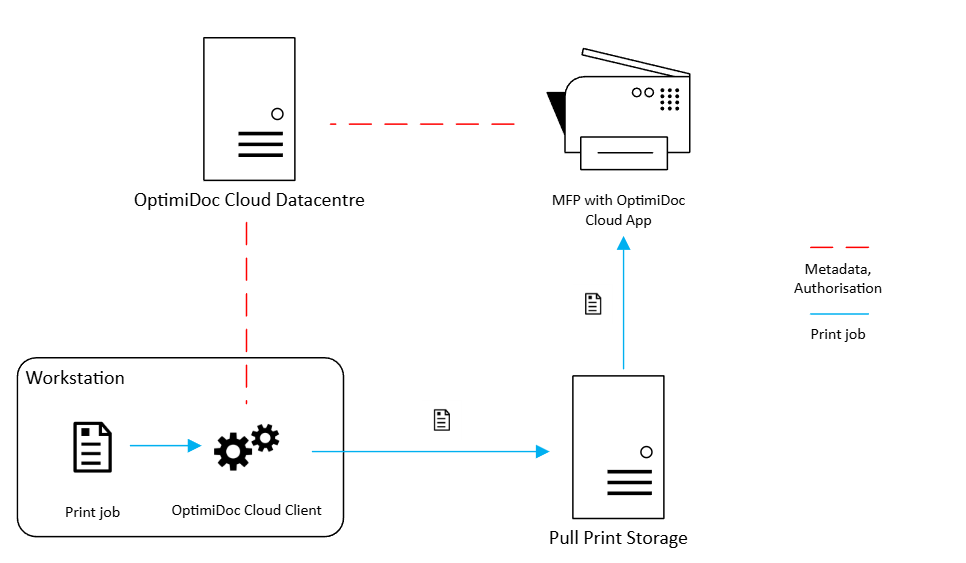
Before a document can be released, the user must authenticate at a supported MFP device. Supported authentication methods include:
-
RFID card
-
PIN code
-
Username selection
-
Single Sign‑On (SSO) via a third‑party identity provider
After successful authentication:
-
The device displays the user’s pull‑print queues.
-
Release documents stored in cloud storage services (OneDrive, Google Drive, etc.) by navigating folders directly within the app.
-
Users can view job attributes and optionally adjust finishing settings such as colour mode, duplex, number of copies, or tray selection.
The finishing settings available when printing with PCL or PS drivers may be limited depending on the capabilities of specific printer brands and models. For detailed information about device‑specific limitations, refer to the Device Matrix available in the OptimiDoc Partner Portal.
Authentication ensures only the document owner—or an authorised delegated role—can release stored prints.
Once the user requests the print release, the device obtains a temporary, time‑limited URL from the OptimiDoc Cloud Datacentre. The document is then:
-
Downloaded securely over TLS, ensuring that the content remains protected during transfer.
-
Stored only temporarily on the device, exclusively for the duration of the printing process.
-
Printed using the user‑selected finishing settings as configured on the device’s panel at the moment of release.
2.2 Document release OptimiDoc Cloud Mobile applications.
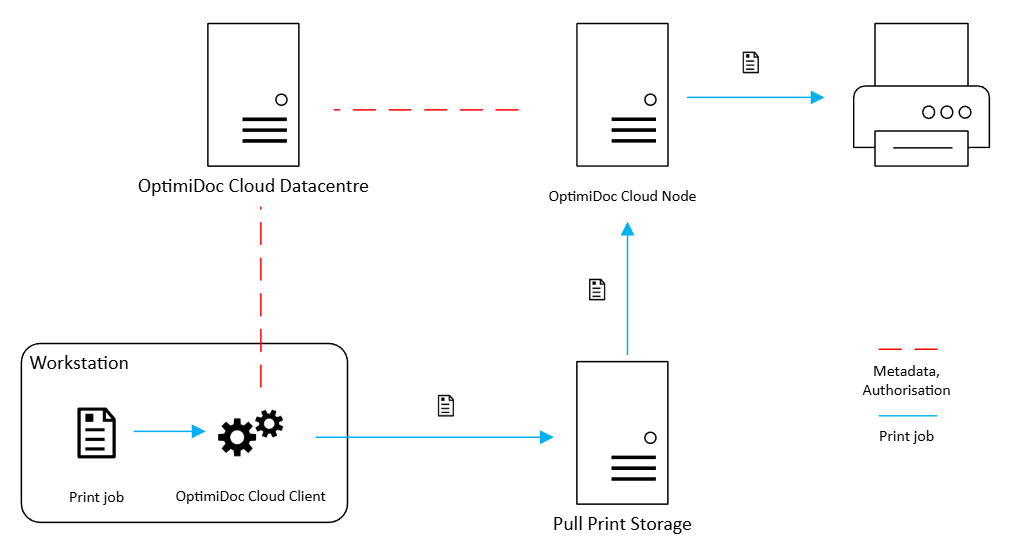
The OptimiDoc Cloud Node is required to provide this functionality, as it acts as the secure processing component responsible for downloading, modifying, and delivering the document to the final printer.
The OptimiDoc Cloud Mobile applications (iOS and Android) enable users to securely release print jobs from their personal pull‑print queue or from connected cloud‑storage services directly on any printer or MFP linked to the OptimiDoc Cloud platform. This offers full mobility and removes the need for users to interact with a workstation or device panel during the release process.
Using the OptimiDoc Cloud Mobile app, users can:
-
View their personal pull‑print queue on the mobile device.
-
Choose any available printer or MFP by scanning a QR code or selecting it from a device list.
-
Adjust final print layout (colour, duplex, copies) before releasing the document.
-
Release documents stored in cloud storage services (OneDrive, Google Drive, etc.) by navigating folders directly within the app.
Once the user requests the print release:
-
The OptimiDoc Cloud Node, positioned inside the customer’s local network, downloads the document using a temporary, time‑limited URL provided by the OptimiDoc Cloud Datacentre.
-
It then applies any required modifications to the final layout based on the user‑selected finishing settings before securely delivering the job to the target printer.
-
Delivers the job to the selected printer using the workstation’s finishing settings, with transmission primarily performed over the IPPS protocol, or alternatively via LPR or JetDirect, depending on the device configuration.
3. Accounting & Deletion
After the job is completed:
-
The device notifies the OptimiDoc Cloud Datacentre of success.
-
The print document is deleted from cloud storage based on retention policies.